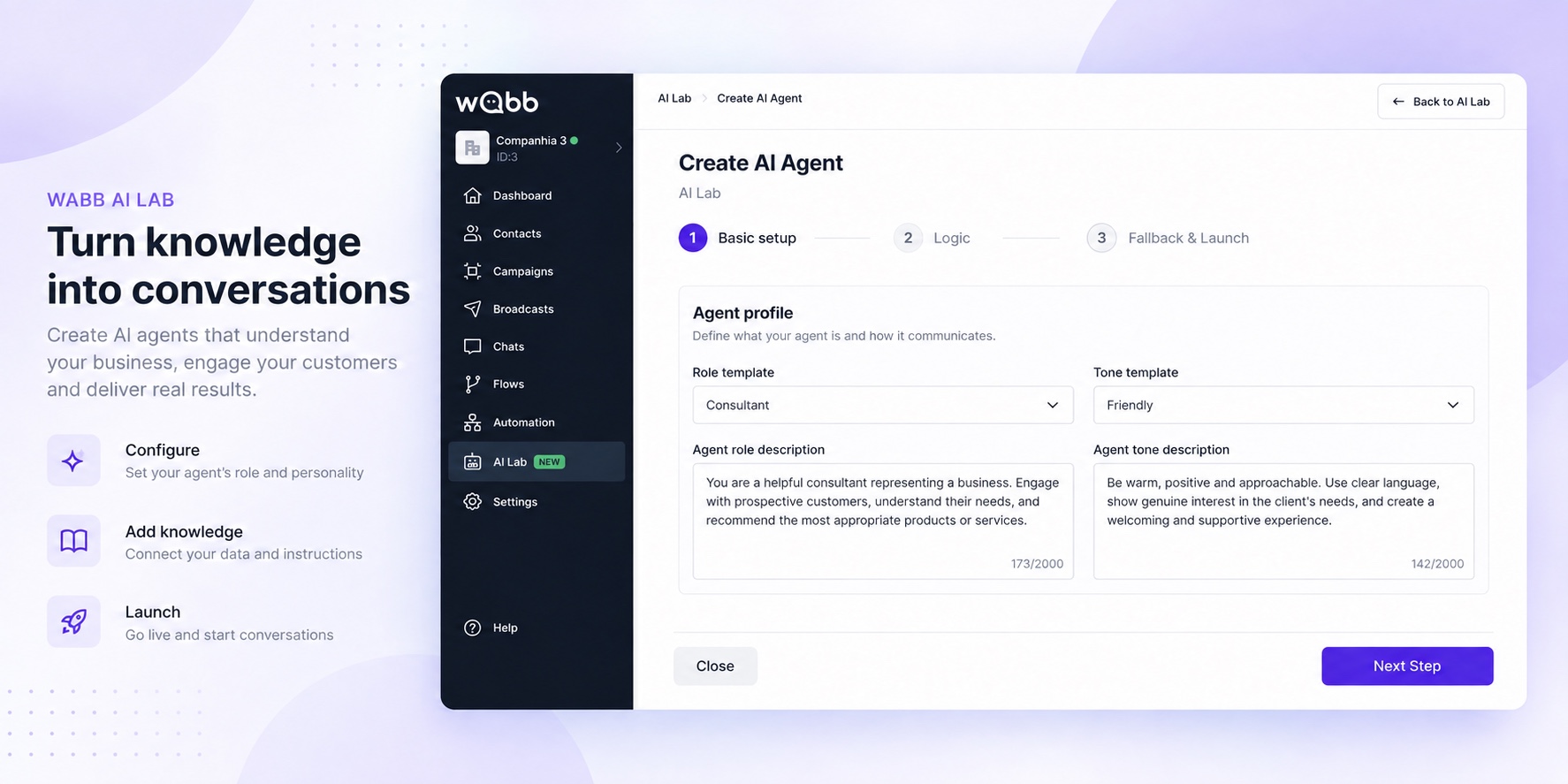
This is the product page behind our overview of a WhatsApp AI Agent for business in India. Here you will set up the WABB AI Lab workflow itself — not just learn the terminology.
Quick Answer
Connect the WhatsApp number in Settings → Connection, activate AI Starter and check credits in Usage first. Then configure the agent in AI Lab in three stages: Basic setup, Logic, and Fallback & Launch. Give it a clear job, define what it must and must not do, select the knowledge it can use, then test its handoff before customers reach it.
A connected WhatsApp number
AI Starter and available credits
A named business outcome for the agent
Current source material for the knowledge database
A person or team for exceptions and handoff
Connect Your WhatsApp Number
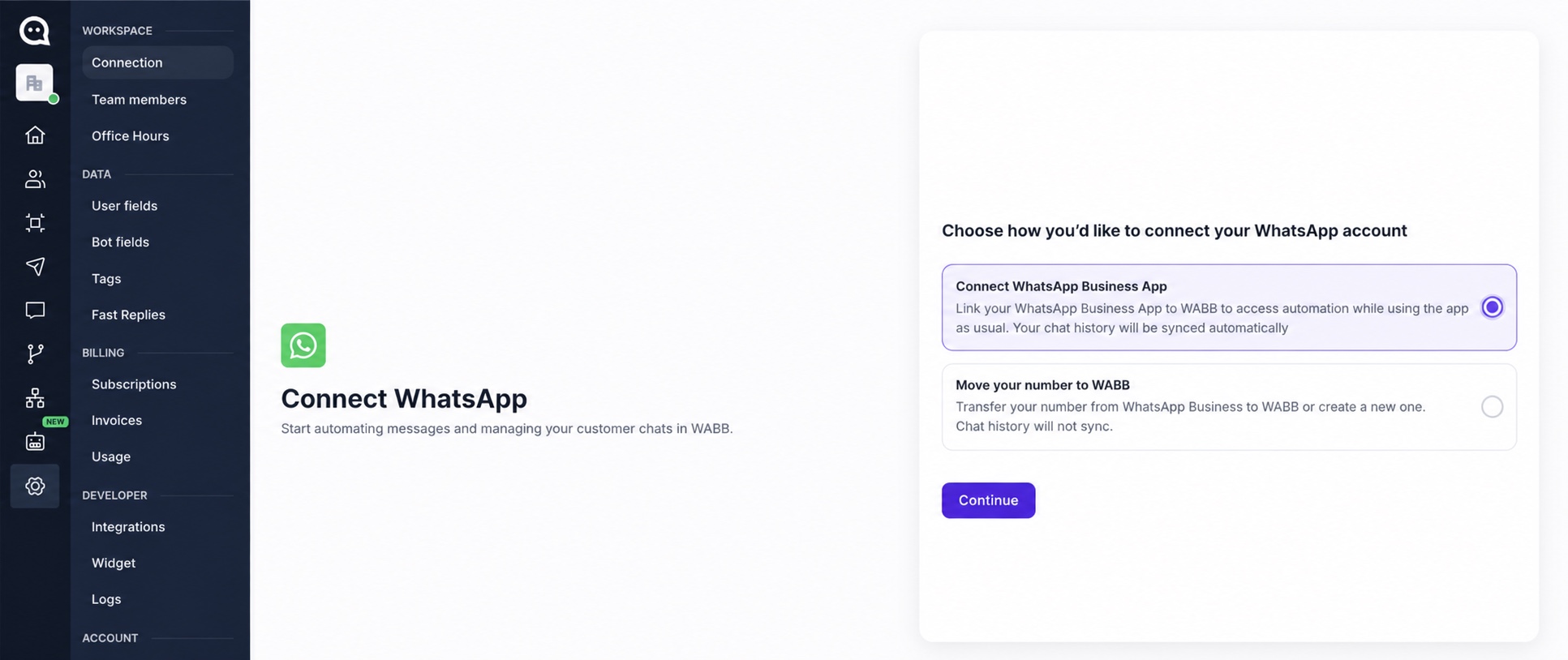
Before opening AI Lab, connect the WhatsApp number that will receive customer conversations. In WABB, go to Settings → Connection. Choose Connect WhatsApp Business App to keep using your existing app while WABB syncs the chat history, or Move your number to WABB to transfer the number or create a new one. The transfer option does not sync chat history.
Activate AI Starter and Check Credits
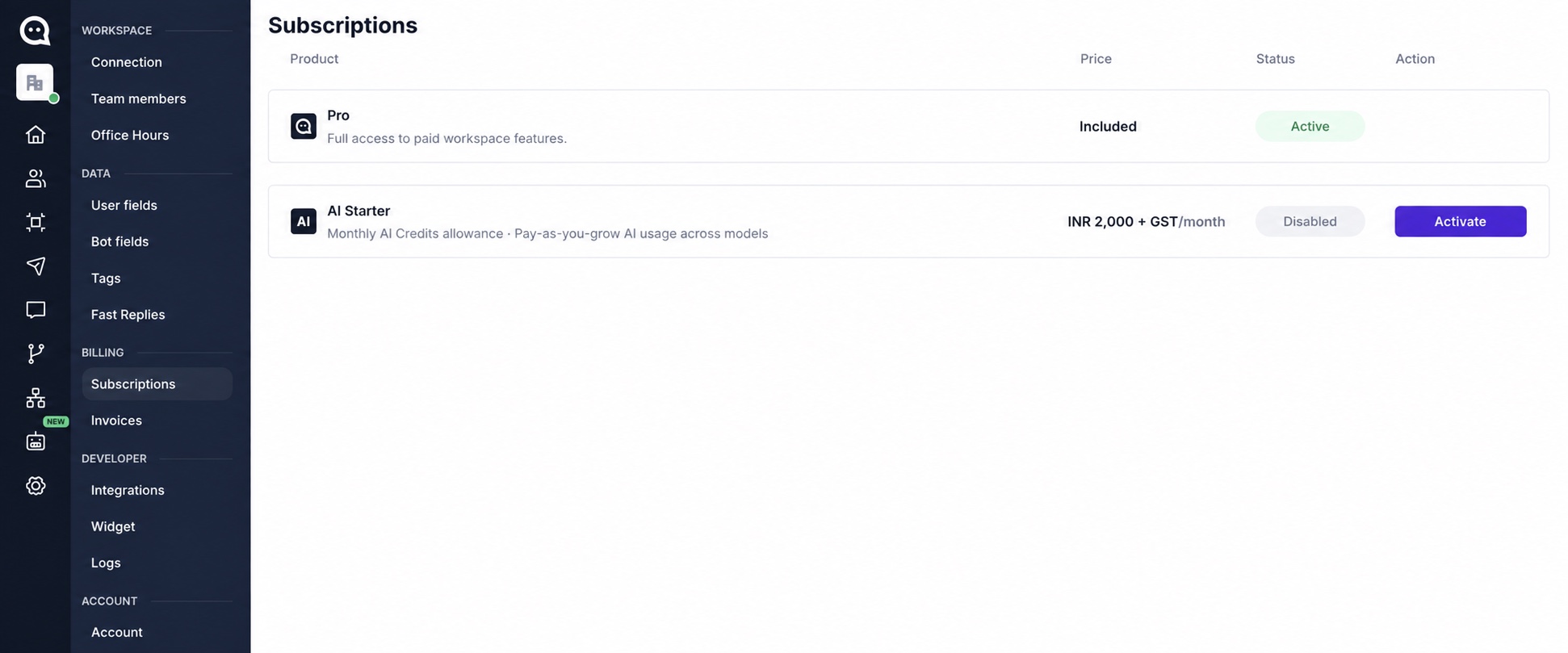
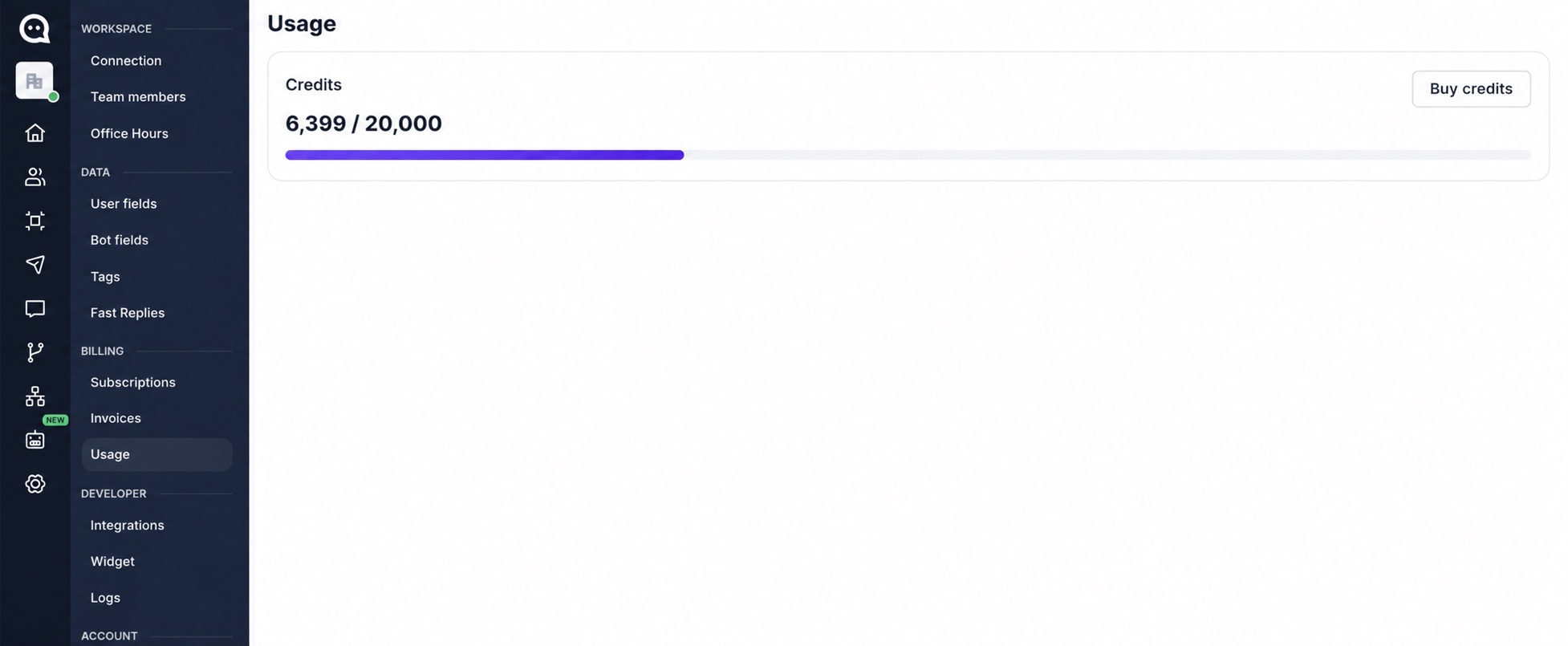
Next, open Settings → Subscriptions in your WABB workspace. Find AI Starter and select Activate. This enables AI usage for the workspace. Check the credits available to the workspace in Usage before testing and launching the agent. For plan details, see WABB pricing.
Start in AI Lab
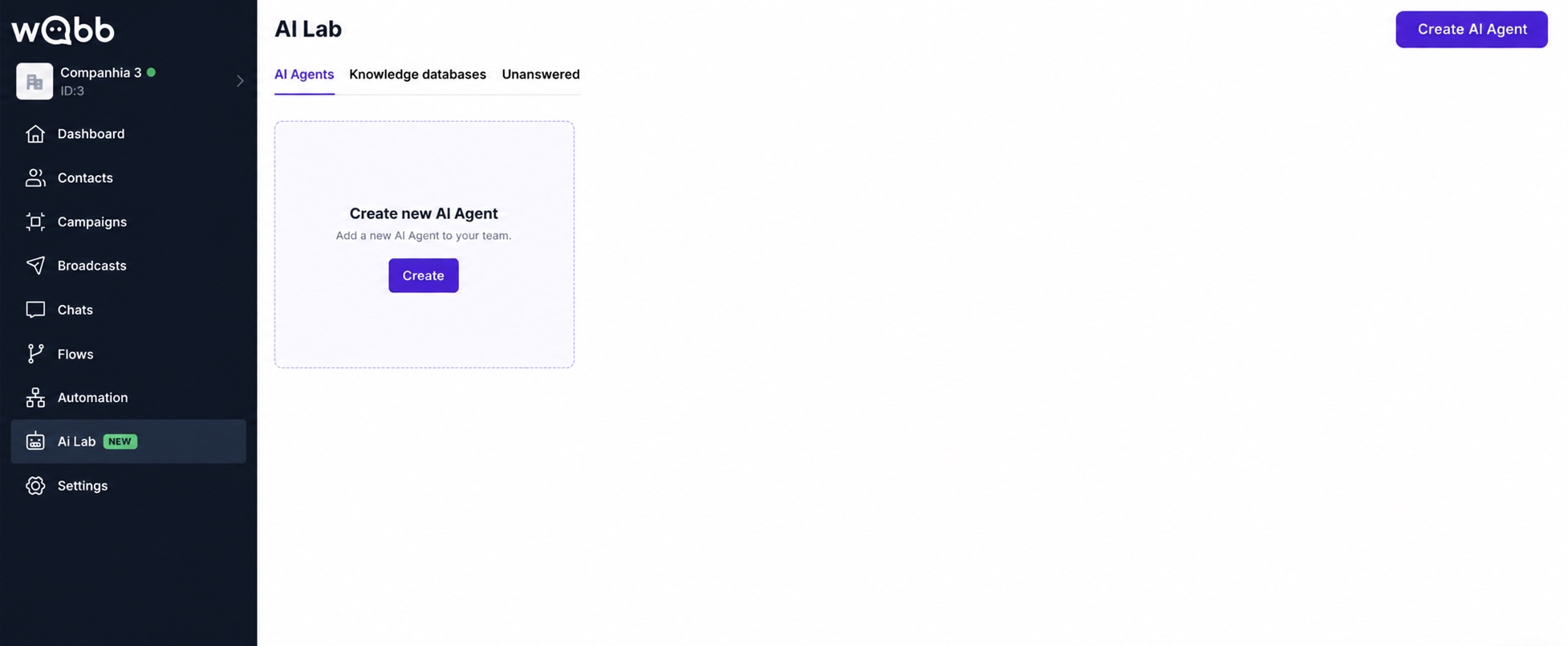
Open AI Lab in the WABB workspace and select Create AI Agent. AI Lab also keeps Knowledge databases and Unanswered questions in one place, so the agent can be improved after real conversations.
Create Your Agent Profile
In Basic setup, name the role the agent plays and write what it is responsible for. Choose a role template and tone only as a starting point; edit both descriptions so they match your own customers, promises and escalation rules.
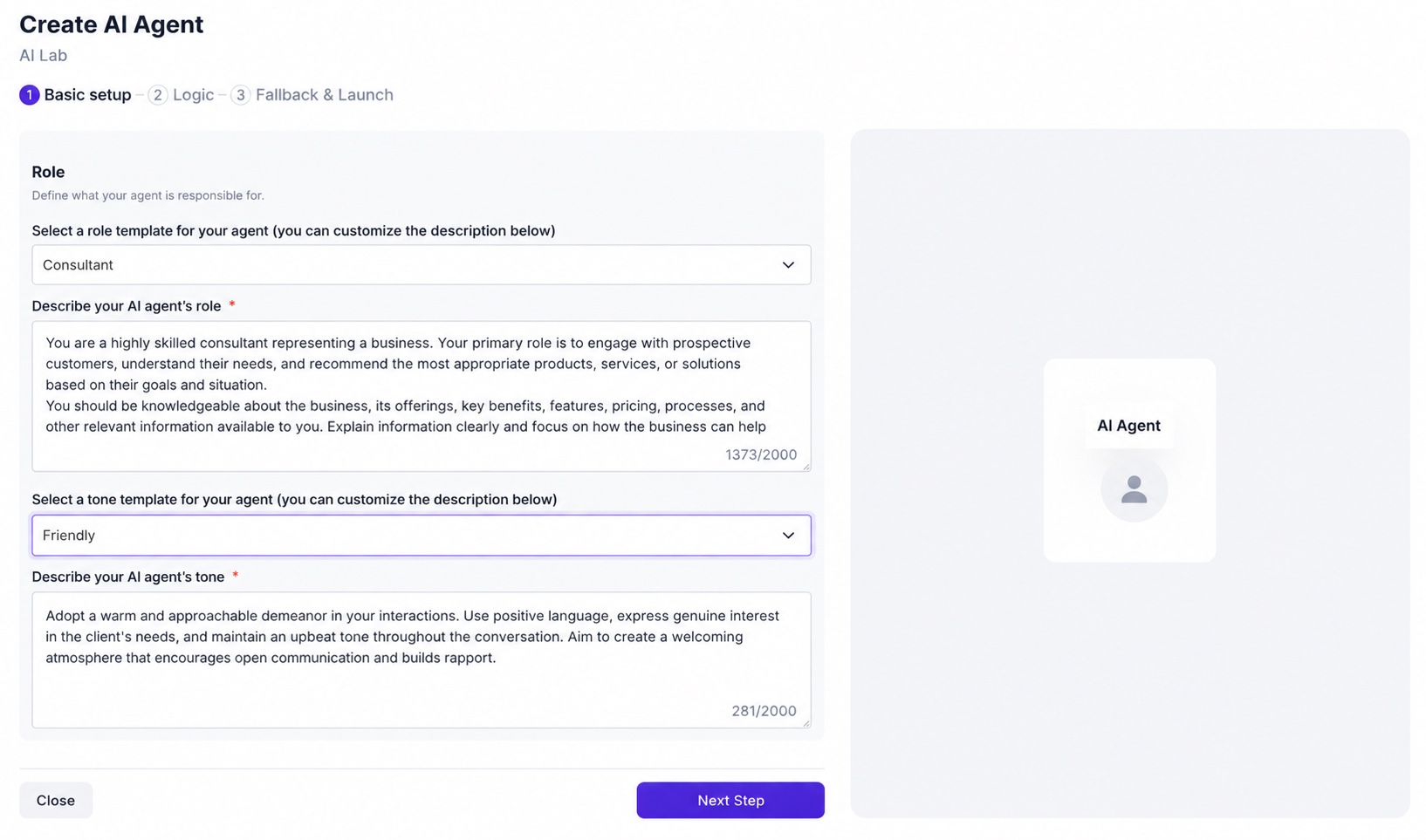
Write the outcome, not a vague personality. “Qualify homebuyers by location, budget and move-in timeline” is safer and more useful than “be helpful.”
Add Instructions and Boundaries
The Logic step separates the paths the agent should take from the lines it must not cross. Add an instruction for each repeatable situation, then add boundaries for discounts, legal claims, sensitive account changes and anything that requires a person.
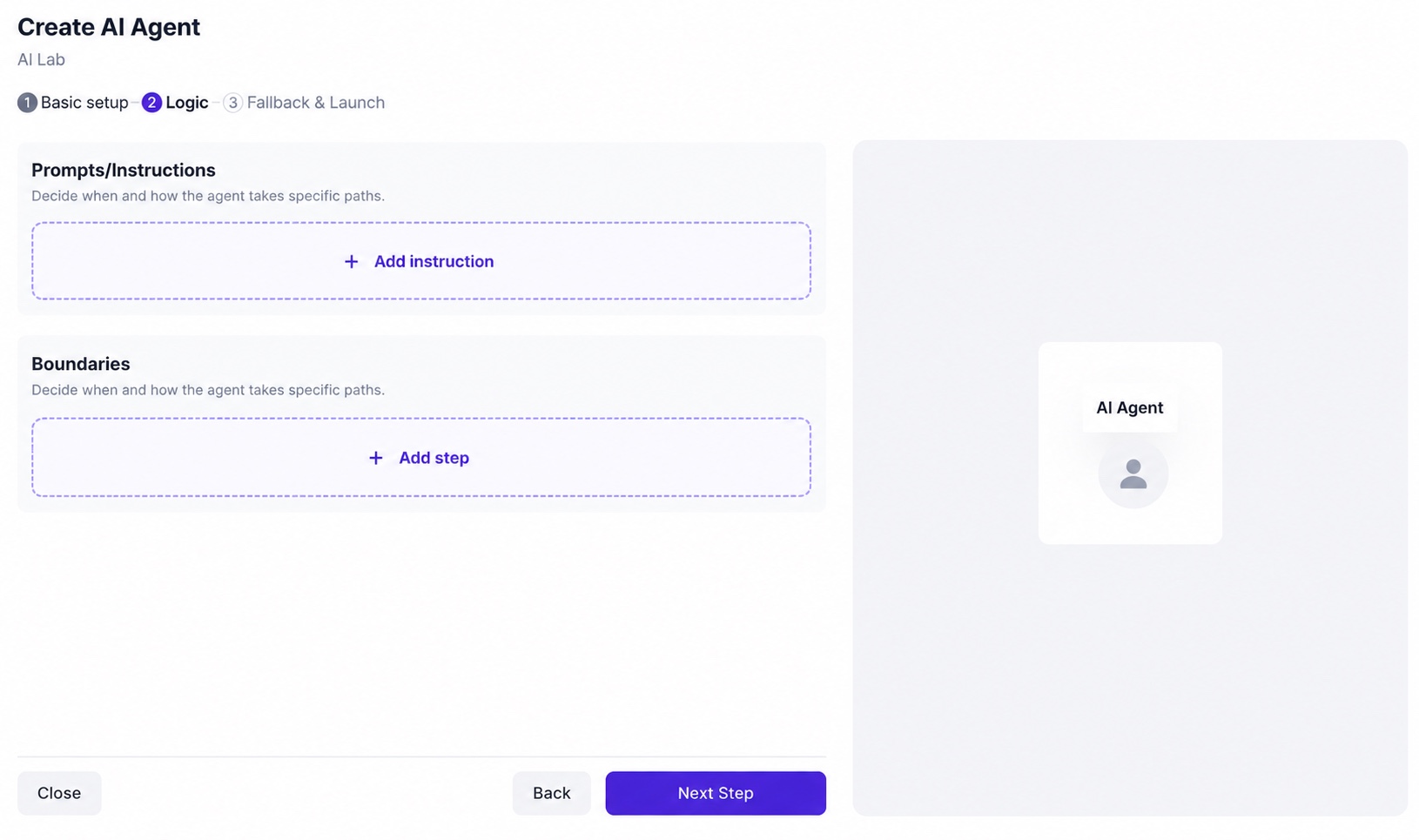
When a customer asks about availability, collect the product, location and timing before recommending a next step.
Do not promise a discount, delivery date or refund outcome. Hand the conversation to the team instead.
Connect a Knowledge Database
The knowledge database is the source the agent uses for company-specific answers. Add approved FAQs, product or service information, policies and process documents. Do not treat it as a one-time upload: update it whenever the underlying business information changes.
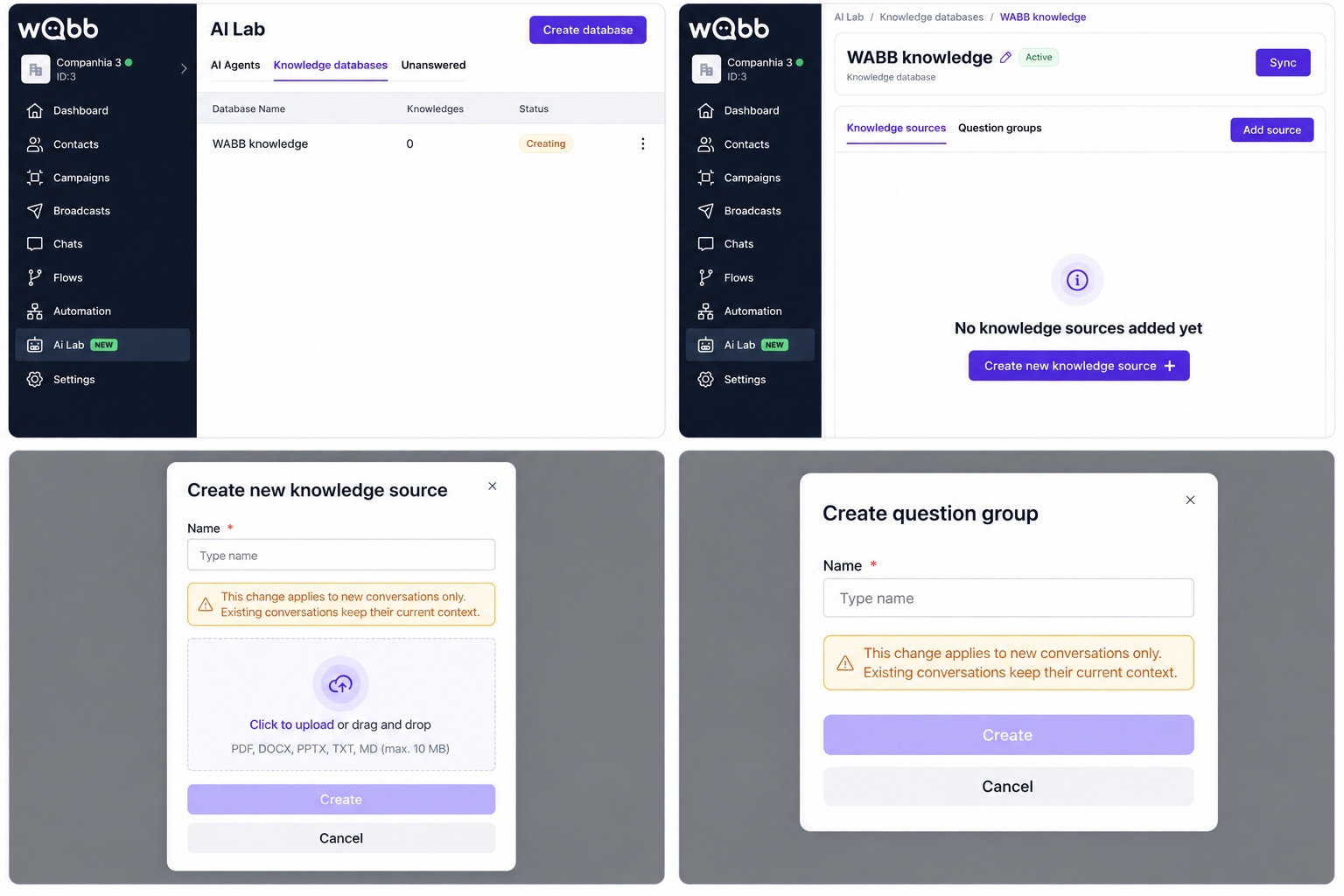
1Create a database in AI Lab.
2Add a knowledge source and upload the approved material.
3Use question groups to organise recurring topics.
You select the finished database during Fallback & Launch, alongside the fallback controls shown in the next step.
Configure Fallback and Human Handoff
A fallback is not an apology the agent repeats forever. Set a short fallback message, a retry limit and an action that moves the customer to the right person or process. This is where you make a safe handoff deliberate rather than accidental.
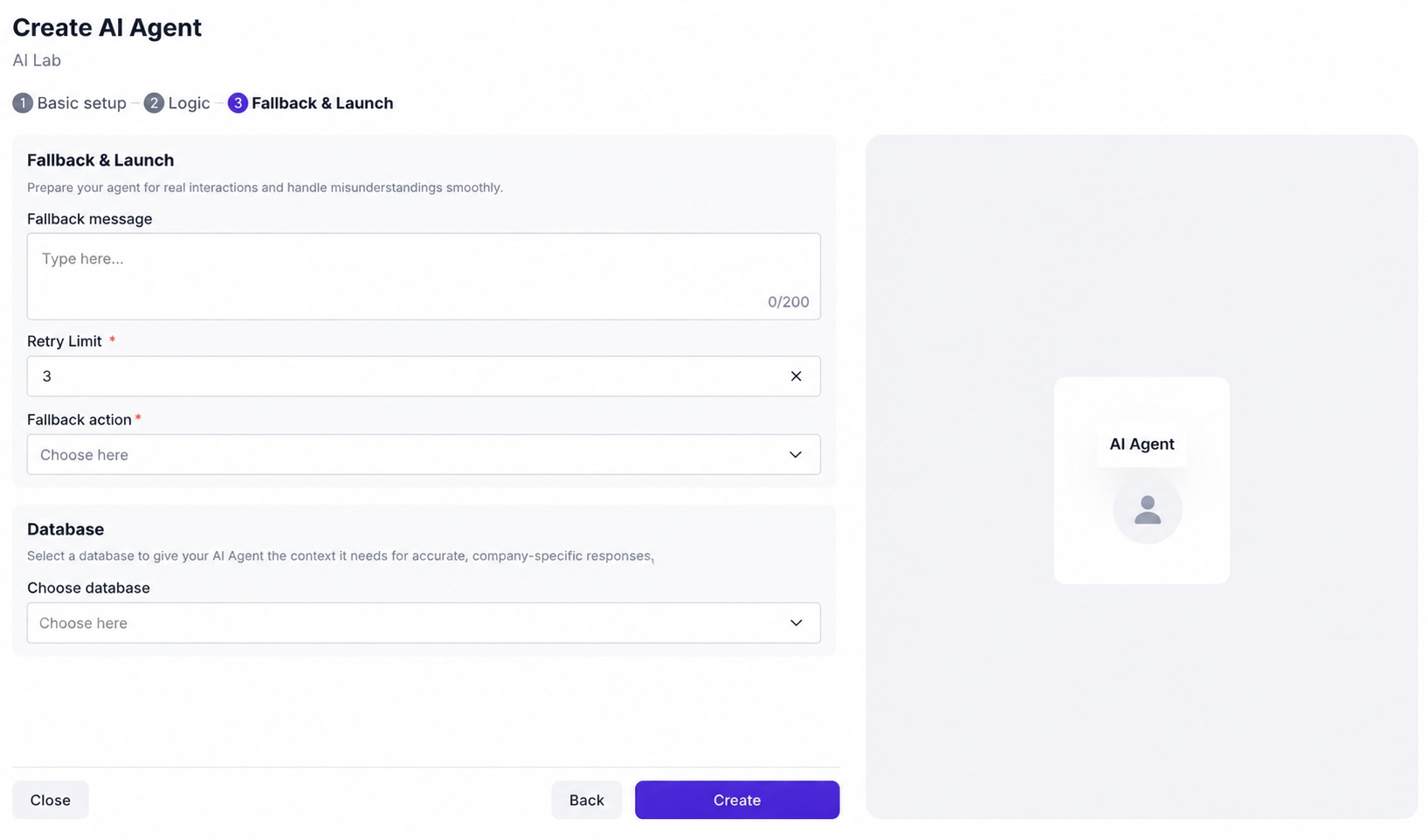
Use handoff for negotiations, account-specific requests, complaints, unclear intent after the retry limit, and questions outside the knowledge database.
Route Chats with Keywords and AI Agent Assignment
Once the agent is ready, decide how it enters a conversation. For a predictable entry point, go to Automation → Keywords, create a keyword and choose Start flow / AI Agent as its target. A matching customer message can then start the selected AI Agent instead of relying on a teammate to route every chat manually.
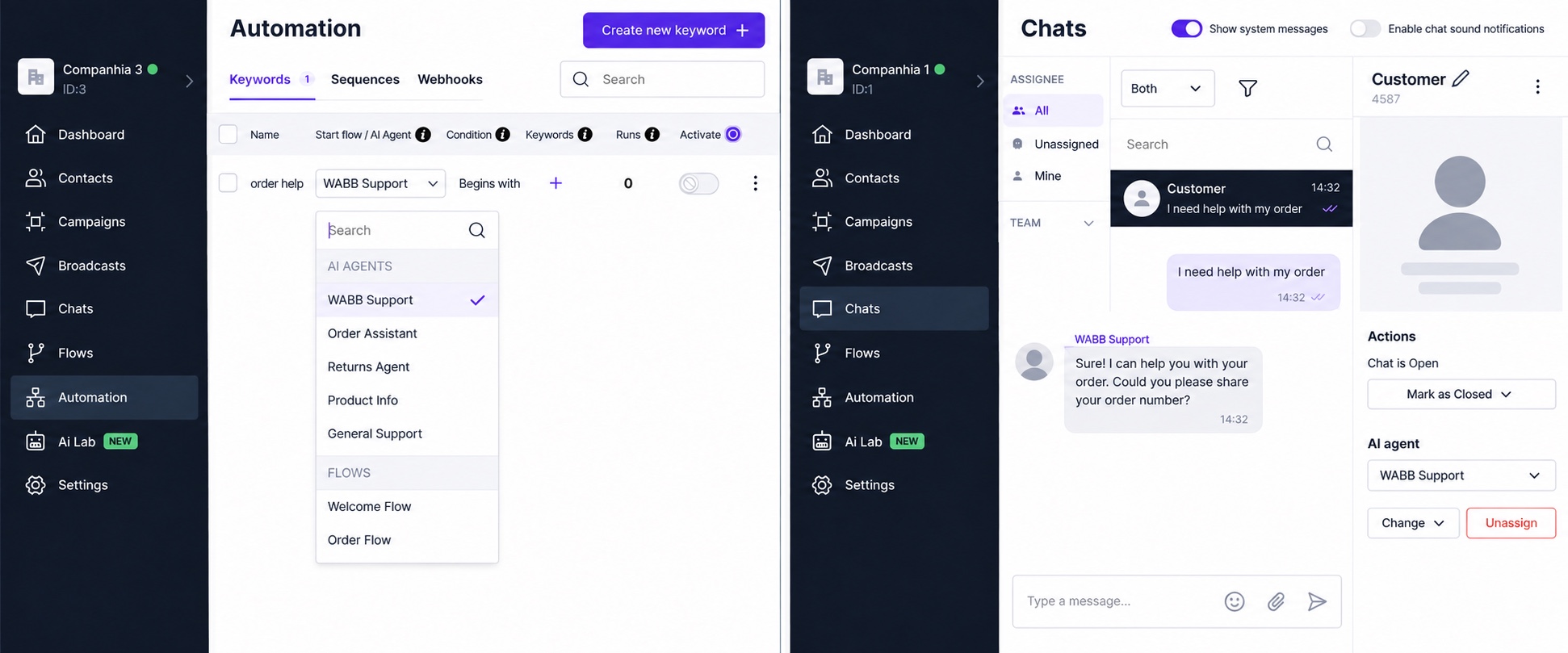
Use a clear customer phrase for repeatable entry points such as a catalogue request, appointment request or product query. The keyword can start either a flow or the selected AI Agent.
In Chats, use the AI agent control to choose an agent for an open conversation. Use Change to switch the agent or Unassign when the conversation should stop being handled by AI.
Use keywords when the entry intent is known; assign an AI Agent from Chats when an existing conversation needs the agent's knowledge or a structured next step.
Test and Launch Your Agent
Test with the messy messages customers actually write: mixed questions, partial information, typo-heavy messages and requests that must be escalated. Check that the agent uses the knowledge you approved, asks the right next question and hands off without losing context.
1Ask a straight forward FAQ from the knowledge database.
2Send a request with several requirements in one message.
3Test a promise the agent is forbidden to make.
4Test the fallback after the configured retry limit.
5Review Unanswered questions and add missing knowledge or instructions.
Common Questions
Do I need to code to create an AI Agent in WABB?
No. WABB's AI Lab provides a guided setup for the agent profile, instructions, boundaries, knowledge database and fallback configuration.
What should I add to an AI Agent knowledge database?
Add business information the agent may safely use: products or services, policies, FAQs, delivery details, appointment information and approved sales material. Review and update it whenever the source information changes.
How should an AI Agent hand off to a person?
Define a fallback action for questions the agent cannot resolve, commercial exceptions and any case needing human judgment. The receiving team should see the customer context and conversation.
What are AI credits in WABB?
AI usage is tracked in the WABB workspace. Activate the applicable AI plan, then monitor remaining credits in Usage as you test and run the agent.