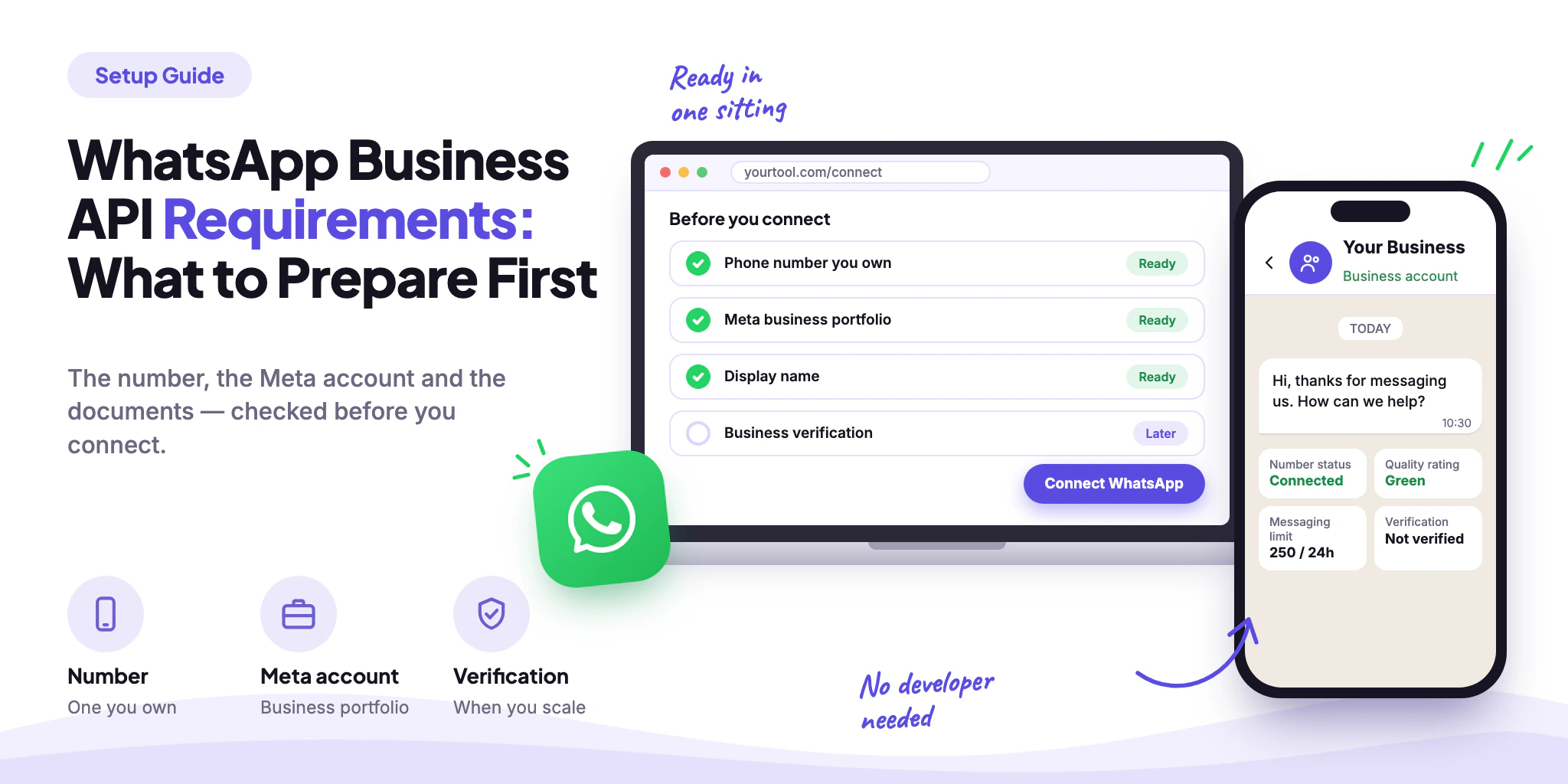
Connecting a number to the WhatsApp Business API sounds technical, but for most businesses it comes down to three things: a number you can verify, a Meta account to attach it to, and a name customers will recognise. Here is exactly what to have ready before you start, what Meta checks, and what the connection looks like in WABB.
WhatsApp API Requirements: Quick Answer
The short version:
A phone number you own that can receive a call or an SMS code — and is either new or already on the WhatsApp Business app. A personal WhatsApp number has to be disconnected first.
A Facebook login with access to your Meta business portfolio (Meta calls it a business portfolio; you may know it as Business Manager). It can be created during sign-up.
A display name that matches your business — Meta reviews it before the number can message.
Business verification is not a day-one requirement. You can connect and start with the 250-conversation limit; verify when you need to grow past it.
A website that loads over HTTPS Needed to complete Meta's business verification — not required to start messaging with the 250-conversation limit.
No developer, access token or webhook server is needed when you connect through a platform like WABB.
What You Actually Need (and What Only Developers Need)
Guides to the Cloud API start with access tokens and webhooks, because that is what calling it directly takes. If you connect through a platform, most of that list disappears:
| Item | Calling the Cloud API yourself | Connecting through WABB |
|---|---|---|
| Meta business portfolio | Required — the container for your WhatsApp account. | Required. Created or selected when you log in with Facebook. |
| WhatsApp Business Account + phone number | You create it and register the number yourself. | Selected or created in the same sign-up window. |
| Meta developer account and app | Required to call the API. | Not needed. |
| Access token | A permanent system-user token you generate and store. | Not needed — WABB handles Meta’s authorisation on its side; you approve permissions and return to WABB. |
| Webhook endpoint | A secure server of your own that receives messages. | Not needed — there is no webhook step in the connection. |
| Two-step verification PIN | Required by Meta: a 6-digit PIN set when the number is registered. | Not asked for in the WABB flow — registration is handled for you. |
| Website | Required for Meta business verification — must load over HTTPS, in the business's legal name. | Same requirement — Meta checks it when you verify the business, not before you start messaging. |
Source: Meta for Developers — WhatsApp Cloud API: Get Started, checked October 2026.
The Phone Number: Which Numbers Work
The number must be yours, have a country and area code (short codes are not supported) and receive a voice call or SMS — that is how Meta verifies it. Mobile is recommended:
| Number type | SMS code | Voice-call code | Watch out for |
|---|---|---|---|
| Mobile number | Works | Works | Meta’s recommended type. |
| Landline | Not recommended | Works | Must take incoming calls; switch off call forwarding and IVR menus. |
| Virtual (VoIP) number | Not recommended | Works | The provider must accept international SMS and calls. |
| Toll-free (1800) | Not recommended | Works | Behind an IVR it only works if it accepts international calls and reaches a real person. |
Source: Meta for Developers — Business phone numbers, checked October 2026.
What If the Number Is Already on WhatsApp?
This is the most common blocker. Meta does not register a number that is already in use with WhatsApp unless it is deleted first — with one exception: a number on the WhatsApp Business app can be onboarded through a partner that supports it, without deleting the account. A registered number also can’t be used with the regular WhatsApp Messenger app.
You use the WhatsApp Business app and want to keep using it
Choose Connect WhatsApp Business App. The number stays in the app, the chat history is synced, and WABB adds automation on top.
Your number is on personal WhatsApp or the app, and you can move it
Choose Move your number to WABB. Disconnect the number from the app first; chat history does not come along.
You are starting fresh
Also Move your number to WABB — and register a new number. It is the cleanest start, and the one WABB recommends.
The three starting points, matched to WABB’s two connection options.
Choosing How to Connect in WABB
In WABB, open Settings → Connection and press connect. The first screen asks one question — how you want to connect your WhatsApp account:
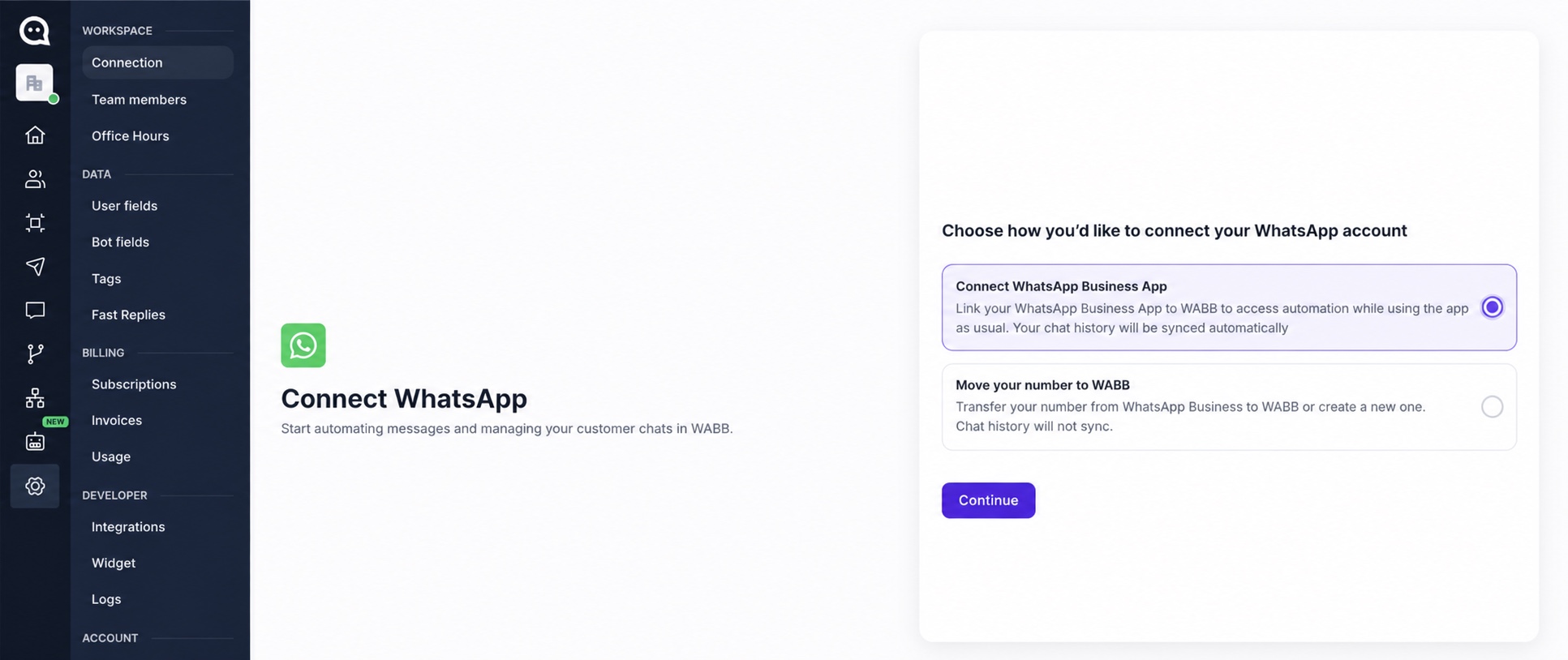
| Connect WhatsApp Business App | Move your number to WABB | |
|---|---|---|
| Chat history | Synced during setup — Meta covers messages from the last 180 days. | Not transferred. |
| WhatsApp Business app | Keep using it alongside WABB. | The number leaves the app. |
| Requirement | WhatsApp Business app version 2.24.17 or higher, and a country code supported for the app. | A number that isn’t active on personal WhatsApp — or a new number. |
| Not available | Group chats and broadcast lists; voice and video calls. | Group messaging and calls. |
| Best for | A small team already working from the app. | A clean start, or a number you can retire from the app. |
Source: Meta for Developers — Onboarding WhatsApp Business app users, checked October 2026.
Route 1: Connect the WhatsApp Business App
After Continue, WABB shows a short Check before you connect list: you already use the WhatsApp Business App (new to it? See WhatsApp Business on Web and Desktop), your number’s country code is supported for WhatsApp Business, and the app is on version 2.24.17 or higher — update it first if you’re not sure.
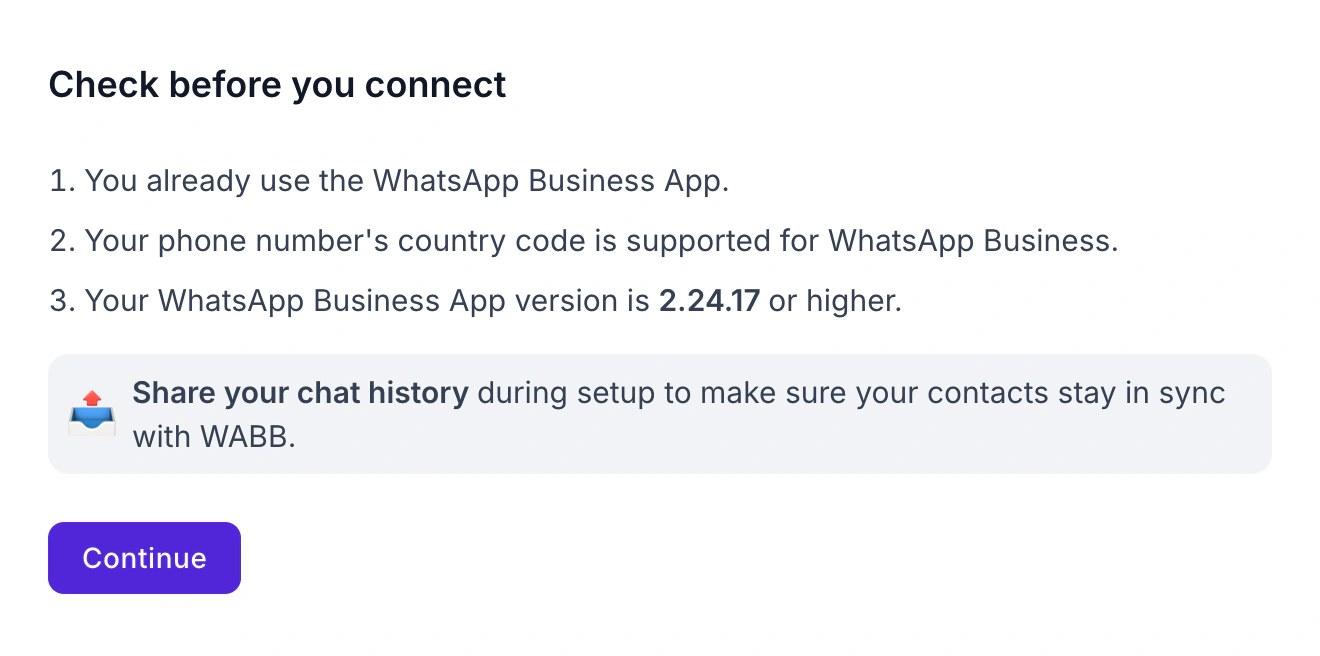
WABB also asks you to share your chat history during setup so contacts stay in sync. Do it there and then: Meta expects the history sync to happen right after onboarding. After this you are sent to Facebook to approve access, then back to WABB.
Two limits to know about on this route. Meta lists group chats, broadcast lists and calls among the features that don’t work while a number is on both the app and the API. And if the phone isn’t used for about two weeks, WhatsApp can disconnect the number from the API — open the app now and then.
Route 2: Move the Number to WABB
Here WABB spells out the trade-offs before you continue: you can’t use a personal WhatsApp number for both personal and business, so disconnect it first or connect a new number; chat history won’t be transferred; group messaging and calls aren’t supported.
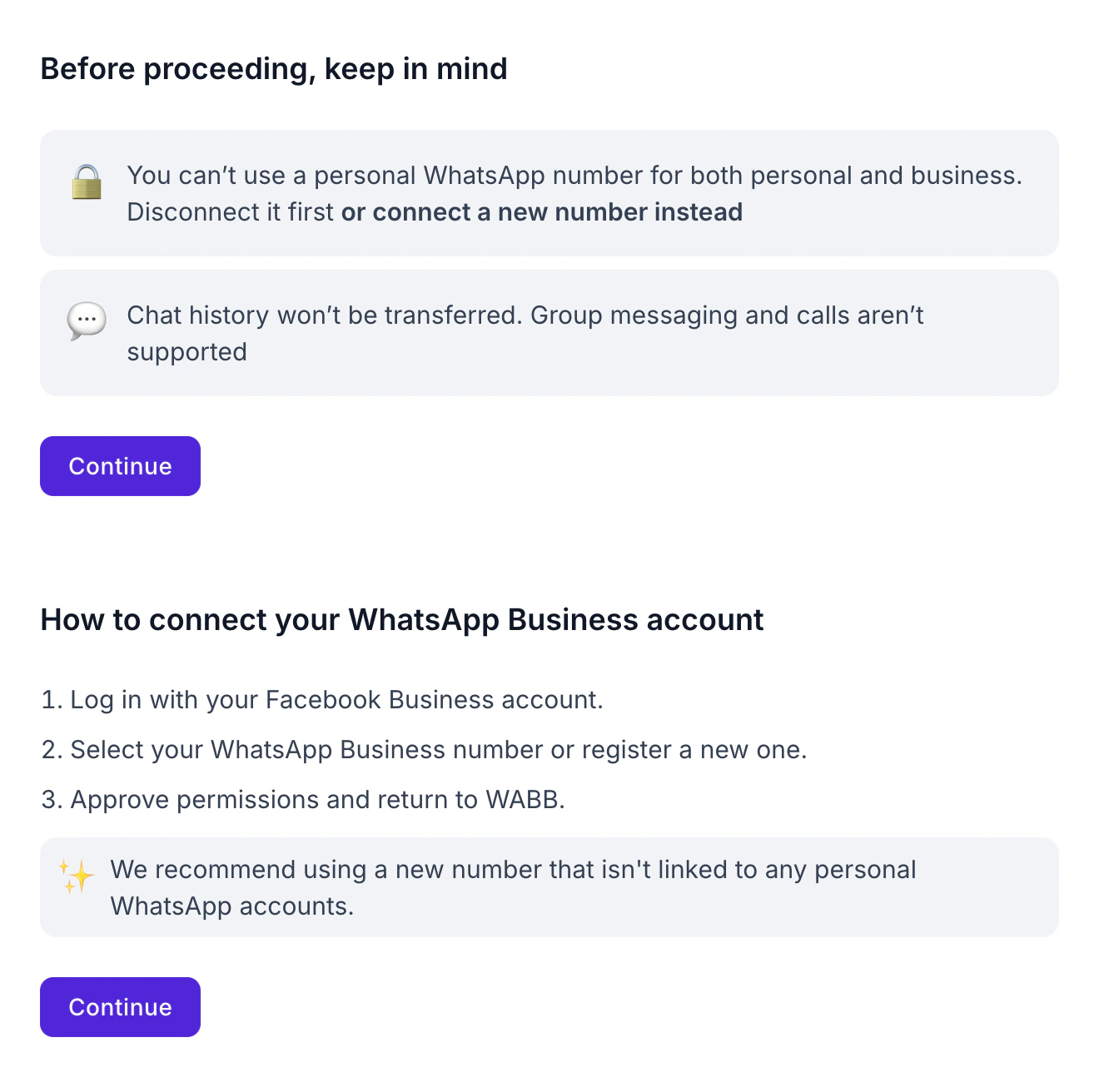
The sign-up that follows has three steps: log in with your Facebook Business account, select your WhatsApp Business number or register a new one, then approve permissions and return to WABB. WABB recommends a new number that isn’t linked to any personal WhatsApp account. It avoids the deleted-account step and keeps your personal chats where they are.
Meta Business Portfolio, Admin Access and Display Name
The Facebook login in the sign-up window is not decoration. It ties your WhatsApp Business Account to a Meta business portfolio, and three details decide whether things go smoothly:
Source: Meta for Developers — Business phone numbers, checked October 2026.
You are also asked to approve permissions to manage your business and WhatsApp account and to send messages on its behalf. These are what let WABB send and receive from your number; you can review them in your Meta business settings.
The Display Name
Meta requires a display name when a business number is registered and reviews it. It appears on the profile and can show in the chat list, so use the name customers already know — the one on your website, invoices and signboard. A name that looks unrelated is the easiest way to get a number stuck in review. In WABB the name shows as Display name on the Connection page.
Business Verification and Messaging Limits
Business verification is the part people dread, and the part you can mostly postpone. A new business portfolio starts at a limit of 250 business-initiated conversations per rolling 24 hours, shared by all numbers on it. Meta moves it to 2,000 when you complete one of three things:
Verify your business with Meta.
Have a partner verify it, if a partner onboarded you.
Send 2,000 delivered messages outside customer service windows, to unique numbers, within 30 days — using high-quality templates.
Source: Meta for Developers — Messaging limits, checked October 2026.
Above 2,000 the limit scales through 10,000 and 100,000 to unlimited as your message quality holds. Verification also lifts the number cap from two to twenty. In WABB it has one more effect: the profile picture can’t be changed until the business is verified and the number is connected.
What Meta Asks For
One document that validates your legal business name and its official address or phone: incorporation certificate, business registration or licence, a government-issued tax document (self-filed ones don’t count) or a business bank statement. A utility bill works only for the address or phone, not the name.
Current, in English or Hindi (or with a stamped English translation), with personal numbers such as a tax ID covered.
Proof you represent the business: a code sent to the business phone or email, or domain verification. Start in Security Centre in Meta Business Suite, as a portfolio admin.
A website that loads over HTTPS with no broken links — a common reason for rejection, along with false information and claiming a portfolio you don’t own. A rejection can be appealed from Security Centre.
Source: Meta Business Help Centre — documents, about verification, rejections; checked October 2026.
Worth knowing
You don’t have to wait for approval to start. Connect the number, send within the 250 limit, and submit verification in parallel. See WhatsApp bulk messages for how the limit applies to campaigns.
After You Connect: What to Check in WABB
When the sign-up finishes, Settings → Connection turns into a status page for the number. Press Refresh data to pull the latest values from Meta. Every requirement from this guide shows up here as a card:
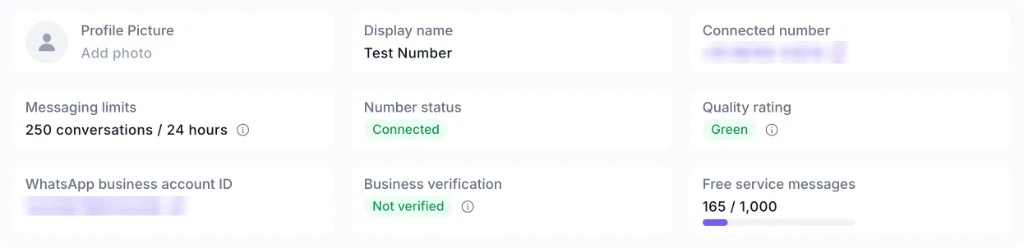
| Card | What it tells you | What to do |
|---|---|---|
| Connected number | The number WABB sends from and receives on. | Confirm it is the number customers already know. |
| Display name | The name customers see on the profile. | If it looks wrong, fix the name before launching. |
| Number status | Must say Connected for messages to flow. | Anything else: press Refresh data, then check the number in Meta’s WhatsApp Manager. |
| Quality rating | How recipients receive your messages — the legend is in the screenshot below. | Yellow or Red: slow down campaigns and review opt-ins. |
| Messaging limits | How many business-initiated conversations you can start in 24 hours — 250 on a new portfolio. | Plan campaigns inside the limit; raise it by verifying. |
| Business verification | Shows Not verified until Meta approves your business. | Needed to raise the limit and to change the profile picture in WABB. |
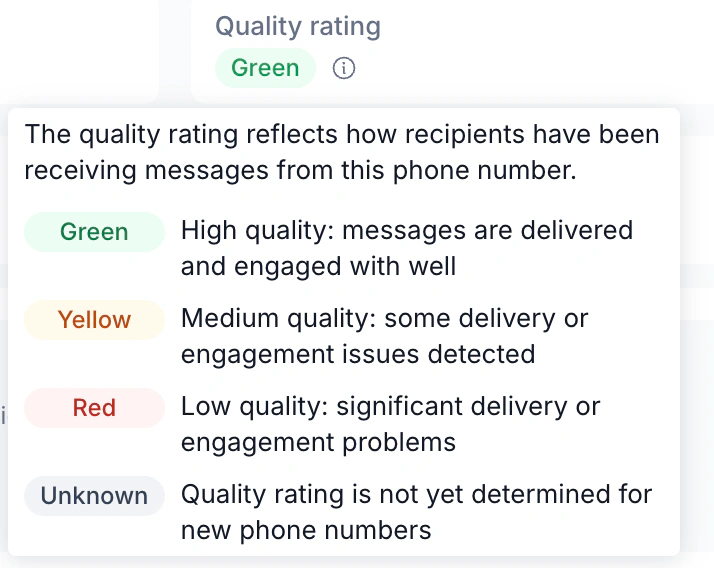
Below the cards the same page holds the pieces you set up next: Conversation starters, the Welcome message, the Default response and a Message templates tab.
Common Problems When Connecting a Number
| Problem | Likely cause | Fix |
|---|---|---|
| The number is already registered on WhatsApp | The number is still registered on personal WhatsApp or the Business app. | Use Connect WhatsApp Business App if it’s a Business app number; otherwise delete the account on that app first, or register a new number. |
| The verification code never arrives | A landline or virtual number can’t take SMS, or an IVR answers the call. | Request the code by voice call, switch off forwarding and IVR for the moment. |
| Display name not approved | The name doesn’t match the business or website. | Submit a name that matches the brand customers know. |
| Business verification rejected | The document doesn’t validate the legal name and address you entered, it is expired or self-filed, or the website fails to load over HTTPS. | Fix the details or the website, then appeal from Security Centre with a current, accepted document. |
| Can’t add another number | A new business portfolio is capped at two registered numbers. | Verify the business: the cap rises to 20. |
| Number disconnected from the app | On the Business app route, the phone was inactive for about two weeks. | Open the Business app on the phone regularly, and reconnect the number in WABB. |
| Limit stays at 250 | Meta raises it only after verification or enough high-quality template sends. | Verify the business, or build up quality sends over 30 days. |
You’re Connected — What Comes Next
A connected number only sends and receives. What makes it useful is built on top, in the same workspace:
Welcome message and flows
Greet new contacts and route the questions that repeat. See WhatsApp automation for business.
AI Agent
Handles what a fixed flow can’t predict. Learn what an AI agent is or build one with WABB.
Campaigns and templates
Plan sends inside your limit — see WhatsApp bulk messages.
FAQ
Common Questions
What do I need before using the WhatsApp Business API?
A phone number you own, a Facebook login with access to a Meta business portfolio, and a display name for your business. Business verification and developer tools aren’t required to start. See the quick answer.
Do I need Meta Business Verification to start?
No. You can connect a number and message with the starting limit of 250 conversations per 24 hours. Verification raises the limit and the number cap, and in WABB it is required to change the profile picture. See Verification and Messaging Limits.
Can I use the number from my WhatsApp Business app?
Yes. Choose Connect WhatsApp Business App in WABB: the number keeps working in the app and the chat history is synced. The app must be version 2.24.17 or higher. See Choosing How to Connect.
Can I use my personal WhatsApp number?
Not while it is a personal WhatsApp account. Per Meta, a number already in use with WhatsApp cannot be registered unless it is deleted first, and a registered number can’t be used with WhatsApp Messenger. Disconnect it or connect a new number.
What does the WhatsApp Business API cost?
Meta charges per message and platform plans are billed separately. The costs are broken down in WhatsApp Business API pricing in India.