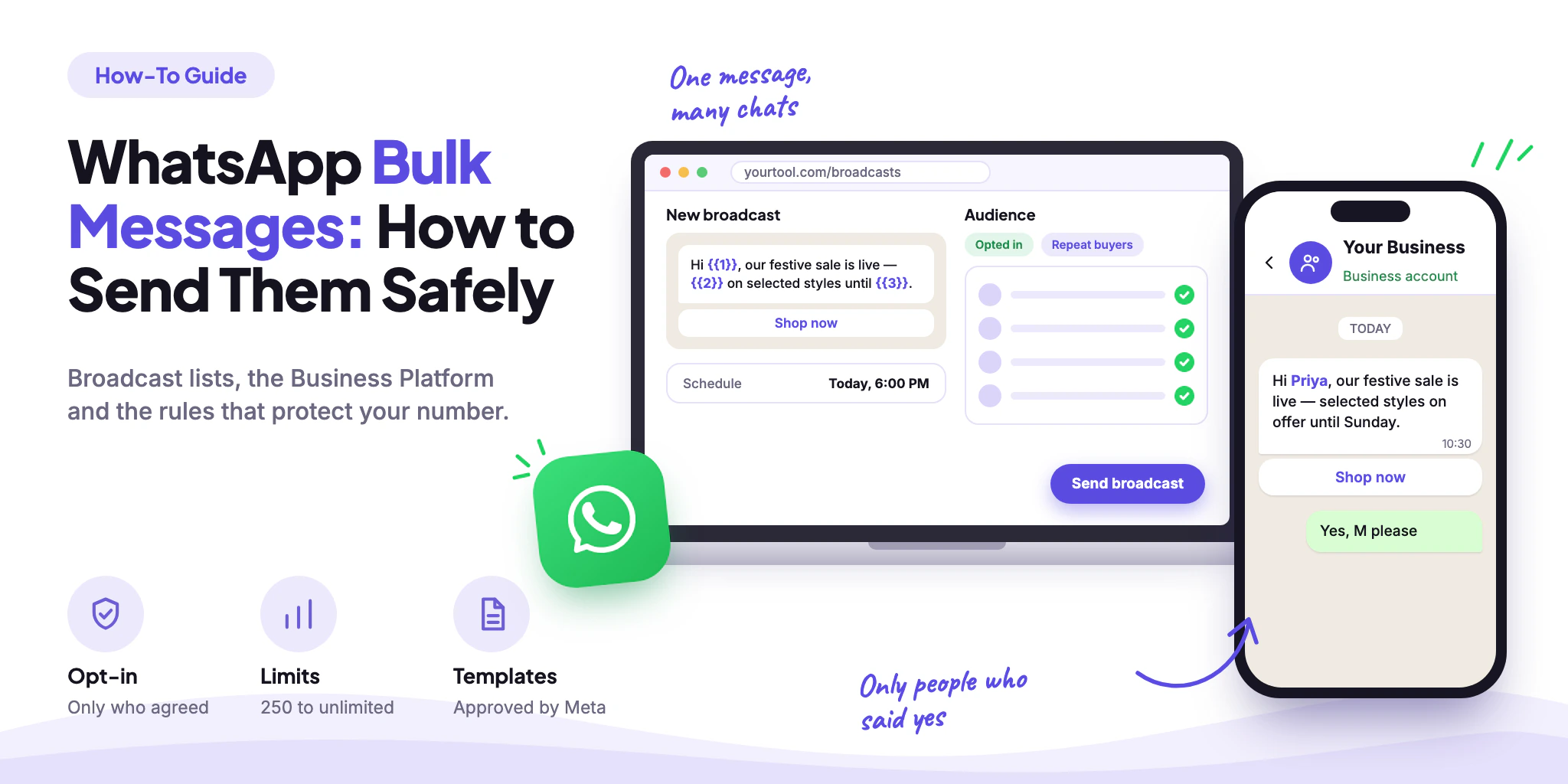
Sending one message to hundreds or thousands of customers is the fastest way to put an offer or a reminder in front of them — and the fastest way to lose a WhatsApp number if it’s done carelessly. Here’s how bulk messaging on WhatsApp really works: the three routes, the limits and costs that apply, how to send a campaign step by step, and what to do when the replies come in.
WhatsApp Bulk Messages: Quick Answer
The short version:
Bulk messaging on WhatsApp means sending one message to many contacts at once — an offer, a reminder, an update. It is allowed, as long as every recipient has agreed to hear from you.
There are two safe routes. For a small list, a broadcast list in the WhatsApp Business app (up to 256 contacts per list, who must have saved your number). For anything bigger, the WhatsApp Business Platform through a provider, using Meta-approved message templates.
On the Platform, a new business portfolio can message 250 unique people in a rolling 24 hours outside the customer service window. The limit rises to 2,000 and beyond as you verify the business and keep quality high.
Numbers get restricted for messaging people who didn’t opt in, for unauthorised bulk tools, and for messages people block or report. No tool can promise you won’t be blocked — consent, relevance and restraint are what protect a number.
What Are WhatsApp Bulk Messages?
Bulk messaging is sending the same message — personalised with a name or an order number — to many people in one go. On WhatsApp each recipient gets it as a normal one-to-one chat message, not in a group, so replies come back to you privately.
The part that decides whether it works is not the sending. It’s who is on the list and why:
A bulk campaign starts with consent and ends in conversations.
Worth knowing
Bulk messaging here means opt-in messaging — offers, reminders and updates to people who agreed to receive them. Messaging strangers from a scraped list is spam, and it’s what the rest of this guide helps you stay away from.
Why WhatsApp Numbers Get Blocked
WhatsApp doesn’t publish a message count at which a number is banned. What it does publish are the rules, and almost every lost number traces back to one of these six:
Messaging people who never opted in
WhatsApp’s Business Messaging Policy only allows you to message someone who gave you their number and agreed to hear from you. Bought, scraped or very old lists break this first.
Using unauthorised bulk tools
The same policy prohibits messaging people at scale in an unauthorised manner. Browser extensions and “bulk senders” that drive a personal or Business app number are the usual way people end up here.
Blocks and reports
High negative feedback — blocks and reports — can limit your messaging volume or access, and templates that people react badly to can be paused.
Sending too often to the same people
For marketing templates, WhatsApp also caps how many a single person receives. The cap isn’t published and adapts to how that person engages with business messages.
Ignoring opt-outs
Every request to stop, block or opt out has to be honoured — including one made outside WhatsApp — and opting out has to be easy.
No reply path
Customers who answer a broadcast and get silence are the ones who block it. Automated replies need a clear way to reach a human.
Source: WhatsApp Business Messaging Policy (checked October 2026).
Notice that none of these is about the tool you use to send. The tool matters only because an official route gives you approved templates, limits and reporting, while an unofficial one removes all three.
4 Ways to Send Bulk Messages on WhatsApp
Here are the four routes people actually use, and where each one fits:
| Route | Who you can reach | Format | Reporting | Risk |
|---|---|---|---|---|
| Broadcast list (Business app) | Up to 256 contacts per list; each person must have saved your number. | A normal message from your phone. No approval step. | No campaign analytics, no scheduling. | Low for small lists you already talk to; unsuitable beyond that. |
| Unofficial bulk senders and extensions | Whatever the tool allows — often a pasted list of numbers. | Drives a regular or Business app number. | Varies, usually minimal. | High. Messaging people at scale in an unauthorised manner breaks WhatsApp’s policy. |
| WhatsApp Business Platform (via a provider) | Anyone who opted in — saved or not — up to your messaging limit. | Meta-approved templates outside the 24-hour window. | Delivery, reads, replies and campaign reports. | Managed by consent, template quality and limits. |
| Click-to-WhatsApp ads | New people, found through Facebook or Instagram ads. | The person starts the chat, so you can reply inside the window. | Ad-level reporting in Meta Ads Manager. | Low — the click is the opt-in to a conversation. |
Broadcast Lists in the WhatsApp Business App
A broadcast list sends one message to up to 256 contacts, and each person receives it as a private chat. You can make as many lists as you like, but a person only receives it if they saved your number, and the feature works from the phone app — not from WhatsApp Web or Desktop. It’s free, and fine for a small circle of regular customers. It has no scheduling, no analytics and no template approval, which is also why it doesn’t scale.
Source: WhatsApp Help Center — How to use broadcast lists. For setup on a computer, see WhatsApp Business on Web and Desktop.
The WhatsApp Business Platform
The Platform is Meta’s official route for business messaging, accessed through a provider. It removes the 256 limit and lets you message people who haven’t saved your number — if they opted in — using message templates Meta has approved. It adds scheduling, segments, delivery and read reporting and a shared inbox for replies. In return you pay per message and work within a messaging limit, both covered next.
Not sure which one you need?
If your list is under 256 people who already have your number, a broadcast list is enough. Past that — or when you need to know who read the message — use the Platform. See WhatsApp bulk messaging software →
WhatsApp Bulk Message Limits and Costs
On the Platform, two kinds of limit and one pricing model decide how big a campaign can be and what it costs.
Messaging Limits: How Many People Per Day
Your messaging limit is the maximum number of unique people you can message outside a customer service window in a rolling 24 hours. It’s set for the whole business portfolio and shared by all its numbers, so one number can use up the allowance. Every new portfolio starts at 250.
Illustration: the messaging limit tiers, unique people per rolling 24 hours.
You move from 250 to 2,000 by verifying your business, or by having a partner verify it, or by delivering 2,000 messages to unique people in 30 days with high-quality templates. After that, Meta raises the limit one level, within about six hours, when your messages are high quality and in the last seven days you used at least half of your current limit. You can see your limit in WhatsApp Manager under Account tools → Messaging limits.
Source: Meta for Developers — Messaging limits (checked October 2026).
The Per-Person Marketing Limit
Separately, WhatsApp can cap how many marketing templates one person receives. The cap isn’t a fixed number — it adapts to that person’s recent reads and activity — and it counts every marketing template delivered to them across businesses. If a message is held back you’ll see error 131049. Meta’s advice is to wait at least 24 hours before resending; retrying sooner can block further attempts to that person for up to 24 hours.
A marketing message sent while a customer service window is open — because the person just replied — doesn’t count towards the cap. Meta says the cap is not active for numbers or recipients in the EEA, the UK, Japan and South Korea, and that marketing templates aren’t delivered to US phone numbers.
Source: Meta for Developers — Per-user marketing template limits (checked October 2026).
What Bulk Messages Cost
Since 1 July 2025 Meta charges per delivered template message, not per conversation. The rate depends on the template’s category and the recipient’s country calling code.
| Message | Is it charged? | Good to know |
|---|---|---|
| Marketing template | Always — every delivered message. | Offers, launches, re-engagement. No volume discount. |
| Utility template | Free inside an open 24-hour window; charged outside it. | Order, booking and account updates. Volume discounts can apply. |
| Authentication template | Charged per delivered message. | One-time passcodes. Volume discounts can apply. |
| Normal reply (not a template) | Free inside an open 24-hour window. | Your team or bot answering a customer who wrote first. |
| Reply to a Click-to-WhatsApp ad | Free for 72 hours if you answer within 24 hours. | A free entry point window — all message types, templates included. |
Only delivered messages are charged. Check the current rate for India on Meta’s rate card before you budget.
Meta’s rates are in its published rate cards and change at the start of a quarter, so we don’t quote a rupee figure that would go out of date. The provider’s subscription is a separate line: see WhatsApp Business API pricing in India for how the two add up, and WABB pricing for plans. Meta also notes that businesses billed in India need to move their account to INR billing by 31 December 2026.
Source: Meta for Developers — Pricing on the WhatsApp Business Platform (checked October 2026).
How to Send Bulk WhatsApp Messages Step by Step
This is the sequence for a campaign on the Business Platform. The tool you pick changes the screens, not the steps.
Collect opt-in where customers already are
A checkbox at checkout, a field on a lead form, a keyword someone sends to your number, or a Click-to-WhatsApp ad. State what they’ll receive and keep a record of when and where they agreed.
Clean and segment the list
One row per person: phone number in international format with digits only, a name, a segment and the opt-in date and source. Remove duplicates and numbers that bounced before. Save it as CSV to import into your platform.
Check your limit and your connection
Compare the audience with your current messaging limit. If you’re at 250 and the list is 3,000, plan the send over several days — or verify the business to reach 2,000.
Write the template and pick its category
Offers are marketing; updates about something the customer did are utility. Meta approves each template and can recategorise it, and approval can take up to a day, so submit it before the campaign date.
Test, then send in controlled batches
Send the template to a few team phones to check the variables and the button. Then schedule the real send, starting with your most engaged segment.
Watch the results and answer the replies
Track delivered, read and replied — and blocks. A reply opens a 24-hour window in which your team or bot can answer freely, so staff the inbox the day you send.
A contact list ready to import (illustration — made-up people)
phone,name,segment,opted_in_on,source
919876543210,Priya,repeat-buyer,2026-09-14,checkout
919812345678,Rahul,new-lead,2026-10-02,website-form
918800112233,Anita,dormant-90d,2026-06-21,whatsapp-ad
Excel works fine for keeping this list, as long as you export it as CSV and keep the phone column as text so the country code isn’t lost.
Bulk WhatsApp Message Examples That Fit the Rules
A good template is short, says who it’s from, uses a few variables ({{1}}, {{2}}…) and gives the reader one clear action. Four patterns that work for Indian businesses:
Hi {{1}}, our festive sale is live — {{2}} on selected styles until {{3}}. Browse the collection and order on WhatsApp.
Shop nowInclude a way to opt out of offers, such as a “Stop promotions” quick reply.
Hi {{1}}, you left {{2}} in your cart. Want us to hold it for you? Reply here and we’ll help you finish the order.
ReplySend to people who started checkout and opted in — not to everyone.
Hi {{1}}, your order {{2}} has shipped. Track it here: {{3}}. Delivery expected by {{4}}.
Track orderTied to something the customer did, so it reads as service, not promotion.
Hi {{1}}, a reminder of your appointment on {{2}} at {{3}}. Reply 1 to confirm or 2 to reschedule.
ConfirmA reply opens a 24-hour window, so the follow-up costs nothing extra.
Illustration: example templates. Wording, offers and categories are examples — Meta decides the final category.
Bulk Messaging Checklist and Common Mistakes
Six habits keep a number healthy over months, not just for one campaign:
Mistakes That Put a Number at Risk
| Mistake | Why it hurts | Do this instead |
|---|---|---|
| Messaging a bought or old list | These people never agreed to hear from you, so they block or report. | Send only to contacts with a recorded opt-in; re-confirm very old ones first. |
| Splitting a list to slip past 256 | Meant to dodge a limit, it sends the same message to people who may not know you. | If you’ve outgrown a broadcast list, move to the Platform instead of multiplying lists. |
| Retrying failed marketing sends at once | Error 131049 means a person hit their marketing limit; Meta says repeated retries within 24 hours can block further attempts. | Wait at least 24 hours before resending to those people. |
| One message for the whole list | Low relevance means low reads, more blocks and a weaker template rating. | Segment, and write a template per segment. |
| Treating delivery as success | A delivered message that nobody opens or answers still costs money and counts against you. | Judge a campaign on reads, replies and what the replies turned into. |
Before You Press Send
Every recipient opted in, and you can show when and where.
Numbers are clean: country code, digits only, no duplicates.
The audience is a segment, not the whole database.
The template is approved and its category matches the content.
The message names the business and has an easy way to opt out.
The audience fits inside your current messaging limit.
You sent a test to your own team’s phones first.
Someone is ready to answer replies today.
After the Send: From Broadcast to Conversation
A broadcast is a conversation starter. The campaign succeeds or fails on what happens when people reply — “Is this in stock?”, “What’s the price?”, “Stop”. A few hundred sends can produce a few dozen replies in an hour, and a person can’t read each one the moment it arrives.
The value of a bulk message is in the conversations it opens.
| Moment | Broadcast only | Broadcast + automation |
|---|---|---|
| Replies to the send | Land in an inbox and wait for a person. | Answered at once, from your own information. |
| Interested vs. not | Someone reads every reply to find out. | Replies are tagged, and the interested ones routed to sales. |
| Follow-up | A second manual send, to everyone again. | A follow-up only to people who didn’t reply. |
| Opt-outs | Remembered in someone’s notes. | Handled in the tool, so they’re excluded next time. |
Hi Priya, our festive sale is live — selected kurta sets are on offer until Sunday. Want to see what’s in your size?
Yes, M please.
Here are four sets in M. Tell me which one catches your eye and I’ll share the price and delivery time.
Illustration: a customer replies to an offer and the conversation continues without waiting for a person.
A simple auto-reply covers the first minutes. When volume grows, a platform can run the whole thing: answering the routine questions, flagging the interested contacts and handing the rest to your team. Learn how WhatsApp automation works →
How a Broadcast Works in
In WABB a broadcast is a flow sent to a segment, so the reply path is built before the message goes out. With an official WhatsApp connection the setup runs like this:
Create and submit a template in your WhatsApp connection
Templates are the Meta-approved messages used to reach people more than 24 hours after their last interaction. New ones need Meta’s approval, which usually takes up to 24 hours.
Build a flow that starts with the template
In Flow Builder, start the flow with a Send Message block set to Outside the 24-hour messaging window, with your template chosen. Only flows prepared this way appear in the broadcast screen.
Open Broadcasts → Create new broadcast
Name the broadcast (up to 30 characters) and pick the Flow. Tick Set time to schedule it for a date and hour.
Choose the audience in Targeting
Add filters or pick a saved segment. The panel shows how many Users who will get this broadcast, and Show users lists them before you send.
Follow it in the three broadcast tabs
Active and scheduled, Drafts and History keep every broadcast in one place, and the replies land in the team inbox.
Segments
Send to a filtered audience, not the whole database.
Flows and AI Agent
Answer replies automatically. See WhatsApp AI for business in India.
Shared inbox
The team answers from one number. See the shared inbox →
FAQ
Common Questions
How many bulk messages can I send on WhatsApp per day?
In the WhatsApp Business app a broadcast list holds 256 contacts. On the Business Platform the limit is the number of unique people you can message outside the customer service window in a rolling 24 hours: 250 for a new business portfolio, 2,000 after verification, then 10,000, 100,000 and unlimited as quality allows. See Limits and Costs.
Can I send WhatsApp bulk messages without the API?
Yes, to a limited audience: broadcast lists in the WhatsApp Business app reach up to 256 contacts per list, and only people who saved your number. There is no campaign reporting or scheduling. See 4 Ways to Send Bulk Messages.
Can I message people who haven’t saved my number?
Not with a broadcast list. With the Business Platform you can, using an approved template, as long as the person gave you their number and agreed to hear from you. See Why WhatsApp Numbers Get Blocked.
Is bulk messaging allowed on WhatsApp?
Yes, when it’s opt-in, uses approved templates and honours opt-outs. What WhatsApp prohibits is messaging people who haven’t opted in and messaging at scale in an unauthorised manner. See Why WhatsApp Numbers Get Blocked.
Can I send bulk messages without getting blocked?
No one can guarantee it, and be wary of tools that do. You lower the risk with consent, relevant segments, sensible frequency and a clear opt-out. See Checklist and Common Mistakes.
Can I send bulk WhatsApp messages from an Excel sheet?
Through a platform, yes: keep the list in a sheet with the phone number in international format, save it as CSV and import it as a contact list. WhatsApp itself has no Excel import. See How to Send Bulk Messages Step by Step.
Are WhatsApp bulk messages free?
Broadcast lists in the Business app are free. On the Platform, Meta charges for every delivered marketing template, and for utility templates sent outside an open 24-hour window; replies inside the window are free. A provider’s subscription is separate. See Limits and Costs.
Why did a marketing message fail with error 131049?
WhatsApp held it back because that person has reached their marketing message limit across all businesses. Wait at least 24 hours before resending, and send fewer promotions to people who don’t engage. See Limits and Costs.