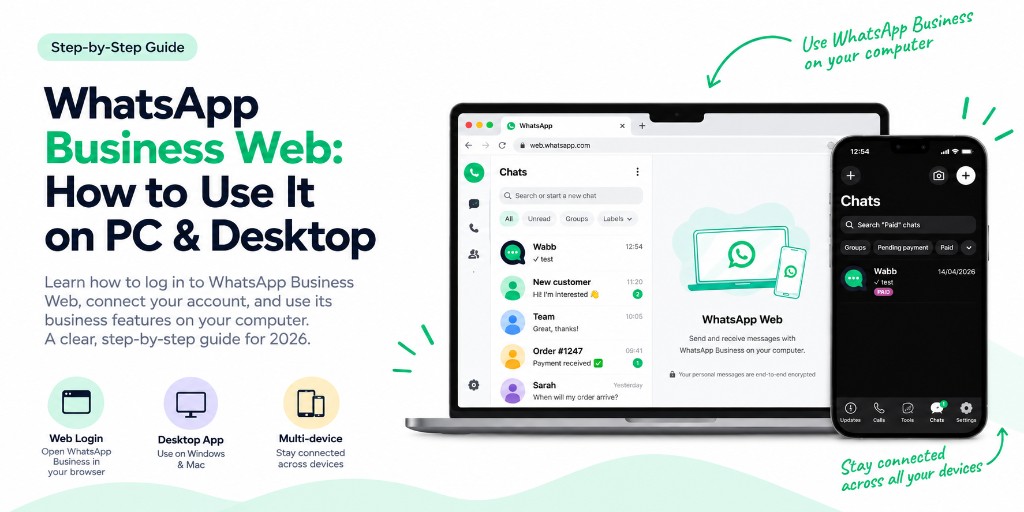
WhatsApp Business Web is just WhatsApp Web or Desktop, linked to a Business account instead of a personal one — same QR-code login, plus a business profile, quick replies, labels, broadcast lists, and away messages on a bigger screen.
WhatsApp Business Web: Quick Answer
The short version:
It’s WhatsApp Web or Desktop, used with a WhatsApp Business account — the login itself works exactly the same way as regular WhatsApp Web.
Setup is a QR scan from your phone’s Linked Devices menu — no separate account, no extra download beyond the Desktop app if you want one.
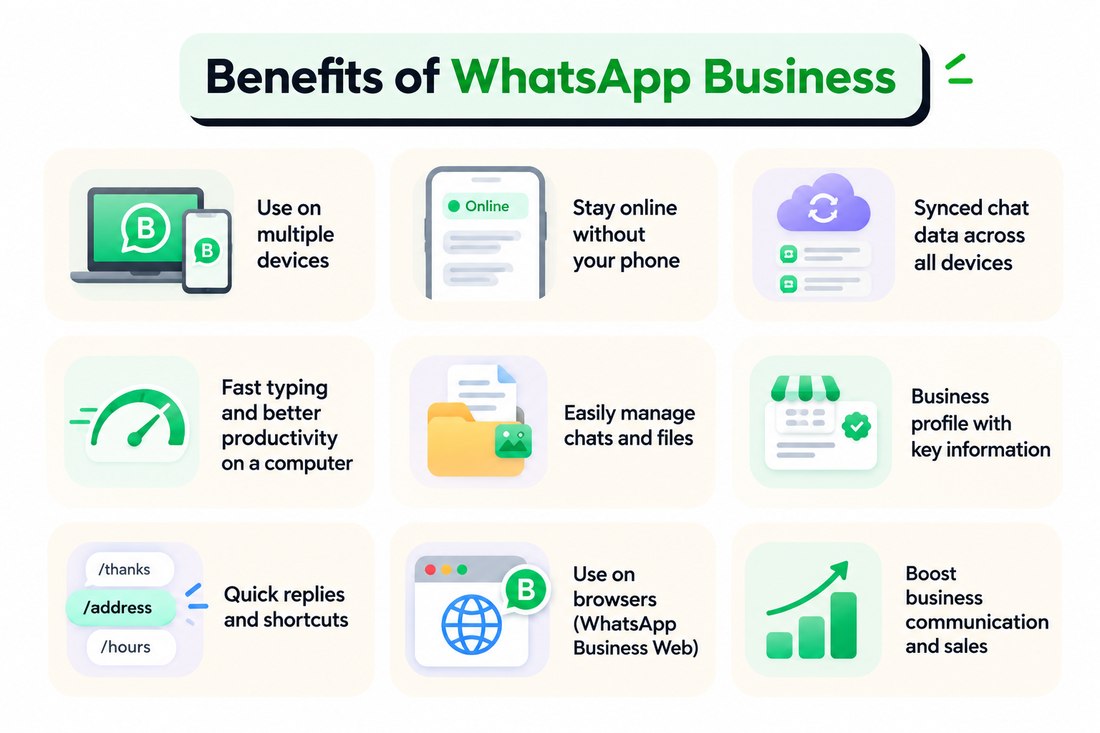
It’s free, and it gives you the Business App’s tools — profile, labels, quick replies, broadcast lists, away messages — from a computer.
It doesn’t add automation, a chatbot, more than a handful of linked devices, or CRM integrations — those live on the WhatsApp Business Platform (API), a different product.
What Is WhatsApp Business Web?
Every WhatsApp account — personal or Business — can link itself to a browser or a desktop app. Whichever kind of account you scan in with is the kind of account that shows up on the bigger screen. There’s no separate “Business Web” login or setup flow; it’s the same multi-device system regular WhatsApp uses, applied to a Business account.
Once linked, messages, chat labels, quick replies and your business profile all sync in real time between phone and computer — typing, sharing files, and juggling several conversations is just easier with a keyboard and a full-size screen.
Setting Up WhatsApp Business Web
Before you start
This guide assumes the WhatsApp Business app is already installed on your phone — it’s free on the App Store and Google Play, and a separate app from regular WhatsApp.
Screenshots throughout this guide are from iPhone. Android’s menu wording and layout differ slightly, but every option shown here exists on both.
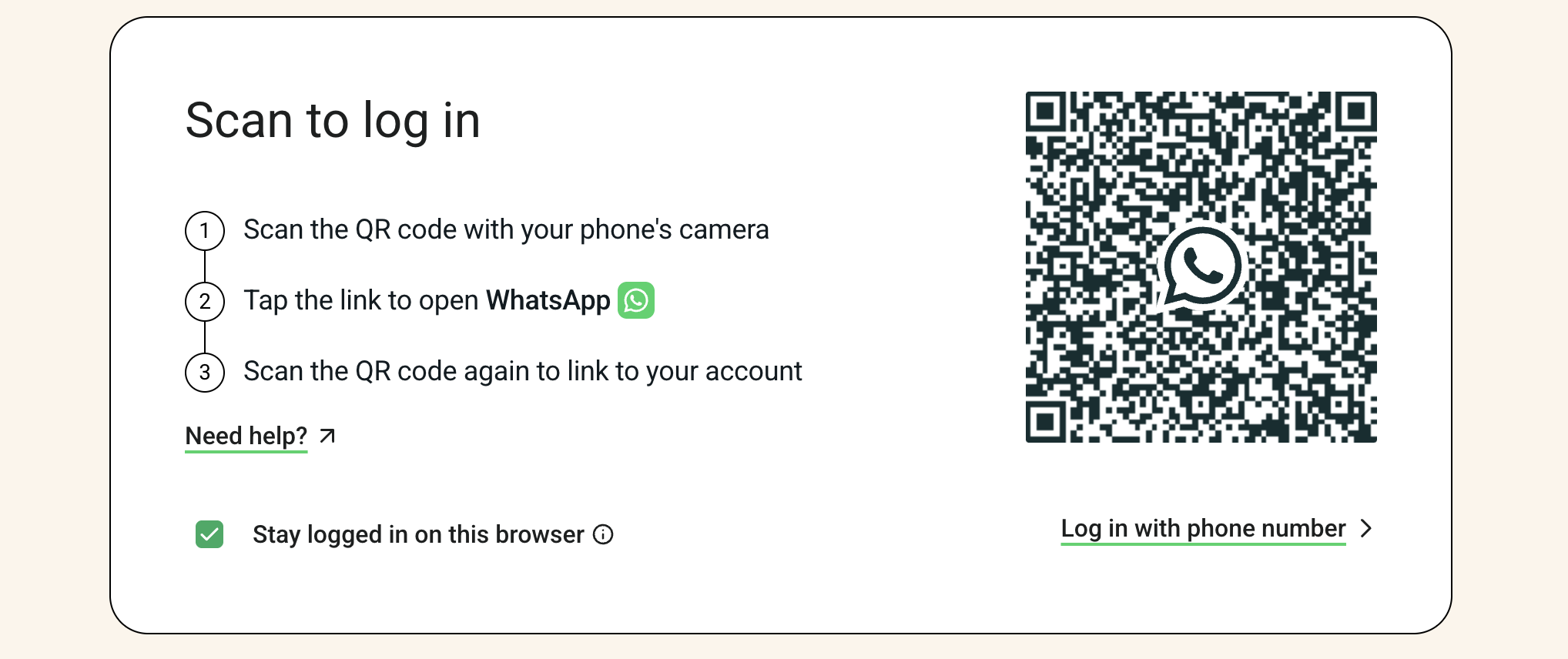
Two ways to link a device — a QR scan, or a phone-number code if the camera isn’t an option.
Log In With a QR Code
The original method, and still the one WhatsApp shows first on Web and Desktop.
On the computer
- Open web.whatsapp.com, or install the Desktop app for Windows or Mac.
- A QR code appears on the screen, waiting to be scanned.
- The moment your phone recognizes it, the browser logs in on its own — no extra click needed here.
On Android
- Open WhatsApp Business.
- Tap the ⋮ menu, top right.
- Tap Linked Devices → Link a Device.
- Point your camera at the QR code.
On iPhone
- Open WhatsApp Business.
- Tap Settings, bottom right.
- Tap Linked Devices → Link a Device.
- Point your camera at the QR code.
Log In With a Phone Number
No camera handy, or the QR won’t scan? Every login screen has a second option, right below it — three steps instead of a scan.
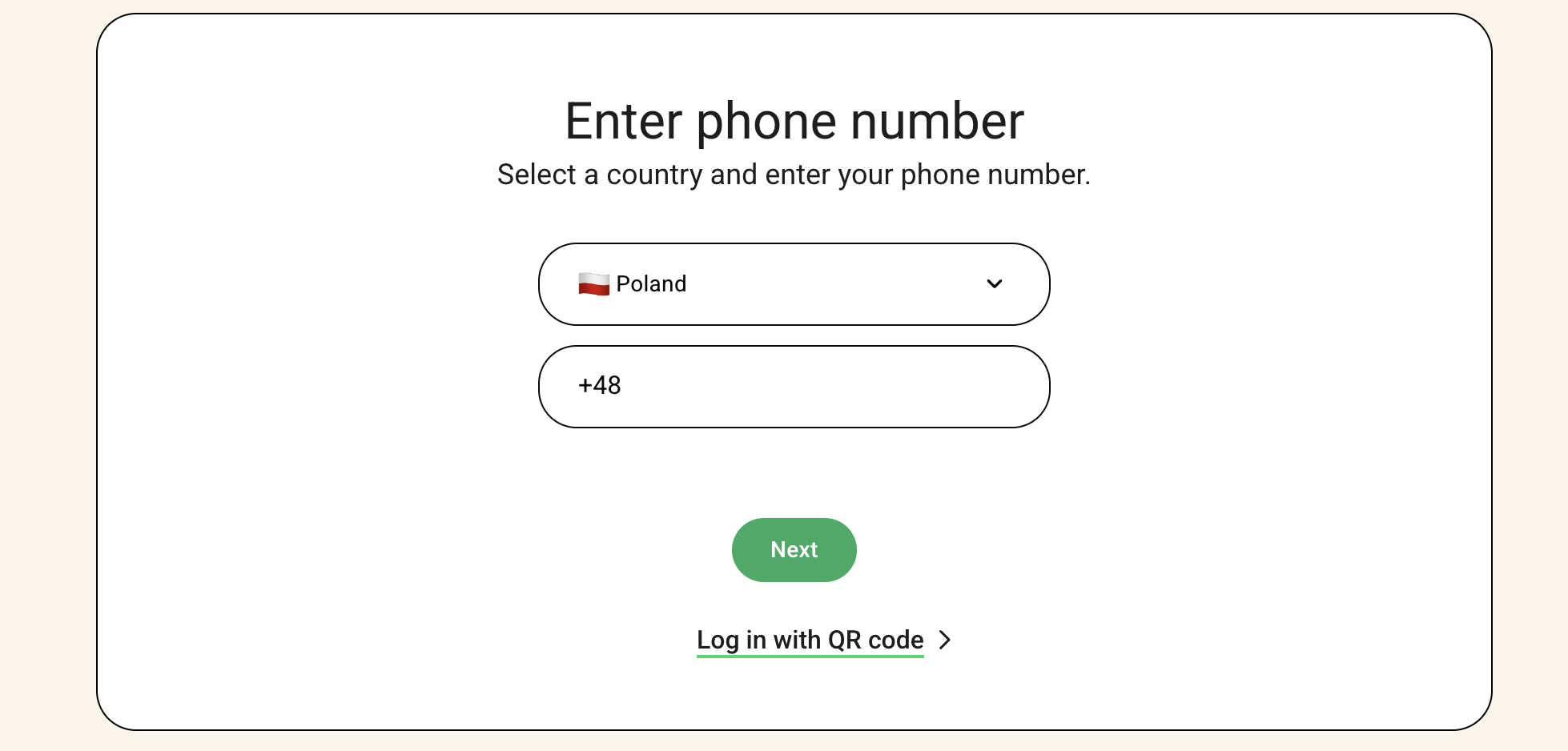
1. On the computer, tap “Log in with phone number,” pick your country, and enter your number:
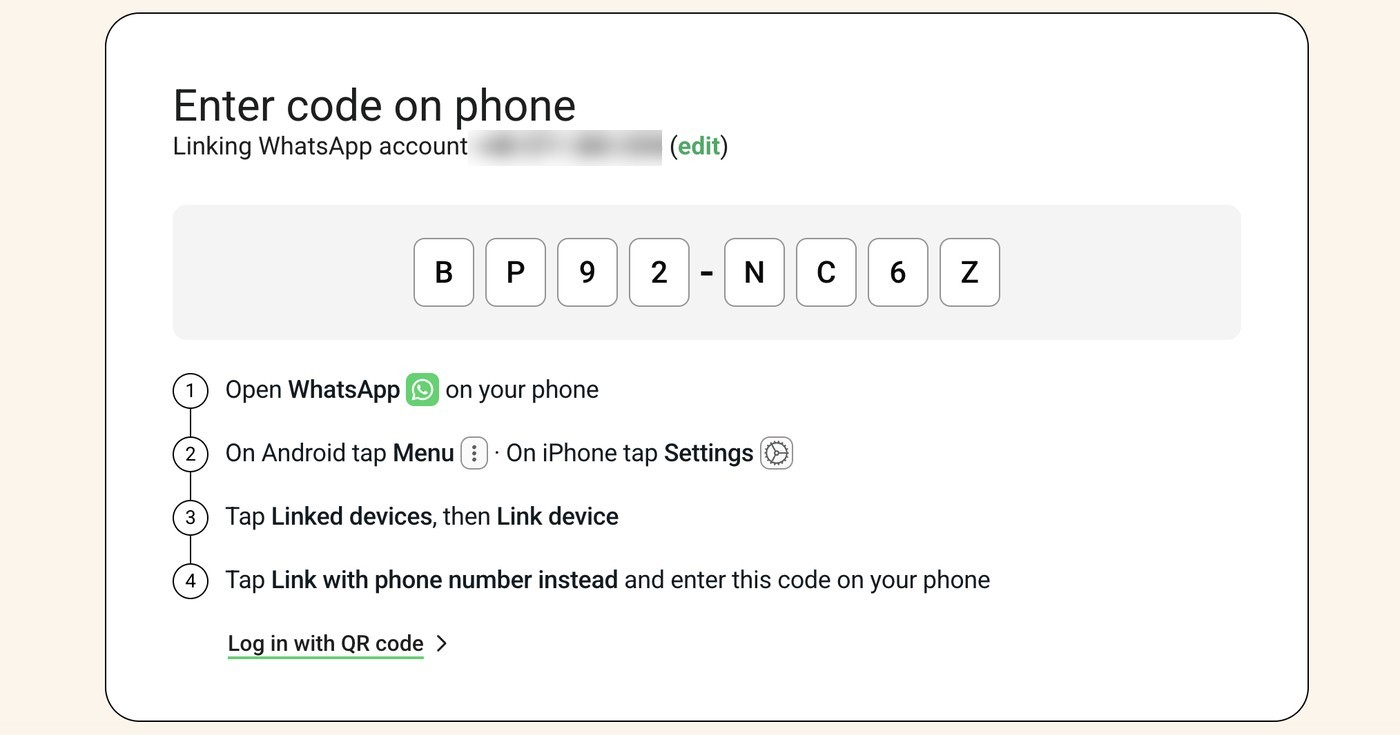
2. The computer shows an 8-character code:
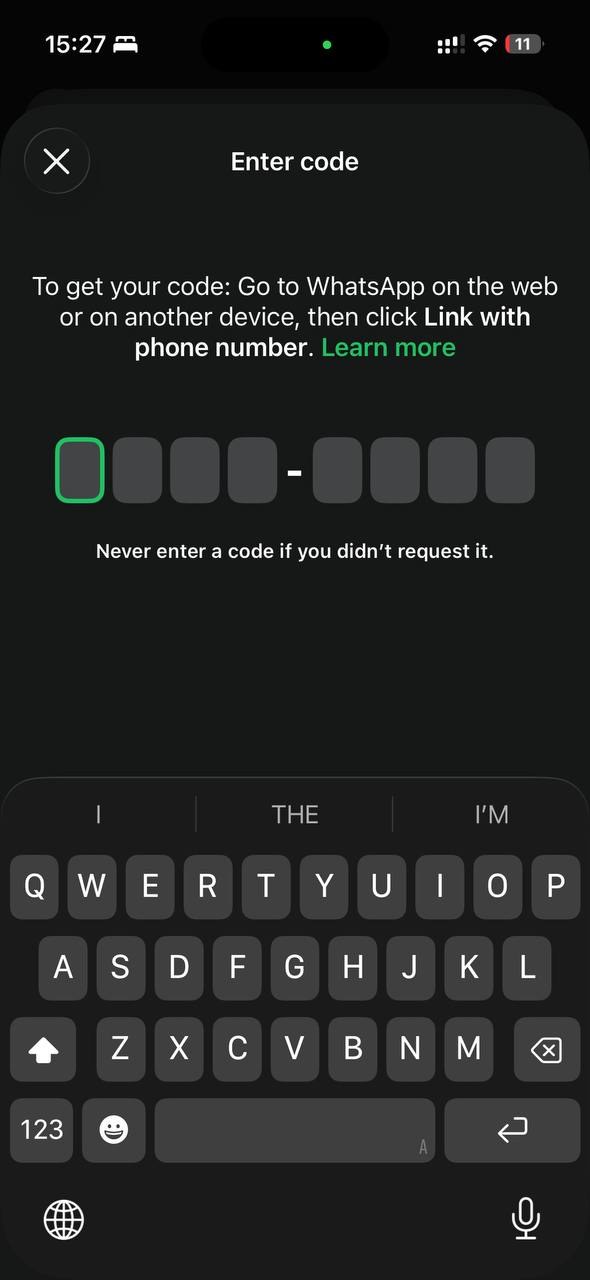
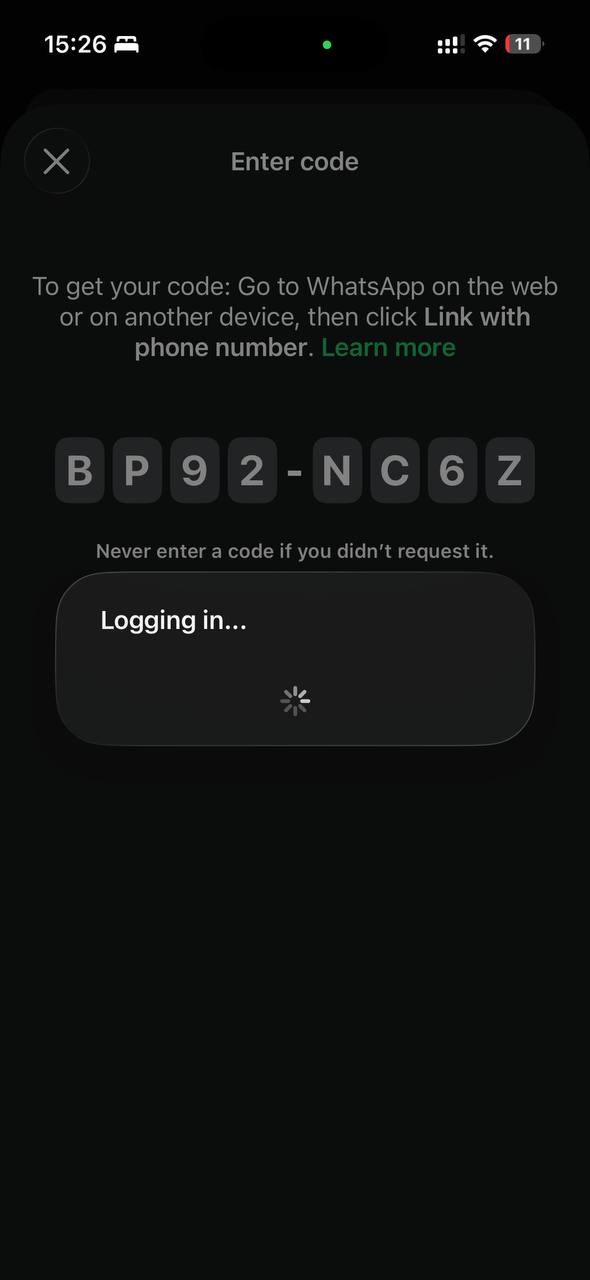
3. On your phone, open Linked Devices → Link Device → Link with phone number instead, and type in that code:
Installing the Desktop app itself — downloads, system requirements, updating and uninstalling — is covered in WhatsApp Desktop: How to Download and Install It.
The Business Features You Get
These belong to the WhatsApp Business account itself, not to Web specifically — but a bigger screen is where most people actually use them, and where setting them up is easiest:
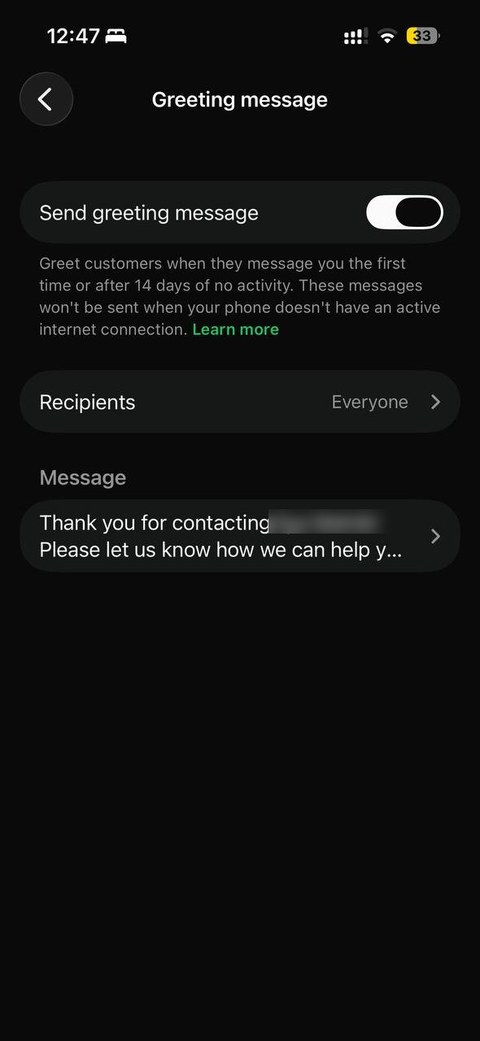
Greeting Message
Sent the first time a customer messages you, or after 14 days of silence — a reply before anyone on your team has even opened the chat.
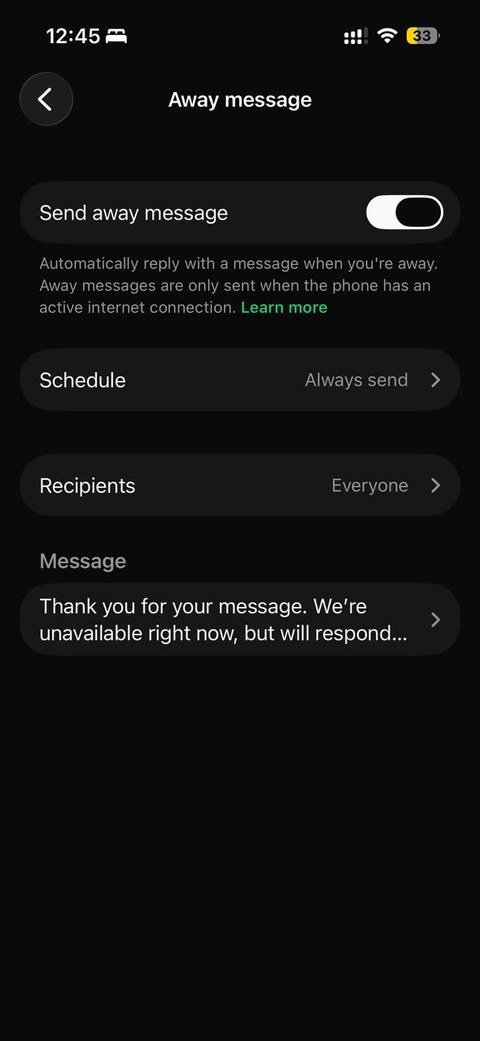
Away Message
Replies automatically when you’re marked away or outside business hours, so nobody messages into silence while your team is offline.
Quick Replies
Saved responses for questions you get constantly — pricing, hours, order status — triggered with a “/” shortcut instead of retyping.

Both automated messages let you choose who receives them — everyone, everyone except specific contacts, or only a selected list — not just a blanket on/off switch.
Broadcast Lists
Send one message to up to 256 contacts at once, without a group chat — recipients need your number saved to receive it.
Multi-Device Access
Up to four devices linked to one phone at a time. Meta Verified for Business adds device-management features on top — check your own plan for the current cap rather than assuming a fixed number.
None of these is dramatic on its own. Together — an instant first reply, an honest away message, saved answers a click away, and one inbox synced across every device — they add up to fewer dropped conversations and a lot less retyping.
Organize Customer Conversations with Labels and Lists
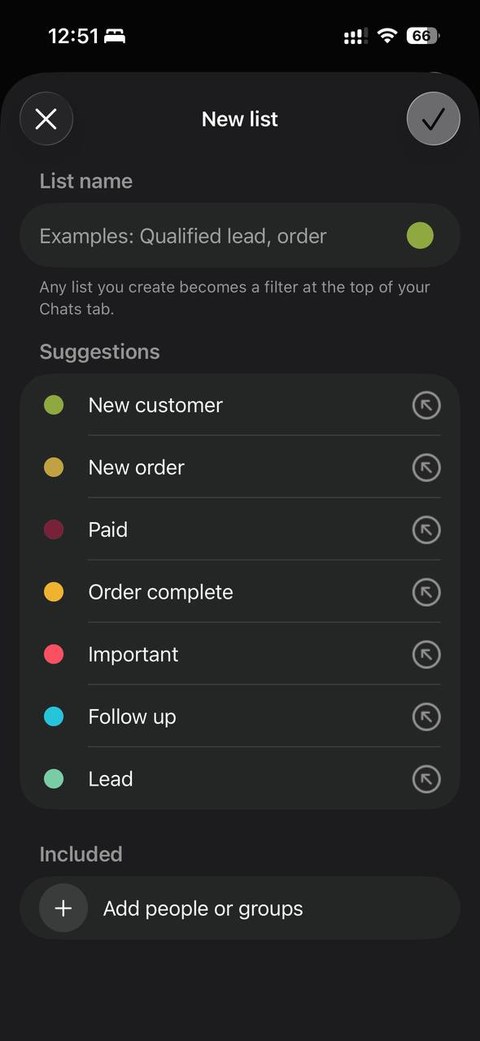
Once a business is handling more than a handful of conversations a day, it’s easy to lose track of who’s a new lead, who’s waiting on a reply, and who still hasn’t paid. WhatsApp Business solves this with custom Lists — called Labels in some versions of the app — tags that double as filters at the top of the Chats screen.
Creating a List takes seconds — a name, a color, and optionally a few contacts — and WhatsApp Business suggests a starting set that covers most workflows: Lead, New Customer, New Order, Pending Payment, Paid, Order Complete, and Follow Up.
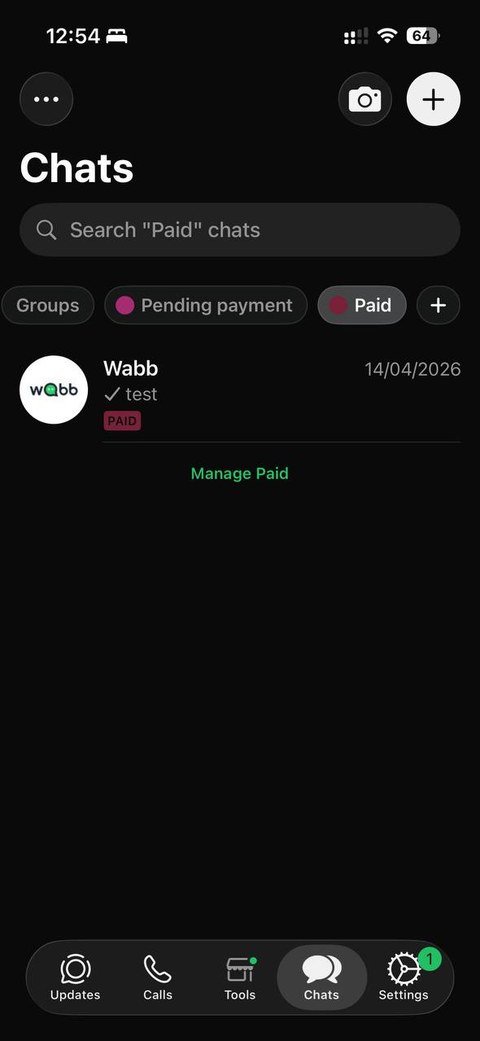
Strung together, these roughly trace a sale from first contact to delivery — Lead → Follow Up → New Order → Pending Payment → Paid → Order Complete — giving a business a lightweight, manual way to see where every conversation stands. It’s useful for staying organized; it isn’t a CRM.
When Labels and Lists Are No Longer Enough
Lists work well at a manageable volume, where someone can tag and re-tag chats by hand. Past that point, every step — noticing a new lead, answering repeat questions, following up on schedule, moving a chat from one List to the next — still needs a person to do it. For businesses that need more than manual organization, platforms such as WABB can automate the conversation itself: qualifying leads, answering routine questions, and following up automatically. See how AI agents can automate WhatsApp conversations →
Create a Professional WhatsApp Business Profile
A standard WhatsApp account shows little more than a name and a photo. WhatsApp Business adds a Business Profile on top of that — a short page attached to the number that tells a customer who they’re messaging, what the company does, and how else to reach it, before anyone sends the first message.
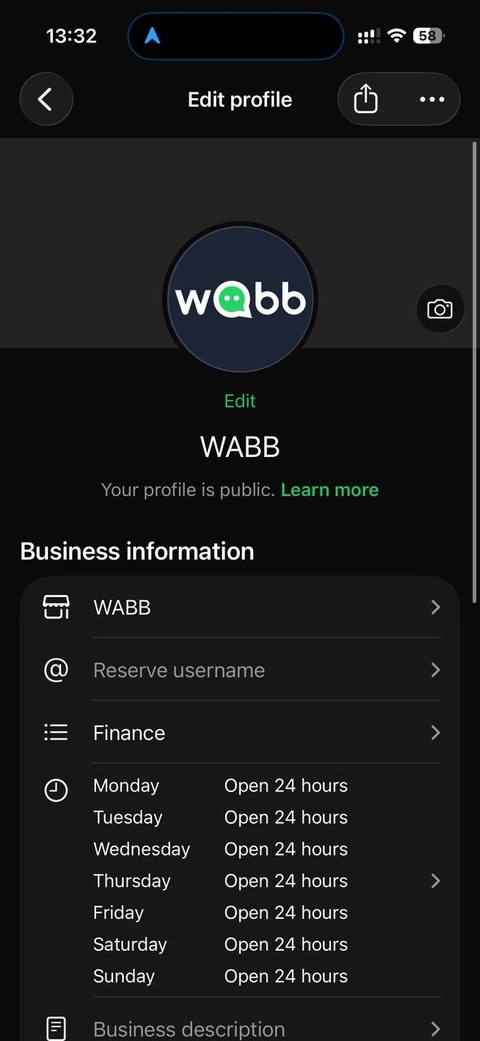
Most of it is filled in once and rarely touched again:
| Information | Why It Matters |
|---|---|
| Business name | Helps customers identify the company. |
| Logo | Makes the account recognizable. |
| Category | Explains what type of business it is. |
| Description | Briefly explains what the company offers. |
| Business hours | Shows when the business is available. |
| Address | Useful for businesses with a physical location. |
| Website | Sends customers to the company’s website. |
| Provides an additional contact method. | |
| Instagram / Facebook | Connects WhatsApp with the company’s social presence. |
| Catalog | Lets customers discover products or services. |
Business hours, shown in the screenshot above, are informational rather than a scheduler — they set expectations for when a reply is likely, not a guarantee of one. The Catalog, Website, Instagram, Facebook, and Email fields below them turn the profile into a compact business page rather than just a phone number.
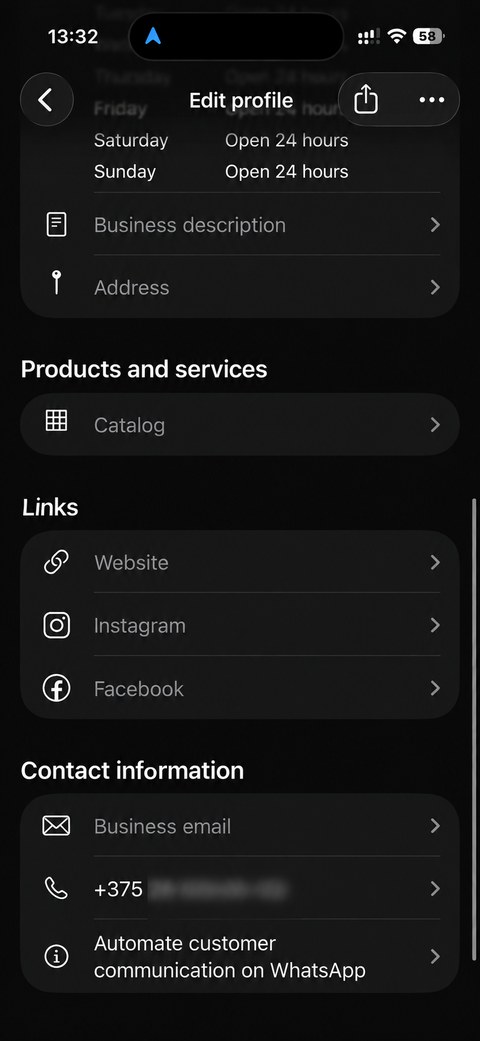
None of this is required, but a complete profile saves a customer from asking the basics before the conversation even starts. A typical path: someone finds the business through an ad, a QR code, or a WhatsApp link, opens the profile, checks the hours and the catalog, and only then sends a first message already knowing what they’re buying into.
A Business Profile Is the Starting Point
A complete profile answers the basics before a conversation starts, but it doesn’t handle the conversation itself. Once that first message arrives, someone still has to answer it, qualify the lead, recommend a product, and follow up. For businesses getting more conversations than a team can comfortably handle by hand, platforms such as WABB can add automation and AI agents on top of WhatsApp for that part. Learn how WhatsApp automation works →
Is WhatsApp Business Web Secure?
Messages stay end-to-end encrypted whether you’re reading them on your phone, in the browser, or in the Desktop app — linking a device doesn’t weaken that.
Code Verify isn’t built in
Code Verify is a separate, optional browser extension from Meta (Chrome, Firefox, Edge) that checks the code running on web.whatsapp.com hasn’t been tampered with. It’s a nice-to-have for anyone who wants that extra check — not something you’re missing out on by skipping it.
WhatsApp Business Web vs. Desktop App
Both link to the same account and show the same conversations — the difference is what running in a browser tab versus a standalone app changes day to day.
| Area | Web (browser) | Desktop app |
|---|---|---|
| Voice & video calls | Supported, one-on-one and group, since WhatsApp’s July 2026 Web calling update. | Also supported — same calling features, in their own window. |
| Notifications | Browser-level notifications; can get buried behind other tabs. | Native OS notifications, in their own dock/taskbar icon. |
| Multitasking | Lives in a browser tab, alongside everything else you have open. | A separate window — easier to keep visible while you work elsewhere. |
| Large file transfers | Works, but big files and drag-and-drop can feel less consistent in a browser. | Generally steadier for large attachments and bulk drag-and-drop. |
| Access | Nothing to install — open the URL on any computer. | Requires installing and updating an app. |
Source: Meta Newsroom — Introducing WhatsApp Web Calling (July 28, 2026).
Where WhatsApp Business Web Falls Short
All of this is still one person (or a few, taking turns) manually replying from one screen. The ceiling shows up in specific, predictable places:
When to Move to the WhatsApp Business Platform
These are three different products that happen to share a name. Which one fits depends on what you need it to do:
Business Web / Desktop
Good for one person, or a small team taking turns, replying from a computer.
WhatsApp Business App
Same account, on the phone — profile, labels and quick replies for a small business handling most chats by hand.
WhatsApp Business Platform (API)
For volume beyond 256-contact broadcasts, more agents than devices allow, scheduled campaigns, chatbots or an AI Agent, and CRM or store integrations.
Worth knowing
Business Web gets you replying faster from a bigger screen. Automated flows, an AI Agent, unlimited agents on one number, and integrations come from the WhatsApp Business Platform, through platforms such as :
Flow Builder
Visual, no-code flows for the questions that repeat.
AI Agent
Handles what a fixed flow can’t fully predict. See WhatsApp AI for business in India.
Shared Inbox
A whole team replying from one number, without stepping on each other.
See what WhatsApp automation actually looks like.
WhatsApp Automation for BusinessFAQ
Common Questions
Is WhatsApp Business Web free?
Yes. Linking Web or Desktop to a WhatsApp Business account costs nothing — it’s the same free account, viewed from another screen. The WhatsApp Business Platform (API) is a separate, paid product. See When to Move to the WhatsApp Business Platform.
Do I need my phone connected the whole time?
No. Once a device is linked it works over its own internet connection — your phone just needs to come back online occasionally, or linked devices get signed out. Full setup steps are in WhatsApp Login: The Complete Guide.
Can I make group video calls on WhatsApp Web?
Yes — Meta rolled out one-on-one and group audio/video calling on WhatsApp Web in July 2026, alongside call transfer between devices and a waiting room for group calls. See Web vs. Desktop App.
How many devices can I link to one WhatsApp Business account?
Up to four, per WhatsApp’s own Help Center. Meta Verified for Business adds device-management features on top of that — check your plan for the exact current number rather than assuming a fixed one.
How many contacts can I message with a broadcast list?
Up to 256 per list, and only contacts who’ve saved your number receive it. The WhatsApp Business Platform (API) removes that cap entirely. See Where WhatsApp Business Web Falls Short.
Is WhatsApp Business Web secure?
Yes — messages stay end-to-end encrypted on a linked device the same as on your phone. Code Verify is an optional browser extension for an extra integrity check; it isn’t required and isn’t built in. See Is WhatsApp Business Web Secure?.
I can already do most of this from the Business App — why would I need the API?
Because the Business App and Business Web don’t add automation, unlimited agents, or integrations — those are what the WhatsApp Business Platform is for. See When to Move to the WhatsApp Business Platform.