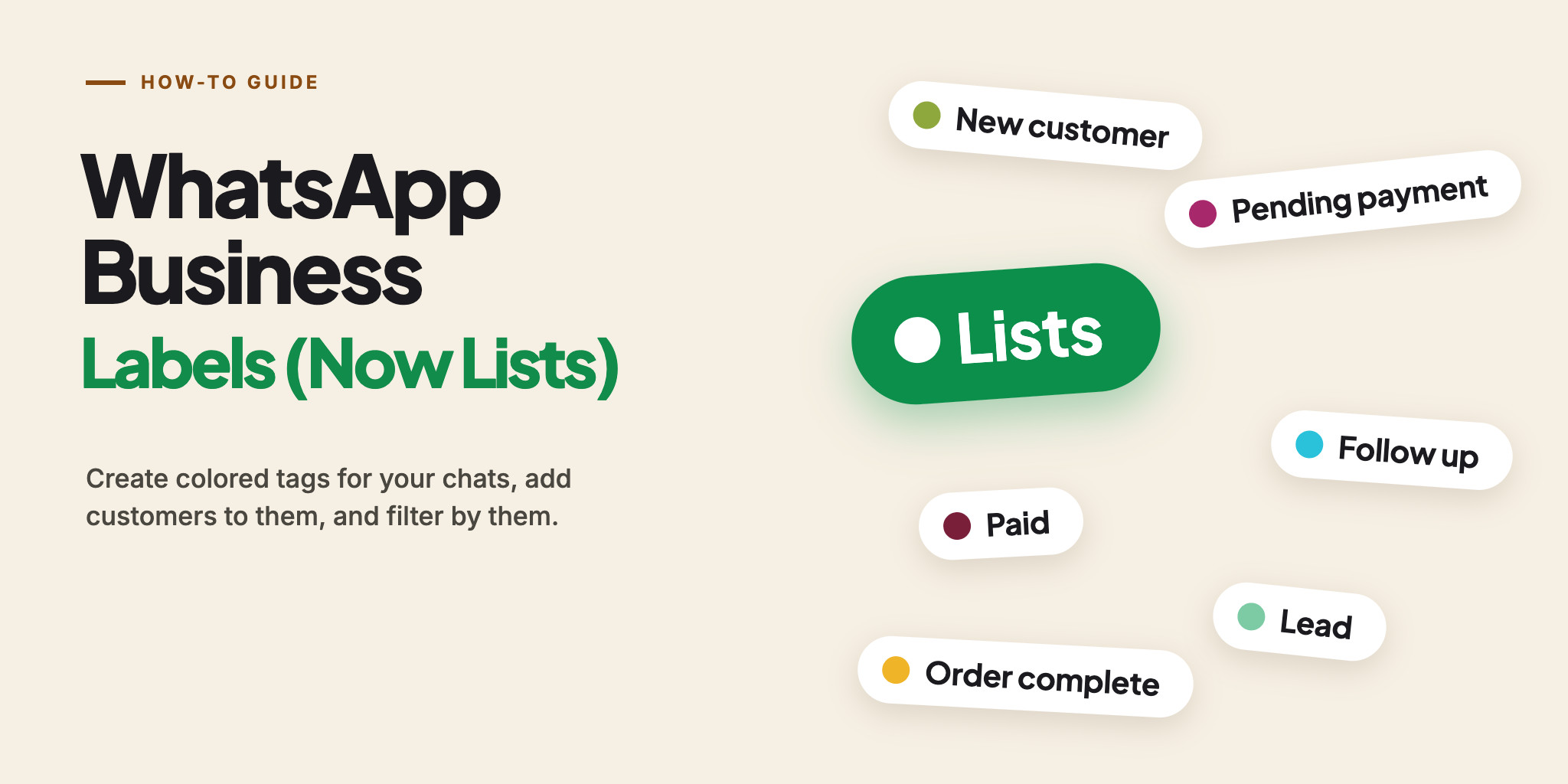
Labels keep a busy WhatsApp Business inbox from turning into one long scroll. If yours have vanished from the menu, they were renamed — this guide shows where they live now and how to use them.
WhatsApp Business Labels: Quick Answer
The short version:
Labels are colored tags for chats in the WhatsApp Business app. In recent versions they are called Lists: each one is a filter at the top of your Chats tab.
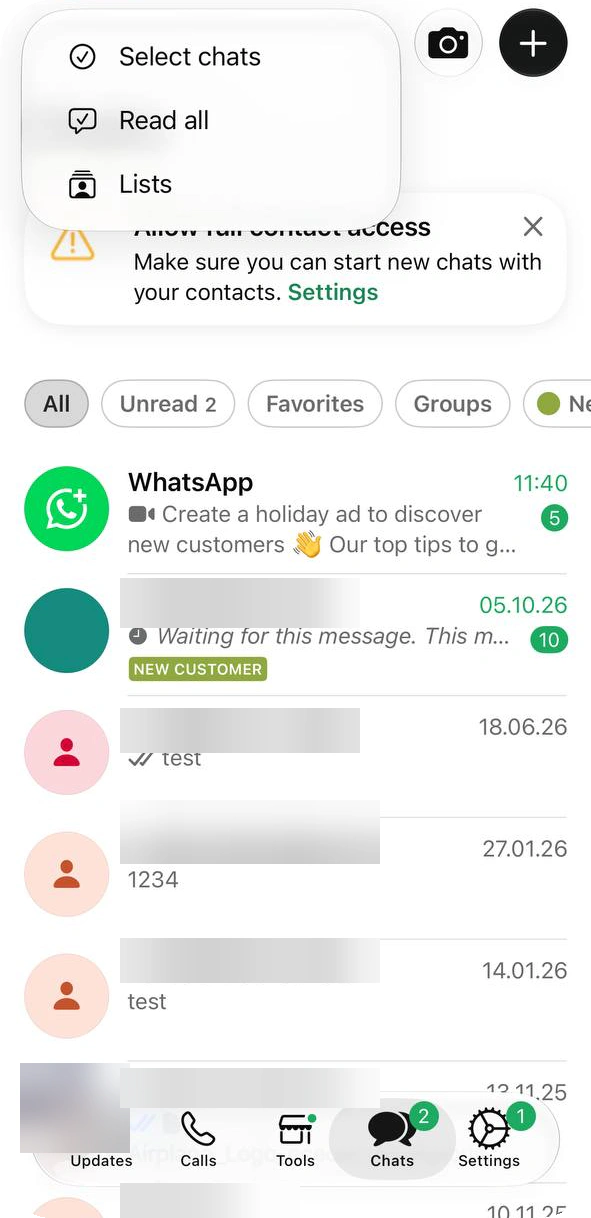
Open Tools → Lists, tap Create a custom list, name it and pick a color. You can also reach Lists from the ⋯ menu on the Chats screen.
Press and hold a chat and tap Add to list, or open a list and tap Add people or groups.
Only you can see who is on your lists — customers never see them. WhatsApp’s guide says a business can create up to 20 labels.
This guide is about the phone app. Starting from zero? See how to create a WhatsApp Business account. For a sales-stage example and the browser version, see WhatsApp Business on Web & Desktop.
Labels or Lists? The Rename
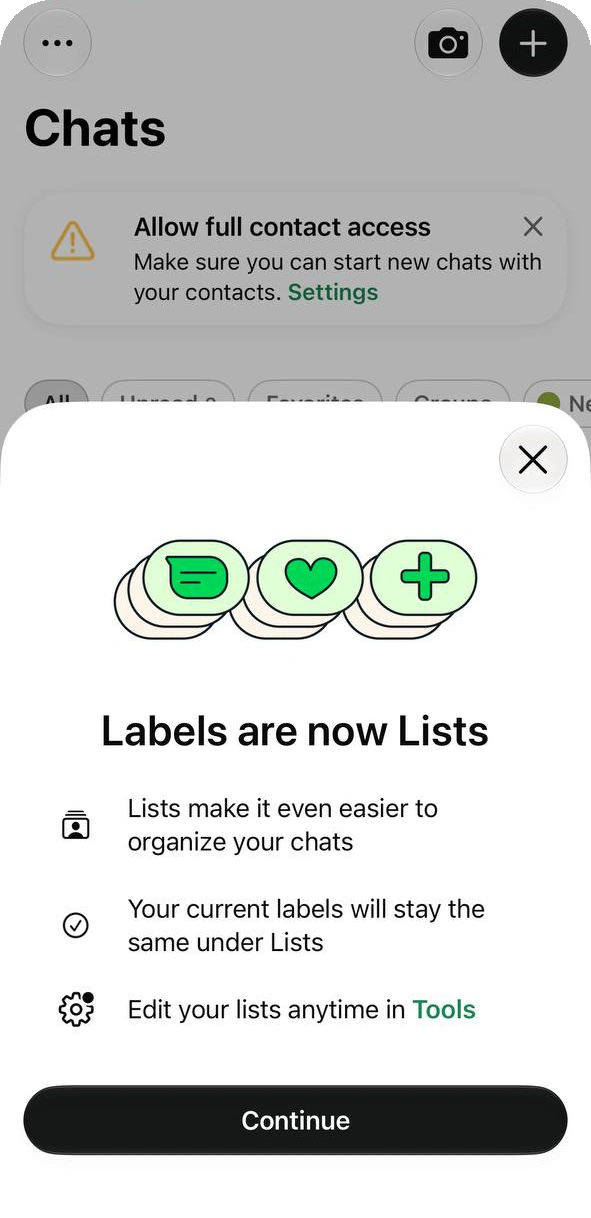
WhatsApp is renaming Business labels to Lists and rolling the change out gradually, so two names and two menus are in use at once. When your app switches, it shows a short notice: your current labels stay the same under Lists, and you edit them in Tools.
| Lists (current iPhone app) | Labels (older Android) | |
|---|---|---|
| Where | Tools → Lists, or ⋯ → Lists on Chats | Chats → ⋯ → Label chat |
| Add a chat | Press and hold → Add to list | Press and hold → label icon → Save |
| Limit | No number on the Help Center page for Lists — check your app | Up to 20 labels |
| Message everyone on it | Not shown on the iPhone Lists screens here | Message customers — individual customers, not groups |
Source: WhatsApp Help Center — How to use labels, checked 21 October 2026.
Can’t find Lists?
The rollout is gradual, so your app may still show Labels. Check that it is WhatsApp Business — the regular app has its own lists — that it is up to date, and open the Tools tab. On older Android versions use Chats → ⋯ → Label chat.
Create Your First List
Four steps. The screens are from an iPhone.
Open Tools → Lists
On the Tools tab, Lists sits in the Organize your chats group, next to greeting message, away message and quick replies. The Lists screen starts with the built-in lists — Unread, Favorites and Groups — and the Create a custom list button.
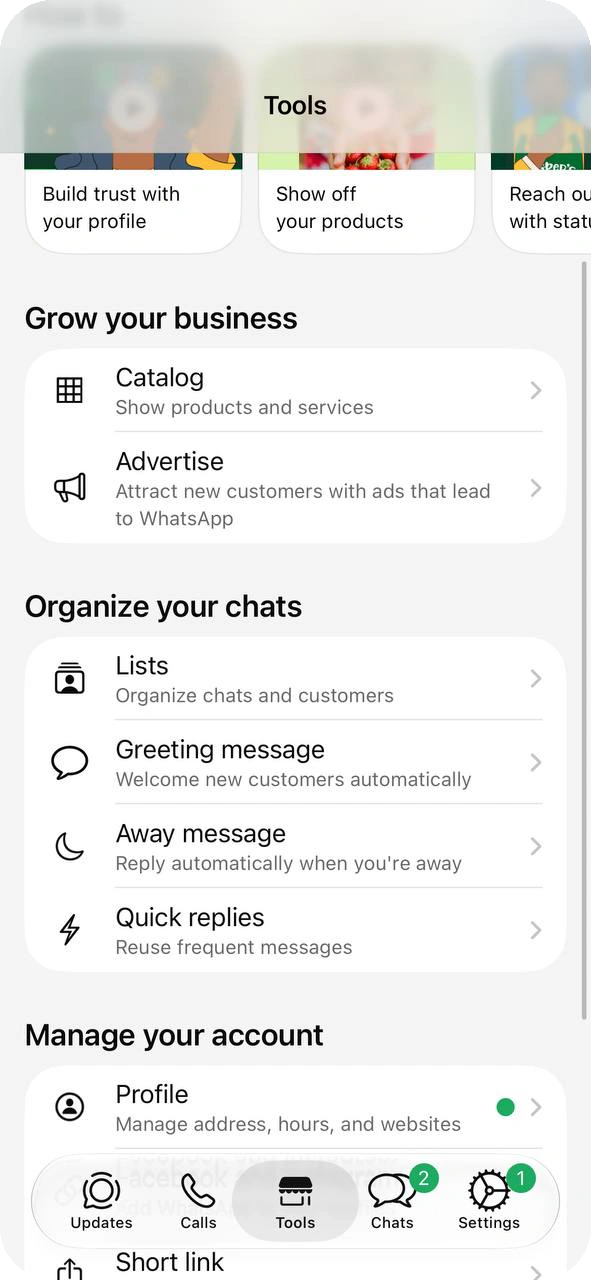
Lists is in the Organize your chats group on Tools. 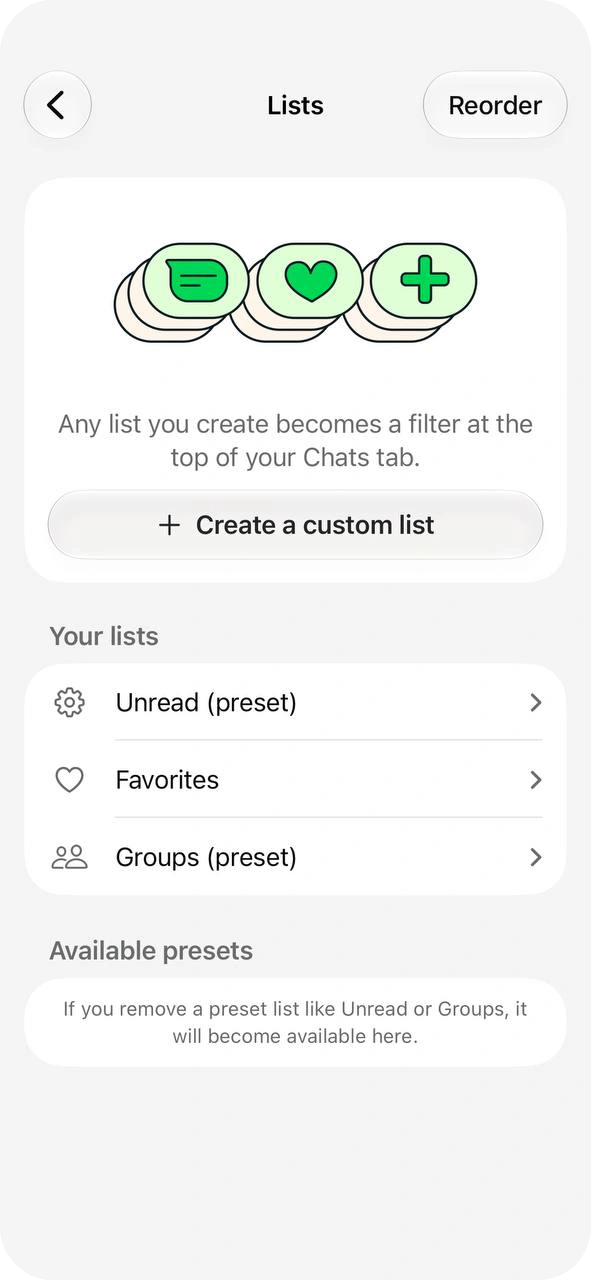
Any list you create becomes a filter at the top of Chats. Name the list
Type a name, or tap an arrow next to a suggestion to copy it: New customer, New order, Pending payment, Paid, Order complete, Important, Follow up and Lead. Each suggestion comes with its own color.
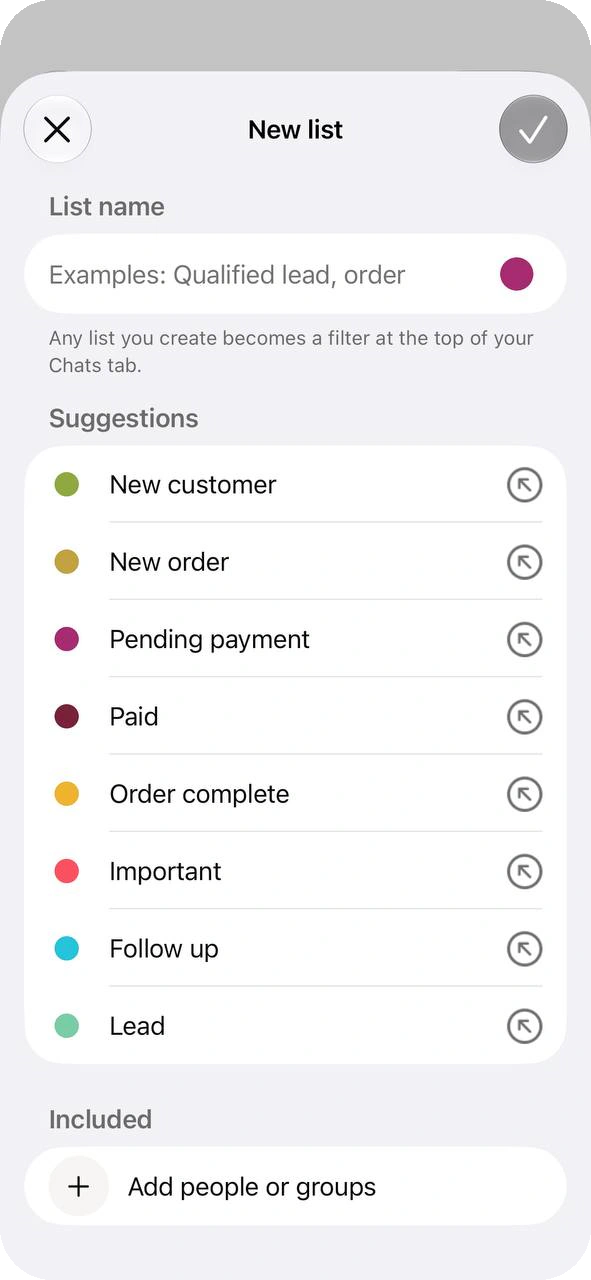
The New list screen suggests eight names. 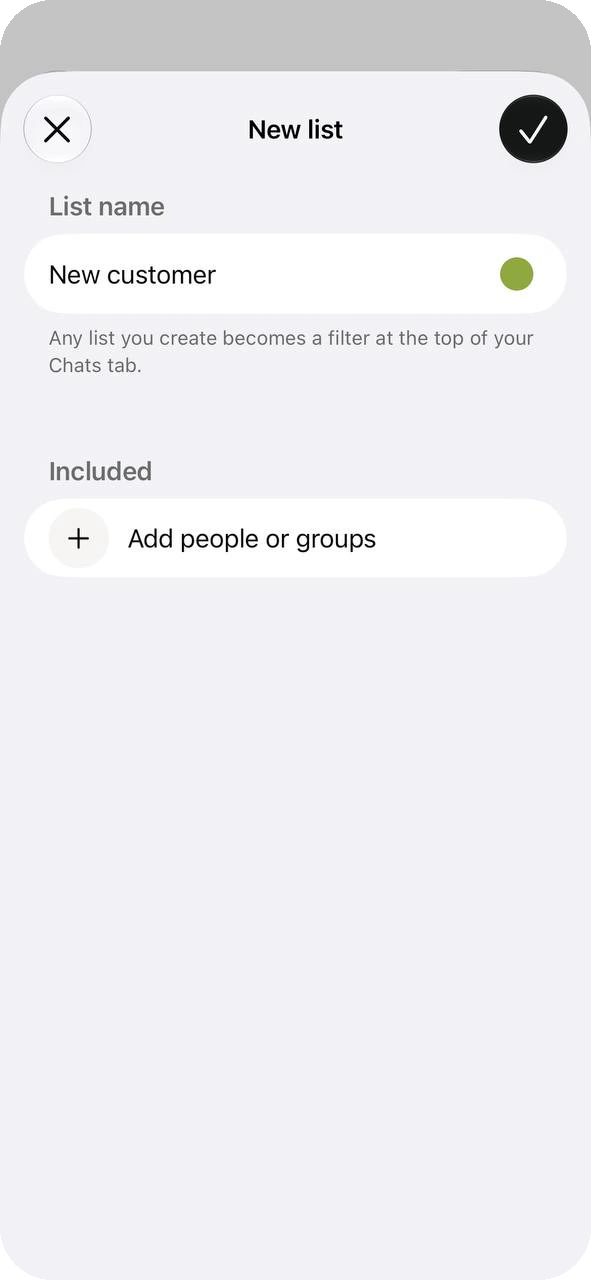
A suggestion fills in the name and the color. Pick a color
Tap the color dot next to the name to open a palette of 20 colors. The color shows on the tag in the chat row and on the filter at the top of Chats.
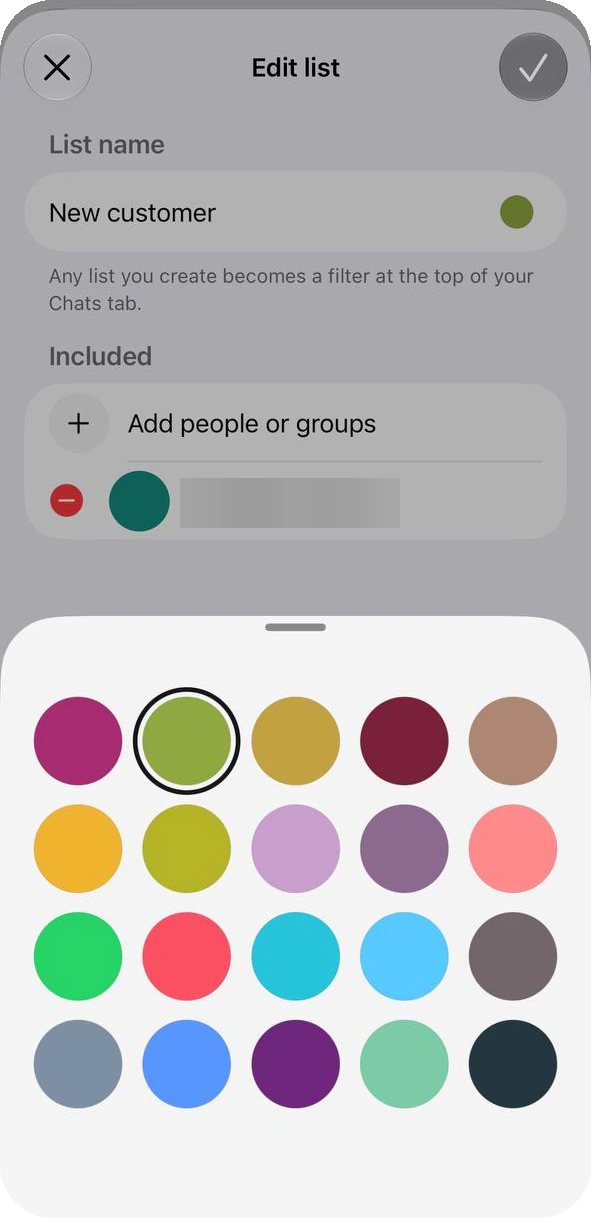
The palette has 20 colors. Save it
Tap the check mark at the top right. Adding people is optional here — you can leave Included empty and add chats later.
Add Chats to a List
There are two ways in: tag a chat as you read it, or load a list in bulk.
From the chat list: press and hold
Press and hold a chat and tap Add to list. The Choose list sheet shows your lists with a circle to tick, the suggestions you haven’t created yet, and New list at the top. One chat can be on several lists, and to take a chat off one, open the same sheet and untick it.
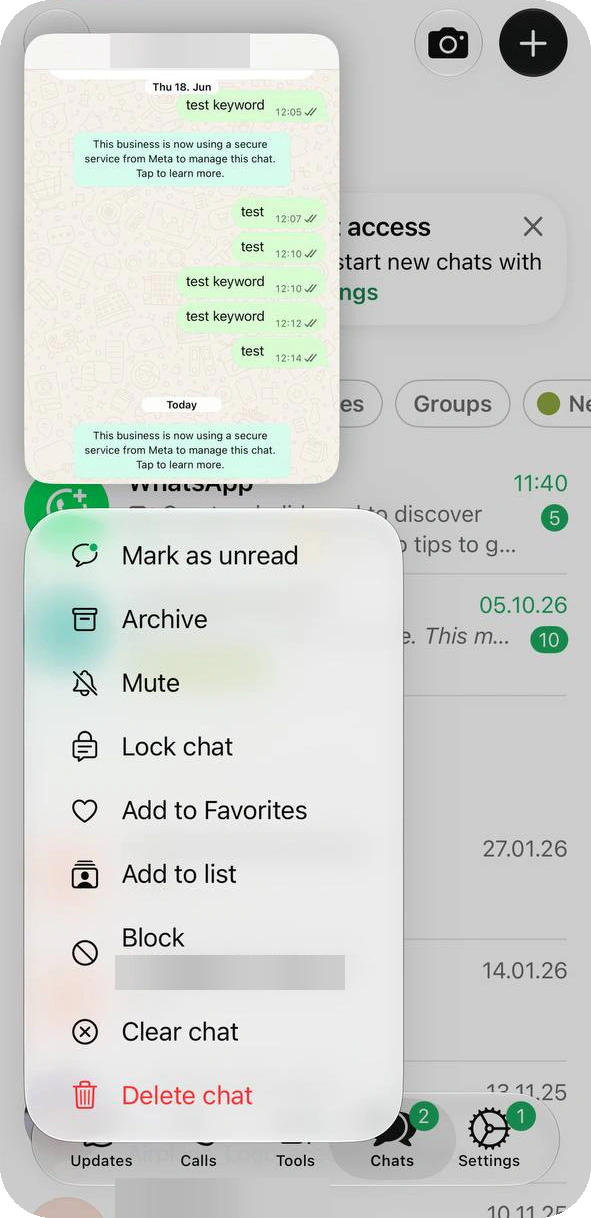
Press and hold a chat to see Add to list. 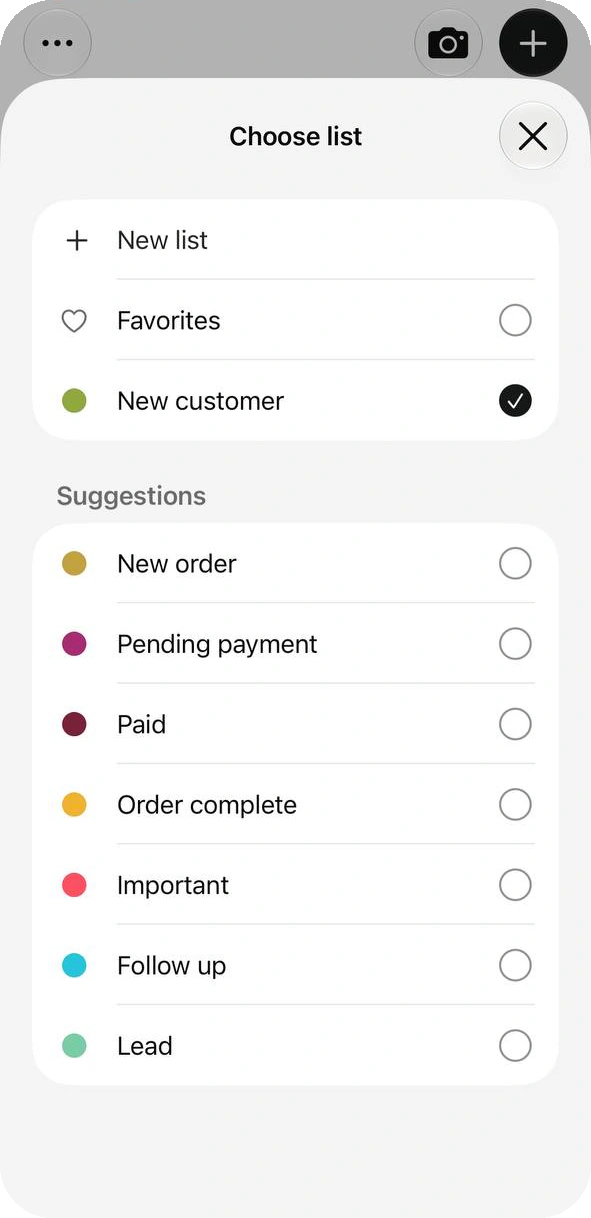
Tick every list the chat belongs to. From the list: add many at once
Open Tools → Lists, tap a list and choose Add people or groups. Search or pick from Recent chats, tick as many as you want and tap Add. WhatsApp notes that only you can see who is included.
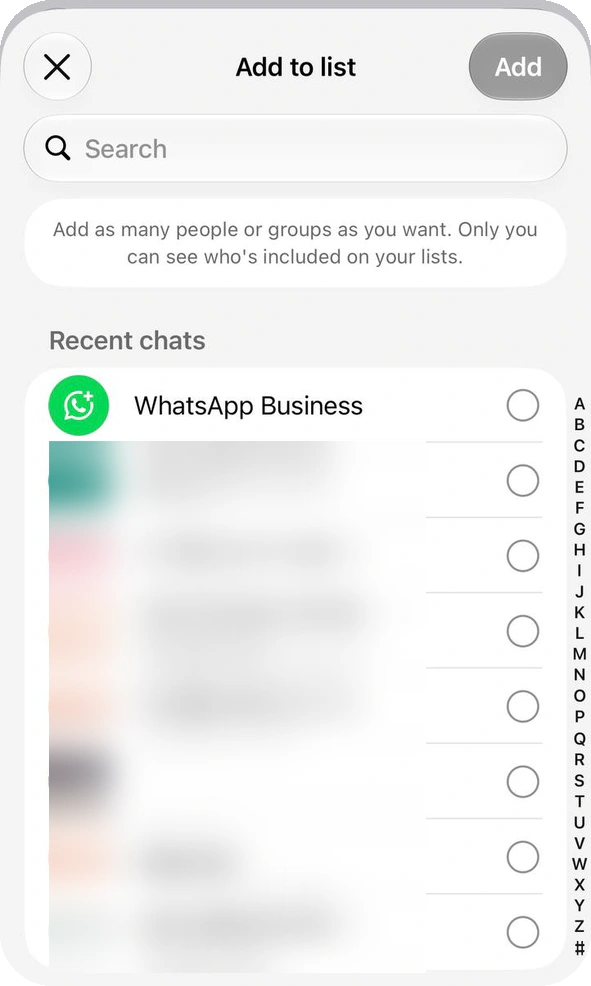
Add as many people or groups as you want. 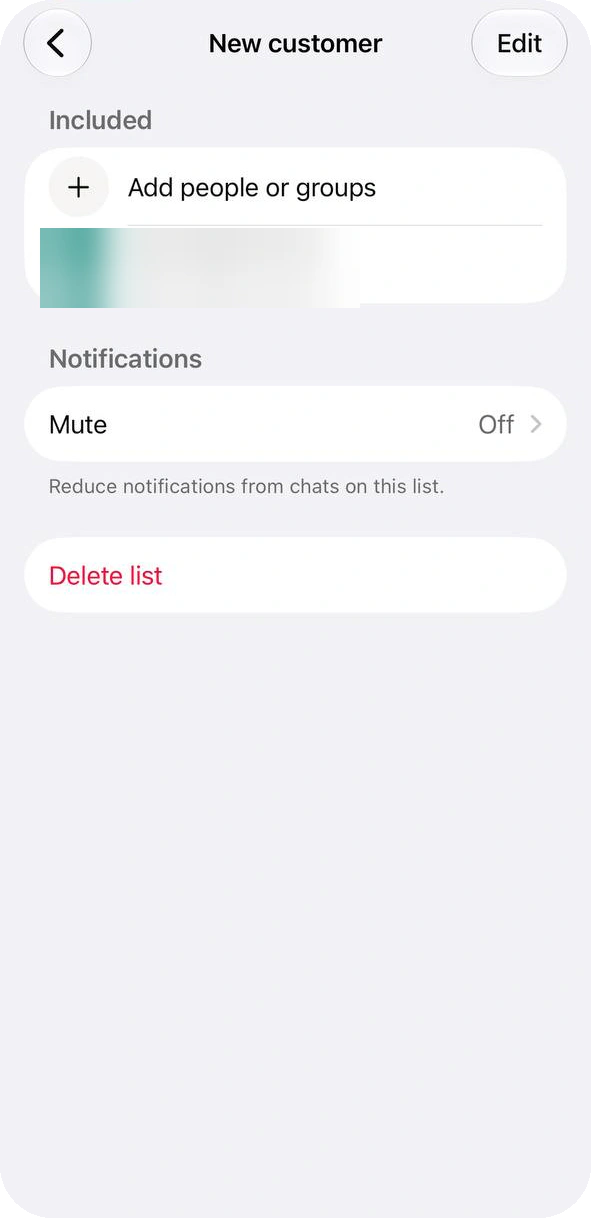
The list page shows who is included.
Find Chats by List
Once a chat is on a list, there are three ways to find it.
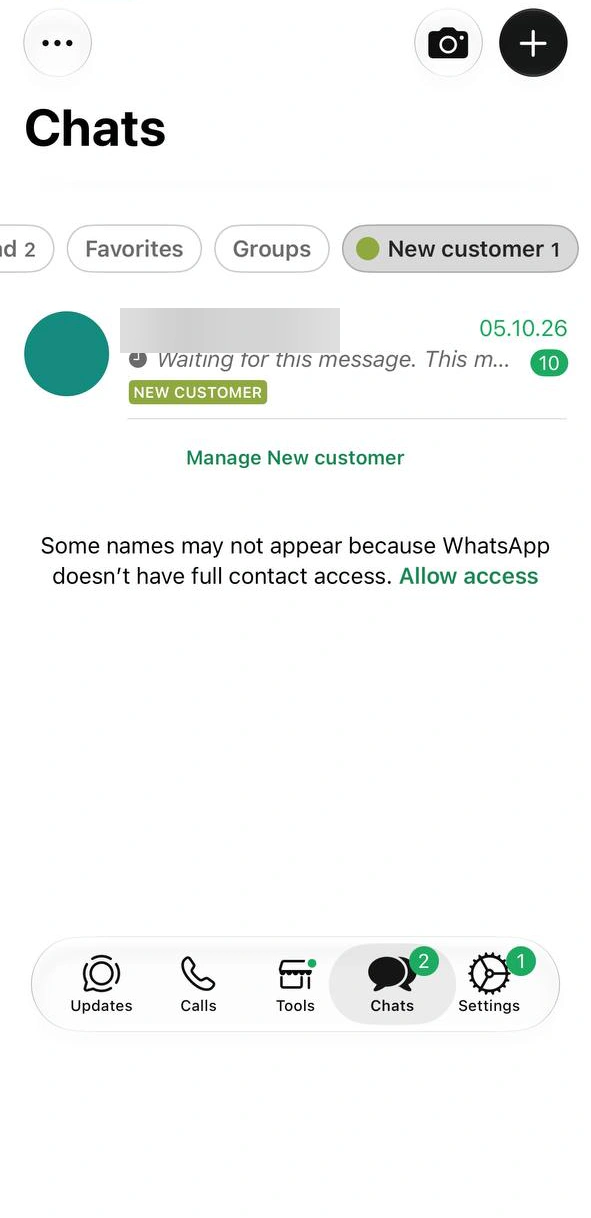
The tag. A colored tag with the list name appears under the last message in each chat row.
The filter. Tap a list name in the row at the top of Chats — the counter shows how many chats are on it — and only those chats stay.
Manage. A Manage link under the filtered list opens its page without going through Tools.
Edit, Mute and Delete a List
The list’s own page, opened from Tools → Lists, holds these actions. Reorder and the built-in lists are on the Lists screen itself.
| To… | Do this |
|---|---|
| Rename or recolor | Open the list → Edit, change the name or tap the color dot, then tap the check mark. |
| Remove a person | On Edit list, tap the red minus next to the chat. |
| Mute the list | Open the list → Mute. It reduces notifications from the chats on it. |
| Reorder your lists | On the Lists screen, tap Reorder to change the order of your lists. |
| Delete a list | Open the list → Delete list. |
| Bring back Unread or Groups | Built-in lists can be removed; a removed one reappears under Available presets. |
Which Lists to Make
Start from WhatsApp’s own suggestions and keep the set small. Each list should answer one question you ask your inbox:
| The question | Lists that answer it |
|---|---|
| Where is this customer in the sale? | Lead, Pending payment, Paid, Order complete — move a chat along by adding the next list and unticking the old one. |
| Who is this customer? | New customer from WhatsApp’s suggestions, plus a returning-customer list you name yourself. |
| What do I owe them? | Follow up or Important — the short list to clear before you close the day. |
Worth knowing
WhatsApp itself suggests names like “New customer” and “Returning customer” to track how your customers spend. Pick names a teammate would understand without asking you.
Source: WhatsApp Help Center — How to use labels, checked 21 October 2026.
Where Lists Run Out — and What Comes Next
Lists are a good filing system for tagging by hand. They are not a workflow, and three limits are worth knowing:
Every tag is manual. Someone has to add, move and remove each chat by hand.
A list marks a chat, it doesn’t assign it. Nothing tells a teammate who should reply, and customers never see the lists.
Auto-created lists have a price. WhatsApp’s optional automatic events label orders and leads for you, but turning them on can limit broadcast lists, disappearing messages, greeting and away messages and message editing, and disconnects linked devices.
Source: WhatsApp Help Center — About automatic events on the WhatsApp Business app, checked 21 October 2026.
Worth knowing
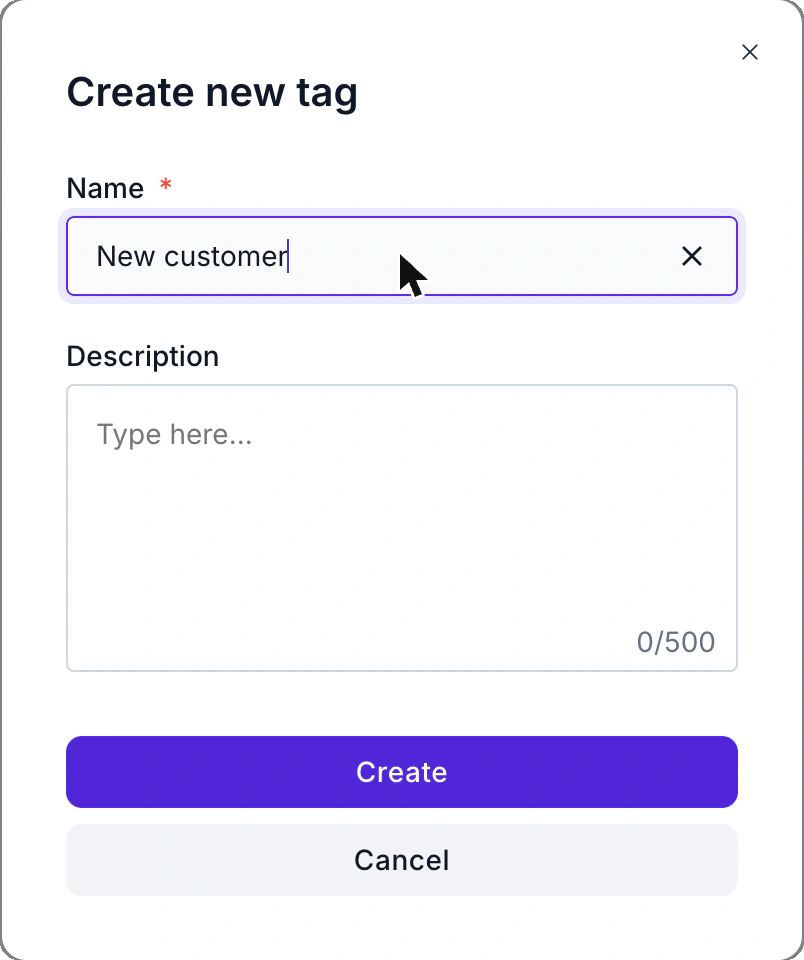
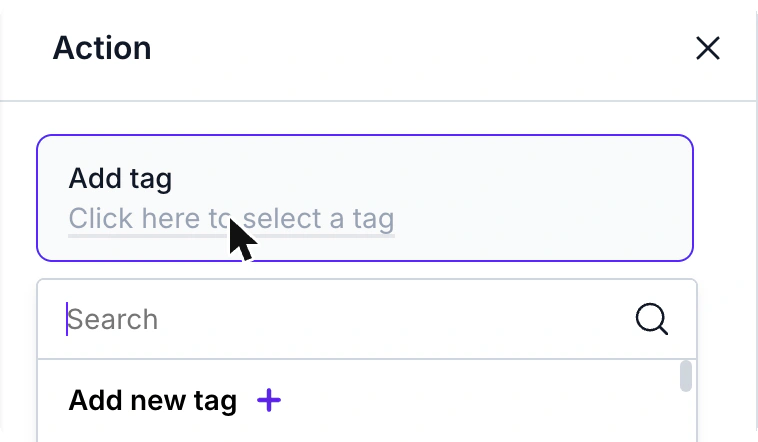
The next step is the WhatsApp Business Platform, through partners such as . There a flow applies the tag itself: an Action block adds or removes a tag when a customer replies. Tags live in Settings → Tags, and the Add tag selector lets you create one on the spot.
Flow Builder
Visual, no-code flows for repeat questions, with an Action block that adds or removes a tag.
AI Agent
Answers what a fixed flow can’t predict. See WhatsApp AI for business in India.
Shared Inbox
A whole team on one number, with assignment. See the shared inbox.
Staying on the app for now? The Web & Desktop guide shows the rest of its business tools.
FAQ
Common Questions
Where are labels in WhatsApp Business?
In recent versions they are Lists: Tools → Lists, or the ⋯ menu on Chats. Older Android versions open them from the menu as Label chat. See Labels or Lists?.
Why did my labels disappear?
Most likely they were renamed, not removed. The app announces “Labels are now Lists” and says your current labels stay the same. Open Tools → Lists to find them. See Labels or Lists?.
How many labels can I create?
WhatsApp’s guide to labels says up to 20. The page for the newer Lists screens doesn’t state a number, so check the limit in your own app. See Labels or Lists?.
Can customers see my labels?
No. WhatsApp states that only you can see who is included on your lists. See Add Chats.
Can I send a message to everyone on a list?
The Android labels guide describes a Message customers option on a label, and says it reaches individual customers, not groups. On the Lists screens in this guide there is no such option, so what you see depends on your version. See Labels or Lists?.
Can I use labels on regular WhatsApp?
Not Business labels. The regular WhatsApp app has its own lists — All, Unread, Favorites and Groups, plus custom lists you create yourself. This guide covers the Business app. See Labels or Lists?.
What are automatic events?
An optional feature that labels orders and leads in chats by itself. It can limit broadcast lists, greeting and away messages, disappearing messages and message editing, and it disconnects linked devices. See Where Lists Run Out.