Creating a WhatsApp Business account takes one free app and one phone number — the part people trip over is which number to use, and what happens to a number that already has WhatsApp on it.
WhatsApp Business Account: Quick Answer
The short version:
A WhatsApp Business account is created by installing the free WhatsApp Business app and registering a phone number in it. There is no separate sign-up page, and no application to Meta.
You need a mobile or landline number you own and can receive an SMS or a phone call on. Virtual, toll-free and premium numbers are not accepted.
The flow is: download the app, accept the terms, confirm the number (a 6-digit code, or a move prompt if it is already on WhatsApp), then add the business name, photo and category. Hours, address and description can follow in Settings.
One number can live in only one of the two apps at a time. Move an existing WhatsApp number across, or register a second number to keep both.
This guide covers the phone app. To use the same account on a computer, see WhatsApp Business on Web & Desktop; for the API instead of the app, start with WhatsApp Business API requirements.
Before You Start: Choose the Number
WhatsApp registers a mobile or landline number that you own. The business profile you create is public, so pick a number customers can reach you on rather than a private one.
| Number type | Accepted? | Note |
|---|---|---|
| Mobile number | Yes | The usual choice — the code arrives by SMS or a call. |
| Landline (fixed) number | Yes | Tap Call me to hear the code. Extension numbers can’t be used. |
| Virtual (VoIP) number | No | Listed by WhatsApp as unsupported. |
| Toll-free or paid premium number | No | Listed by WhatsApp as unsupported. |
| Universal access or personal numbers | No | Listed by WhatsApp as unsupported. |
Source: WhatsApp Help Center — How to register for the WhatsApp Business app, checked 21 October 2026.
These are the rules for the app. The API has its own number rules — see the number table in WhatsApp Business API requirements.
Before you start
- A number you own, with the SIM or landline in your hands during setup.
- The ability to receive a call or SMS on it; call-blocking apps and task-killers switched off.
- A working internet connection through mobile data or Wi-Fi.
- A fresh chat backup, if the number is already on WhatsApp Messenger.
Download the WhatsApp Business App
WhatsApp Business is a separate app from WhatsApp Messenger, free to download on Android and iPhone. Search for WhatsApp Business in the Google Play Store or the App Store and tap Install or Get. WhatsApp’s own guide links only these two stores, so skip APK files from other sites.
The app is for phones. For a computer, link it afterwards or install the Desktop app — WhatsApp Desktop: how to download and install it.
Source: WhatsApp Help Center — How to download the WhatsApp Business app, checked 21 October 2026.
Register Your Number and Build the Profile
Open the app and it walks you through five steps. The screens below are from an iPhone, with a number moved from WhatsApp Messenger; a new number goes through the SMS code instead of the move.
Open the app and accept the terms
Read the WhatsApp Business Terms of Service and Privacy Policy, then tap Agree and continue. The screen also tells you that Meta receives information such as your business profile and catalog.
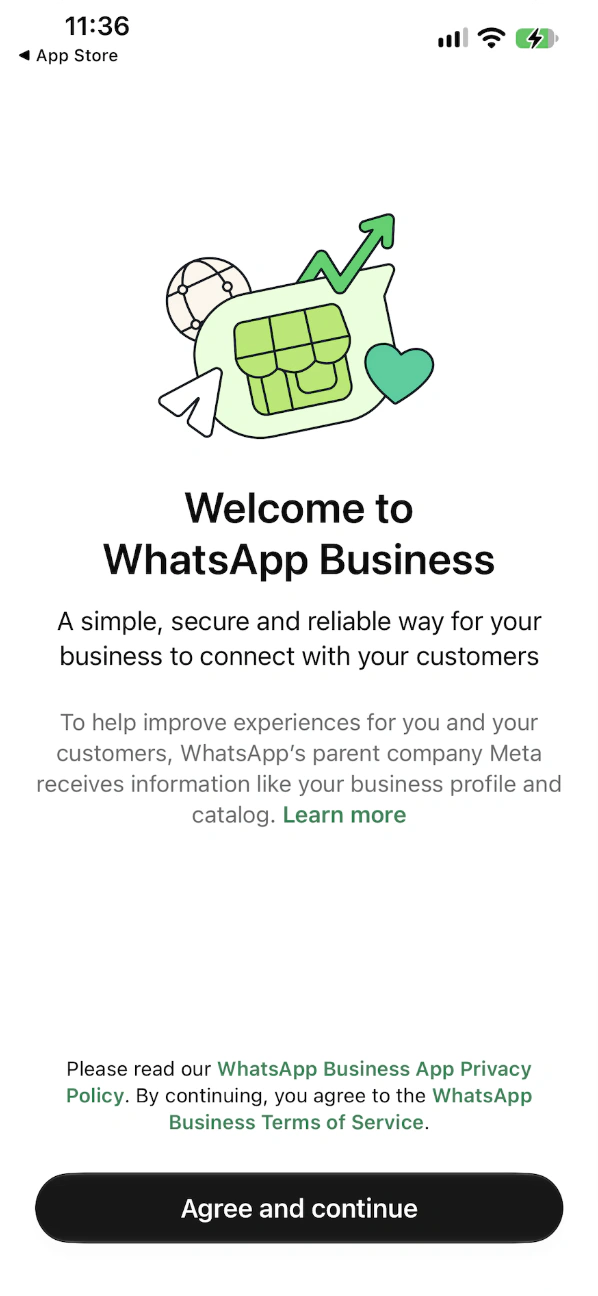
The first screen after installing the app asks you to accept the terms. Confirm the phone number
A new number is verified with a 6-digit code by SMS — tap Call me if it doesn’t arrive and an automated voice reads it out. If the number is already in WhatsApp Messenger, the app detects it and offers to move it instead; that case has its own section below.
Add the business name, photo and category
Type the name customers will see, tap Add to upload a logo and open Business category to choose from the list. The screen warns that the profile will be public and says more details can be added in Settings.
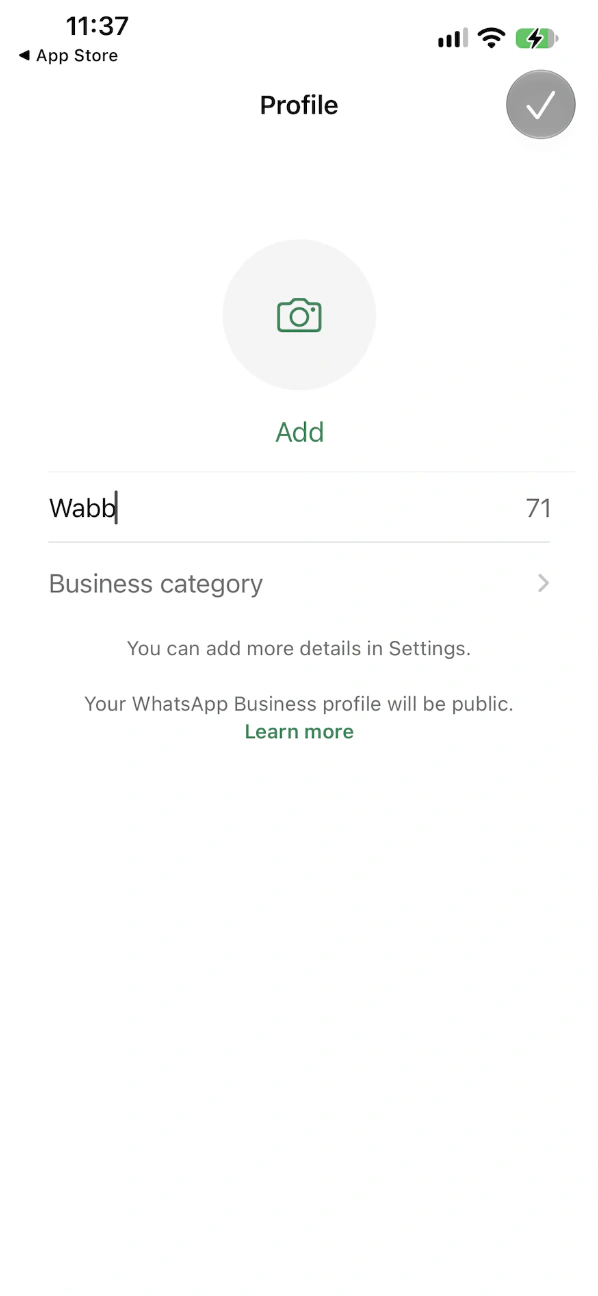
The profile screen asks only for a name, a photo and a category. Add a business email — or skip it
The app asks for an email used for login, support and account updates; it isn’t visible to others. Tap Skip to leave it for later, or enter an address and confirm the 6-digit code sent to it.
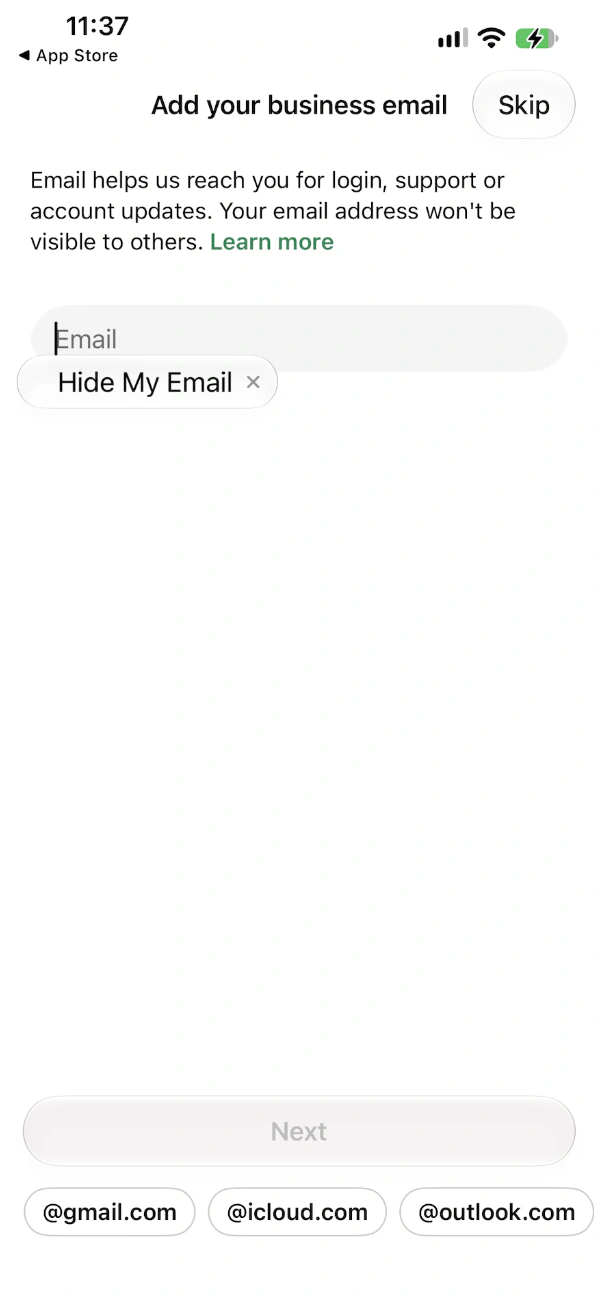
The email step can be skipped with the Skip button. 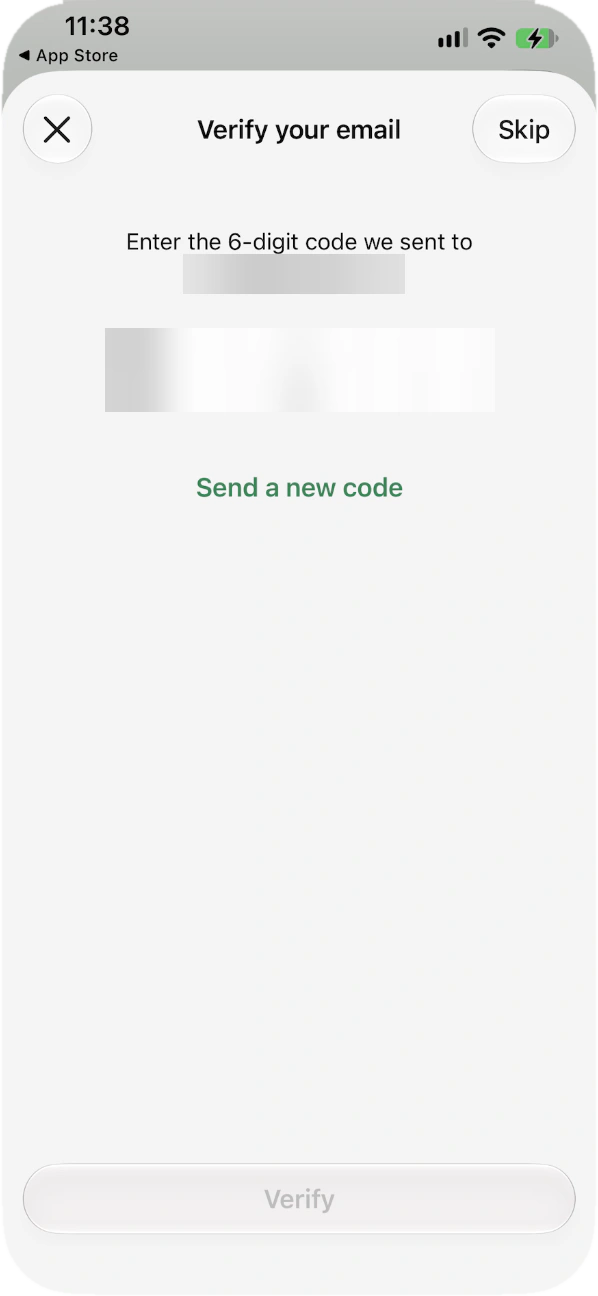
The 6-digit code is sent to the email address you entered. Land on the Tools tab
The account is live. Tools collects catalog, ads, lists, greeting and away messages; hours, address and description are added from the profile in Settings.
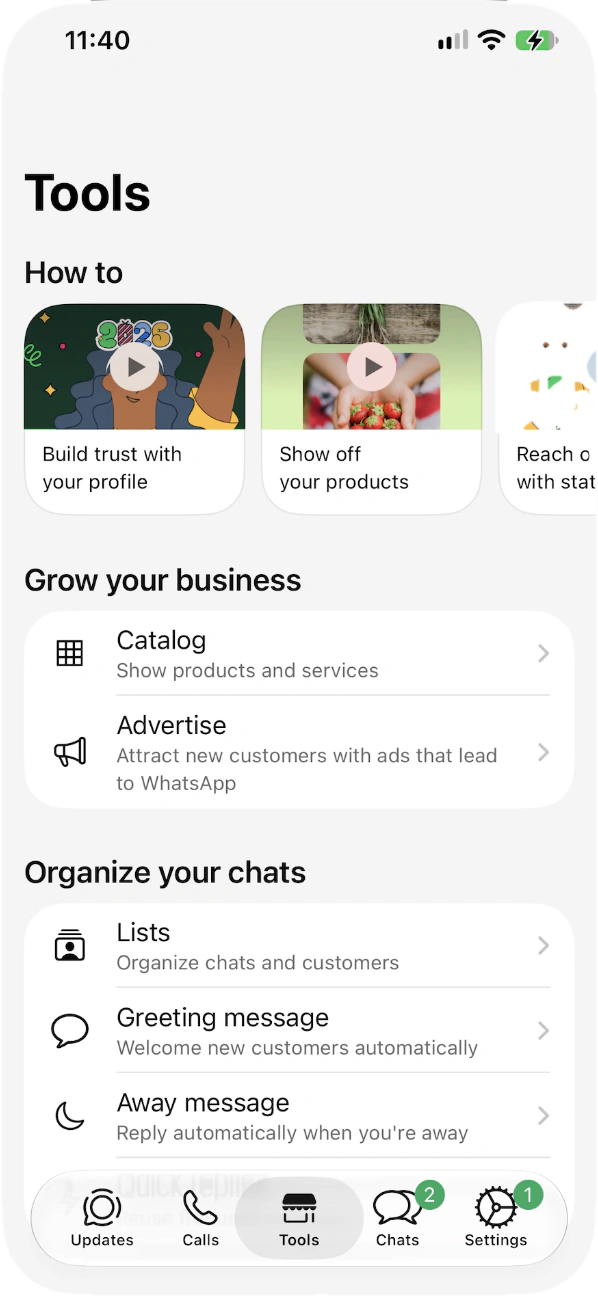
The Tools tab opens right after setup. 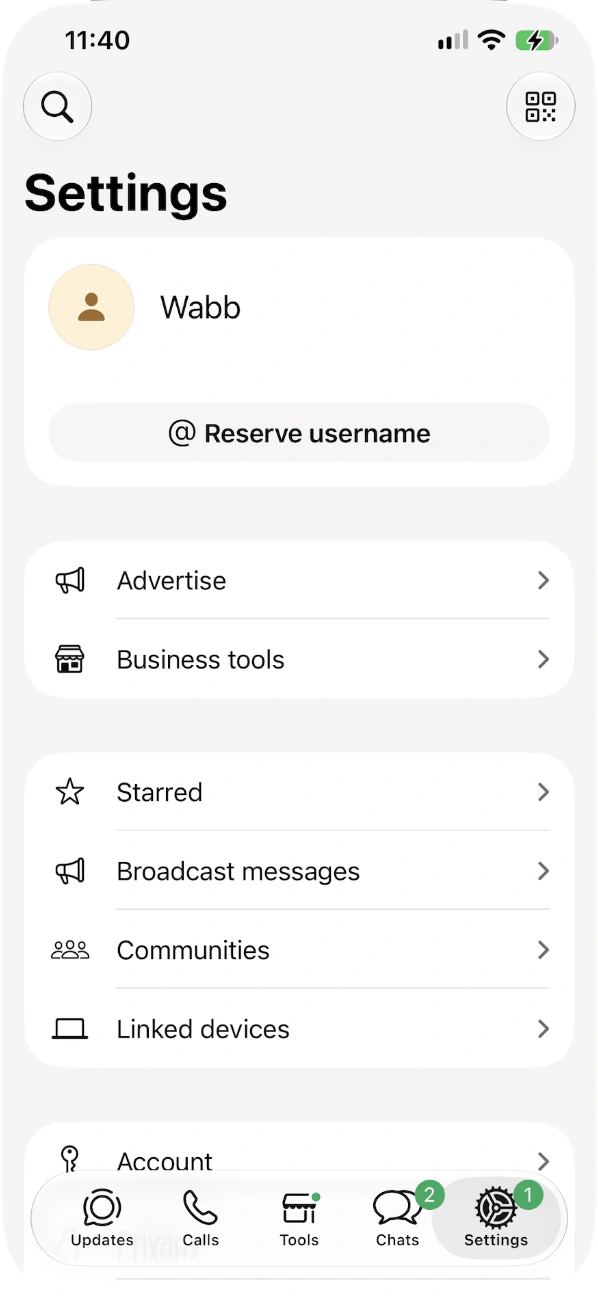
Settings shows the business name, Reserve username and Business tools.
Source: WhatsApp Help Center — How to download the WhatsApp Business app, checked 21 October 2026.
If the code doesn’t arrive
The code is slow. Let the progress bar finish — it can take up to 10 minutes — then retry or choose Call me.
Don’t guess the code. Wrong attempts lock you out for a period of time.
Landline with an IVR menu. The code is only sent to the number itself, so it must ring through to a person without an extension.
Still nothing. Restart the phone, reinstall the app, and send a test SMS to the number from another phone to check the reception.
Source: WhatsApp Help Center — How to register for the WhatsApp Business app, checked 21 October 2026.
Already on WhatsApp? Move the Number or Keep Both
If the number is already used in WhatsApp Messenger, you have two clean options. A move starts with a backup of your chats.
| Move the number | Keep both apps | |
|---|---|---|
| What you do | Install WhatsApp Business and tap your existing number when the app offers it. | Register a different number in WhatsApp Business. |
| Chats and media | Chat history and media come across to the Business account. | Stay in WhatsApp Messenger; the new account starts empty. |
| Personal WhatsApp | That number stops being a personal account. | Keeps working on its own number, side by side with the Business app. |
| Going back | You can move your account information back to WhatsApp Messenger. | Nothing to undo — they are independent. |
Worth knowing
WhatsApp contacts aren’t supported in the Business app yet, so any you created are lost in a move. In WhatsApp Messenger, turn that setting off and save the contacts to the phone’s address book first.
When the Business app opens it detects the number from Messenger. Tap that number to move it — the screen also warns that the Business profile will be public — or tap Use a different number and go through the normal verification to keep both.
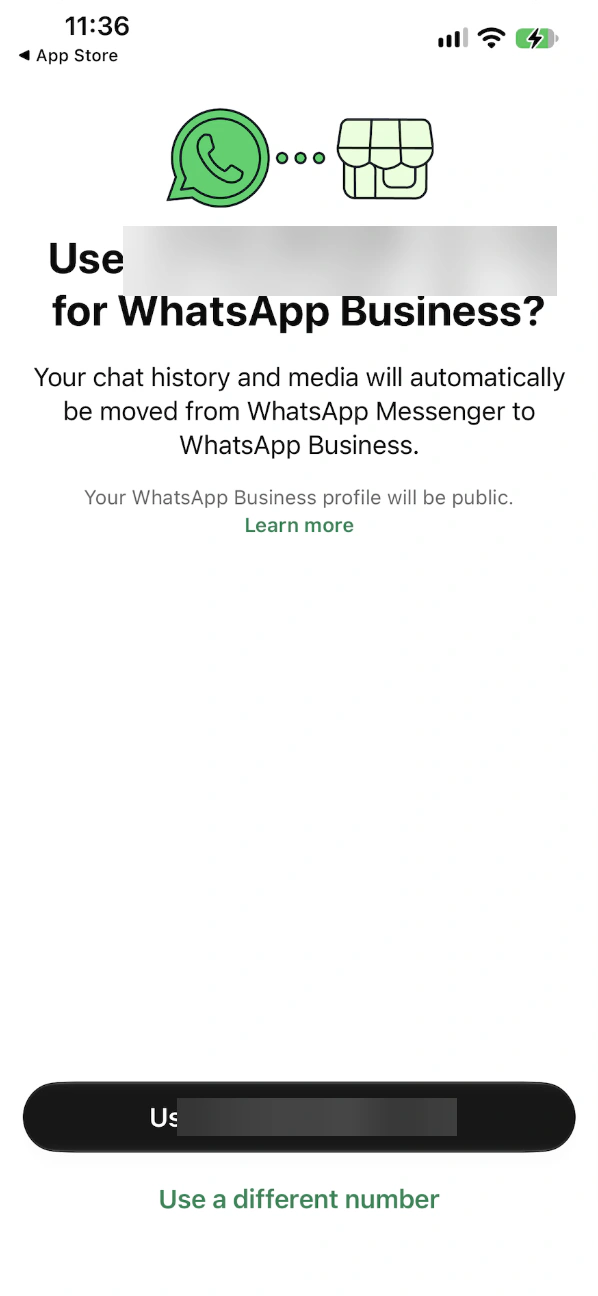
Source: WhatsApp Help Center — How to move your WhatsApp Messenger account to the WhatsApp Business app, checked 21 October 2026.
After Setup: What to Do Next
The account is live as soon as setup ends. These six steps make it useful before the first customer writes.
Finish the profile
Add business hours, address, description, website and social links — setup doesn’t ask for them. Field-by-field detail is in the Business Web guide.
Reserve a username
Business usernames are rolling out gradually, and you can reserve one from the phone app — not from WhatsApp Web.
Set a greeting and an away message
The two automatic replies the app offers, so a first message never lands in silence — shown in the Business Web guide.
Copy your short link and QR code
Both exist from the first day: the short link is on the Tools tab, and the QR code opens from the QR icon next to your name in Settings. Need a custom message? Use the link generator.
Link a computer
Scan a QR code from Linked devices — see WhatsApp Business on Web & Desktop.
Put it on your website
A floating button sends visitors into this chat: add a WhatsApp chat button.
Source: WhatsApp Help Center — About username reservations on WhatsApp Business, checked 21 October 2026.
Short link and QR code: How to create short links. What the profile shows: About your business profile.
Where the App Runs Out — and What Comes Next
The app is built for one owner or a very small team, and it does that well. These are the edges you will hit as chats grow:
One phone plus four linked devices. A Meta Verified or Meta One subscription can raise that to ten, depending on its benefits, with chat assignment between agents, where it is available.
Broadcast lists live on the phone. They can’t be created or viewed on linked devices, and they reach only people who have saved your number.
No chatbot or AI. The app has a greeting, an away message and quick replies — nothing that answers by itself.
No link to your other systems. Orders, CRM and spreadsheets stay on the other side of the screen.
Sources: About linked devices on the WhatsApp Business app, About multi-agent, checked 21 October 2026.
Worth knowing
Past those edges the next step is the WhatsApp Business Platform, through partners such as . WABB’s Connect WhatsApp Business App option keeps your number in the app and adds automation on top — the requirements guide explains the choice.
Flow Builder
Visual, no-code replies for the questions that repeat.
AI Agent
Answers what a fixed flow can’t predict. See WhatsApp AI for business in India.
Shared Inbox
A whole team on one number. See the shared inbox.
FAQ
Common Questions
Is a WhatsApp Business account free?
Yes. The WhatsApp Business app is free to download and use. A few add-ons, such as paid business broadcasts and Meta Verified, cost money and aren’t available everywhere. See Where the App Runs Out.
Can I create a WhatsApp Business account with a landline?
Yes. Register the number, then tap Call me to hear the 6-digit code. The number can’t be behind an extension, because WhatsApp only sends the code to the number itself. See Before You Start.
Can I use the same number on WhatsApp and WhatsApp Business?
Not at the same time: a number is linked to one app, but you can move it between them. To run both apps on one phone, use two different numbers. See Already on WhatsApp?.
What happens to my chats if I move to WhatsApp Business?
Chat history and media move to the Business account. WhatsApp contacts aren’t supported there yet, so turn that setting off, save contacts to the phone’s address book and back up before you start. See Already on WhatsApp?.
How long does the verification code take?
It can take up to 10 minutes. If the timer runs out, choose Call me. Do not guess the code — repeated wrong attempts lock the number for a while. See Register & Profile.
Do I need a website or a Facebook page to start?
No. Setup doesn’t ask for either; address, website and social links are optional details you add later in Settings. A catalog, ads and Meta Verified come later too. See After Setup.
Can several people use one WhatsApp Business account?
Yes, through linked devices — one phone plus up to four devices. More than that needs Meta Verified, or a shared inbox on the WhatsApp Business Platform. See Where the App Runs Out.