WhatsApp Desktop is a downloadable app for Windows and Mac, not a website — it opens in its own window, and (per WhatsApp’s own current description) adds calling, screen sharing, and a faster experience compared to the browser version.
It logs in the same way WhatsApp Web does: scan a QR code, or enter a phone number, linked to the WhatsApp account already active on your phone. If you just need those login steps, see WhatsApp Login: The Complete Guide — this guide covers everything before that: getting the app installed in the first place.
Covered here: where to download it for each OS, what your computer needs to run it, what to do when the download or install doesn’t work, and — since a fair number of people searching for this actually mean something else — where a business should go instead.
What Is WhatsApp Desktop?
It’s a native app — not a browser tab — that mirrors your phone’s WhatsApp account onto a Windows or Mac window. Same messages, same contacts, same account.
It’s a companion, not a replacement: your account still lives on your phone. Uninstalling the phone app removes the account entirely — Desktop and Web are both just other places to view and use it.
Compared to WhatsApp Web, the native app typically adds things a browser tab handles less naturally: system notifications, keyboard shortcuts, drag-and-drop file sharing, and — per WhatsApp’s current download page — calling and screen sharing built into the same window.
Download WhatsApp Desktop
The simplest source is WhatsApp’s own download page — it auto-detects your operating system and offers the matching installer.

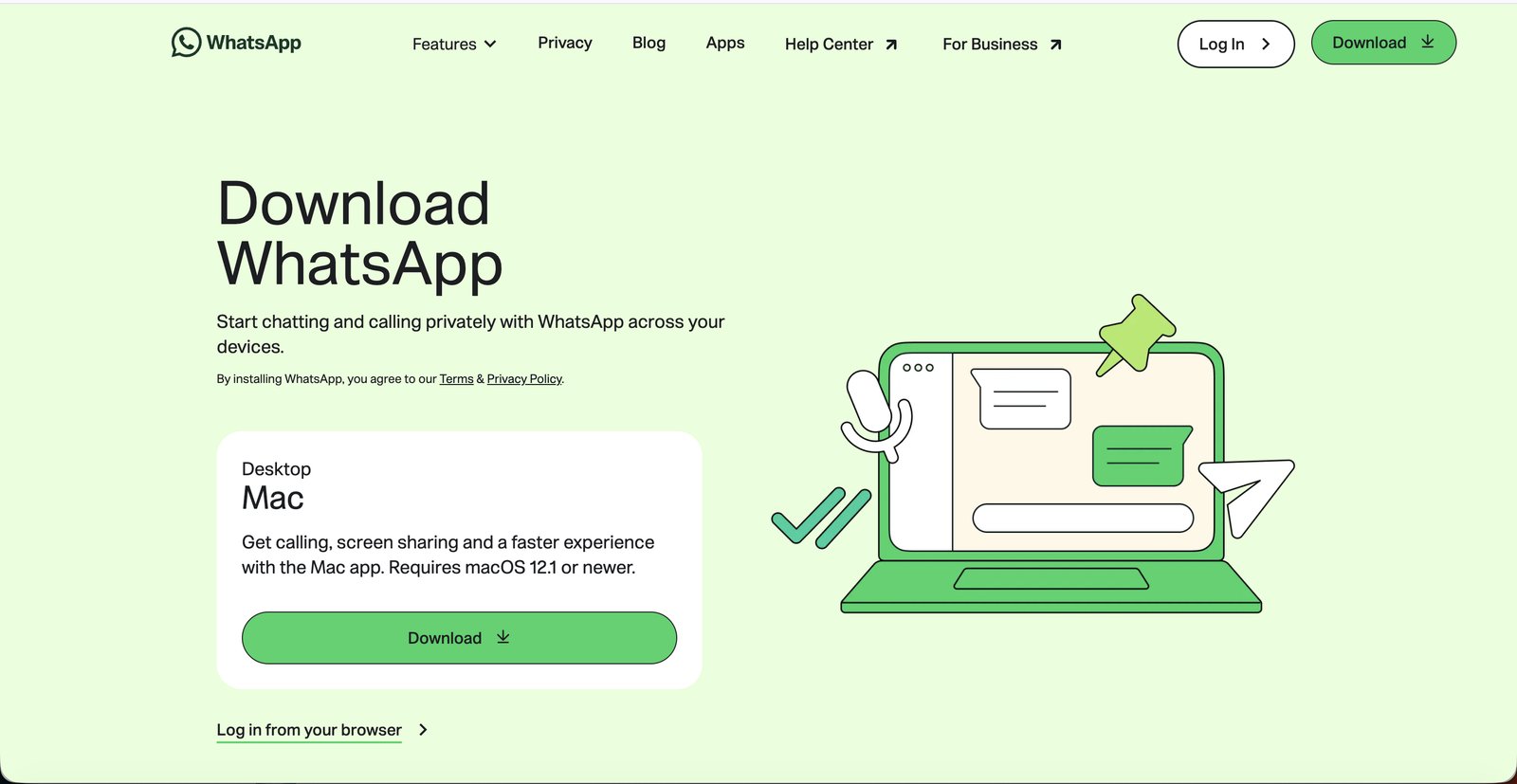
Check the URL before you download anything
A brand this size attracts look-alike download pages. Only download from a page that reads whatsapp.com, or from your OS’s own official app store — never from a link in an email, ad, or unsolicited message claiming to be WhatsApp.
System Requirements
Beyond the OS version itself, you’ll need an existing WhatsApp account to use WhatsApp Desktop. The desktop app connects to your WhatsApp account across your devices.
Mac
Requires macOS 12.1 or newer, according to WhatsApp’s current download page.
Source: WhatsApp Download page
Windows
Requires Windows 10 or newer. WhatsApp’s Help Center provides the more specific requirement of Windows 10 64-bit, version 1903 or newer.
Source: WhatsApp Help Center
Install & First Login
Shown here on Mac — Windows swaps the .dmg and drag-to-Applications step for a regular .exe installer wizard, but the rest is the same.
Download the installer
It lands in your browser’s downloads like any other file — a .dmg on Mac, a .exe on Windows.

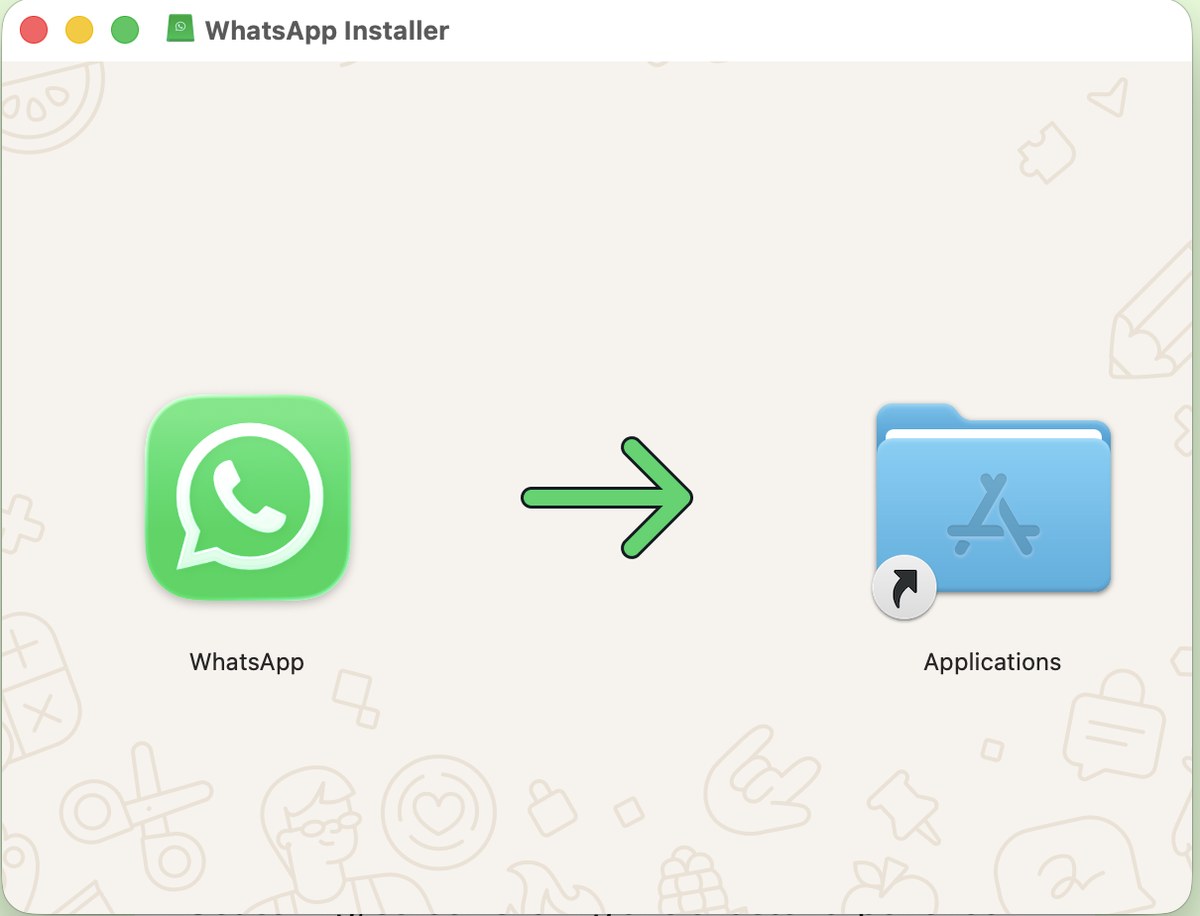
Open it, and install the app
On Mac, that means dragging WhatsApp into the Applications folder. On Windows, the .exe just runs its own install wizard — click through it.
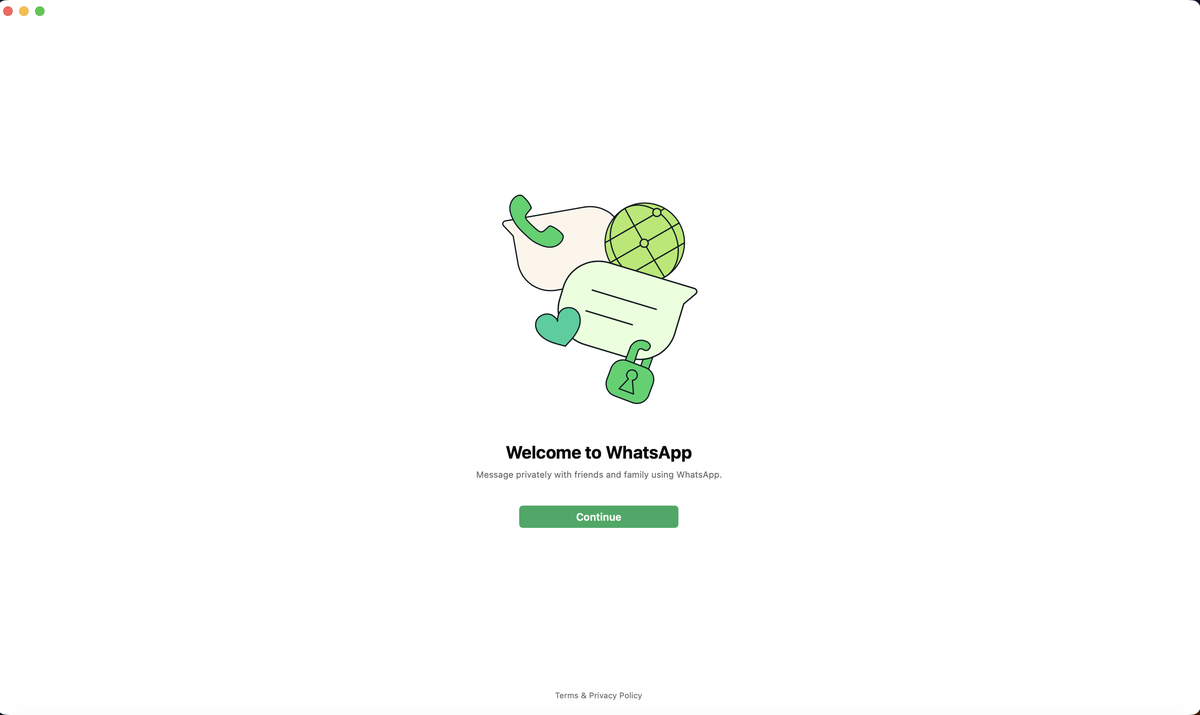
Open WhatsApp Desktop for the first time
A short welcome screen appears once — tap through it to get to the login screen.
Scan the QR code, or log in with your phone number
The same login screen WhatsApp Web uses. Exact steps for both methods, by OS, are covered in WhatsApp Login: The Complete Guide.
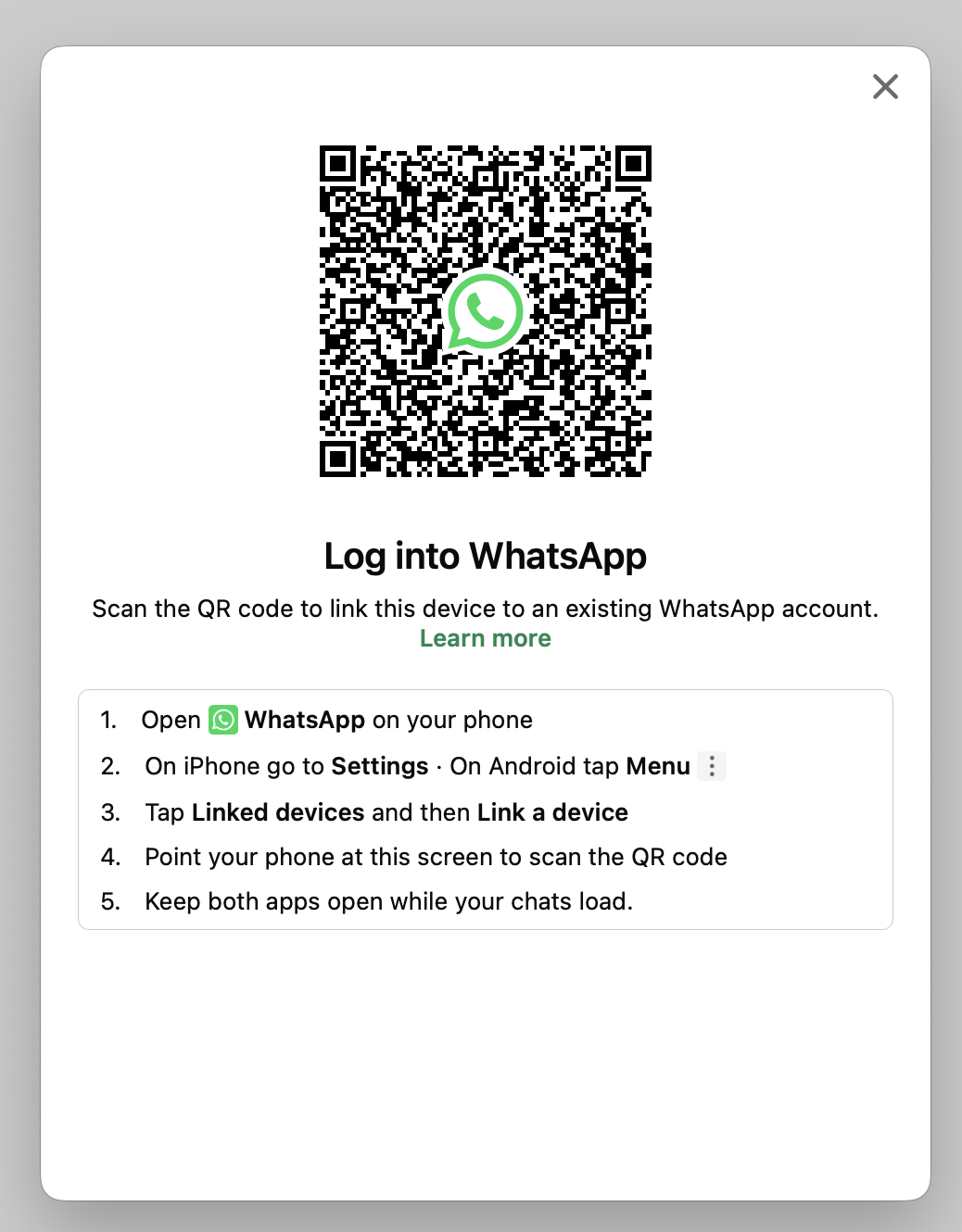
That’s the whole install — WhatsApp Desktop is now linked and ready.
WhatsApp Desktop vs. Web vs. the Mobile App
| Desktop | Web | Mobile App | |
|---|---|---|---|
| Needs installing | Yes | No — just a browser tab | Yes — this is where the account actually lives |
| Notifications & shortcuts | Full OS-level integration | Browser-dependent | Native |
| Works without the phone online | Yes, once linked | Yes, once linked | N/A — it is the source account |
| Best for | Daily desk use, calling, file drag-and-drop | A quick session on a shared or one-off computer | Everywhere else |
Download or Install Not Working?
Updating & Uninstalling
Updating
Store installs (Microsoft Store, Mac App Store) update themselves like any other app. A direct download usually prompts you in-app, or you can grab the latest installer from the same download page.
Uninstalling
Standard OS removal — Settings → Apps on Windows, or drag it from Applications to the Trash on Mac. Your account itself isn’t affected; it still lives on your phone.
Reinstalling later just means linking again, the same as adding any new device — see Login With a QR Code.
Using WhatsApp Desktop for Business?
WhatsApp Desktop works well when you need to access your existing WhatsApp account from a computer.
If your business needs multiple agents working from one number, automated replies, CRM integrations, broadcasts, or AI-powered workflows, those capabilities aren’t added by installing the Desktop app. They’re typically handled through the WhatsApp Business Platform (API).
FAQ
Common Questions
Is WhatsApp Desktop free?
Yes — the app itself costs nothing to download, install, or use. It’s the same account you already have, viewed from another window.
Do I need WhatsApp on my phone to use Desktop?
Yes, at least once. Desktop links to an account that already exists on a phone — it can’t create a new WhatsApp account by itself.
Can I use WhatsApp without installing anything?
Yes — WhatsApp Web is the browser-only alternative, no install required. See WhatsApp Login: The Complete Guide for those steps.
Does Desktop keep working if my phone loses internet?
Yes, once it’s linked — it just needs its own internet connection. Your phone does need to reconnect occasionally, or the link can expire; see Using WhatsApp Web Without Your Phone Nearby.
Why won’t the app open on my Mac?
That’s usually macOS’s Gatekeeper flagging a fresh download the first time. Right-click the app and choose Open once, or allow it under System Settings → Privacy & Security.
Is the Microsoft Store / Mac App Store version different from the direct download?
Functionally, no — same app, same account. The main practical difference is how it updates: the store handles that for you, a direct download prompts you (or needs a fresh installer) instead.
Can a business use WhatsApp Desktop to run automation?
No — Desktop is one person, one chat window. Automation, a shared team inbox, and broadcasts run on the separate WhatsApp Business Platform; see Using WhatsApp Desktop for Business?.