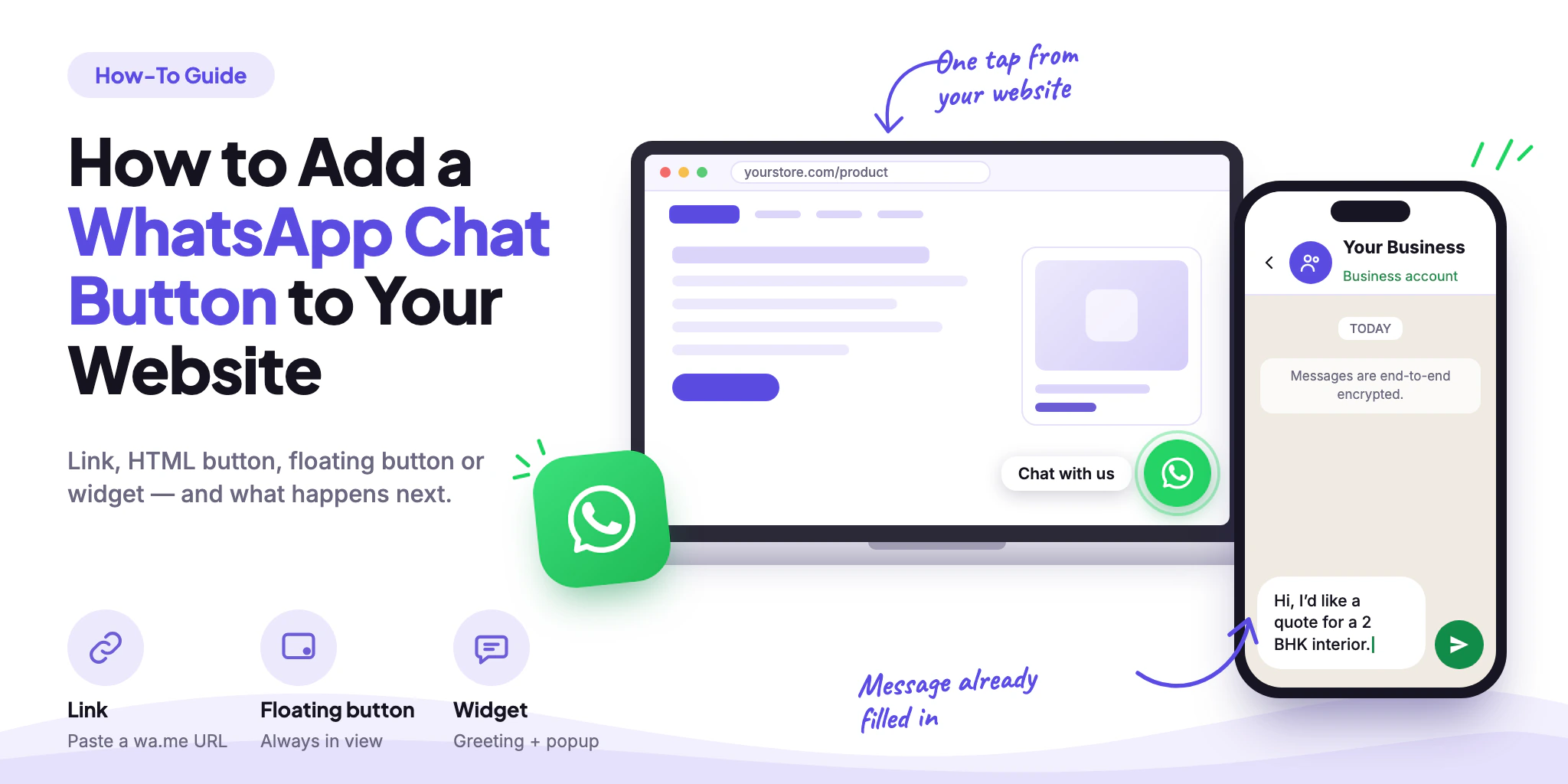
A WhatsApp chat button lets a visitor go from reading your website to messaging your business in one tap. Here’s how to add one — from a simple link to a floating button or widget — how to set up the number, the first message and the placement, and what to do once the conversations start arriving.
WhatsApp Chat Button: Quick Answer
The short version:
A WhatsApp chat button is a link on your site that opens a WhatsApp conversation with your business number — on a phone it opens the app, on a computer WhatsApp Web or Desktop.
You can add it four ways: a plain WhatsApp link, an HTML button, a floating button on every page, or a website widget from a platform.
Setup comes down to three decisions: the phone number (international format), a pre-filled message, and where the button sits on the page.
The button only starts the conversation. Replying fast, qualifying leads and routing requests is a separate job — and where automation comes in.
What Is a WhatsApp Chat Button?
It’s a clickable button, icon or link on your website that opens a WhatsApp chat with your business number. On a phone it opens the WhatsApp app; on a computer it opens WhatsApp Web or the Desktop app. If you set a pre-filled message, the text is already in the message box — the visitor only has to press send.
The click is on your site; the conversation happens in WhatsApp.
Worth knowing
The chat itself is never embedded in your page. A button, a floating icon and a “widget” all end the same way — in WhatsApp. What differs is how much the visitor sees on your site before they get there.
Why Add WhatsApp Chat to Your Website?
A contact form asks a visitor to wait for an email. A WhatsApp button asks them to start a conversation in an app they already use every day — and it leaves you with a chat thread and a number you can reply to. It works best where a visitor has a question that’s too small for a form:
Online stores
Shoppers ask about size, stock or delivery on the product page instead of leaving to search for an answer.
Service businesses
Visitors request a quote or a visit in one tap — clinics, salons, interior designers, coaching, repair.
B2B and sales teams
A direct line to sales for the buyer who would rather message than fill in a long form.
Local businesses
Opening hours, directions and bookings are one message away for people already standing outside.
The same idea powers Click-to-WhatsApp ads: remove the steps between interest and a first message.
4 Ways to Add a WhatsApp Button to Your Website
All four rest on the same click-to-chat link; they differ in how much work they take and how visible the result is.
| Method | How it works | Best for | Limits |
|---|---|---|---|
| WhatsApp link | Paste a wa.me URL behind any text, image or menu item. | Existing “Contact” buttons, emails, link-in-bio pages. | You style and place it yourself; no popup. |
| HTML button | A link tag styled as a button, added to the page. | Product pages, landing pages, footers. | One placement per edit; needs access to the page code. |
| Floating button | A fixed-position button plus a few lines of CSS, on every page. | Whole sites where help should always be in view. | Can cover other elements on small screens. |
| Website widget | Paste one script from a platform; it adds the button and popup. | A greeting, brand color and message managed in one place. | Third-party script; look depends on the tool’s options. |
If you’re not sure, start with a link on your contact page, add a floating button once you see it gets used, and move to a widget when you want a greeting and one place to manage it.
Setting Up a WhatsApp Chat Button
Before you start
You need a phone number that’s active on WhatsApp — ideally a business number — and a way to edit your site: a page editor, a custom HTML block, or a footer or theme file. Not sure which app to use? See how WhatsApp Business works on Web and Desktop.
Step 1: Set the Number and the Pre-Filled Message
Every method starts from the same link: https://wa.me/<number>?text=<message>. The number is the full international number with digits only — no +, spaces, dashes or leading zeros. For an Indian mobile number, 98765 43210 becomes 919876543210.
Source: WhatsApp Help Center — How to use click to chat.
The text after ?text= is the pre-filled message. Visitors can still edit it before they send, so keep it short and useful. Special characters need URL encoding:
| Character | Write it as | Example |
|---|---|---|
| Space | %20 | Hi%20there → Hi there |
| Comma | %2C | Hi%2C%20there → Hi, there |
| New line | %0A | Hi%0AQuote → two lines |
| & | %26 | Tea%20%26%20Co → Tea & Co |
| # | %23 | Order%20%2312 → Order #12 |
Business account
Hi, I’d like a quote for a 2 BHK interior.
Illustration: what the visitor sees after tapping the button — the message is ready, they only press send.
Step 2: Add a Link or an HTML Button
Paste this wherever you want the button — a page, a product template or the footer. Replace the number and the message.
HTML link
<a href="https://wa.me/919876543210?text=Hi%2C%20I%27d%20like%20a%20quote%20for%20a%202%20BHK%20interior."
   target="_blank" rel="noopener">
  Chat with us on WhatsApp
</a>
Most site builders let you do the same without code: add a button element and paste the wa.me link as its URL.
Step 3: Make It a Floating Button
A floating button stays in a corner while the visitor scrolls. Add this once to a site-wide template — a footer or theme file — so it appears on every page. The WhatsApp icon is a file you supply; link it from your own site rather than a third party.
Illustration: a floating button in the bottom-right corner of a product page.
Floating button — HTML and CSS
<a class="wa-float"
   href="https://wa.me/919876543210?text=Hi%2C%20I%27d%20like%20a%20quote%20for%20a%202%20BHK%20interior."
   target="_blank" rel="noopener"
   aria-label="Chat with us on WhatsApp">
  <img src="/images/whatsapp-icon.svg" alt="" width="28" height="28">
</a>

<style>
  .wa-float {
    position: fixed;
    right: 20px;
    bottom: 20px;
    z-index: 9999;
    display: flex;
    align-items: center;
    justify-content: center;
    width: 56px;
    height: 56px;
    border-radius: 50%;
    background: #25D366;
    box-shadow: 0 4px 12px rgba(0, 0, 0, 0.25);
  }
  @media (max-width: 480px) {
    .wa-float { right: 16px; bottom: 16px; }
  }
</style>
Step 4 (Optional): Use a Website Widget
A widget is a floating button with a small popup — a greeting, a brand color, a “Chat with us” button — generated by a tool, so you paste one snippet instead of writing the HTML yourself. It still opens WhatsApp. Here’s the flow in , where the widget is built in:
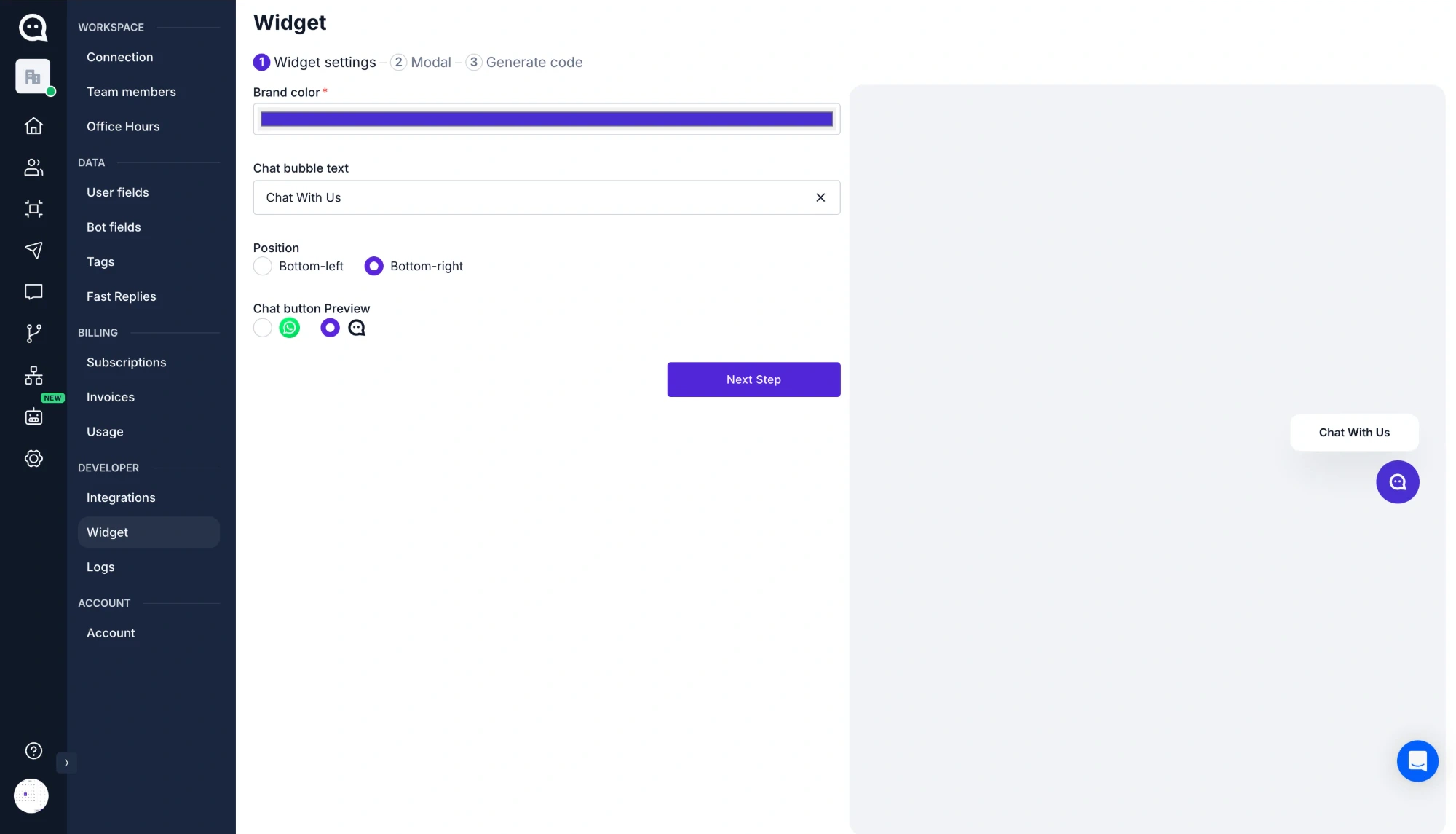
Open Settings → Widget
You’ll find it under Developer in the settings menu. The setup has three steps: Widget settings, Modal and Generate code.
Style the button in Widget settings
Pick the Brand color, the Chat bubble text (up to 24 characters), the Position — bottom-left or bottom-right — and the icon: WhatsApp or WABB. A live preview sits on the right.
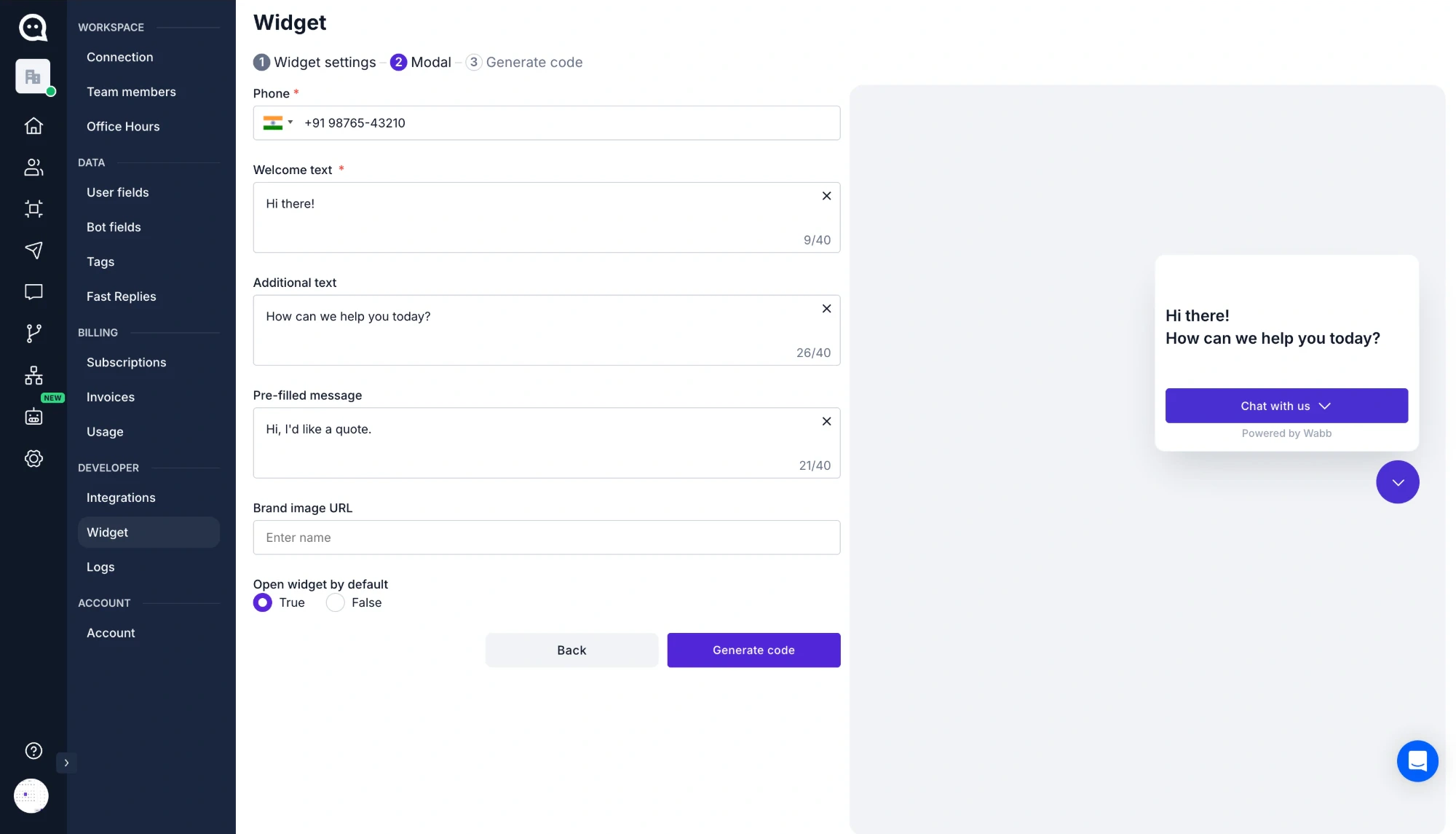
Write the popup in Modal
Enter your Phone number, a Welcome text, optional Additional text, a Pre-filled message (these text fields take up to 40 characters each) and a Brand image URL. Choose whether the popup is open by default.
Copy the code from Generate code
Click Copy to clipboard and paste the two script tags into your site’s code, before the closing body tag, on every page.
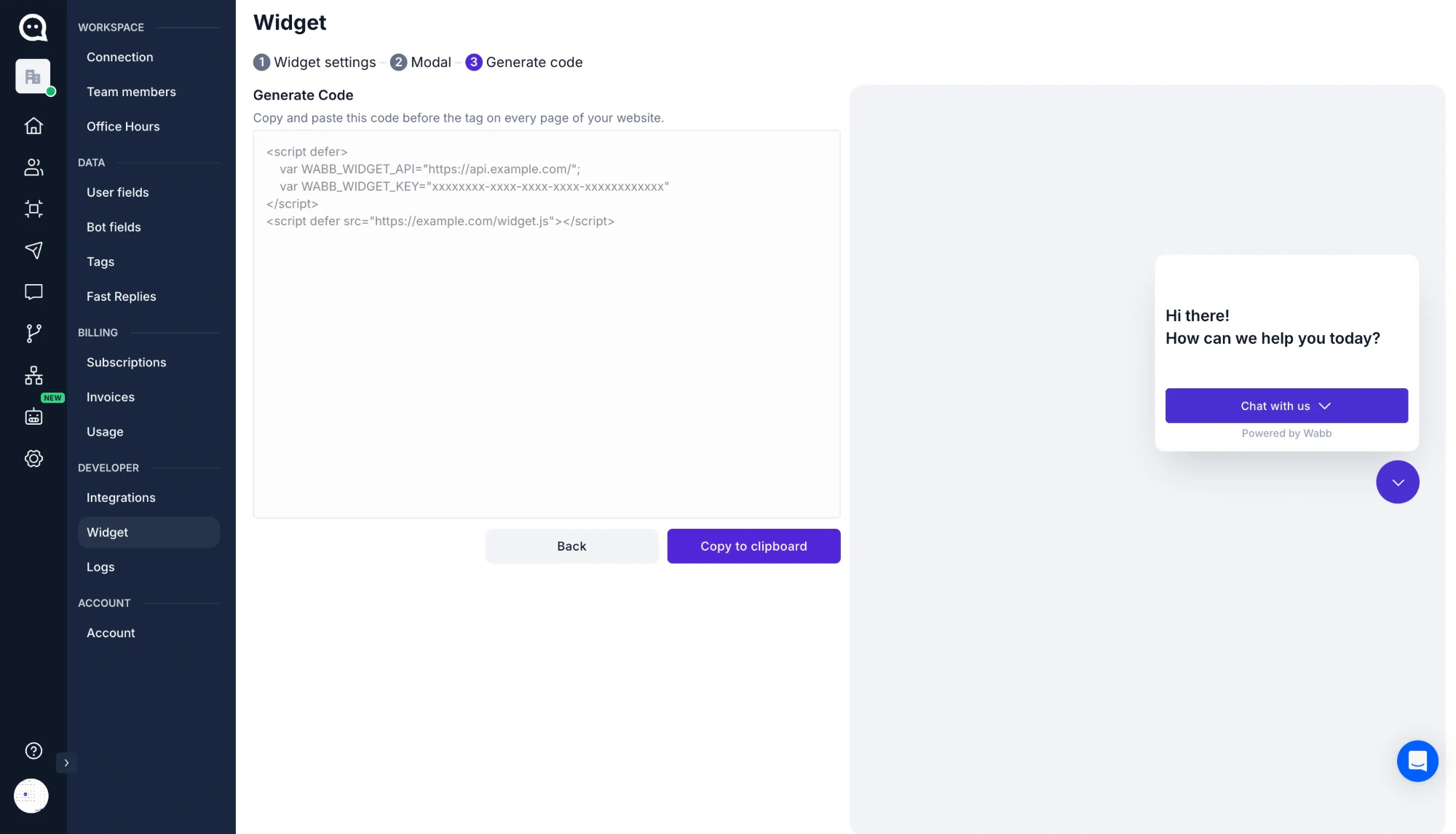
What the generated snippet looks like (addresses and key replaced)
<script defer>
    var WABB_WIDGET_API="https://api.example.com/";
    var WABB_WIDGET_KEY="xxxxxxxx-xxxx-xxxx-xxxx-xxxxxxxxxxxx"
</script>
<script defer src="https://example.com/widget.js"></script>
In the preview the popup carries a small “Powered by Wabb” line. Once the snippet is on your site, open a page in a private window to check the button, the popup and the message.
Best Practices for a WhatsApp Chat Button
A button that’s easy to find and clear about what it does gets used; one that’s everywhere or vague gets ignored. Six habits that make the difference:
Button Text and Pre-Filled Messages That Fit the Page
Match the label to what the visitor wants on that page, and pre-fill a message that carries the context:
Use it on: Any page — the safe default for a floating button or a header.
Hi, I have a question about your services.
Use it on: Service and project pages where price depends on the job.
Hi, I’d like a quote for a 2 BHK interior.
Use it on: Product pages — the pre-filled text can name the product.
Hi, is the cotton kurta set (blue, M) in stock?
Use it on: Contact page and footer, next to phone and email.
Hi, I’d like to get in touch.
Use it on: Pricing and B2B pages, for buyers who are comparing options.
Hi, I’d like to talk to sales about your plans.
Illustration: example button labels with a matching pre-filled message.
Troubleshooting and Tracking Your WhatsApp Button
Most problems come from the number format, the encoding or where the code was pasted:
| Problem | Likely cause | Fix |
|---|---|---|
| The button doesn’t appear | Snippet missing from some templates, a cached page, or a consent or ad blocker stopping the script. | Check that the code is in the site-wide footer, clear the cache, and test in a private window. |
| WhatsApp says the number isn’t on WhatsApp | The number has a +, spaces, dashes or a leading zero. | Use digits only with the country code: 919876543210 for an Indian mobile number. |
| The message is cut off or garbled | Special characters weren’t URL-encoded. | Encode spaces, line breaks, & and # — see the table above. |
| The button covers other content | Another fixed element sits in the same corner. | Move one of them to the other side, or raise the offset on small screens. |
| Nothing happens on a computer | The browser blocked the pop-up, or WhatsApp Desktop isn’t installed. | Allow the prompt to open WhatsApp, or continue on WhatsApp Web. |
Count the Clicks
WhatsApp doesn’t tell you who clicked, so measure it on your own site. With Google Analytics 4 already installed, this sends an event every time a visitor clicks a wa.me link:
<script>
  document.querySelectorAll('a[href^="https://wa.me/"]').forEach(function (el) {
    el.addEventListener('click', function () {
      gtag('event', 'whatsapp_click', {
        link_url: el.href,
        page_path: location.pathname
      });
    });
  });
</script>
To see which page produced a conversation, put it in the pre-filled message — for example “Hi, I’m interested in the pricing plans (from the Pricing page)”. UTM parameters don’t carry into WhatsApp, so the message is the simplest way to keep the source.
Worth knowing
WhatsApp Business also offers a short link and a QR code you can edit later and that hide your number in the URL. They suit print and social. Meta notes that analytics aren’t available for them, so for a website button the wa.me link plus your own event tracking is the better fit.
Source: Meta for Developers — QR codes and short links (checked October 2026).
From WhatsApp Button to Automation
The button solves one problem — getting visitors into a conversation. It doesn’t decide what happens in that conversation. Once the button works, messages arrive at any hour, many ask the same few questions, and not every one is a real lead.
The button starts the conversation; automation handles what comes next.
| Moment | Button only | Button + automation |
|---|---|---|
| Reply at 11 pm | Waits until someone is online. | An instant reply and the first questions asked. |
| Lead quality | Every chat looks the same until a person reads it. | Need, budget and city captured before a person steps in. |
| Repeat questions | Answered by hand, again and again. | Answered from your own information, in seconds. |
| Routing | Whoever has the phone open picks it up. | Sent to the right person or team, with the context. |
Hi, I’d like a quote for a 2 BHK interior.
Hi Priya, happy to help. Is the flat ready for work, or still under construction?
Ready. It’s in Bangalore.
Thanks. What budget range do you have in mind? I’ll pass this to our designer with the details.
Illustration: the first reply after a button click, asking the questions a person would ask anyway.
You can start small — a greeting or away message covers the first minutes. When the volume outgrows that, platforms such as WABB can run the conversation itself: qualifying the lead, answering routine questions and routing the chat to the right person. Learn how WhatsApp automation works →
Flow Builder
Visual, no-code flows for the questions that repeat.
AI Agent
Handles what a fixed flow can’t predict. See WhatsApp AI for business in India.
Shared Inbox
A whole team replying from one number, without stepping on each other.
Ready to build the agent? Follow Build a WhatsApp AI Agent in India with WABB.
FAQ
Common Questions
How do I add a WhatsApp chat button to my website?
Build a link in the form wa.me/your-number, then place it behind a button — as plain HTML, as a floating button, or through a widget tool that gives you one script to paste. See Setting Up a WhatsApp Chat Button.
Do I need to know how to code?
Not for a link, and not for a widget — both are copy and paste. A custom floating button needs a few lines of HTML and CSS, shown above, and access to your site’s footer or theme. See 4 Ways to Add a WhatsApp Button.
Can the chat itself appear on my website?
No. A button or widget opens WhatsApp — the app on a phone, WhatsApp Web or Desktop on a computer — and the conversation happens there. Some widgets show a greeting popup first, but the chat still moves to WhatsApp. See What Is a WhatsApp Chat Button?.
Which number should I use?
Any number that’s on WhatsApp works, but a business number on the WhatsApp Business app (or a platform) keeps customer chats separate from personal ones. Write it with the country code and no + or spaces. See Setting Up a WhatsApp Chat Button.
Can I track how many people click the button?
Yes, on your side: fire an analytics event when the button is clicked. WhatsApp itself doesn’t report clicks, and Meta says analytics aren’t available for its QR codes and short links. See Troubleshooting and Tracking.
Will it work on WordPress, Shopify or Wix?
Yes — any site builder that lets you add a custom HTML block or a footer script can hold a link, a floating button or a widget. The menu names differ by builder, so check where yours puts custom code. See 4 Ways to Add a WhatsApp Button.
What happens once visitors start messaging us?
You get a normal WhatsApp conversation. As volume grows, an auto-reply, a chatbot flow or an AI Agent can answer first and pass the chat to a person when needed. See From WhatsApp Button to Automation.