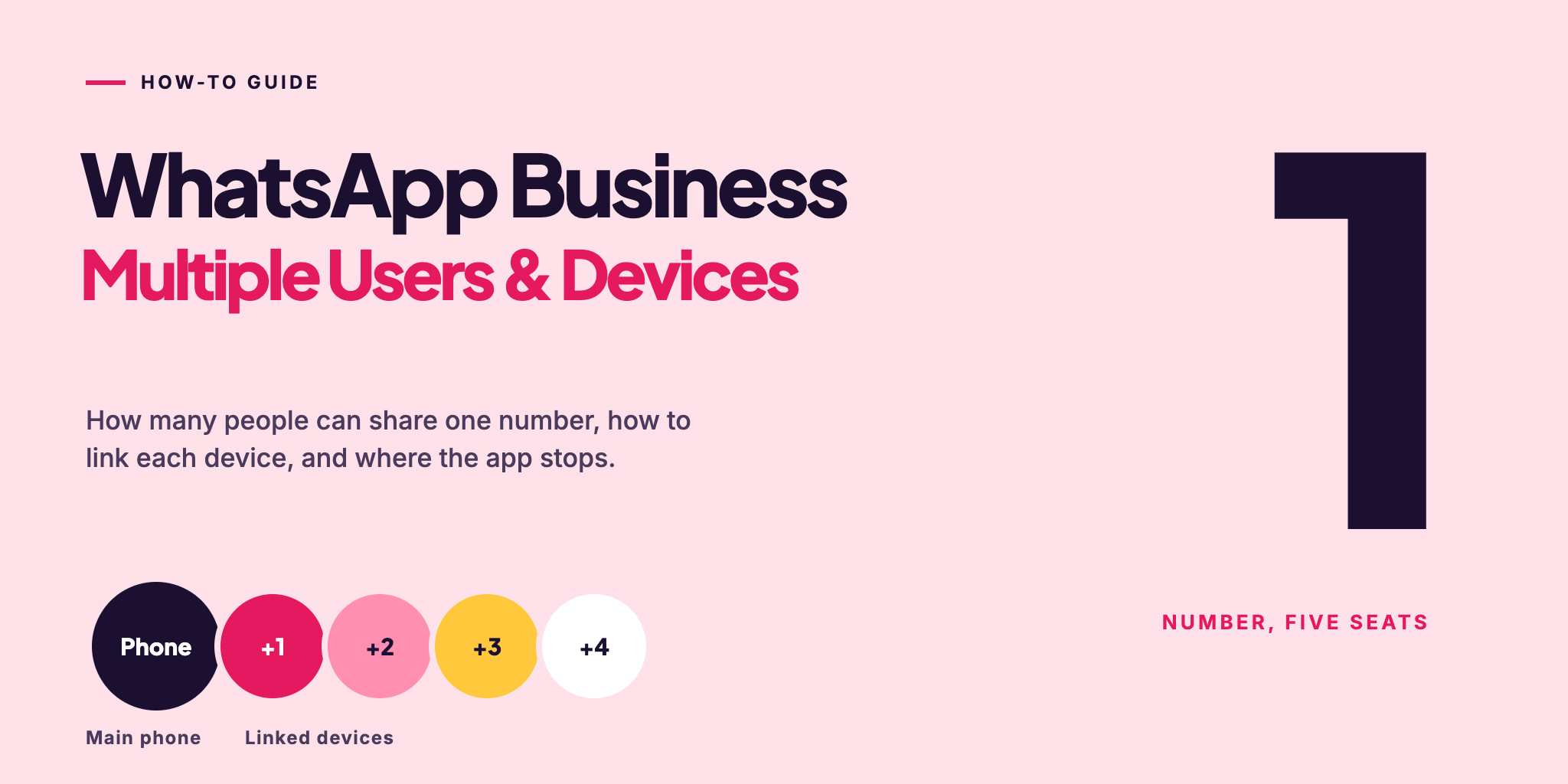
Several people can answer from one WhatsApp Business number — the limits are how many devices you can link, what they share, and what the free app can’t do for a team.
WhatsApp Business with Multiple Users: Quick Answer
The short version:
One WhatsApp Business number can be used by up to four linked devices plus the main phone at the same time. Each device is linked once with a QR code.
Everyone sees the same chats under the same number, and the customer sees one business. The free app has no way to assign a chat to a person.
A Meta Verified or Meta One subscription can raise the limit to 6, 8 or 10 devices, depending on the plan, and adds Assign chat, where it is available.
Past that, or when you need roles and routing, a team inbox on the WhatsApp Business Platform takes over.
Setting up the account itself is in How to create a WhatsApp Business account; the computer side is in WhatsApp Business on Web & Desktop.
How to Link a Device to WhatsApp Business
Every extra person gets their own linked device — a computer or another phone. Only the first step differs; the screens below are from an iPhone.
Open WhatsApp Business on the new device
On a computer that is WhatsApp Web or the Desktop app. On a second phone, install WhatsApp Business, accept the terms, tap the three dots → Link as companion device. The new device shows a QR code to be scanned.
On the main phone, open Linked devices
iPhone: Settings → Linked Devices → Link a Device. Android: tap the three dots → Linked devices → Link a device.
Unlock the phone
On an iPhone with iOS 14 or newer, unlock with Face ID, Touch ID or the phone PIN when WhatsApp asks.
Scan the QR code
Point the phone at the screen of the new device. The scanner screen also offers Link with phone number instead.
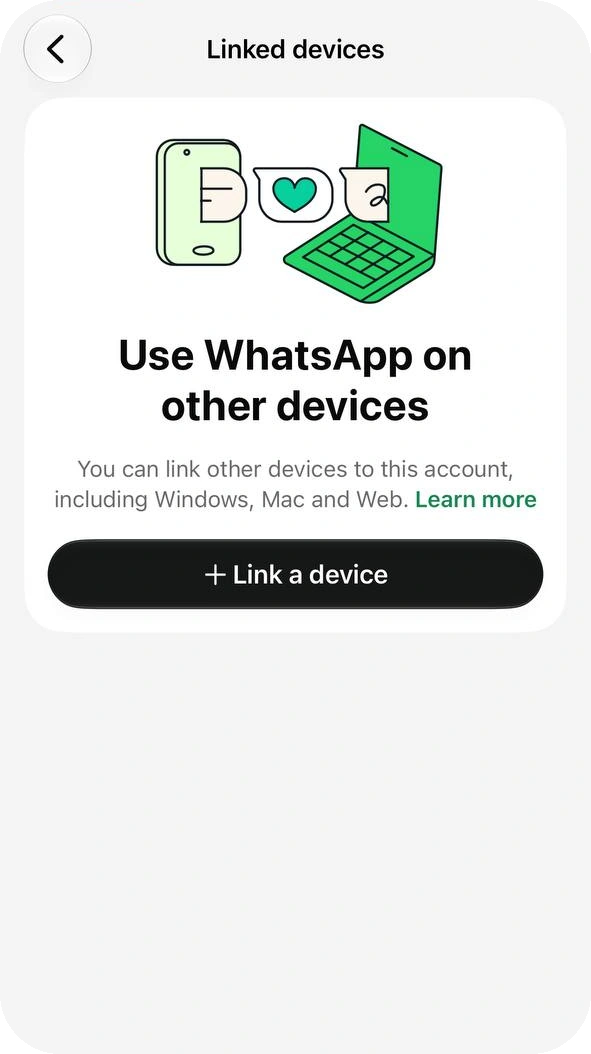
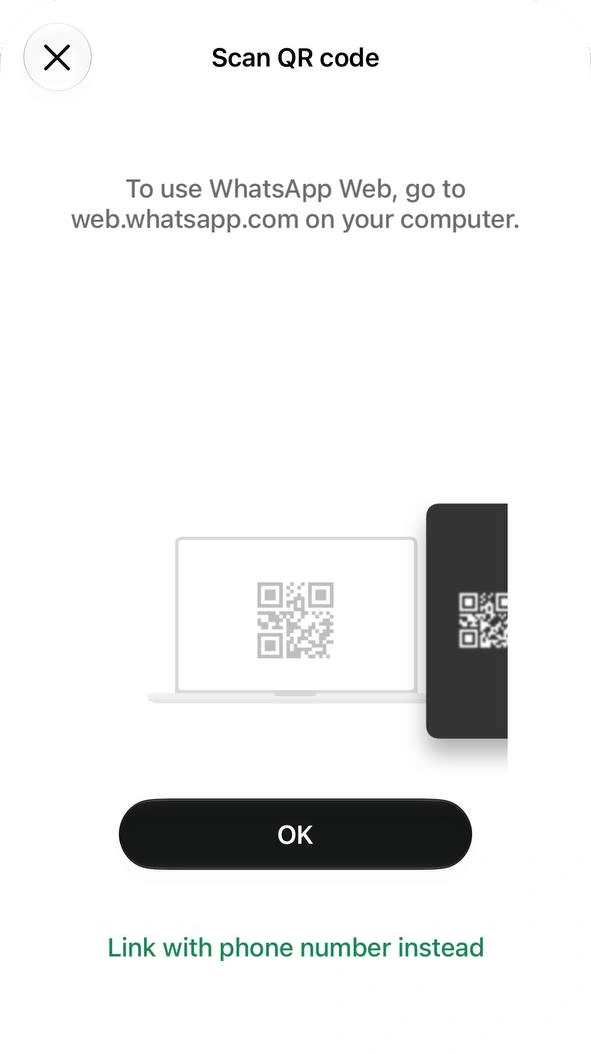
Source: WhatsApp Help Center — How to link a device with QR code on the WhatsApp Business app, checked 22 October 2026.
What Teammates Share — and What Doesn’t Work
Linked devices are copies of the same account, not separate logins. That makes shared replies easy and everything else manual.
| Feature | On linked devices? | Note |
|---|---|---|
| Replying to chats | Yes | From any linked device, even while the main phone is offline — within the 14-day rule below. |
| Messages and media | Yes | Sent and received on every linked device under the same number. |
| Calls | Yes | With up to four linked devices every device rings. Above four, only the main phone does. |
| Assign a chat to a teammate | No | Only in multi-agent, which needs a Meta subscription. |
| Broadcast lists | No | Can’t be created or viewed on linked devices. |
| Live location and status | No | Sharing live location and adding or deleting a status aren’t supported on linked devices. |
Source: WhatsApp Help Center — About linked devices on the WhatsApp Business app, checked 22 October 2026.
Source: WhatsApp Help Center — About multi-agent (call rule for more than four devices), checked 22 October 2026.
Why Linked Devices Drop Off
Four rules explain why a linked device stops working.
The main phone must be used every 14 days. Linked devices work while the phone is offline, but they log out if it goes unused for more than 14 days.
An idle device is disconnected after 30 days. Open it now and then, or link it again with a new QR code.
New devices are linked from the phone. Registering the account and linking every new device still needs the main phone.
Check the list regularly. On iPhone, open Settings → Linked devices; on Android, tap the three dots → Linked devices. Tap a device you don’t recognise and choose Log out.
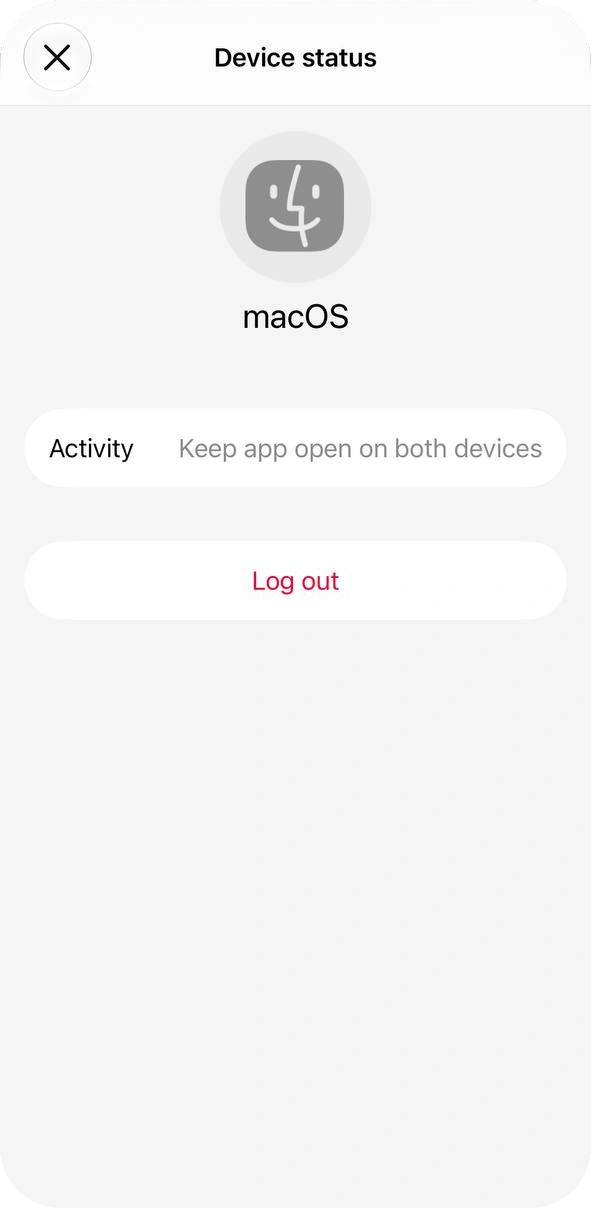
Source: WhatsApp Help Center — About linked devices on the WhatsApp Business app, checked 22 October 2026.
More Than Four Devices: Meta Verified and Multi-Agent
A Meta Verified or Meta One subscription raises the device limit. The number depends on the plan, not on the badge alone, and the plans on offer depend on your business activity and location:
| Plan | Linked devices | Also includes |
|---|---|---|
| No subscription | 4 | Name your linked devices |
| Business Standard | 4 | Verified badge, in-app support, a business web page |
| Business Plus | 6 | Business broadcasts, prioritised support |
| Business Premium | 8 | Business broadcasts, 10 protected business accounts |
| Business Max | 10 | Business broadcasts, 50 protected business accounts |
Source: WhatsApp Help Center — About Meta Verified for Business on WhatsApp, checked 22 October 2026.
Above four devices WhatsApp calls the feature multi-agent. Link a device from Tools → Subscriptions → Meta Verified or Meta One → Linked devices, and you get:
Assign chat. Open a chat, tap the contact name and choose Assign chat to claim it or give it to another agent.
Who sent it. Tap and hold a message, then Info, to see the agent and the device.
Customers see none of this: not the agent, not the device, not who the chat is assigned to.
Above four linked devices, calls ring only on the main phone. If the subscription ends, the four most recently active devices stay linked.
Source: WhatsApp Help Center — About multi-agent, checked 22 October 2026. WhatsApp notes the feature may not be available to every account yet. If Meta Verified isn’t listed under Settings or Business Tools in the app, it isn’t available to you.
Team Rules for a Shared Number
Without assignment the app can’t stop two people answering the same customer. Four habits cover the gap (our suggestion, not a WhatsApp rule):
Name every device
Use the agent’s name, so the Linked devices list shows who holds which session.
Agree who answers what
With no Assign chat, split by a simple rule — product, city or shift — and keep it written down.
Say it before you reply
Post in your team group that you are taking the chat before you type.
Keep the main phone alive
One person opens it at least every 14 days; otherwise every linked device is logged out.
When the App Runs Out: a Team Inbox in WABB
You have outgrown the linked-devices model when one of these is true:
More people need access than your plan allows devices.
You need to see who owns a chat, and to give each person only the sections they should use.
You send to many people — broadcast lists can’t be created or viewed on linked devices; the options are in WhatsApp bulk messages.
Repeated questions should be answered by a flow or an AI Agent, not by a person.
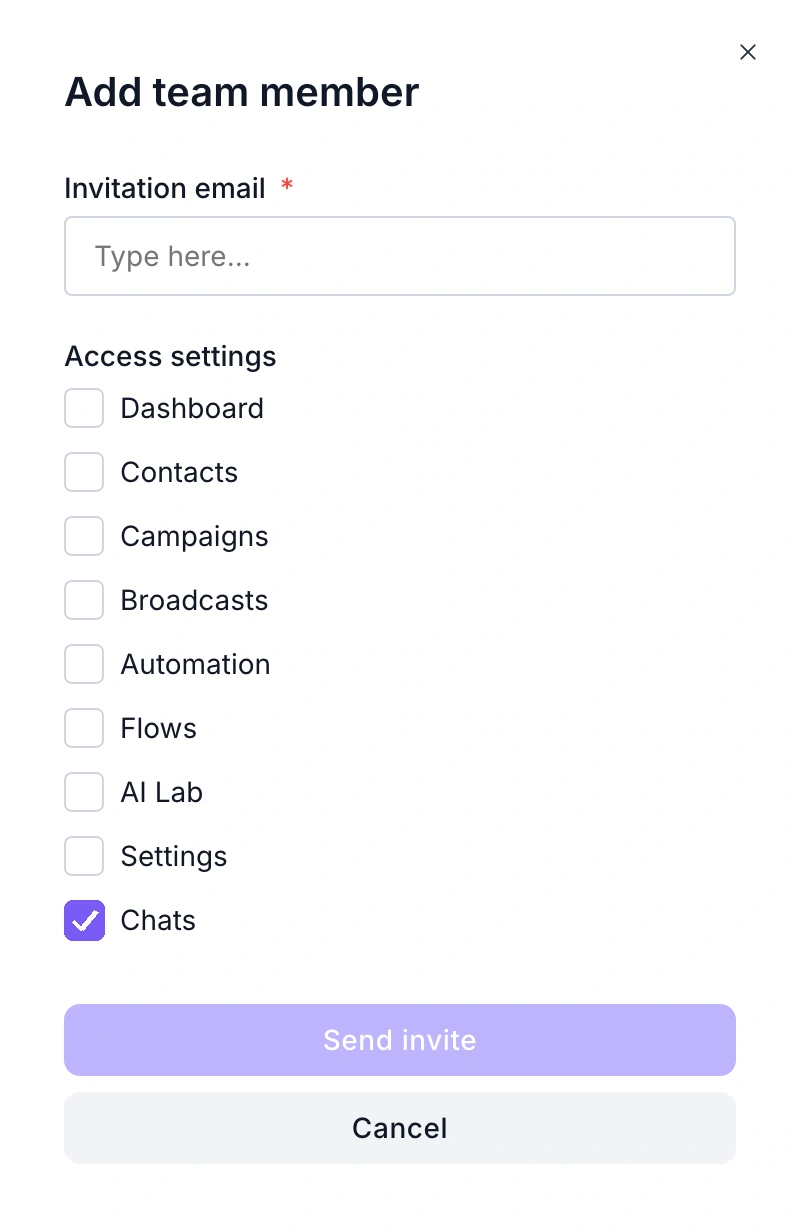
The next step is the WhatsApp Business Platform, through a partner such as . In WABB access is per person, not per device: you invite each one by e-mail in Settings → Team members and tick the sections they may open.
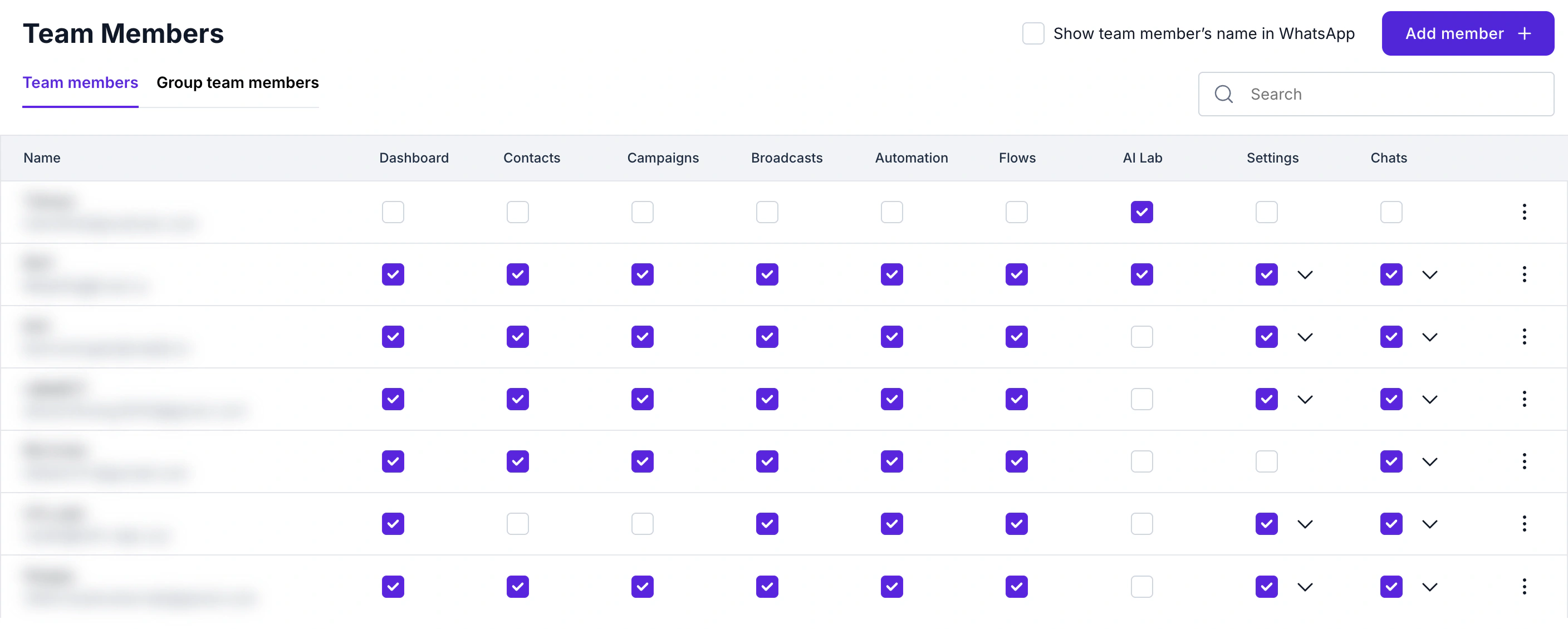
Add member asks for an Invitation email and the access settings; Send invite finishes it.
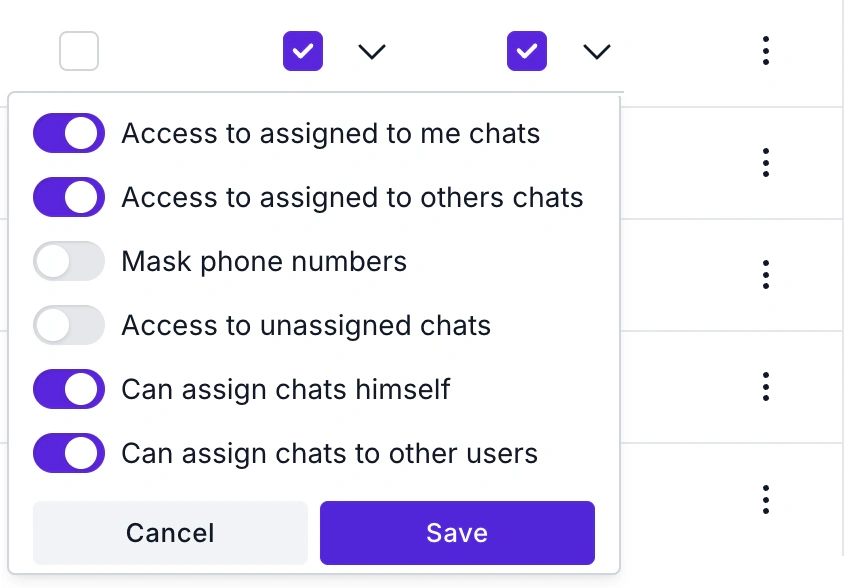
The Chats arrow in the table sets the chat rules — the part the free app has no equivalent for: who sees chats assigned to them, to others or to nobody, who can assign chats, and whether phone numbers are masked.
Screens from a WABB demo workspace, October 2026. Seats and what each plan includes are on the pricing page; the shared inbox page shows the day-to-day view, and the requirements guide covers both ways to connect your number, including keeping it in the WhatsApp Business app.
FAQ
Common Questions
How many people can use one WhatsApp Business number?
Five at a time in the free app: the main phone plus up to four linked devices. A Meta Verified or Meta One plan raises the device limit to 6, 8 or 10. See More Than Four.
Can I use the same WhatsApp Business number on two phones?
Yes. Install WhatsApp Business on the second phone, choose Link as companion device and scan its QR code from the main phone. It counts as one of the four linked devices, and live location and adding a status aren’t available on it. See How to Link a Device.
Can two people reply from the same number at the same time?
Yes. Every linked device sees the same chats and can answer, and the customer sees one business. Nothing in the app marks a chat as taken, so agree who takes which chat. See Team Rules.
Can I assign chats to agents in the free app?
No. Assign chat, and the Info view showing which agent sent a message, belong to multi-agent, which comes with a Meta Verified or Meta One subscription where it is available. See More Than Four.
Can customers see which team member replied?
No. WhatsApp states that customers can’t see the agent, the device or who a chat is assigned to; they see only your business. See What Teammates Share.
Why did a linked device log out?
Either the main phone wasn’t used for more than 14 days, or the device itself sat idle for 30. Link it again with a new QR code. See Why Devices Drop Off.
Do linked devices work without the main phone online?
Yes, for up to 14 days of the phone not being used. New devices still have to be linked from the phone. See Why Devices Drop Off.
What do I use for a team bigger than ten?
Move to the WhatsApp Business Platform with a team inbox, where access is per person rather than per device; how many seats you get depends on the plan. See When the App Runs Out.