
Price, address, opening hours, delivery — a business answers the same few questions again and again. Quick replies let you send those answers in two taps instead of typing them each time.
WhatsApp Business Quick Replies: Quick Answer
The short version:
A quick reply is a saved message with a short name. Type / in a chat, pick it from the list, and the text lands in the message box.
Open Tools → Quick replies, tap +, fill in Shortcut and Message, and tap the check mark.
You can keep 50. A deleted or lost quick reply can’t be recovered, so keep a copy of the important ones outside WhatsApp.
The iPhone app we tested also has Automatically add to list: sending the reply files the chat under a list you picked.
This guide is about the phone app. Starting from zero? See how to create a WhatsApp Business account.
Create a Quick Reply
Three taps and two fields. The steps are the same on Android; the screens are from an iPhone.
Open Tools → Quick replies
On the Tools tab, Quick replies sits in the Organize your chats group, under the line “Reuse frequent messages”. The screen lists what you have saved and repeats the rule: type / in a chat and pick the shortcut.
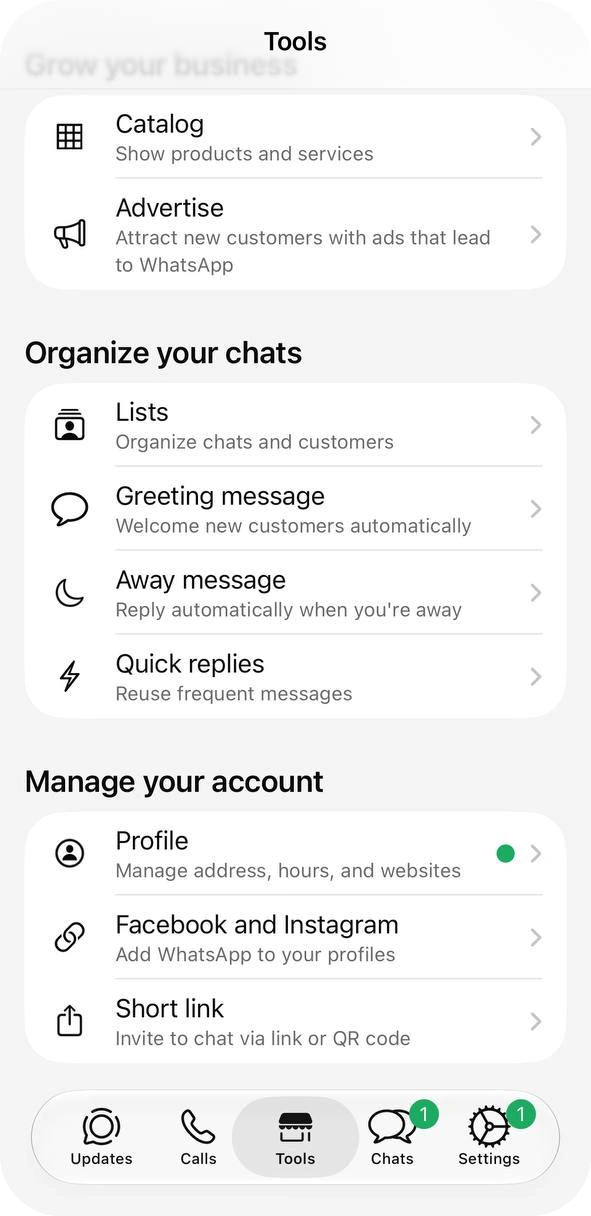
Quick replies sits in the Organize your chats group on Tools. 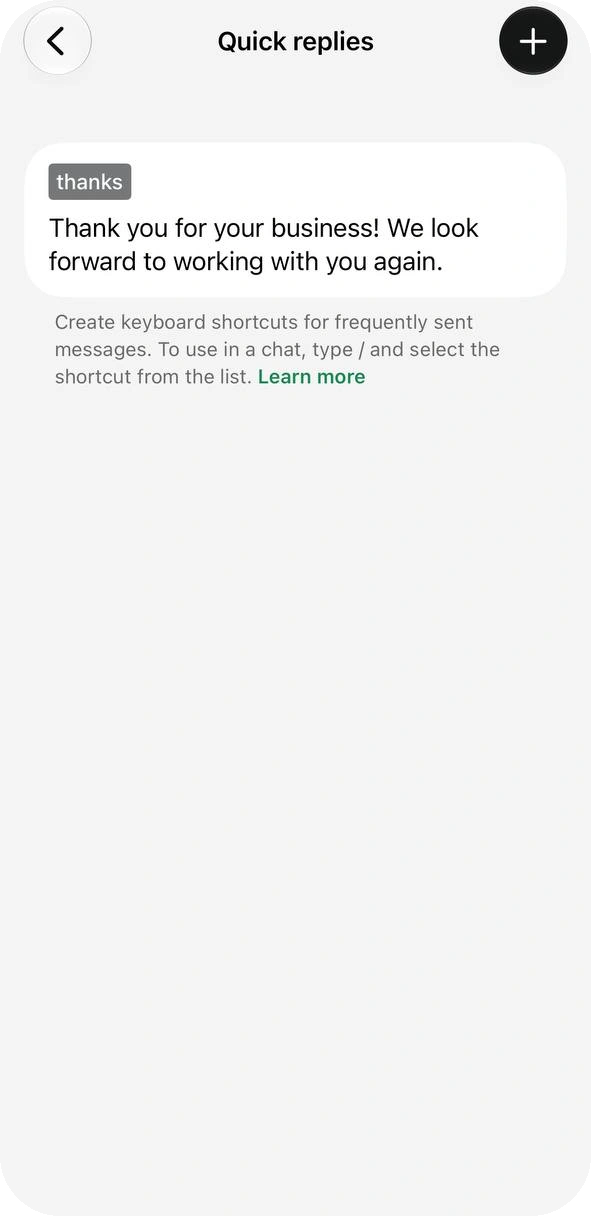
Tap + at the top right to add one. Add a shortcut and a message
The New quick reply form has two fields: Shortcut, the word you will type after /, and Message, the text that gets sent. Attach media adds a photo or video. Tap the check mark to save.
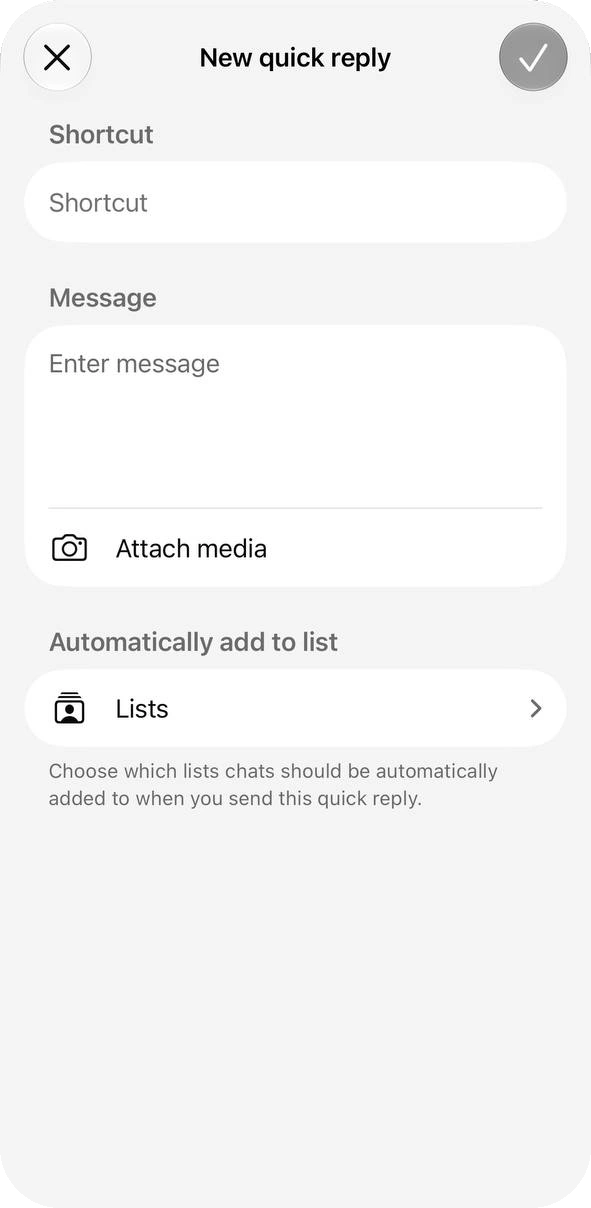
The empty New quick reply form: shortcut, message, media and lists. 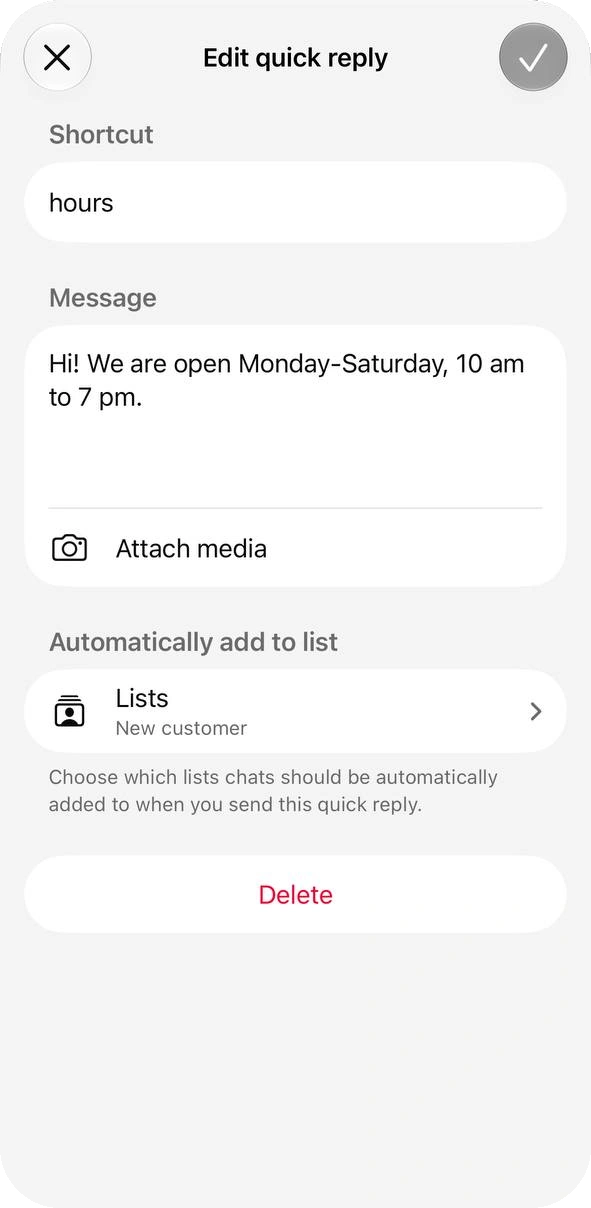
Filled in. A saved reply opens in the same form, with Delete at the bottom.
Send a Quick Reply in a Chat
Open any customer chat. The list is one slash away.
Type /. In the message box, type /. A list shows your shortcuts with the start of each text.
Or use the attachment menu. WhatsApp’s guide also lists Quick replies there, in a chat.
Tap one. The text appears in the message box. Change a word if you need to, then send.
Default replies. The app builds a few from your business profile, such as your address and hours, and lists them with yours. Fill in every profile section to get more.
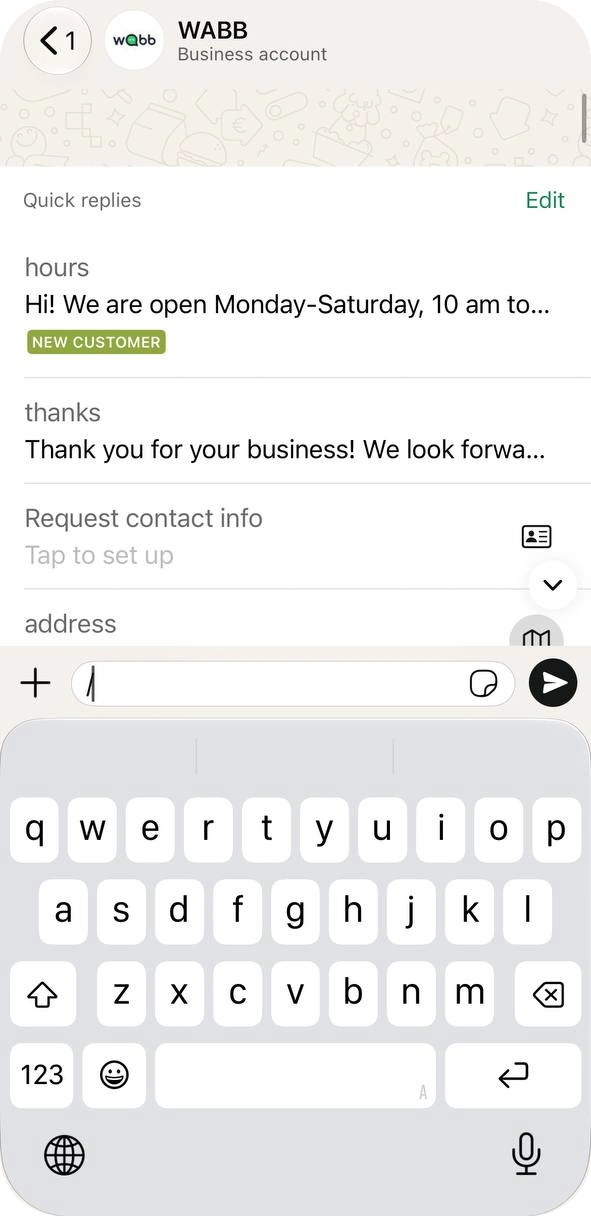
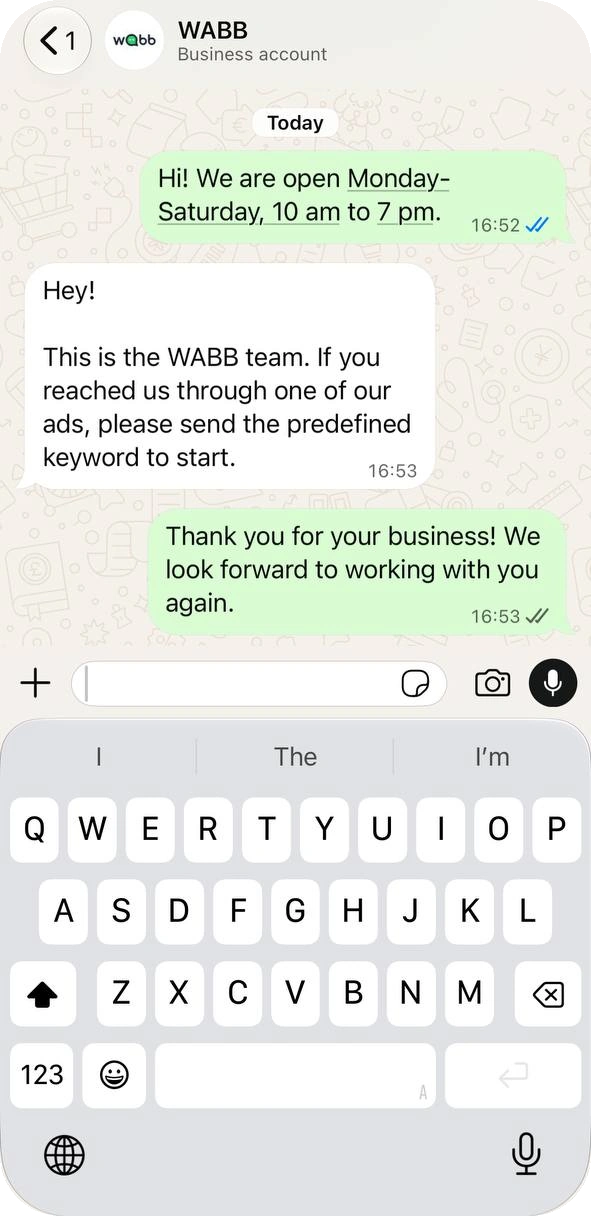
Source: WhatsApp Help Center — How to use quick replies, checked 22 October 2026.
Auto-Add the Chat to a List
Below the message, the form has an Automatically add to list row. Tap Lists, tick one or more, and the chat is added to them when you send this reply. After sending, the app showed “Added to New customer list”, and the reply carries that list’s tag in the / menu.
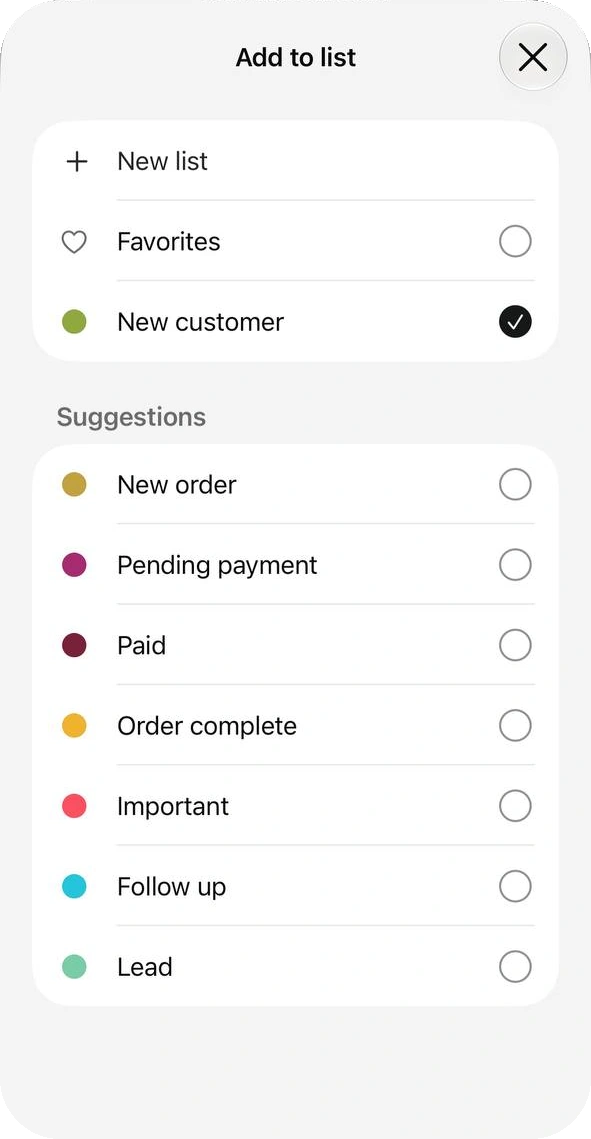
It is the same idea as tagging by hand — see WhatsApp Business labels (now Lists). WhatsApp’s quick replies page doesn’t describe this row, so we tested it in the iPhone app on 22 October 2026; your version may differ.
Rules, Limits and Deleting
If a reply won’t save, check this table.
| Rule | What WhatsApp says |
|---|---|
| Stored quick replies | 50 |
| Shortcut length | 25 characters, no spaces |
| The slash | WhatsApp’s page says a shortcut begins with /. The iPhone form accepted hours without one, and you type / to call it. |
| Keywords | Up to three per reply, each up to 15 letters or digits, no spaces. The iPhone form we tested shows no keyword field. |
| Photos and videos | Supported on the phone, through Attach media. |
| Web and Desktop | WhatsApp’s pages disagree. The guide lists Android and iPhone, and its Web and Windows versions call the feature unavailable, yet a note says media isn’t supported in quick replies on Web or Desktop. Our Web & Desktop guide describes quick replies in Business Web, so test it in your own account. |
| Deleting | Tools → Quick replies → the reply → Delete. A deleted or disappeared reply can’t be recovered. |
Source: How to use quick replies; Can’t save or recover quick replies, checked 22 October 2026.
Keep a copy
Paste your replies into a note or a spreadsheet. If they disappear, you retype them from the copy instead of from memory.
Quick Replies Worth Saving
Start with the questions you answer every day. Put the answer in the first line, and replace each [bracket] with your own detail.
| Shortcut | Message |
|---|---|
| hours | Hi! We are open Monday–Saturday, 10 am to 7 pm. |
| location | You can find us at [address]. Map: [link]. Ask here if you need directions. |
| price | [Product] is [price]. Tell me what you need and I’ll send the exact total. |
| pay | You can pay by [UPI / card / bank transfer]. I’ll send the details once your order is confirmed. |
| delivery | We deliver to [areas] in [number] days. Delivery is [free / charged at …]. |
| thanks | Thanks for your order! Message us here if anything looks wrong when it arrives. |
| followup | Hi! Just checking in about [item]. Still interested? I’m happy to answer questions. |
| checking | Let me check this for you. I’ll reply here within [number] hours. |
Where Quick Replies Run Out — and What Comes Next
They save typing, not work. Two limits show up fast:
A person sends every one. A quick reply is a typing shortcut: someone opens the chat, picks it and taps send.
The text is the same for everyone. The form has Shortcut and Message and no field for the customer’s name.
Worth knowing
On the WhatsApp Business Platform, through partners such as , the same idea is called Fast Replies. They live in Settings → Fast Replies. A message can hold fields such as the customer’s first name.
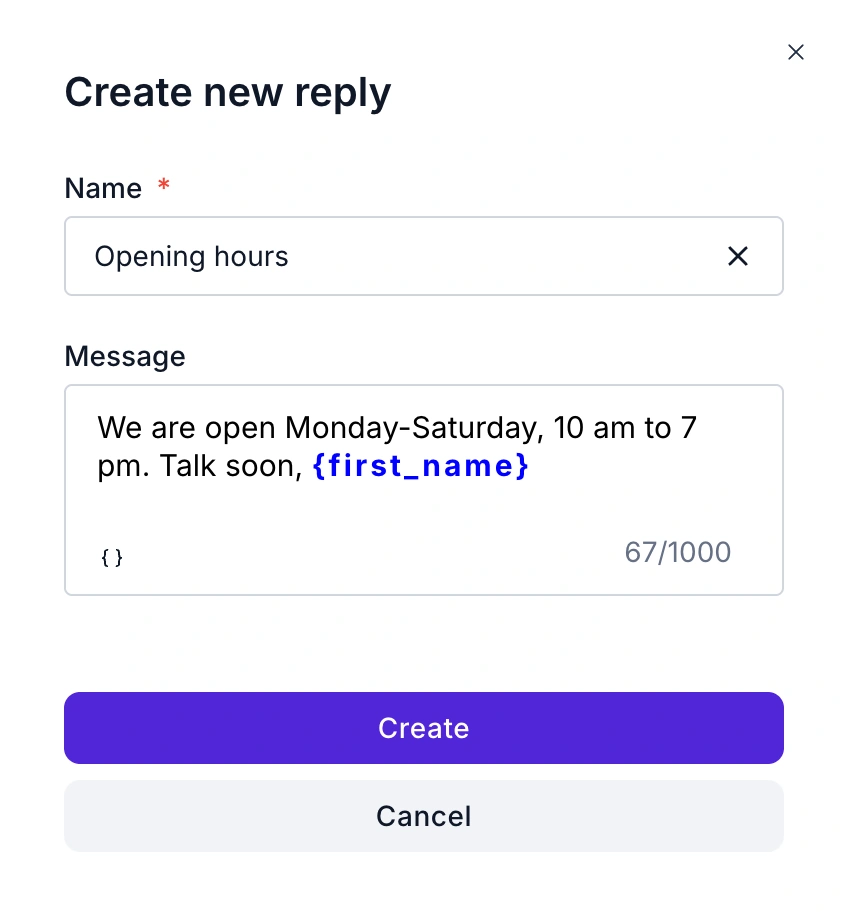

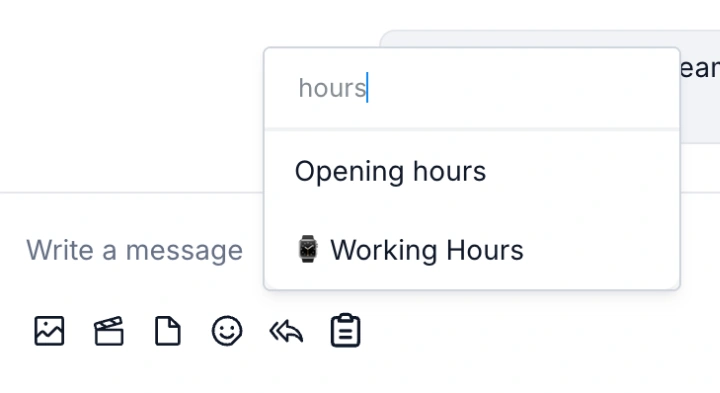
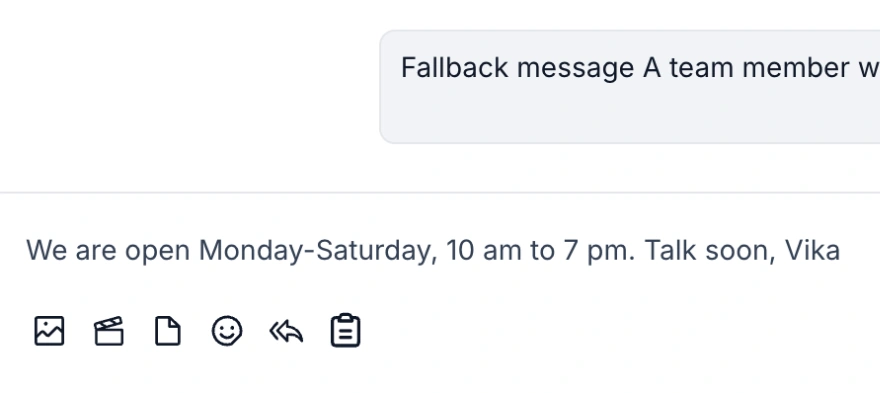
In Live Chat, the reply icon next to the message box opens the list. Search, pick one, and the text drops into the box with the name filled in. Edit it if you like, then send.
A person still sends it. For questions that shouldn’t wait for one, a flow or an AI Agent answers on its own, and a shared inbox puts a whole team on one number. Staying on the app for now? The Web & Desktop guide covers the rest of its business tools.
FAQ
Common Questions
Where are quick replies in WhatsApp Business?
On the Tools tab, in the Organize your chats group. See Create One.
How many quick replies can I save?
Fifty. See Rules & Limits.
How do I use a quick reply in a chat?
Type / in the message box and tap the reply you want. See Send One.
How do I edit a quick reply?
Open Tools → Quick replies and tap the reply. It opens in the same form you used to create it, with Delete at the bottom. See Create One.
Why won’t my quick reply save?
Check the shortcut: up to 25 characters and no spaces. Also check that you have fewer than 50 replies. See Rules & Limits.
Can I use quick replies on WhatsApp Business Web or Desktop?
WhatsApp’s own pages disagree: the guide lists Android and iPhone, yet a note says media isn’t supported in quick replies on Web or Desktop. Our Web & Desktop guide describes them in Business Web, so test it in your own account. See Rules & Limits.
Can a quick reply include a photo or video?
Yes, on the phone, through Attach media. WhatsApp says media files aren’t supported in quick replies on Web or Desktop. See Rules & Limits.
Can I get back a deleted quick reply?
No. WhatsApp says deleted or disappeared quick replies can’t be recovered, so keep a copy of your important ones outside the app. See Rules & Limits.
Do quick replies send themselves?
No. You pick the reply and send it. The app’s automatic messages are the greeting and away messages on the Tools tab; anything beyond them needs a flow or an AI Agent. See Where They Run Out.