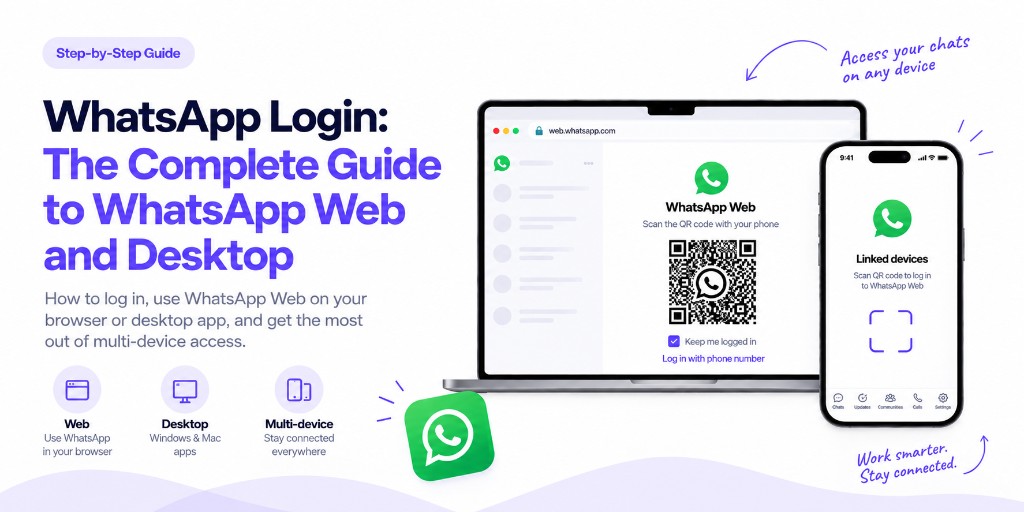
Linking WhatsApp Web or Desktop to your phone is what most people mean by “WhatsApp login” — no separate account or password, just a QR scan or a code, and you’re chatting from a browser or a laptop app.
Both login methods — QR code and phone number — take under a minute, work the same way on Android and iPhone, and don’t require your phone to stay connected once a device is linked.
WhatsApp Login: Quick Answer
The short version, if you’re in a hurry:
On your phone: WhatsApp → Settings (or the ⋮ menu on Android) → Linked Devices → Link a Device.
On a computer: go to web.whatsapp.com or open the Desktop app, then either scan the QR code shown, or tap “Log in with phone number” and type in the code your phone gives you.
Once linked, Web and Desktop keep working even if your phone loses signal — they just need their own internet connection.
You can link more than one device to the same phone — Meta sets the current cap, so check that figure directly if you’re close to it.
How to Log In to WhatsApp Web
Two ways to link a device — a QR scan, or a phone-number code if the camera isn’t an option.
Log In to WhatsApp Web With a QR Code
The original method, and still the default one WhatsApp shows first on Web and Desktop.
What happens on the computer
- Open web.whatsapp.com on your computer — or the Desktop app, if it’s installed.
- A QR code shows up on the screen, waiting to be scanned.
- Scan it from your phone — the exact menu differs slightly by OS (below).
- The moment your phone recognizes the code, the browser logs in on its own. No extra click needed on the computer side.
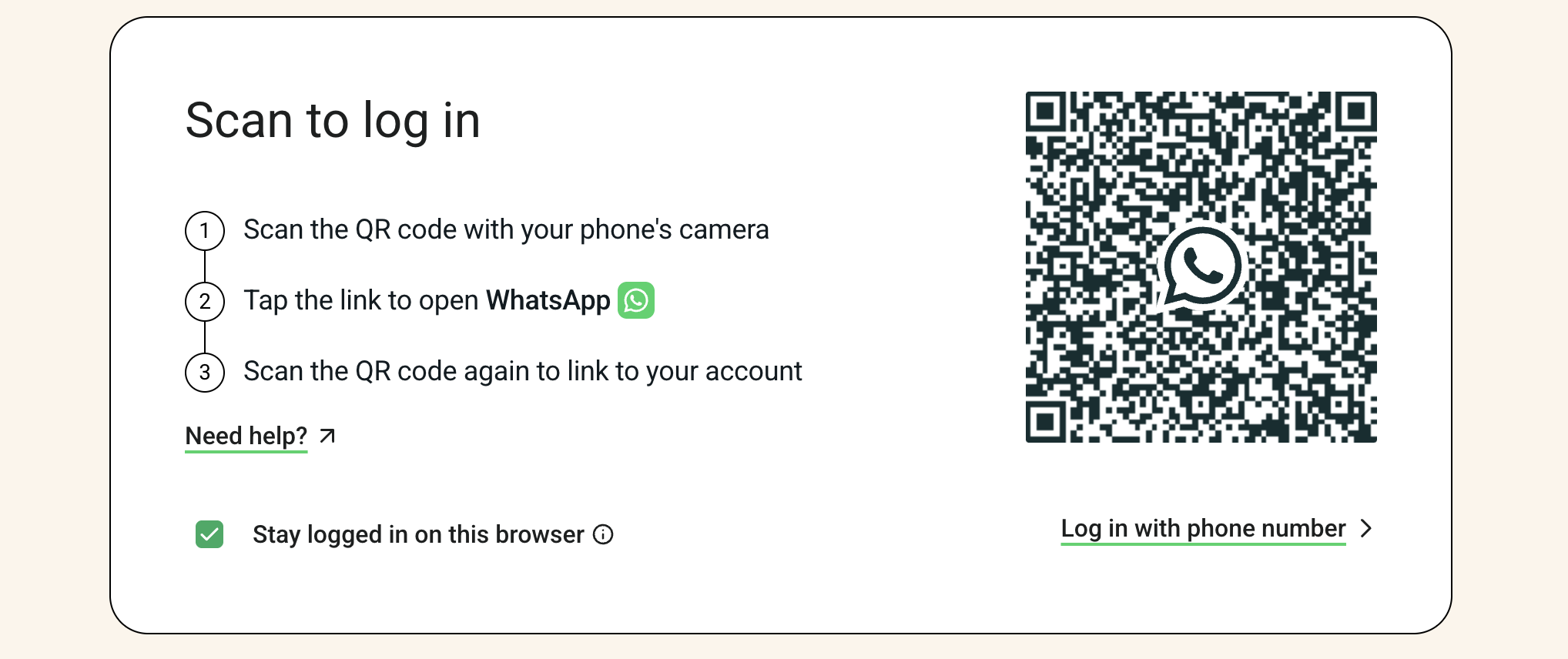
From the phone’s side, here’s exactly where that setting lives, by OS:
Android
- Open WhatsApp → tap the ⋮ menu.
- Tap Linked Devices.
- Tap Link a Device.
- Confirm with your fingerprint or PIN if asked.
- Point the camera at the QR code on the screen.
- Make sure web.whatsapp.com (or the Desktop app) is already open on your computer — that’s where this QR code is shown. Once it recognizes the scan, it logs in on its own, no tap needed there.
You’re linked — WhatsApp Web is ready.
iPhone
- Open WhatsApp → tap Settings.
- Tap Linked Devices.
- Tap Link a Device.
- Confirm with Face ID or your passcode.
- Point the camera at the QR code on the screen.
- Make sure web.whatsapp.com (or the Desktop app) is already open on your computer — that’s where this QR code is shown. Once it recognizes the scan, it logs in on its own, no tap needed there.
You’re linked — WhatsApp Web is ready.
Menu placement is the only real difference — Android surfaces it from the ⋮ menu, iPhone from Settings.
Log In to WhatsApp Web With a Phone Number
The faster option if your phone’s camera or the QR scanner isn’t cooperating.
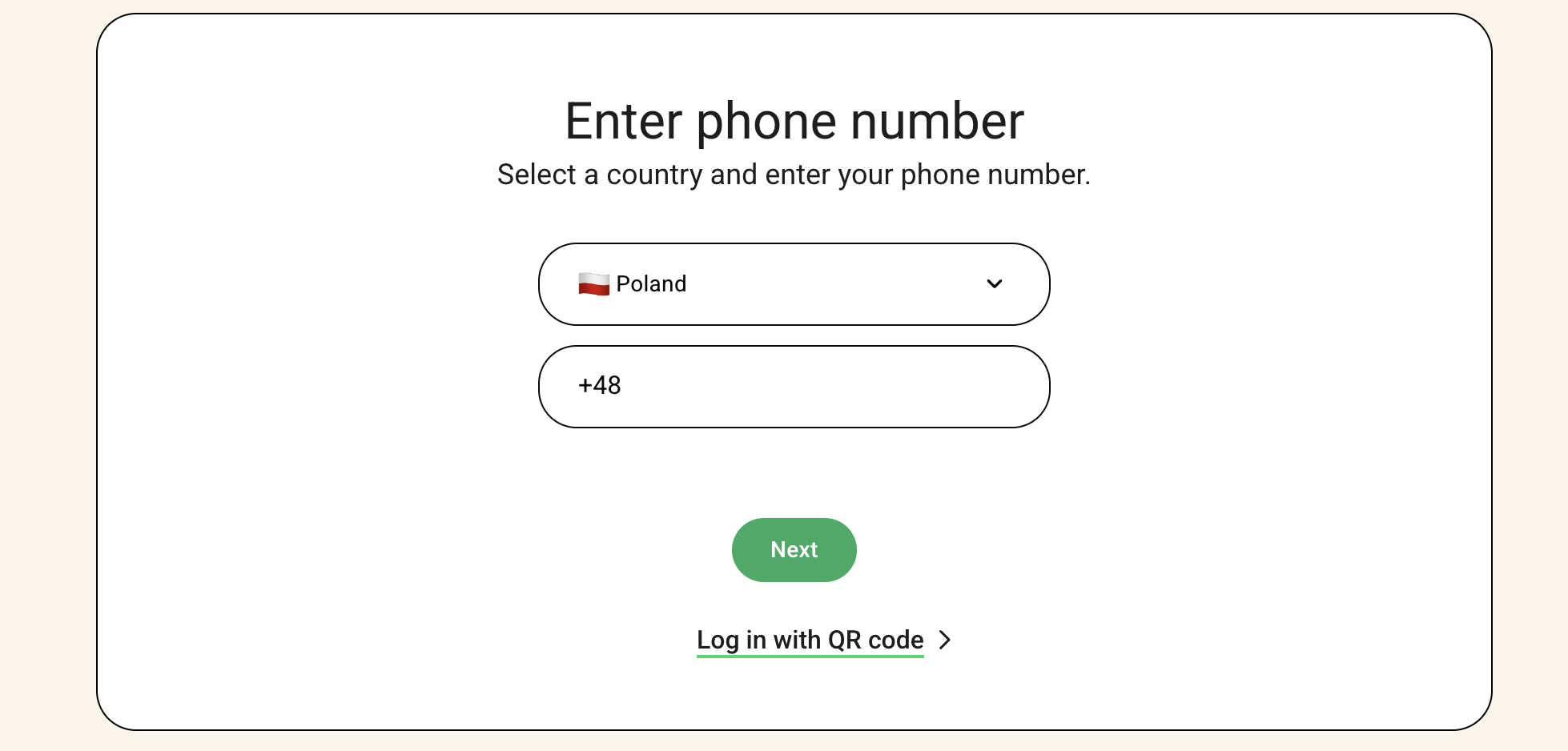
Open web.whatsapp.com, or the Desktop app
Look for a “Log in with phone number” link below the QR code.
Enter your WhatsApp number
Country code included, the same number your phone’s WhatsApp is registered to.
Enter that code on your phone
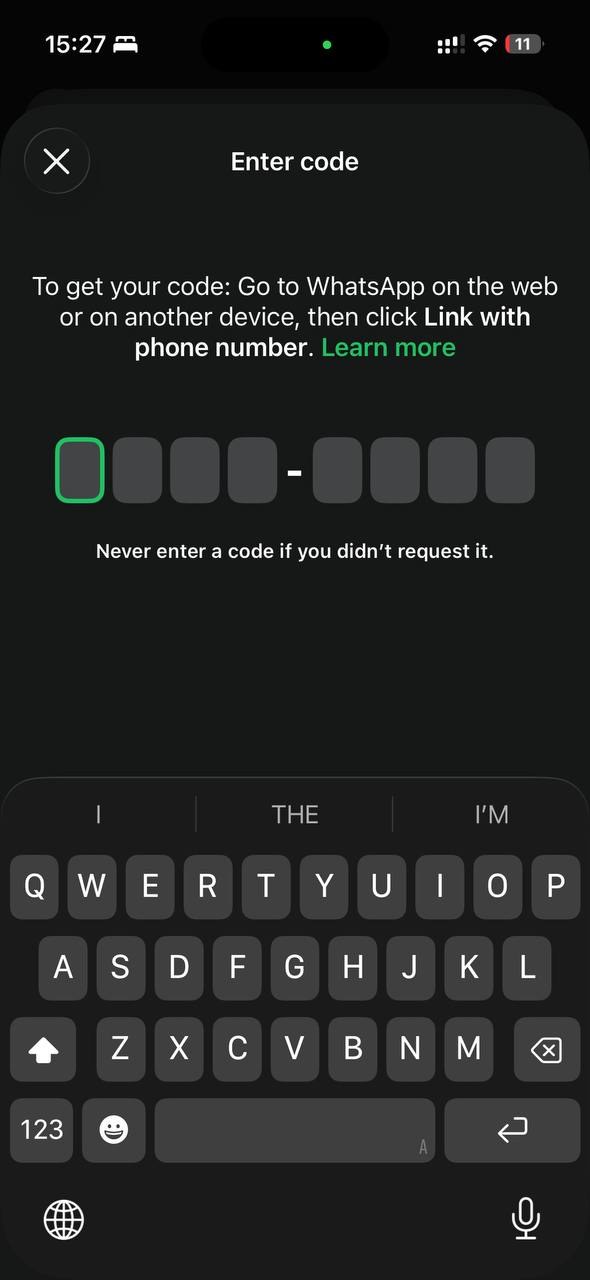
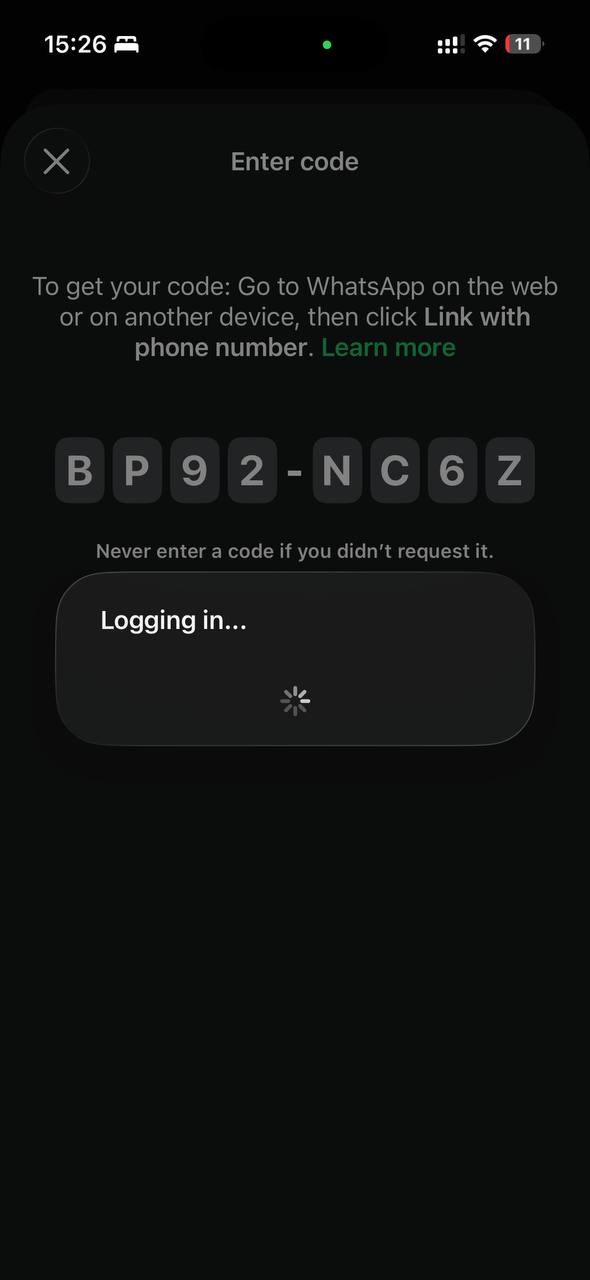
The computer now shows an 8-character code. Open WhatsApp on your phone, go to Linked Devices → Link a Device → Link with phone number instead, and type that code in there.
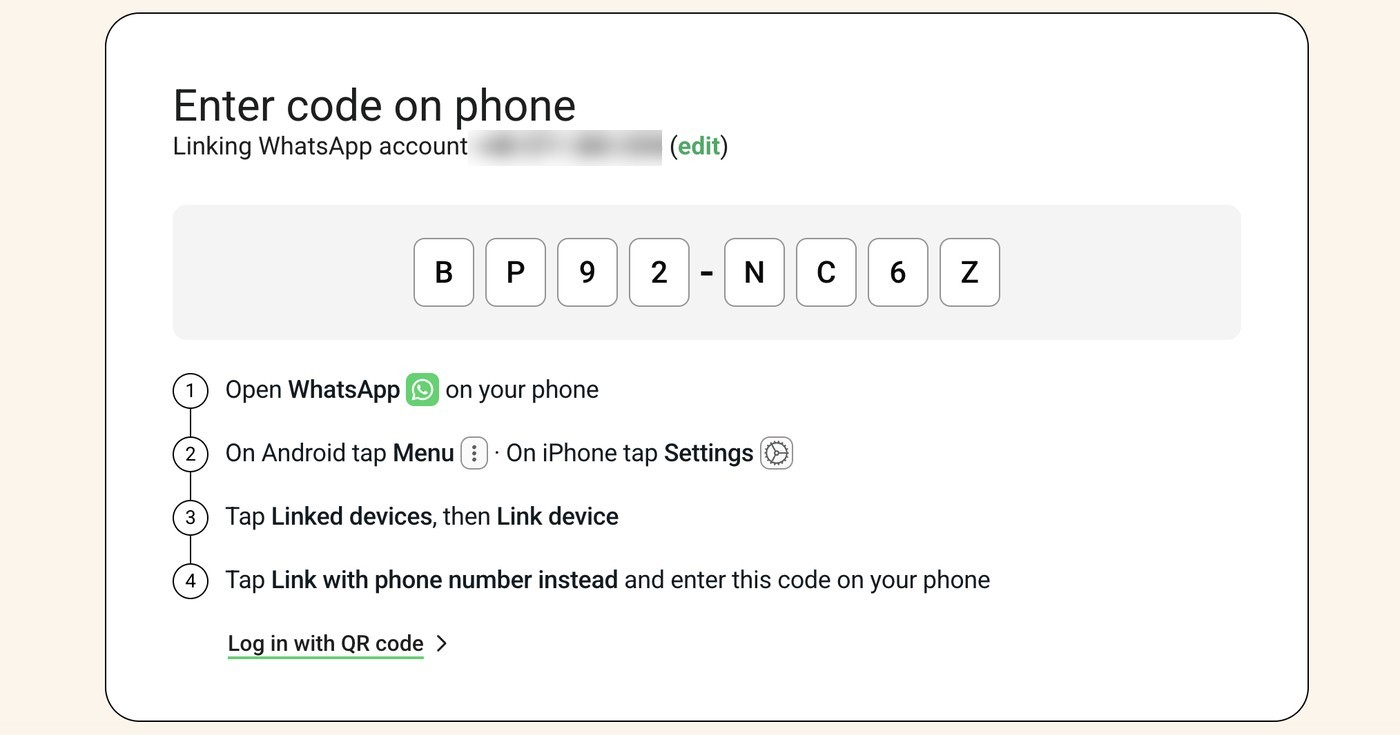
On the phone, that’s the same “Enter code” screen — type in what the computer showed you:
If a step doesn’t match your screen
Exact menu wording shifts with app updates. If something here doesn’t match what you see, WhatsApp’s own in-app Help or Help Center has the current version of these steps.
How to Log In to WhatsApp Desktop (Windows & Mac)
Desktop and Web are the same login mechanism in two different windows — once you’ve installed the app and done one, the other works identically: the same QR code and “log in with phone number” option as Web.
Linking Desktop doesn’t unlink Web, or the other way around — each is its own linked device, counted against the same device limit mentioned in the Quick Answer above.
Don’t have the app installed yet? See WhatsApp Desktop: How to Download and Install It, then use the same login steps as Web.
Using WhatsApp Web Without Your Phone Nearby
This is the part that changed the most in recent years: WhatsApp Web and Desktop used to need your phone connected the entire time. That’s no longer true.
Once a device is linked, it keeps working as long as it has its own internet connection — your phone can be off, in another room, or offline. It only matters that your phone reconnects to the internet occasionally, or a linked device will eventually be signed out automatically.
How long can WhatsApp Web stay logged in?
Per WhatsApp’s own Help Center: a linked device disconnects automatically after 30 days of inactivity, and all of your linked devices get logged out if your primary phone itself goes unused for more than 14 days.
WhatsApp Login Not Working? Try These Fixes
In rough order of how often each one is actually the cause:
How to Log Out of WhatsApp Web and Desktop
Two ways to do it, depending on which device you’ve got to hand:
From your phone: WhatsApp → Settings (or the ⋮ menu on Android) → Linked Devices → tap the device → Log Out.
From the computer itself: open the menu inside WhatsApp Web or Desktop and choose Log Out — the fastest option if you’re sitting at that computer and don’t want to grab your phone.
Logging out one device doesn’t touch any of the others you’ve linked — Web, Desktop, and any other linked device stay signed in independently.
Using WhatsApp for Business? Web vs. WhatsApp Business Platform
Everything above logs you into the same kind of account, whichever way you got there. Which WhatsApp product actually fits your business depends on what you need it to do, not just on whether you’re “a business”:
WhatsApp Web / Desktop
Good when one person, or a small team taking turns, just needs to chat with customers from a computer.
WhatsApp Business App
Can work well for a small business handling most conversations manually, with a basic catalog and quick replies.
WhatsApp Business Platform (API)
Relevant once you need several agents in one shared inbox, automated flows or an AI Agent, CRM or store integrations, or messaging at a scale a single logged-in device can’t handle.
Worth knowing
Logging in just gets you chatting from a computer. Multiple agents, automated replies, CRM integrations, or AI workflows come from the WhatsApp Business Platform. That’s where comes in.
Flow Builder
Visual, no-code flows for the questions that repeat.
AI Agent
Handles what a fixed flow can’t fully predict. See WhatsApp AI for business in India.
Shared Inbox
A whole team replying from one number, without stepping on each other.
See what WhatsApp automation actually looks like.
WhatsApp Automation for BusinessFAQ
Common Questions
Do I need my phone nearby to use WhatsApp Web?
No, not once a device is linked. Web and Desktop work over their own internet connection — your phone just needs to reconnect occasionally, or the link can expire. See Using WhatsApp Web Without Your Phone Nearby.
Can I log in without scanning a QR code?
Yes — use “Log in with phone number” instead, and enter the code your phone shows you. See Log In to WhatsApp Web With a Phone Number.
How many devices can I link at once?
A handful beyond your phone — WhatsApp calls this multi-device support. Meta has changed the exact limit before, so check in-app (Linked Devices) for your current number rather than assuming a fixed figure.
Can I use the same number on WhatsApp Web and the Business App at the same time?
A given phone number belongs to one WhatsApp account — either the regular app or the Business App, not both. Web/Desktop simply link to whichever account that number already has.
Is WhatsApp Web free?
Yes, linking Web or Desktop costs nothing — it’s the same account, viewed from another screen. The WhatsApp Business API is a separate product with its own setup and pricing; see Web vs. Business Platform.
I can already log into WhatsApp Business App — why would I need the API?
Because logging in doesn’t add automation, a shared inbox, or integrations — the Business App and the API are different products that happen to share a name. See Web vs. Business Platform.
How do I log out of a linked device?
From your phone: Settings (or ⋮) → Linked Devices → tap the device → Log Out — or do it straight from the computer’s own menu. See How to Log Out of WhatsApp Web and Desktop.