A festival offer, a restock, a new batch starting: some messages need to reach many customers together, and nobody wants to paste them into fifty chats. The Business app has two ways to do it, and they differ in who they reach and what they cost.
WhatsApp Business Broadcast: Quick Answer
The short version:
A broadcast sends one message to many customers, and each person gets it as a private chat from you. The Business app offers free broadcast lists and, in limited countries, paid Business broadcasts.
On iPhone, open Settings → Broadcast messages, tap New list, pick contacts and tap Create. On Android, tap Chats → ⋯ → Business Broadcast. A paid broadcast starts at Tools → Business broadcasts, where it exists.
A list is free and holds up to 256 contacts. A Business broadcast also reaches people who haven’t saved your number, can be scheduled, takes an action button and shows delivered, read and replied counts.
A list reaches only people who saved your number, and WhatsApp’s guide describes no delivery report for it. A Business broadcast costs money and isn’t available everywhere: the Belarus iPhone we tested had the free list but no Business broadcasts entry. Larger or automated sends are covered at the end, with WABB.
No business account yet? Start with how to create a WhatsApp Business account.
Broadcast List or Business Broadcast?
Both send a message that arrives as a private chat, and both send replies to your normal Chats. The differences are in the table. The short rule: use a list for a small circle of customers who already have your number, and a Business broadcast when you need to reach people who don’t.
| Broadcast list | Business broadcast | |
|---|---|---|
| Who receives it | Only people who saved your number. | Contacts you pick, including people who haven’t saved your number. |
| Cost | Free. | Paid. Android and Web: per delivered message. iPhone: Meta Verified free messages or message packs. |
| Size | Up to 256 contacts per list; as many lists as you like. | Picked on the Recipient or Select audience screen. |
| Before sending | You write in the list chat, as in any chat. | Meta reviews the draft; then send now or schedule. |
| Content | A normal message, as in any chat. | A photo, text and one action button: Catalog, Custom reply, Phone call or Website. |
| Results | Replies arrive as normal chats. | Delivered, read and replied counts. |
| Availability | The phone app. Not on Windows, Mac or Web. | Limited countries. Not for numbers on the WhatsApp Business Platform. |
The two features side by side, as WhatsApp’s guides describe them.
Source: How to use broadcast lists; How to create and send a business broadcast; WhatsApp Business app features, checked 28 October 2026.
Create a Broadcast List
A list is a saved group of contacts you can message again without picking them each time. WhatsApp’s guides give a route for each phone; the entry is named a little differently in each:
Open the broadcast entry
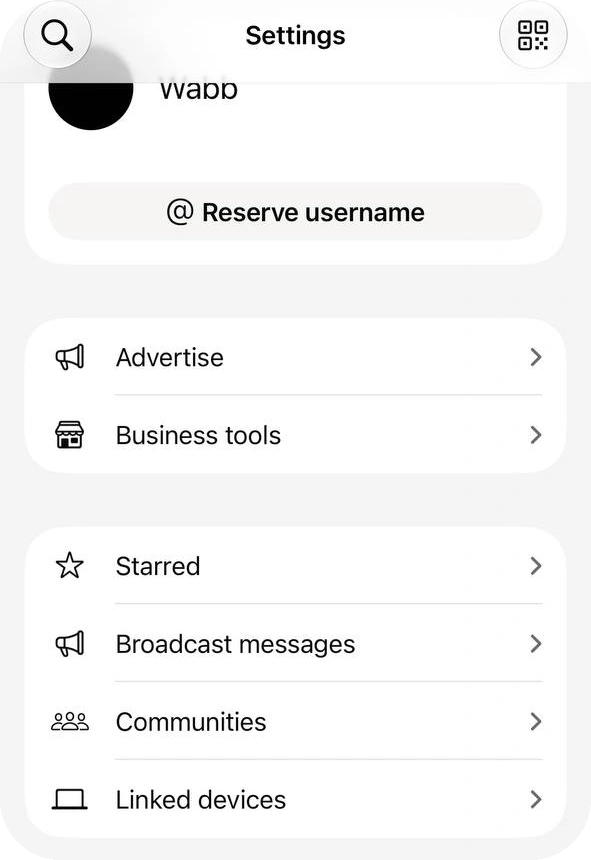
iPhone: tap Settings or your profile picture, then Broadcast messages. WhatsApp’s Business app guide calls it Business broadcast; on our iPhone it is Broadcast messages. Android: tap Chats → ⋯ → Business Broadcast, or Tools → Business Broadcast. We tested only on an iPhone, so the Android route is as WhatsApp’s guide describes it.
Tap New list and pick the contacts
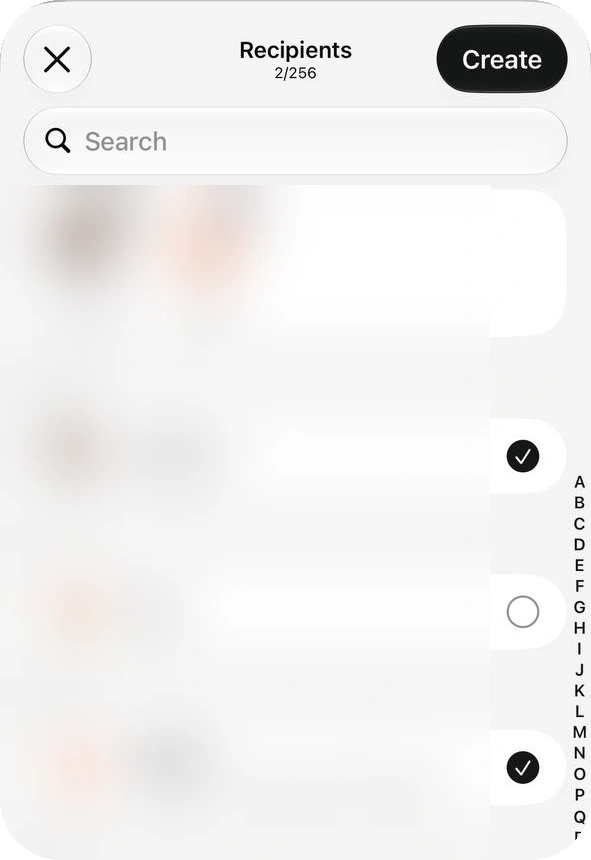
The Recipients screen counts your picks against the limit: 2/256 in our screenshot. Search or tick contacts, then tap Create. You can make as many lists as you like.
Write your message to the list
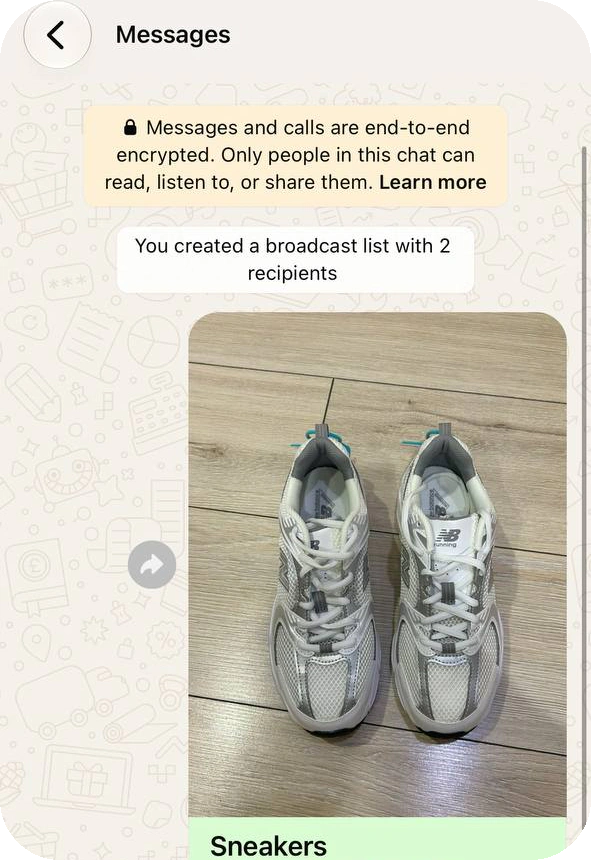
The chat opens with “You created a broadcast list with 2 recipients”. Each person receives your message as an individual chat from you, and their reply lands in your Chats and goes to nobody else on the list.
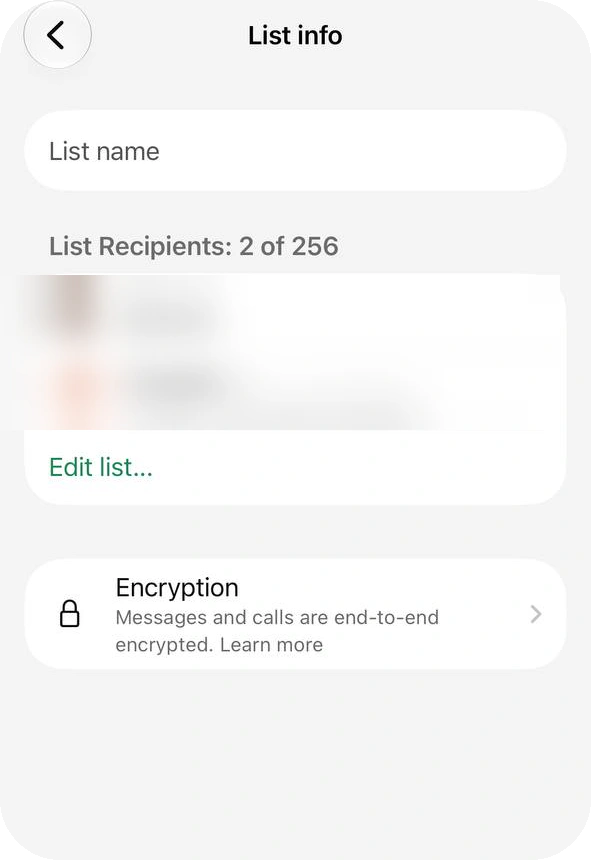
To edit a list on iPhone, tap the i icon next to it. List info has a name field and Edit list… to add and remove people. WhatsApp’s guide deletes a list by swiping left on it and tapping Delete; we did not try that.
On Android, open the list and tap Audience info, then Edit recipients or Delete audience. Android’s guide also starts a list from a label: Chats → Lists, tap the label, then Send business broadcast. The labels and lists guide shows how to sort customers first.
One message goes out as many private chats, and every reply comes back to you alone.
Don’t confuse a broadcast list with Lists in Tools. On our iPhone (WhatsApp Business 2.26.41.74, an account in Belarus) Lists only organises chats: its screen has Included, Mute and Delete list, with no way to send. Tools also had no Business broadcasts entry.
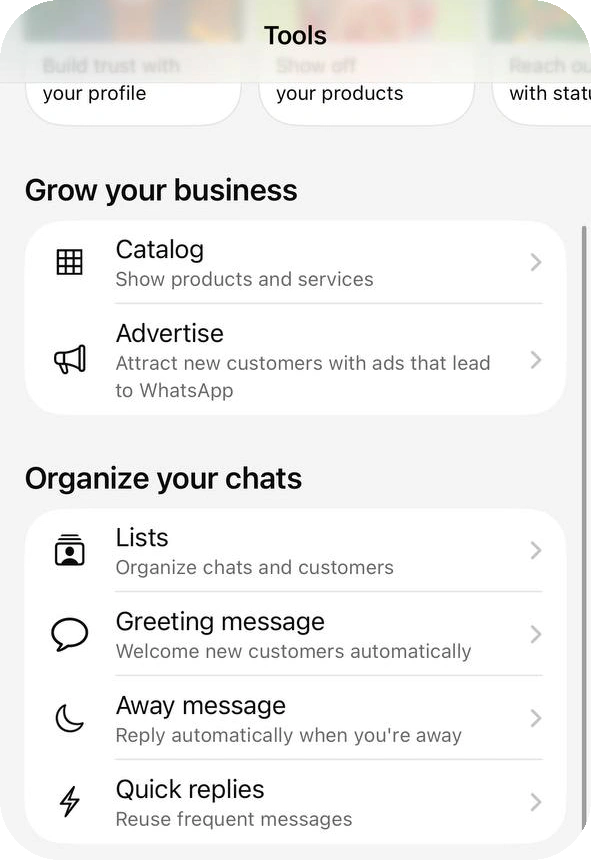
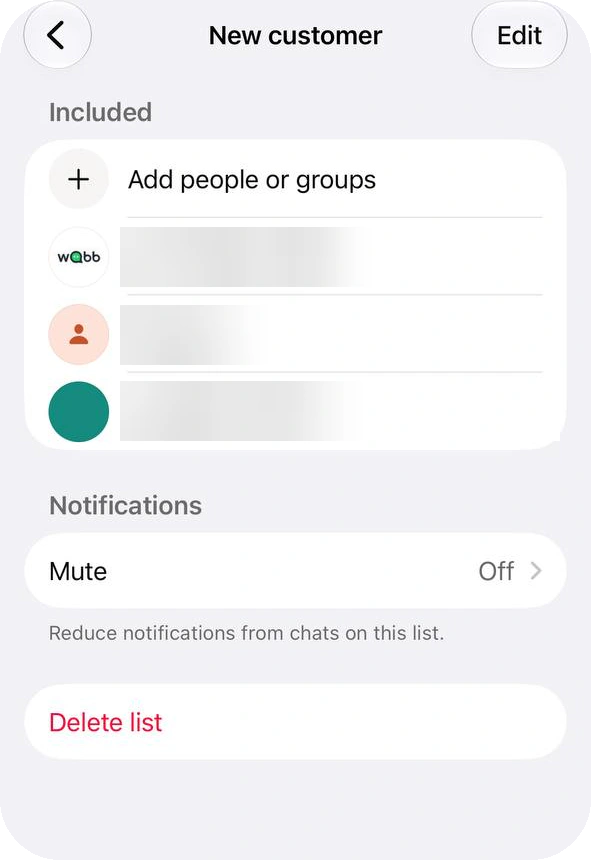
Source: How to use broadcast lists; Broadcast lists on the WhatsApp Business app, checked 28 October 2026.
If Contacts Don’t Receive Your Broadcast
A list message is delivered only to people who added your number to their phone’s address book. Check these causes in order:
They haven’t saved your number. Check this first, because a list reaches only saved contacts. WhatsApp’s advice is to ask the customer to add you to their contacts, then send again.
The list is over 256. A list is capped at 256 contacts. Split a bigger audience into several lists.
You are on a computer. Broadcast lists aren’t supported on Windows, Mac or Web, and a linked device can’t create one. Use the phone.
You expected a group. A list is one-to-many: replies come back to you alone. A conversation among customers needs a group chat.
It was a Business broadcast. If you can’t send one, the feature may not be available to you yet, or the account was flagged. See the rules section.
To reach people who haven’t saved you, WhatsApp points to a paid route. Open your latest broadcast, tap marketing message on the banner at the top, edit the draft and send or schedule it. The audience is set automatically to customers who haven’t received the list message. WhatsApp renamed marketing messages as business broadcasts in some countries, so you may see either name.
A separate WhatsApp page says people in some countries see a monthly limit of 35 free broadcast messages. It is written for the regular app, and the Business app guide lists no such cap, so open that page if you suspect one.
Source: How to use broadcast lists; How to turn broadcast lists into marketing messages; About broadcast limits, checked 28 October 2026.
Send and Manage a Business Broadcast
Business broadcasts are a Business app feature, and Meta says they are available in limited countries. If Tools → Business broadcasts isn’t there, you don’t have it yet; on our Belarus iPhone it wasn’t. Here is the route, as WhatsApp describes it for both phones:
Open Tools → Business broadcasts
Tap the plus, then New business broadcast. Android shows an introduction screen the first time; tap Continue.
Select the recipients
Android calls the screen Select audience, iPhone Recipient. It shows ready-made lists, including your full address book. Add everyone from a list with one tap, or pick people one by one. On iPhone tap Create to start the draft.
Draft the message
Add a photo from your camera or media library, write the text and, if you like, one action button.
Preview, then review the price
Meta reviews each draft before it is sent, and you are told if it isn’t approved. The review screen shows the recipients and the price, where one applies.
Tap Send now or Schedule
Schedule asks for a date and time. On iPhone, push notifications must be on, and the phone must be online at the scheduled time; the app retries after one minute, then every ten minutes, up to ten times. Processing takes a few seconds, and can take up to three hours.
Photo. From your camera or media library.
Text. What you want to tell customers.
One action button (optional). Pick one of four:
What a Business broadcast can contain. Catalog opens an item or the whole catalog; see the catalog guide.
To follow up, open Tools → Business broadcasts. The home screen shows overall replies and the average read rate, and each broadcast shows the date it was sent and how many people it was delivered to, read by and replied to. Some numbers are estimates, and people with read receipts off aren’t counted.
To change a sent broadcast, tap Create editable copy on Android or the web; on iPhone, open it and tap Recipients to edit the recipient list. Android’s guide adds that editing or deleting doesn’t affect messages already delivered.
Source: How to create and send a business broadcast; How to manage your business broadcasts; Why is Meta reviewing my business broadcasts?, checked 28 October 2026.
What Business Broadcasts Cost
WhatsApp describes the cost differently for each platform. The Android and Web version of its pricing page says you pay for each message delivered to a contact within five days: the balance builds up and is charged when it passes a set amount or on your billing date, or you pay from prepaid funds. WhatsApp reserves money for every contact you select and credits back what isn’t delivered. Price depends on the recipient’s country code.
The iPhone version names no per-message price. It says a Meta Verified subscription gets you free messages and other benefits, and some users can prepay for message packs. On both, the app shows the total and estimated tax before you pay.
The Android and Web page links an INR rate card. For recipients in India it lists ₹0.8631 per marketing message, in a file headed WhatsApp Business Platform, so the app’s own price may differ. Here is the arithmetic for a send of 1,000:
All delivered
1,000 × ₹0.8631
₹863.10
Before tax.
100 not delivered
900 × ₹0.8631
₹776.79
The reserved amount for the other 100 is credited back.
Our arithmetic from the published rate, not a quote from the app.
Message packs prepay a set number of messages. One credit is used for each recipient who receives your message, credits don’t expire, and WhatsApp says packs are available only on iOS and can’t be refunded. Meta publishes no country list for the feature, and we couldn’t check it on an Indian account, so look for the menu in your own app before you plan around it.
Source: About pricing for business broadcasts (INR rate card effective 1 July 2026); About message packs for business broadcasts, checked 28 October 2026.
Rules That Can Switch Broadcasts Off
WhatsApp expects customers to want the messages they get. Before you send, get opt-in for each kind of message, say how to opt out, and honor it. Spam reports then decide what happens next:
Reports and blocks
A significant number of people report or block the account for unwanted messages.
Warning
The business account receives a warning.
3-day suspension
If spam continues, business broadcasts are suspended for three days. There is no appeal. Scheduled broadcasts are not sent and not charged.
Restored
Access returns automatically at the date and time shown in the app.
Restricted again
If recipients keep reporting, the restriction repeats and may last longer.
How a Business broadcast restriction escalates, from WhatsApp’s guide.
To lower the risk, WhatsApp suggests sending only to people who opted in, removing contacts who haven’t interacted recently, keeping the message in line with what they signed up for, and not sending to the same contacts right after reinstatement. A number connected to the WhatsApp Business Platform can’t use Business broadcasts at all.
Source: Can’t send business broadcasts; How to create and send a business broadcast, checked 28 October 2026.
When the App Isn’t Enough: Broadcasts in WABB
The app’s limits are plain: a list stops at 256 and needs saved numbers, a Business broadcast is limited to certain countries, and neither is built for automated follow-up. For campaigns beyond that, businesses move to the WhatsApp Business Platform, the route that connects WhatsApp to software such as WABB, our platform for WhatsApp flows, AI Agents and a shared inbox.
Opt-in and approved templates apply there too; our bulk messages guide covers them, and API prerequisites lists what you need to connect.
In WABB, Broadcasts → Create new broadcast asks for a Broadcast name and the Flow to run. Set time schedules it, and Targeting picks the audience with Add filter or Use Segment. A counter shows how many users will get it, and Show users lists them before you start.
The filters include Tag, Phone, First name, Campaign, Subscribed and Assigned Manager, so a send can go to a tagged group instead of a hand-picked list. The broadcast starts the chosen flow for each contact it targets.
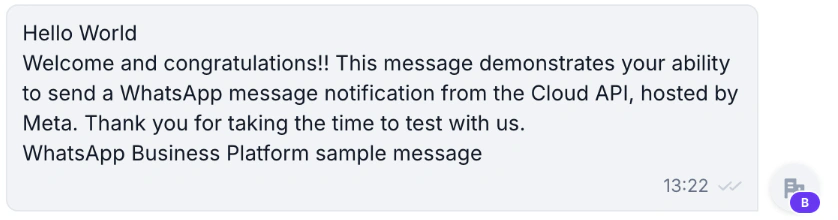
We ran two on a test workspace. The flow sends Meta’s sample template, hello_world, and a Phone filter narrowed each audience to one test contact: the counter read “1 Users who will get this broadcast”, and Show users named the person.
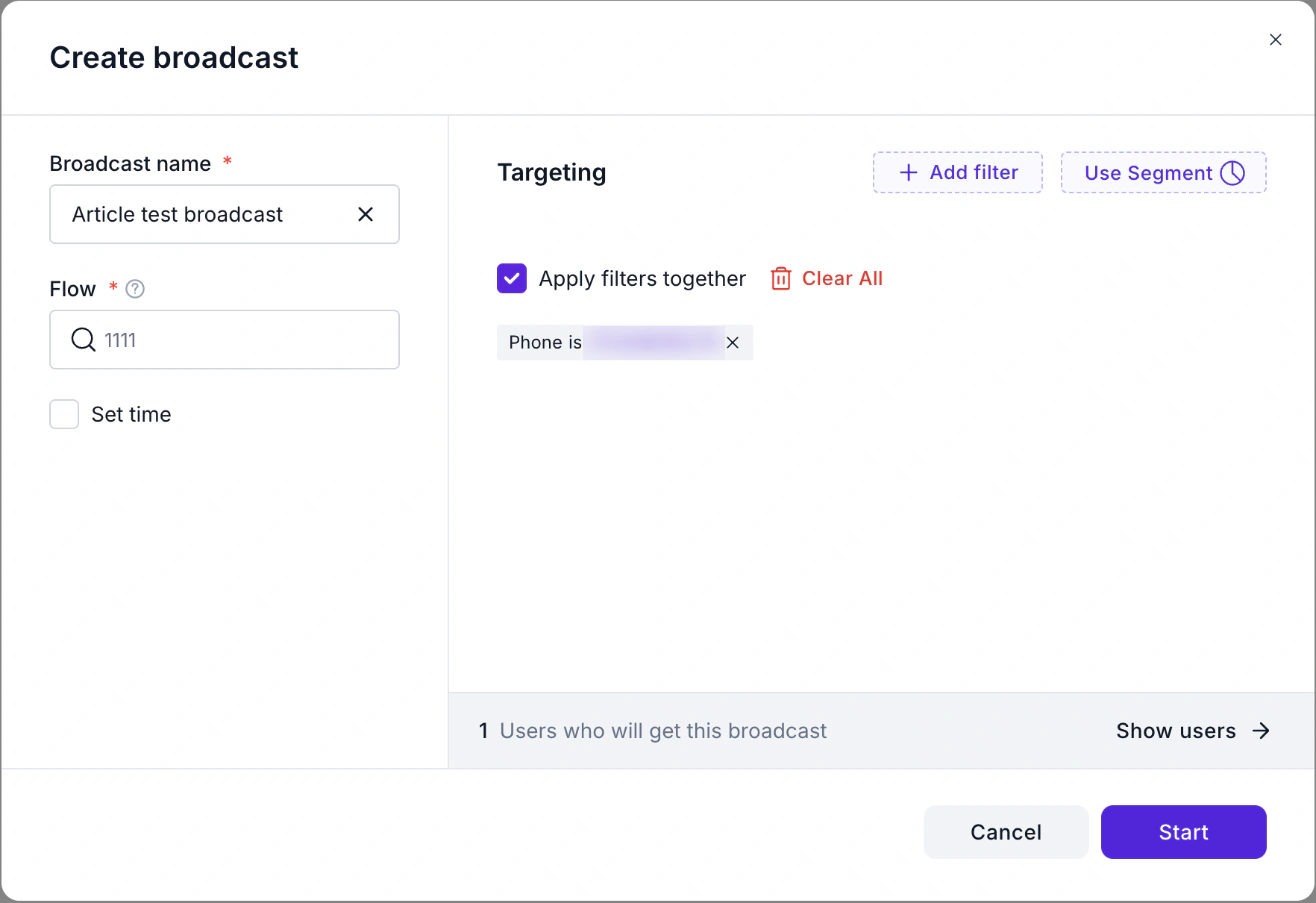
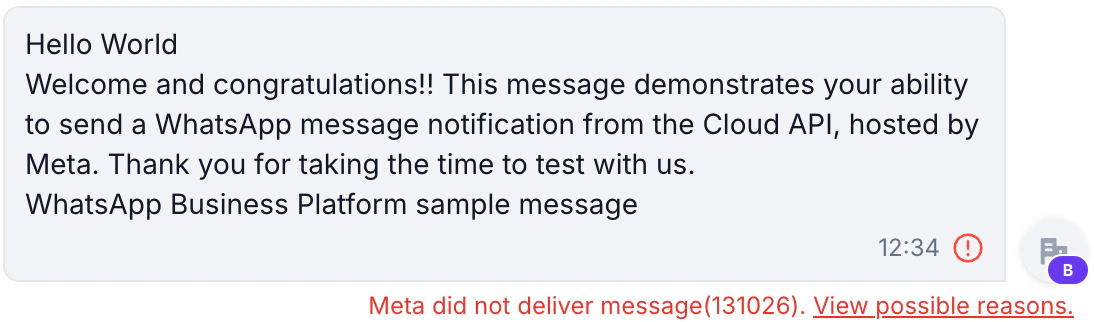
While a broadcast runs, it sits under Active and scheduled with Pause and Stop buttons. Then it moves to History, with its Sent, Delivered, Read and Failed counts. The first run, to our own number, shows Sent 1, Delivered 0 and Failed 1; the second, to another test contact, shows Sent 1, Delivered 1 (100%) and Failed 0.

The reason for a failure is in Chats. A delivered message shows two ticks. A failed one carries a red icon and “Meta did not deliver message (131026)” with a View possible reasons link. Meta lists that code for a recipient who isn’t on WhatsApp, hasn’t accepted the latest terms, or uses an old app version.
We saw it on an earlier test contact; our own number had no chat to open, so we can’t say why it failed. Check Failed after every send.
Source: WhatsApp error codes, 131026, checked 28 October 2026.
See the WhatsApp bulk messaging feature for what a campaign can include. Staying on the app for now? Keep your lists small and current, and send only to people who asked to hear from you.
FAQ
Common Questions
How do I create a broadcast list in WhatsApp Business?
On iPhone, tap Settings → Broadcast messages → New list, pick the contacts and tap Create. On Android, tap Chats → ⋯ → Business Broadcast. Then write your message in the list. See Create a Broadcast List.
Why are my broadcast messages not delivered?
Check first whether the customer saved your number, since a list reaches only saved contacts. Other causes: a list over 256 contacts, sending from a computer, or a Business broadcast that was flagged. Ask the contact to save your number and send again. See If Contacts Don’t Get It.
What is the WhatsApp Business broadcast limit?
A list holds up to 256 contacts, and you can make as many lists as you like. WhatsApp’s separate page about a monthly limit of 35 free broadcasts is written for the regular app, and the Business app guide lists no such cap. See Create a Broadcast List.
Is a WhatsApp Business broadcast free or paid?
A broadcast list is free. A Business broadcast is paid, and the model differs by platform: Android and Web say you pay for each message delivered within five days, while the iPhone page mentions free messages with Meta Verified and message packs. See What Business Broadcasts Cost.
How much do Business broadcasts cost in India?
Price depends on the recipient’s country code. The INR rate card linked from the Android and Web pricing page lists ₹0.8631 per marketing message to India, before tax. The iPhone page shows no per-message price; the app shows the total before you send. See What Business Broadcasts Cost.
Can I send a broadcast from WhatsApp Web or a computer?
Not a broadcast list: WhatsApp says lists aren’t supported on Windows, Mac or Web. The Business broadcasts guide has a Web tab, which we haven’t tried. See If Contacts Don’t Get It.
Can I broadcast to people who haven’t saved my number?
Not with a plain list. WhatsApp offers two routes: turn the list message into a paid broadcast from the banner in the list, or use a Business broadcast. A provider on the Platform also works, with opt-in and approved templates. See When the App Isn’t Enough.