Customers write when nobody is free to answer: late at night, on a holiday, in the middle of a busy shift. The Business app can reply for you in two ways, a greeting for new chats and an away message for the hours you are not there.
Greeting & Away Messages: Quick Answer
The short version:
A greeting message replies to customers who write for the first time, or after 14 days of silence. An away message replies while you are unavailable, on a schedule you choose.
Open Tools → Greeting message or Away message, switch on the toggle, pick Recipients, then edit the Message.
Four recipient options for both, and for the away message a Schedule: Always send, Outside of business hours or Custom schedule.
Each one is a single fixed text. Neither answers a question, and both switch off while Meta Business Agent is connected. A flow or an AI Agent handles that, as the last section explains.
No business account yet? Start with how to create a WhatsApp Business account. This guide covers the Business app on the iPhone.
Where to Find Them
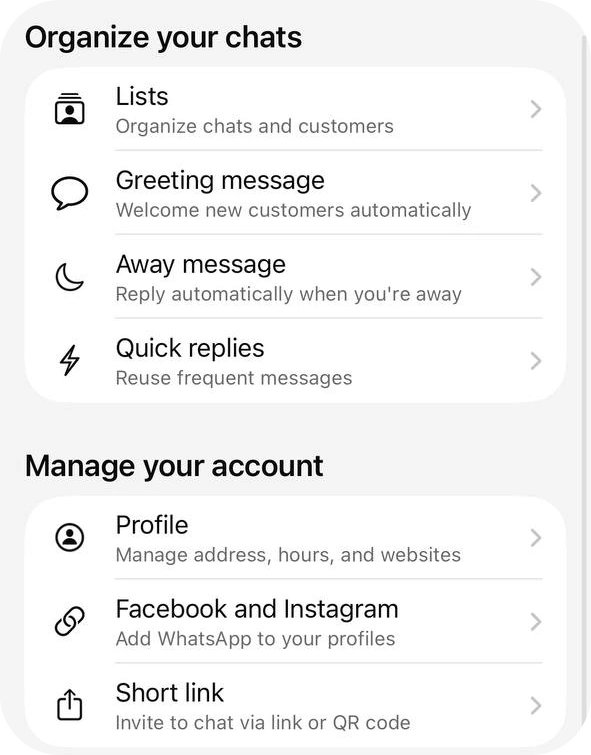
On the Tools tab, the Organize your chats group lists Greeting message (“Welcome new customers automatically”), Away message (“Reply automatically when you’re away”) and Quick replies. Tap one to open its screen: a toggle, Recipients and the Message. The away screen adds a Schedule.
The three tools do different jobs:
| Tool | It sends when | You |
|---|---|---|
| Greeting message | A customer writes for the first time, or after 14 days with no activity. | Write it once. |
| Away message | A customer writes while your schedule is on. | Write it once and set the schedule. |
| Quick replies | Never by itself. | Type / in a chat and pick one. |
Quick replies are the manual one; the quick replies guide covers them.
Set Up the Greeting Message
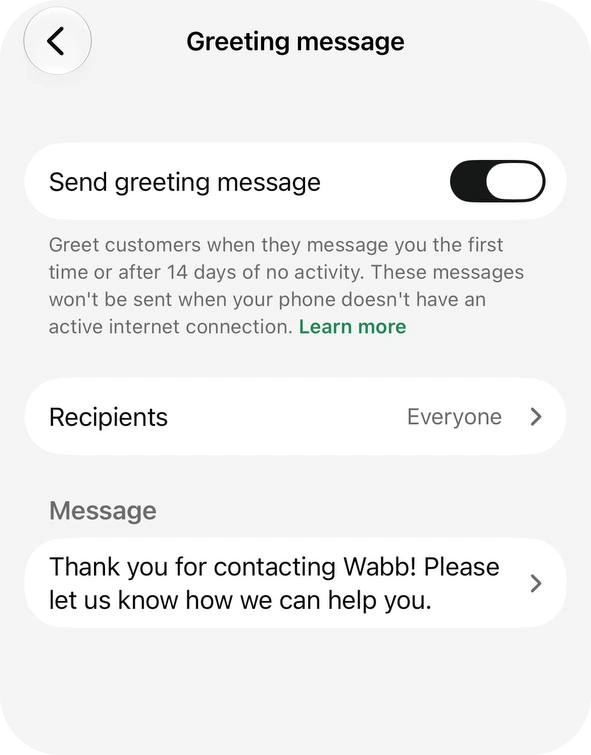
Turn on Send greeting message. The screen explains the rule in one line: it greets customers “when they message you the first time or after 14 days of no activity”. A customer who wrote yesterday gets no greeting.
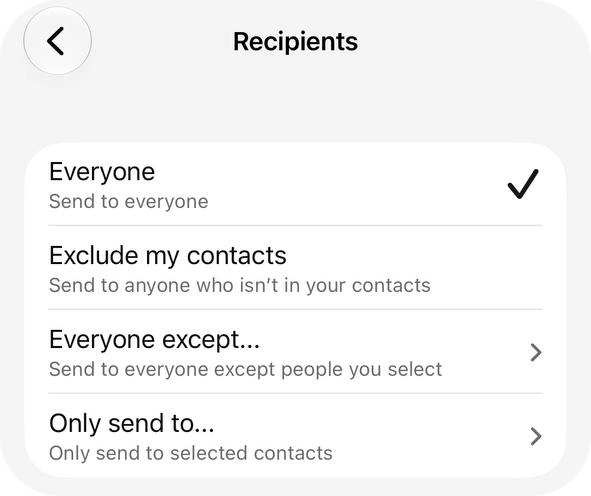
Recipients has four choices: Everyone, Exclude my contacts (“Send to anyone who isn’t in your contacts”), Everyone except… and Only send to…. The last two show arrows because you then choose the customers; we did not open those lists. Tap the Message row, edit the text and tap the check mark to save it.
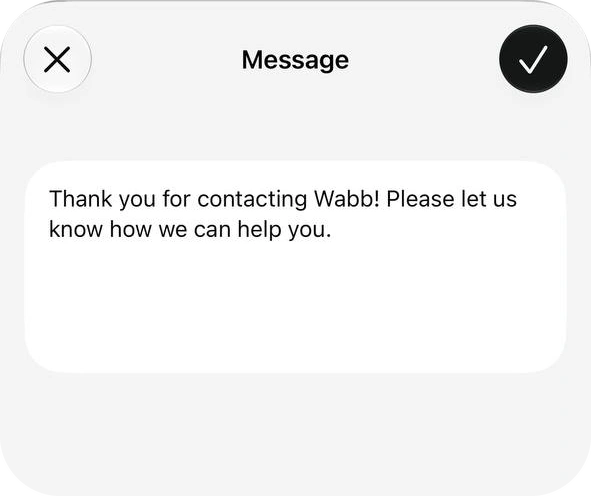
Source: WhatsApp Help Center — How to use greeting messages, checked 26 October 2026.
Set Up the Away Message
The away screen works the same way, plus a Schedule row. Its text says the message is sent when you’re away, and only while the phone has an active internet connection.
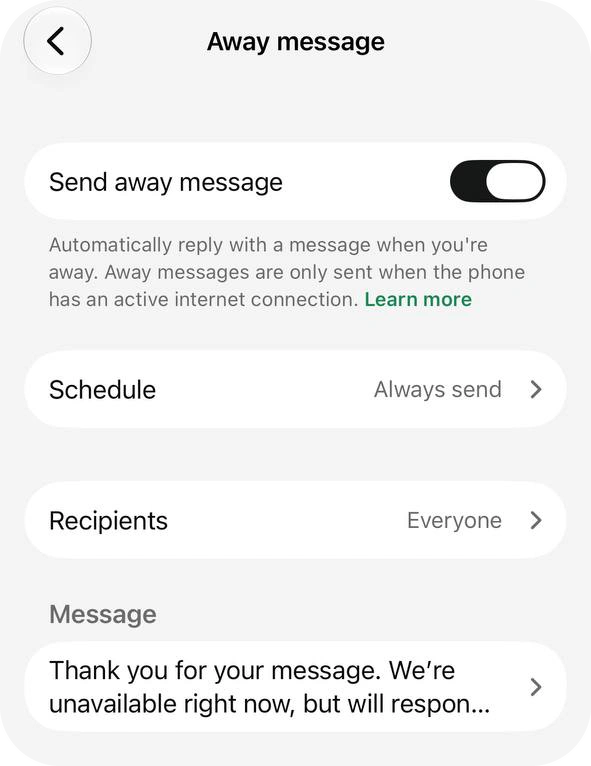
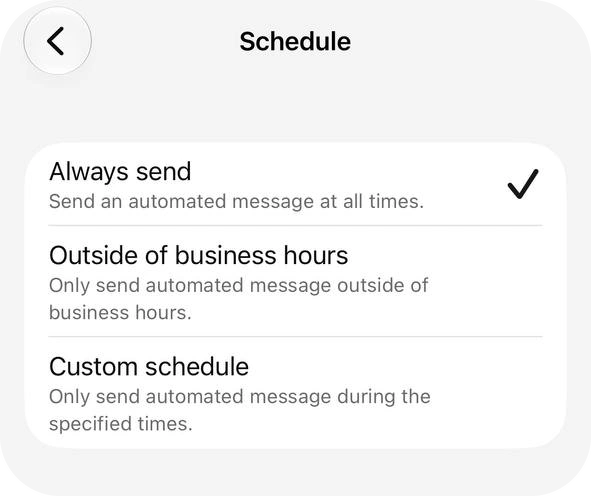
Schedule has three choices:
- Always send sends the message at all times.
- Outside of business hours sends only outside the hours in your profile. WhatsApp says it is available only if you have set business hours; see the profile guide.
- Custom schedule sends only during the times you specify. We did not open its time picker.
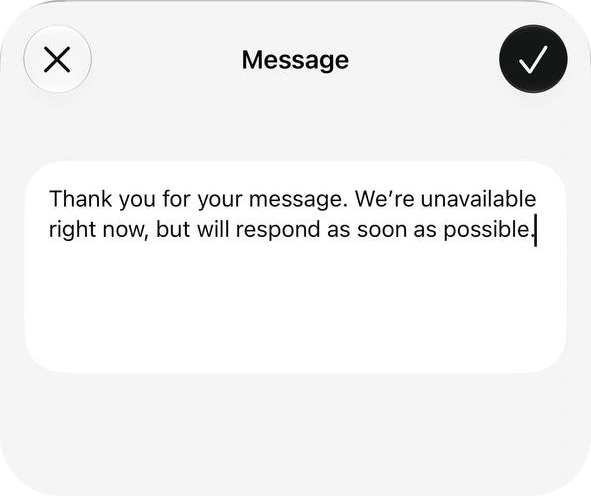
Recipients is the same list of four as for the greeting. The hours in your profile tell customers when you are open; the away message is what replies to them after closing. WhatsApp’s guide doesn’t say how often the message repeats in one chat or whether it works in groups, and we did not test either.
Source: WhatsApp Help Center — How to use away messages, checked 26 October 2026.
What to Write
The editor shows no character counter and WhatsApp’s guide states no limit, so write for the chat screen: two or three short lines. Replace each [bracket] with your own details:
| Use | Text |
|---|---|
| Greeting: shop | Hi, thanks for messaging [Business name]. Tell us what you’re looking for, or send a photo, and we’ll reply with prices and delivery options. |
| Greeting: service | Hello, and thanks for contacting [Business name]. Tell us what you need, where, and by when, and we’ll send a quote. |
| Greeting: appointments | Welcome to [Business name]. Send the day and time you’d like, and we’ll confirm your appointment here. |
| Away: after hours | Thanks for your message. We’re closed until [time] on [day] and will reply as soon as we’re back. For something urgent, call [number]. |
| Away: festival | Thanks for writing to [Business name]. We’re closed for Diwali until [date] and will reply on [date]. Your message will be waiting for us. |
Say what happens next. “We’ll reply with a quote” beats “Thanks for contacting us”.
Give a time only if you will keep it. “Back at 10 am on Monday” works; “shortly” promises nothing.
Keep the two texts different. A customer can get both, so the greeting welcomes and the away message explains the wait.
Leave out prices and personal numbers. The same words go to everyone who matches your recipients.
If a Greeting or Away Message Doesn’t Send
Work through these causes in order, starting with the two features that can switch the messages off:
Meta Business Agent is connected. This is Meta’s AI agent for business chats, offered in limited countries. WhatsApp switches greeting and away messages off automatically while it is connected. To use them, delete the agent.
Auto-created lists are on. WhatsApp says this optional feature may affect greeting and away messages, and it disconnects your linked devices. Turning it off restores them.
Recipients leave the customer out. With Only send to… or Everyone except…, some customers will never get the text.
The 14-day rule. A greeting goes only to a first message or after 14 days of no activity. A customer who wrote last week gets none.
The schedule is off-window. An away message set to Outside of business hours needs hours in your profile; Custom schedule sends only inside the times you set.
The phone is offline. Both messages are sent only while the phone has an active internet connection.
Still nothing? Toggle the message off, wait a moment and turn it on again. Then update WhatsApp Business and restart the phone, as WhatsApp’s guide suggests.
Source: WhatsApp Help Center — How to use greeting messages; Greeting and away messages are disabled when AI is onboarded; About automatic events, checked 26 October 2026.
What They Can’t Do — and What Comes Next
Each message is one fixed text. It can’t tell a customer asking for a price from one asking for an address, it can’t ask a question and use the answer, and it can’t hand a chat to a colleague. For a few chats a day that is fine. Past that, use quick replies and lists to answer faster, or move the replying to software.
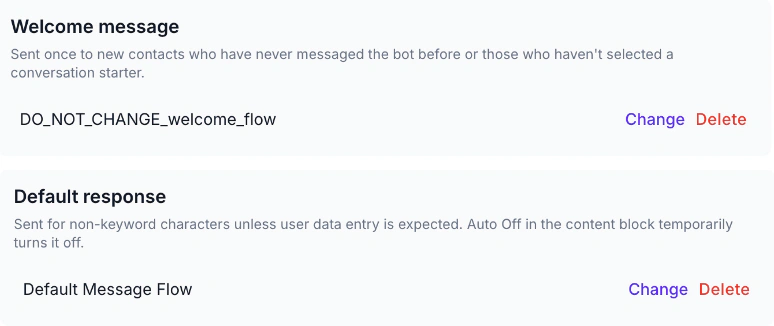
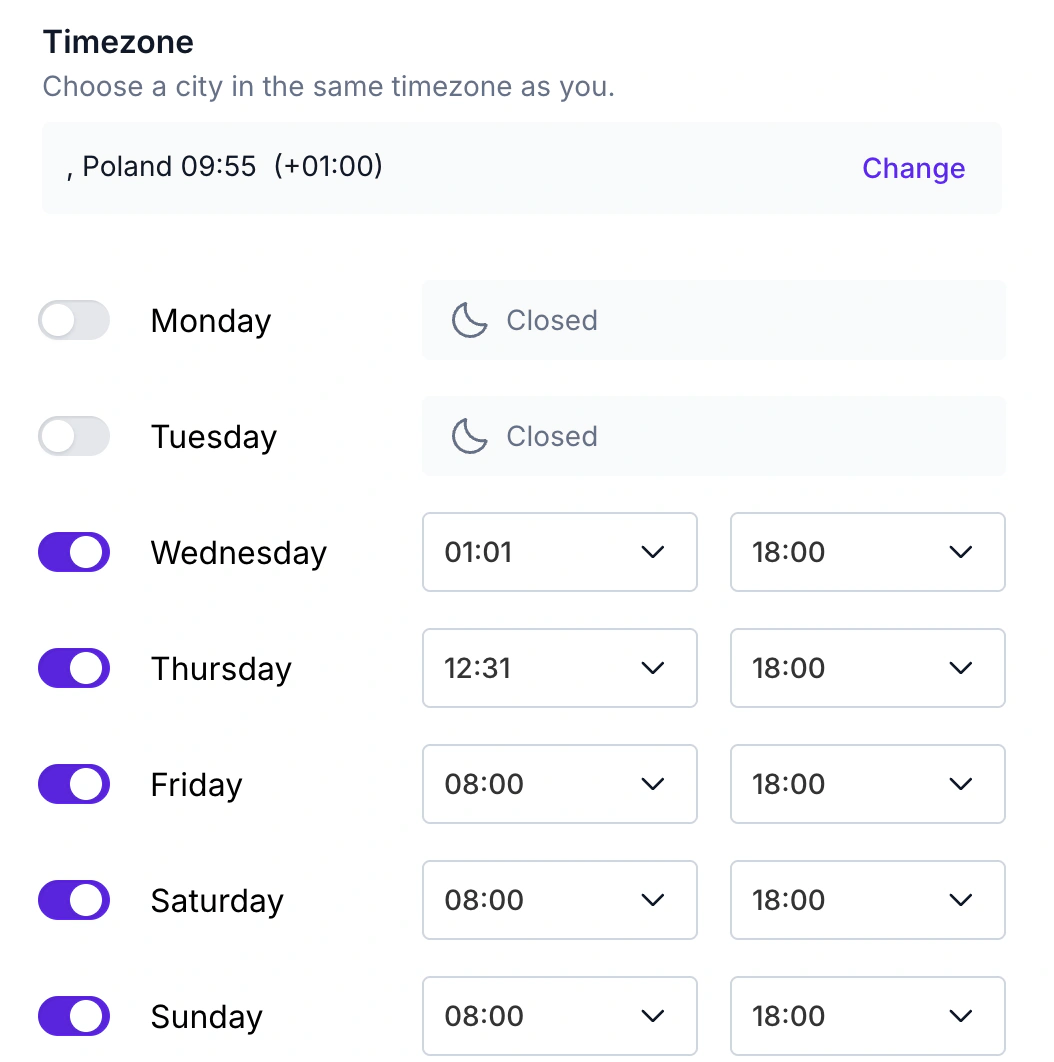
WABB runs on the WhatsApp Business Platform. In WABB, Settings → Connection has a Welcome message card, sent once to contacts who have never messaged before, and a Default response card, sent when a message isn’t a keyword. Each one runs a flow, so the reply can ask a question, save the answer or route the chat. Settings → Office Hours holds a timezone and working times for each day.
For replies that depend on what the customer wrote, an AI Agent can answer from your own information. We checked these screens on a test workspace, but did not run a welcome flow on a live number for this guide. Staying on the app? Keep the profile current, and see the profile guide for the hours your away message follows.
FAQ
Common Questions
Where are greeting and away messages in WhatsApp Business?
Open the Tools tab on the iPhone app. Both sit in the Organize your chats group, between Lists and Quick replies. Tap one, switch it on and edit its text. See Where They Are.
When does the greeting message send?
When a customer messages you for the first time, and again when they write after 14 days with no activity in that chat. It is sent only while your phone has an internet connection. See Greeting Message.
Can I send the away message only outside business hours?
Yes. Set Schedule to Outside of business hours, which WhatsApp says needs business hours in your profile. The other choices are Always send and Custom schedule. See Away Message.
Can I choose who gets the automatic reply?
Yes, with Recipients: Everyone, Exclude my contacts, Everyone except… or Only send to…. Our iPhone showed the same four options for both messages. See Greeting Message.
Why is my greeting or away message not sending?
Check the common causes: a connected Meta Business Agent, Auto-created lists, Recipients, the 14-day rule, the schedule, and the phone’s internet connection. Then toggle the message off and on. See If It Doesn’t Send.
How long can a greeting or away message be?
WhatsApp’s guide gives no limit, and the message editor on our iPhone showed no character counter. Keep each text to two or three short lines, since it shows up as a normal chat message. See What to Write.
Can I use these with a chatbot or an AI agent?
Not with Meta’s own agent, which turns them off. A WABB flow or AI Agent replaces them with replies that depend on what the customer wrote. See What They Can’t Do.