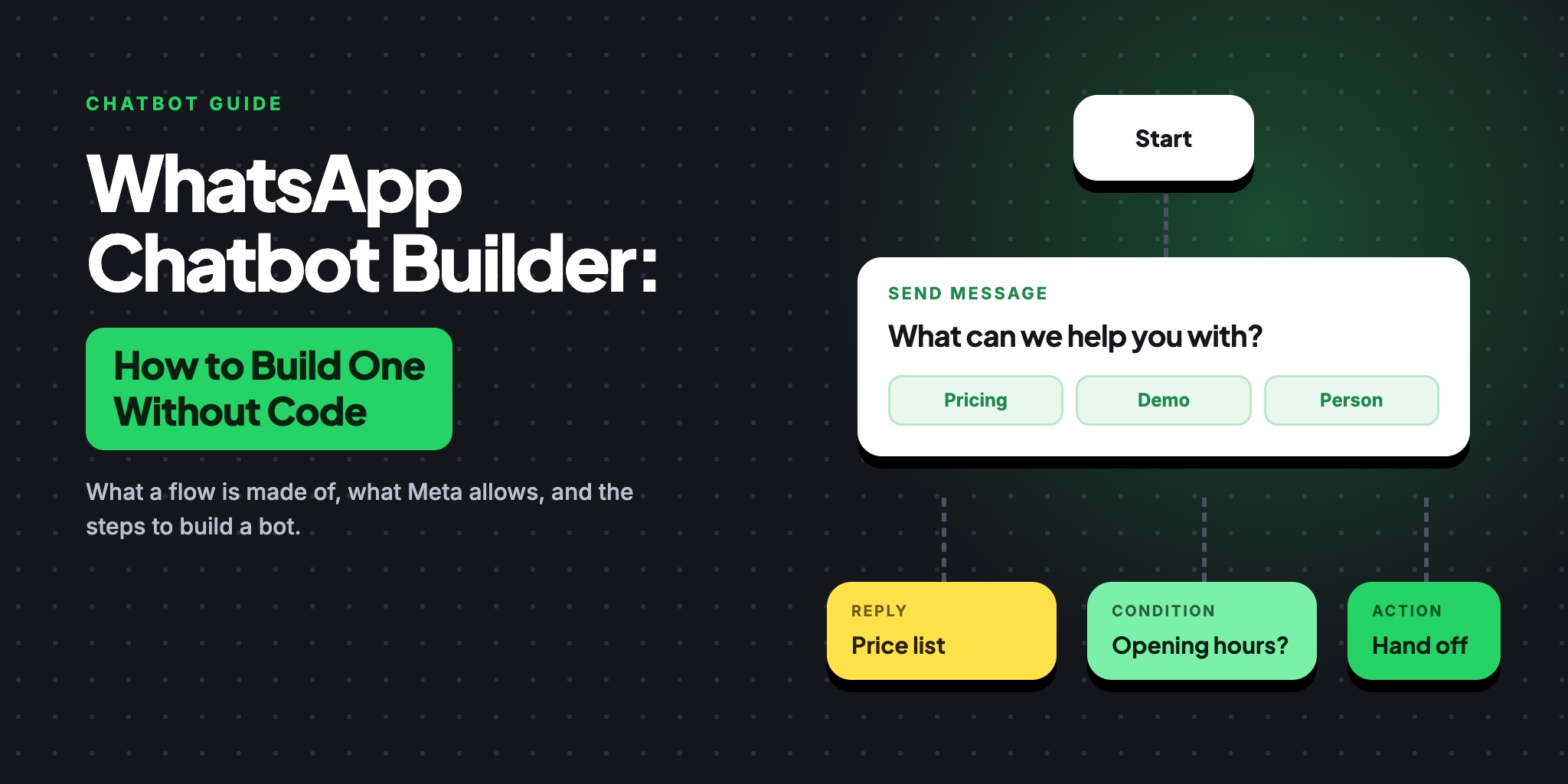
A customer writes to your number at night and asks the same three questions your team answers every morning. A chatbot can handle those questions and pass the rest to a person. This guide covers what a builder is, what a flow is made of, what is free, what Meta allows, and how to build the first flow without code. For the AI route, see our WhatsApp AI agent guide.
WhatsApp Chatbot Builder: Quick Answer
The short version:
A WhatsApp chatbot builder is a visual editor where you place the steps of a conversation: a message, buttons, a question, a condition, a pause, a hand-off to a person. You connect the steps with lines instead of writing code.
You need the WhatsApp Business Platform, which is Meta’s official API, plus a platform that gives you the editor and an inbox. The free WhatsApp Business app has greetings and quick replies but no flow editor.
Inside the 24-hour window after a customer’s message the bot can reply freely. Outside it, only approved templates can be sent, and a bot needs a clear way to reach a person.
A flow answers what you planned for and nothing else. We did not run a live conversation with a customer on a phone for this guide, and the last section lists what we did and did not test.
How a Chatbot Works on WhatsApp
Meta’s rule decides what a bot may send and when. A message from the customer opens a 24-hour customer service window, and every new message from them resets it. While the window is open, you can send free-form messages. Once it closes, you can send only pre-approved template messages.
A bot that answers a customer who just wrote is inside the window. A bot that waits for hours is the case to plan for.
Two consequences follow. A bot cannot start a conversation with free text, because only a template can open one, and only to a customer who has opted in. And Meta’s terms allow automation in the window but expect a prompt, clear way to reach a person, so every flow needs a hand-off.
Source: Meta — Service messages; WhatsApp Business Policy, checked 23 November 2026.
What a Flow Is Made Of
Every builder offers a similar set of parts. The names below are from the WABB editor, which we opened and checked for this guide.
- Trigger. What starts the flow: a keyword the customer types, a first message, an ad click or a link. In WABB the trigger rules live under Automation → Keywords.
- Message. Text, an image, a video, a file, a voice note or a contact card. Text in a WABB message holds up to 500 characters and supports bold, italic and strikethrough.
- Buttons and lists. Up to three reply buttons, or one list that opens a pop-up with up to ten rows. Both turn a customer’s tap into a clean answer the flow can branch on.
- Question. The flow asks, waits for a reply and saves it into a contact field. If the customer stays silent, a separate exit lets you send a nudge or stop.
- Condition. A fork. It checks a tag, the day of the week, whether it is opening hours, a time, who the chat is assigned to, a segment, or a contact field.
- Delay. A pause for a set time or until a date and time. WABB allows up to 30 days.
- Action. Something done to the contact or the chat: add a tag, assign the chat, mark it open, notify a team member.
- Hand-off. The step that moves a conversation to a person. Meta expects automation to offer one, so plan it from the first draft.
The eight parts cover a basic flow. A fork on a tag or on opening hours is the one beginners skip.
Meta sets the limits on buttons and lists. A message can offer up to three reply buttons, and each label can be up to 20 characters and must be different from the others. A list opens from one button, holds up to ten rows across up to ten sections, and each row title can be up to 24 characters. WABB shows the same limit of three reply buttons in its editor.
Source: Meta — Reply buttons; Meta — List messages, checked 23 November 2026. The text limits come from Meta’s request tables.
Rule-Based Flow or AI Agent: Pick the Right One
A builder can make two kinds of bot. Which one you need depends on whether the questions are predictable.
- Rule-based flow. Follows the path you drew. The same input gives the same answer, which suits menus, qualification, bookings, routing and anything with a fixed script.
- AI agent. Reads free text and decides what to do from your knowledge base and tools. It suits open questions, but it needs training data, review and a budget for AI credits.
- A mix. Many setups use a flow for the fixed first steps and send the open questions to an AI agent. We cover that route in the AI agent guides linked below.
Start with a flow if you can write the questions down on one page.
Our guide to WhatsApp AI agents explains the difference in depth, and the build guide shows the agent route in WABB. For the basic greeting and away replies of the free app, see our auto-reply guide.
Is a WhatsApp Chatbot Free?
Partly. The line runs between the free business app and the official API.
- WhatsApp Business app. Free to use, with a greeting and away message and quick replies. It has no flow editor and no conditions, so it cannot branch on a customer’s answer. It fits a small business where one person answers.
- Official API with a platform. A flow editor, a shared inbox and automations, on a plan the platform sets. A business app number can join the API through Coexistence.
- Meta’s charges. Meta charges for template messages by category. Your free-form replies inside the window are Service messages, and the first 1,000 a month on a number are free.
Free covers the app. A flow, a shared inbox and templates need the API and a plan.
Search for “free WhatsApp chatbot builder” returns tools that are free to try. Treat that as a trial, because the messages Meta charges for are not free on any platform. For our own prices, see the pricing page and the India pricing guide.
Source: Meta — Pricing; Meta — Service messages, checked 23 November 2026.
No-Code Builder or Your Own Code
The search results mention Python, n8n and open-source projects. They are real routes, and they make you responsible for the parts a platform hides. From Meta’s documentation, a bot built on the API needs these five pieces:
Receive messages
You run a public web address that Meta calls for every incoming message and tap.
Decide the reply
Your code reads the message, keeps the conversation state and picks the next step.
Send the reply
Your code calls the Messages API with an access token you store and renew.
Respect the window
Your code checks whether the 24-hour window is open and falls back to a template when it is not.
Hand off to a person
You build or buy an inbox where an agent can take over, and a rule that stops the bot while they do.
Our reading of Meta’s message and webhook documentation.
A no-code builder supplies all five. Your own code makes sense when the logic is unusual, when your developers already run the stack, or when the bot is part of a product. For a business that wants a working menu this week, the builder is shorter. Our API requirements guide covers the account side of either route.
Source: Meta — Service messages; Meta — Reply buttons, checked 23 November 2026. The webhook and token steps are our reading of the Messages API pages.
Three Flows Worth Building First
Each of these uses only the parts from the section above, and we built all three in our demo workspace. The screens are in the last section.
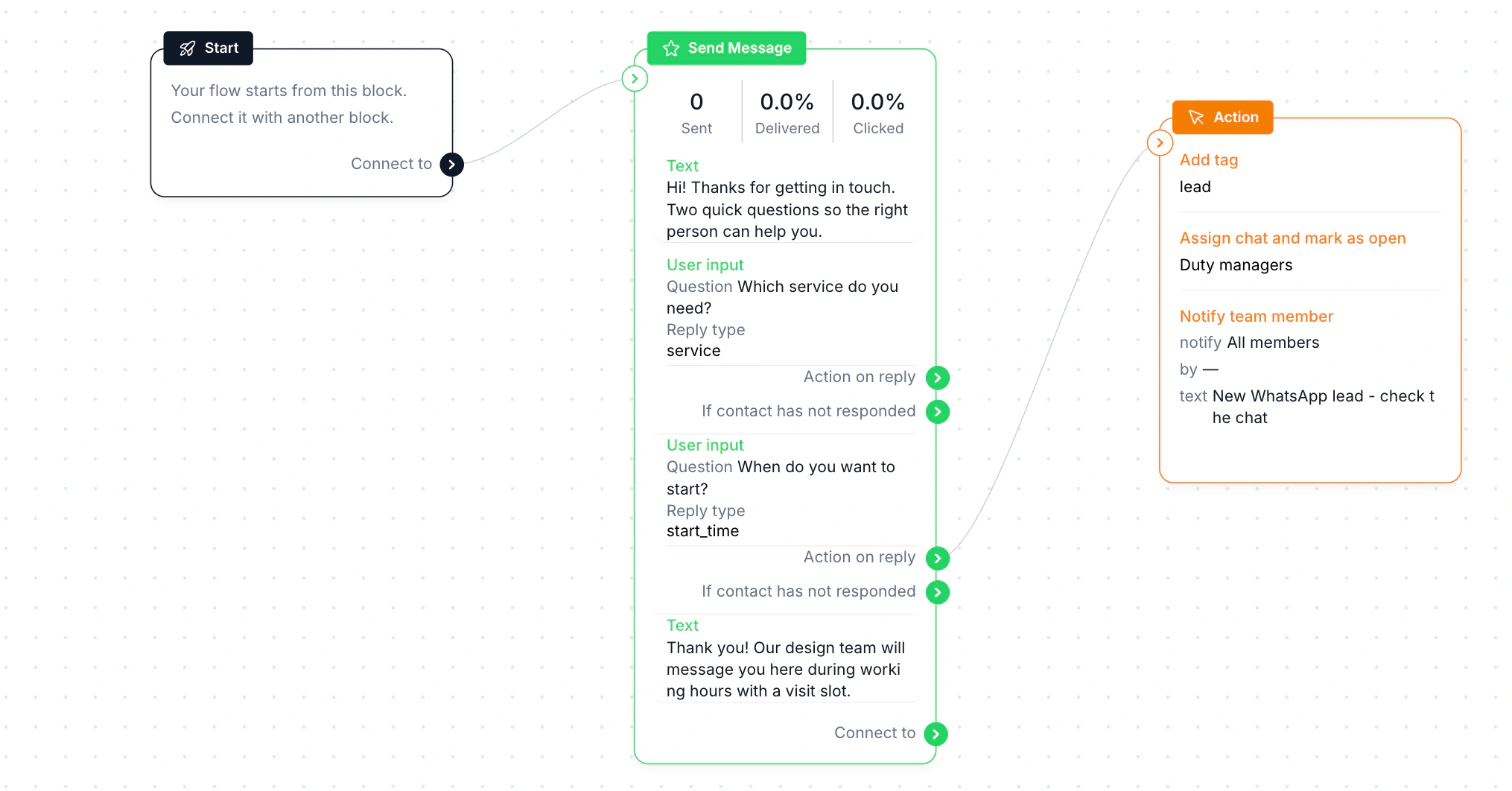
- Lead qualification. Greet, ask what the person needs, ask when they want to start and save both answers. Then tag the contact, assign the chat and notify the team.
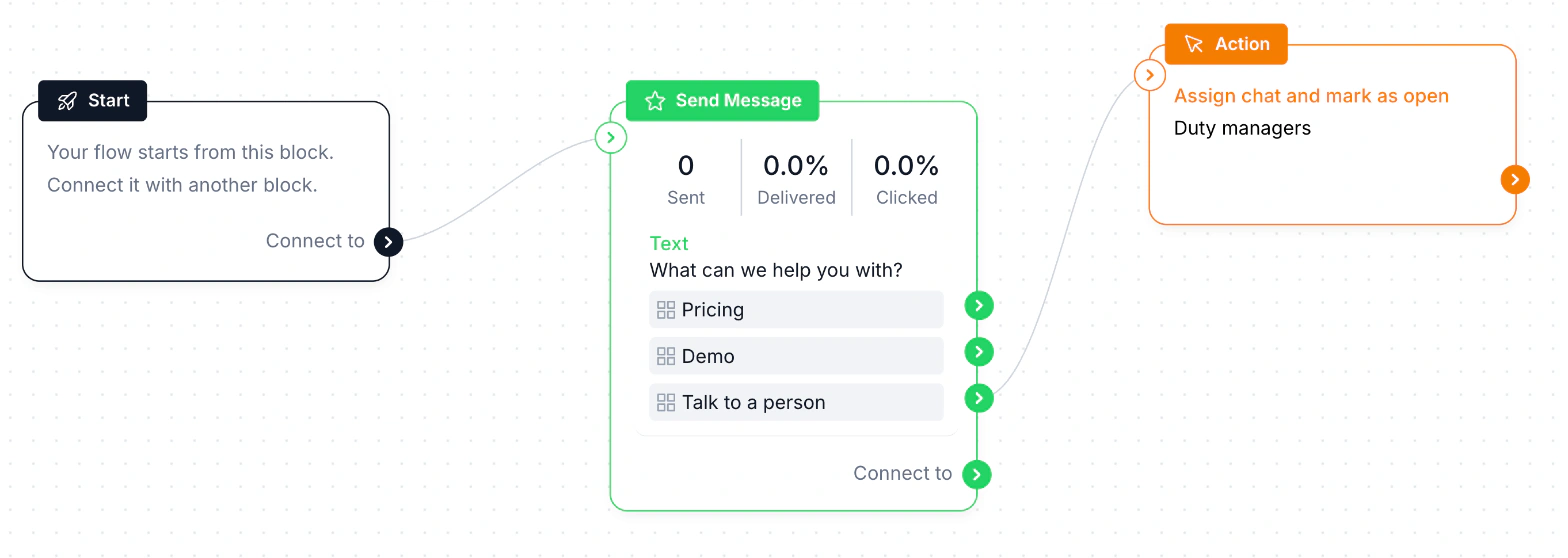
- Menu with a way out. Three buttons for the three common questions, each answered in one message. A fourth path, “Talk to a person”, hands the chat over.
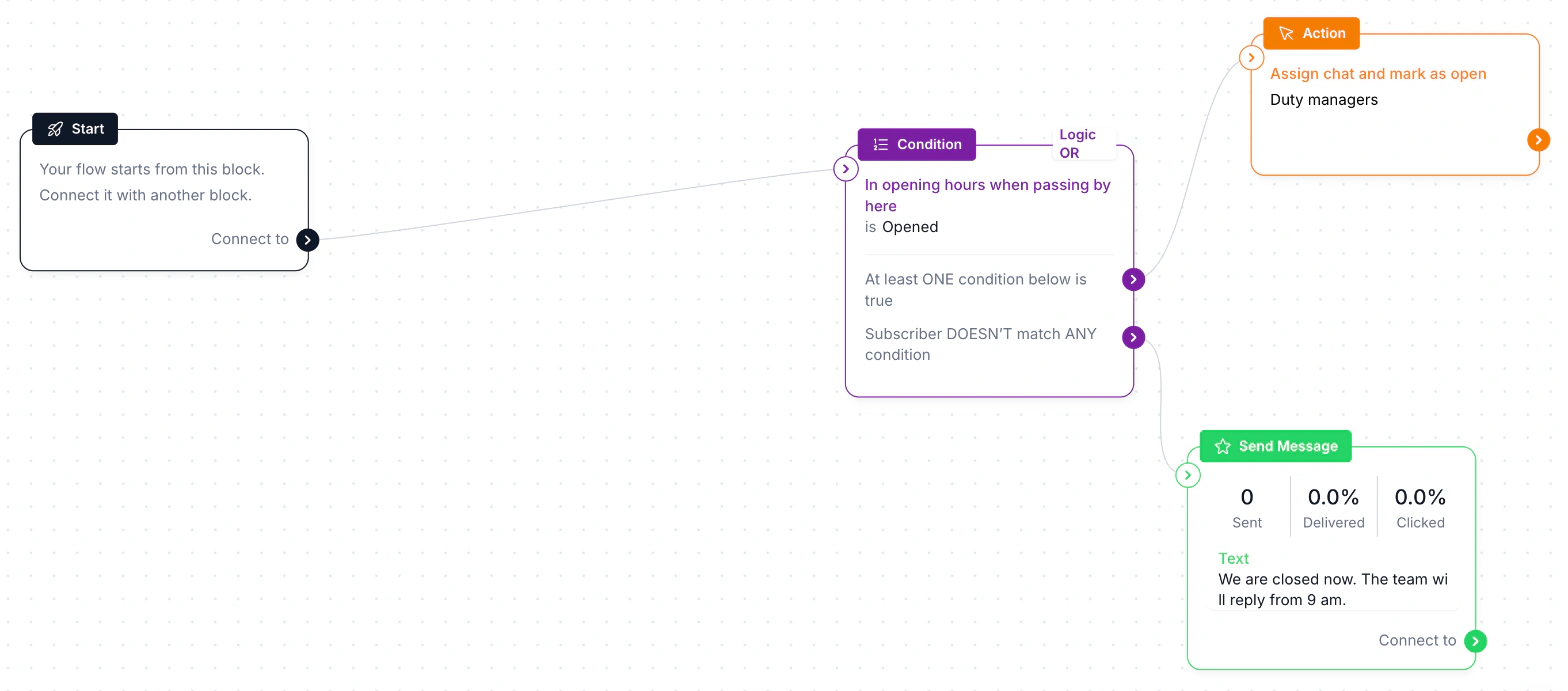
- Out-of-hours routing. A Condition asks whether it is opening hours. Yes: assign the chat to a person. No: say when the team replies.
Three flows, each short enough to test in an afternoon.
For lead capture in more depth, see the lead generation use case.
What Meta Allows in a Chatbot
Business bots for your own customers are allowed. Three rules shape the design.
- Opt-in and templates. A bot can write first only through an approved template and only to a customer who agreed to be messaged.
- A way to a person. Automation in the window is allowed, but it must offer a prompt, clear and direct way to reach a human.
- AI providers. Section 4.7 of Meta’s terms bars providers of AI technologies, such as general-purpose assistants, when that AI is the main thing they offer, and Meta decides what counts. A business bot that serves its own customers is a different case. The terms also forbid using WhatsApp Business Platform data to train AI models, except to fine-tune a model for your exclusive use.
Read the terms yourself before building an AI-heavy bot, because Meta decides case by case.
Source: Meta — Terms for WhatsApp Business Platform; WhatsApp Business Policy, checked 23 November 2026.
Test It, Read the Numbers, Avoid These Mistakes
Test before a customer does. WABB has a Preview mode button at the top right of the editor. It opens a chat panel beside the canvas, and the flow answers there as it would on WhatsApp. We ran our lead qualification flow in it: the bot sent the greeting, asked the first question, took our answer and asked the second.
After launch, two places show results. Each block on the canvas carries Sent, Delivered and Clicked counts, and the Flows list has Automation, Runs and CTR columns for every flow. Six problems are the ones we would check first.
- A menu with too many options. A reply-button message holds three buttons and a list holds ten rows. If you need more, split the choice into two steps.
- A dead end. A path with no hand-off leaves the customer talking to a wall. Every branch should end with an answer or a person.
- Free text after the window closes. A flow that waits a day and then sends a normal message will fail once the window has closed. Use a template for anything that comes after a long delay.
- Long button labels. Meta caps a reply-button label at 20 characters and requires labels in one message to be different.
- Overwriting a live flow. Edit a copy, test it in Preview mode, then switch the trigger. A half-edited flow answers real customers.
- No path for free text. A flow that waits for a button tap meets customers who type something else. Give it a default path: show the menu again, or hand the chat to a person.
- No one watching the numbers. The Flows list shows the runs and the CTR of each flow. A flow with many runs and no replies needs a rewrite.
Preview mode is the first test. A second one on a real number you own is the one that shows how the buttons look.
Building a Flow in WABB
WABB is a WhatsApp automation platform that connects your number to Meta’s official API. The chatbot builder is part of the Starter plan: our pricing page lists the no-code builder, unlimited flows, custom bot fields, keywords and sequences there, and webhooks and API on Pro. The route has five steps.
Create the flow
Open Flows and choose Create new flow. A new flow starts with a Start block connected to an empty Send Message block.
Fill the message
Open Send Message. The 24-hour messaging window switch picks Within or Outside, and the elements are Text, Image, Video, File, Voice, Input, Delay, Disable, Contact and List buttons. Add a Text, then Add button to attach up to three reply buttons or a link button.
Ask and save answers
An Input element asks a question and waits for a reply. Choose field saves the answer into a contact field. The block has two exits, one for Action on reply and one for If contact has not responded.
Add logic and actions
Drag blocks from the panel at the bottom right: Condition, Delay, Randomizer, Action and Integration. Condition forks on a tag, the day, opening hours, the time, the assignee or a segment. Action adds a tag, assigns the chat or notifies a team member.
Connect a trigger
Under Automation → Keywords, create a rule with a condition of Contains, Contains whole word, Begins with or Is, add the keywords and choose the flow to start.
Here are the three flows from the section above, as we built them. The first is lead qualification.
The menu flow sends one message with three reply buttons. Two of the buttons answer in a message, and the third, “Talk to a person”, goes to an Action block that assigns the chat. The list of Action operations has 17 entries, among them adding a tag, assigning the chat, pausing automation and handing the chat to an AI agent.
The out-of-hours flow starts with a Condition block. It offers these checks: Tag, Day of the week, In opening hours, Time, Chat is assigned to a member and Segment. We used In opening hours set to Opened.
The last step is the trigger. Keyword rules live under Automation → Keywords.

Here is what we ran on a demo workspace, and what we did not:
- Ran: we built the three flows above on the canvas, wired their blocks, saved them and reloaded to check they persisted. We ran the lead flow in Preview mode as far as its second question, checked the button and list editors, listed the Condition checks and the Action operations, and read the Delay and Randomizer settings and the keyword rules.
- Did not run: a live conversation with a customer on a phone, how the buttons look in WhatsApp, a Condition or Randomizer on live traffic, and the Flow block. The Pricing and Demo buttons of the menu flow are not connected to anything yet.
- Not tested: a keyword starting a flow for a new contact, the default-message flows and the AI blocks.
For the AI route see how to build a WhatsApp AI agent in WABB. WABB plans are on our pricing page.
Source: Meta — Reply buttons, checked 23 November 2026. The WABB screens come from our demo workspace, and the plan details from the pricing page.
FAQ
Common Questions
Can I build a WhatsApp chatbot without coding?
Yes. A no-code builder lets you place messages, buttons, questions and conditions on a canvas and connect them with lines. You still need the official WhatsApp Business Platform behind it, because the free business app has no flow editor. Our API requirements guide lists what you need, and No-Code or Code compares the routes.
Is a WhatsApp chatbot free?
Only in part. The WhatsApp Business app has free greetings, away messages and quick replies, but no flow editor. A flow on the official API needs a platform plan, and Meta charges for template messages by category. See Free or Paid.
How many buttons can a WhatsApp message have?
A reply-button message holds up to three buttons, and each label can be up to 20 characters and must be unique inside the message. A list message opens from one button and holds up to ten rows in total. See Parts of a Flow.
Can a bot message a customer first?
Only with an approved template message, and only to a customer who agreed to be messaged. Free-form replies need an open 24-hour window, which a customer’s message opens and each new message resets. See How a Bot Works.
Is a chatbot the same as an AI agent?
No. A flow follows the path you drew, so the same input gives the same answer. An AI agent reads free text and decides what to do from your knowledge base. Many businesses use a flow for the first steps and an agent for open questions. Our AI agent guide explains the difference, and Rules or AI summarises it.
Does Meta allow chatbots on WhatsApp?
Yes, for businesses talking to their own customers, as long as the bot offers a clear way to reach a person. Meta’s terms bar providers whose main product is a general-purpose AI assistant, and Meta decides what counts. See Meta Rules.
Which WABB plan includes the chatbot builder?
Our pricing page lists the no-code builder, unlimited flows, custom bot fields, keywords and sequences on Starter. Webhooks, the API, Zapier and Google Sheets are on Pro. Prices change, so check the page before you decide. See In WABB.