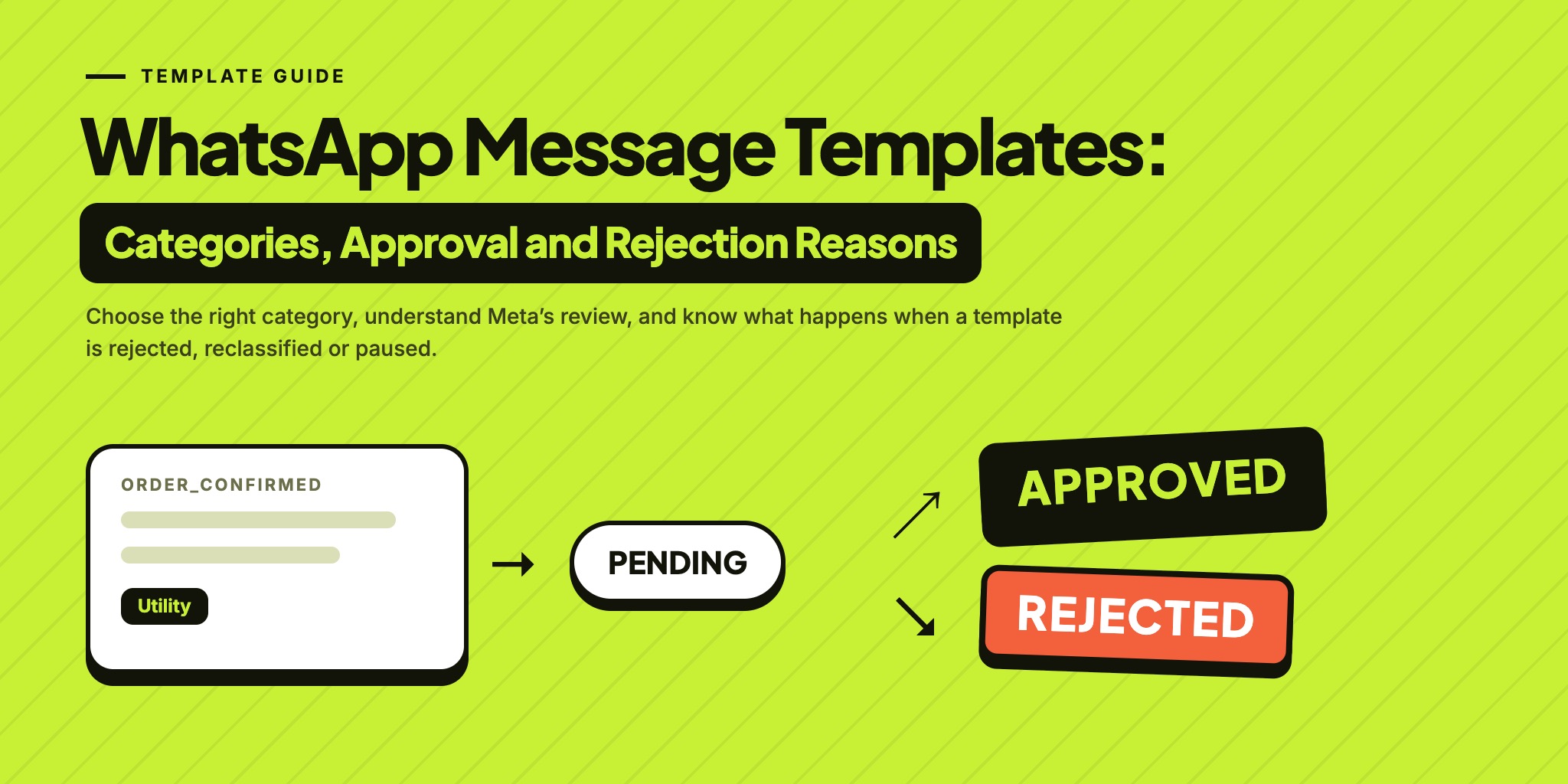
To message a customer on the WhatsApp API outside the 24-hour window, you must use a template that Meta has approved first. A template can be rejected, quietly moved to a more expensive category, paused, or disabled. This guide follows one template through its whole life, using Meta’s own documentation. For what you need before you can send any template, see WhatsApp Business API requirements.
WhatsApp Template Approval: Quick Answer
The short version:
A message template is a message format that Meta approves in advance. It is the only kind of message you can send to a customer outside the 24-hour customer-service window.
Pick the category by what the message says, not by what it costs, and include sample values for every variable. Meta decides within up to 24 hours. If it rejects the template, edit and resubmit it, or appeal.
A test for Marketing, Utility and Authentication, Meta’s listed rejection reasons with fixes, and what can still happen after approval: reclassification, quality ratings and pauses.
Approval is not permanent, and Meta lists common reasons for rejection rather than every rule. No guide can promise a template will pass. The WABB form is covered in the last section.
What a Template Is, and When You Need One
A template is a reusable message with fixed text and placeholders. You write it once, Meta reviews it, and from then on you can send it to as many customers as you like. These are the rules that shape every template:
- Outside the window, only templates. Meta describes template messages as the only message type you can send when no customer-service window is open. The window opens when the customer messages you, and inside it you can send other message types too.
- Only the body is required. A template can also have a header, a footer and buttons. The body holds up to 1,024 characters.
- Variables fill the gaps. A variable is a placeholder, such as a name or an order number, that is replaced with real values at sending time. Every variable needs a sample value when you submit the template.
- One template per language. Meta does not translate anything, so the language you select must match the text. A template in another language is a separate template, and it counts against your template limit. Hindi, Bengali, Gujarati, Kannada, Malayalam, Marathi, Punjabi, Tamil, Telugu and Urdu are all supported.
The other components have their own limits:
- Text header: up to 60 characters and one variable.
- Footer: up to 60 characters.
- Buttons: up to 10 in total, with 25 characters per button label, two URL buttons and one phone button.
- Many buttons: four or more buttons, or a quick-reply button next to another type, cannot be opened on WhatsApp desktop. Customers are asked to view the message on a phone.
Plan the message to fit these limits first, because a template that exceeds them is one of the quickest ways to a rejection.
Source: Meta — Template fundamentals; Meta — Template components; Meta — Supported languages, checked 20 November 2026.
Marketing, Utility or Authentication: Choosing the Category
Meta lets you pick the category, then checks it against the content. The choice also sets the price: at Meta’s India rates, a delivered Marketing message costs ₹0.8631 and a Utility message ₹0.1150, so Marketing costs about seven and a half times as much. For the full rate card and how billing works, see WhatsApp Business API pricing in India.
Utility is the narrow category, and a template has to pass two tests. It must contain nothing promotional or persuasive, and it must also be about the customer’s own order, account, service or transaction, or be essential to them, such as a safety alert. Marketing is everything else, including mixed and unclear content. The table below applies the tests to ten messages modelled on Meta’s own examples:
| Message | Category | Why |
|---|---|---|
| Your order is confirmed, with the order number | Utility | It follows the customer’s own order and has no promotion. |
| Your parcel is on its way, with a tracking number | Utility | It updates a specific transaction. |
| A reminder that this month’s payment will be billed on a date | Utility | It is an account alert about a service the customer already has. |
| A feedback request about one specific order | Utility | It refers to a named order. A general survey would not qualify. |
| An order update with a discount line added at the end | Marketing | Mixed content is treated as marketing. |
| You left items in your cart, check out now | Marketing | Retargeting counts as marketing even when the customer asked. |
| Your subscription expires soon, renew to save | Marketing | An attempt to renew is a sales message, not an account alert. |
| A birthday wish from your brand | Marketing | It builds the relationship rather than serving a transaction. |
| A body that only says Congratulations!, or only a variable | Marketing | Meta treats unclear content as marketing. |
| A one-time passcode for login or recovery | Authentication | Only authentication templates may carry a passcode. |
A template that does not pass both Utility tests is approved as Marketing, so a doubtful message belongs in Marketing from the start.
Authentication is the strictest category, and it is the only one that may carry a one-time passcode. A template counts as Authentication only if it meets all of these:
- Template Library. It must be built from Meta’s authentication templates, which add optional security notes and expiry warnings.
- A passcode button. It needs a one-time password button, such as copy code or one-tap.
- Plain content. URLs, media and emojis are not allowed, and each variable is limited to 15 characters.
Utility templates sent inside an open 24-hour window are now charged as well, so order updates are no longer free, except inside the free window that follows a click-to-WhatsApp ad. For the pricing changes, see What’s New in WhatsApp.
Source: Meta — Template categorization; Meta rate card for India; Meta — Pricing, checked 20 November 2026. The two rates are read from the India rate card in rupees.
How Meta’s Review Works, Step by Step
Review starts when you submit the template and again every time you edit it. Put together from Meta’s pages, the path has four steps:
You submit the template
Meta checks the content with automated systems and manual review. Spam, scam-like content and anything against WhatsApp policy is rejected here.
Meta checks the category you chose
It compares your category with the content. If you picked Utility but the content is Marketing, Meta now approves the template as Marketing instead of refusing it.
Meta decides, within up to 24 hours
The status becomes Active – Quality pending (APPROVED in the API), or the template is rejected. Meta notifies you in WhatsApp Manager, the Meta dashboard where templates are managed, and by email to the admins of the Meta Business Suite account.
Only approved templates can be sent
A template with any other status cannot go out in a template message.
The category check has three possible results. If Meta agrees, the template goes on to review. If you chose Utility and Meta finds Marketing, the template is approved as Marketing.
Meta may also reject a template with the reason INCORRECT_CATEGORY. Then you can create a new template, change the category and resubmit, or request a review within 60 days.
Treat 24 hours as the ceiling and submit templates before the campaign week, not on the day of the launch. Meta’s page names no separate step for a template that is still pending after 24 hours, so ask your provider to check it.
Source: Meta — Template review; Meta — Template categorization, checked 20 November 2026.
Why Templates Get Rejected, and How to Fix Them
Meta publishes the common reasons for rejection. They fall into three groups, and each comes with its fix:
Variable formatting
- Variables with missing or mismatched curly braces. The positional format is {{1}}, so check both pairs of braces.
- Special characters inside a variable, such as #, $ or %. Remove them.
- Numbers out of sequence, for example {{1}}, {{2}}, {{5}}, {{4}}. Renumber them in order.
- A template that starts or ends with a variable. Meta calls these dangling parameters, so add fixed text before the first and after the last.
- Too many variables for the length of the message. Add fixed text or remove variables.
Content and policy
- Anything about goods or services for sale that breaks WhatsApp’s Commerce Policy. Meta counts descriptions, prices, fees, taxes and required legal disclosures as part of the transaction, so check the wording against that policy.
- A request for sensitive identifiers, such as a full card number, a bank account number or a national ID, or for documents that may contain them. Asking for the last four digits is allowed, so ask for those instead.
- Abusive or threatening wording, such as threatening a customer with legal action or public shaming. Rewrite it in a neutral tone.
Category and duplicates
- A category that does not match the content. The API reports this as INCORRECT_CATEGORY. Change the category or the wording.
- The same body and footer as an existing template. Change the wording, or use the existing template. This check does not apply to authentication templates.
- Text beyond the character limits, or more emojis than the format allows. Shorten the text.
The reason for a rejection appears in Meta’s Business Support Home, under Rejected message templates. To get there, open Account Overview, then View my accounts, your business account and your WhatsApp account. Meta also sends the reason by email.
After a rejection you can edit the template and resubmit it, or appeal. An appeal must include a sample, and Meta decides within 24 hours.
Here is a refusal from our own run, and a version that follows the rule:
Refused by Meta in our run
Fixed wording, not submitted
Both lines are our own wording. The first starts and ends with a variable, the second has fixed text around them.
Before you submit, run this checklist:
- Decide the category with the test in Choosing the Category before you write the first word.
- Give the template one job. If you want to add an offer to an order update, send two templates instead.
- Number variables from 1 without gaps, keep special characters out of them, and put fixed text before the first and after the last one.
- Fill in a realistic sample for every variable, and for a media header the file is reviewed too. Meta says samples help reviewers picture how the template will look to customers.
- Choose the language that matches the text of the message. Meta does not translate templates.
- Search your existing templates for the same body and footer before you submit.
- Remove any request for card numbers, account numbers or ID numbers.
A template that passes all seven points can still be rejected, so read the reason before changing anything.
Source: Meta — Template review; Meta — Template components, checked 20 November 2026.
After Approval, the Category Can Still Change
Meta reviews approved templates on a recurring basis. If a template approved as Utility reads as Marketing, Meta gives one day’s notice by email, in WhatsApp Manager and through a webhook, an automatic message to connected software. Then it changes the category to Marketing, while the status stays Approved and the template keeps working.
You can ask for a review before the date, and if it succeeds the category stays Utility. Review requests go through Business Support Home, within 60 days. Each message sent through the template is then charged at the Marketing rate, so check which of your templates are affected. WhatsApp Manager flags the affected templates, and the API can list them too.
A business that keeps labelling Marketing templates as Utility faces escalating limits, in this order:
After it, Utility templates found to be Marketing are changed immediately, with no notice.
Utility volume is capped in a rolling 24 hours. Marketing and authentication are not affected.
All approved Utility templates become Marketing, and new Utility templates are switched off.
The same restriction applies to every account in the business portfolio.
A longer bar is a longer or wider restriction. Notices go to the admins of the Messaging account, the Meta account that holds your templates and billing details.
A template approved as Marketing or Utility that Meta decides should be Authentication is handled differently. The category does not change, and on the first day of the next month the template is rejected. You cannot request a review in this case, so rebuild such passcode messages in Authentication format before then.
Source: Meta — Template categorization, checked 20 November 2026. The changes dated 1 July 2024 and 16 April 2025 are described on the same page.
Quality Rating, Pacing and Pausing
Once a template is live, customers rate it indirectly. Meta scores each template from usage, feedback and engagement, and WhatsApp Manager shows the score as one of four levels:
- Quality pending. Every new template starts here, until feedback and read data arrive.
- High quality. Little or no negative feedback.
- Medium quality. Negative feedback from several users, or low read rates. It can still be sent, but it may soon be paused or disabled.
- Low quality. The same signals. It can still be sent, but it is in danger of being paused or disabled soon.
A template that reaches Low quality is paused automatically, and the pause gets longer each time:
Each Low quality rating starts the next, longer pause, and the third one disables the template.
While a template is paused, the API rejects messages that use it. Those attempts are not charged and do not count against your messaging limit, but you should halt any campaign that relies on the template. Editing a paused template sends it back to In Review, and it cannot be used until it is approved again.
Pacing is an earlier safeguard. A new template, or one without a High quality rating, may have messages held after an unpublished threshold, to wait for customer feedback. Good feedback releases them. Bad feedback pauses the template and drops the held messages.
Meta’s stated goal is to deliver messages from high-throughput campaigns within an hour, even when they are paced, and it releases held messages when feedback is still thin. Our guide to bulk messages explains the per-customer cap on Marketing templates, which is a separate limit.
Source: Meta — Template quality rating; Meta — Template pausing; Meta — Template pacing, checked 20 November 2026.
Editing, Deleting and the Limits to Know
Editing is allowed, with limits that matter when you are iterating on a rejected or low-quality template:
Approved
10 edits in 30 days, and 1 in 24 hours
Rejected
Unlimited edits
Paused
Unlimited edits
Any other status
Cannot be edited
- Which templates can be edited. Only those with the status Approved, Rejected or Paused. An edit replaces the whole content, and every edited template is reviewed again.
- Category of an approved template. It cannot be edited. Create a new template, or request a category review where Meta allows it.
- Frequency. An approved template can be edited up to 10 times in 30 days, and once in 24 hours. Rejected and paused templates have no limit.
- Deleting. If you delete an approved template, you cannot create a template with the same name for 30 days.
- Unused templates. A template that has been inactive for 12 months is archived automatically and scheduled for deletion after 28 days.
- How many templates. A Messaging account can hold 250 templates if your business portfolio is unverified, and up to 6,000 once it is verified and has a phone number with an approved display name.
- Names and volume. A name uses lowercase letters, digits and underscores only. An account can create 100 templates per hour.
Fix a rejected template as many times as you need, but change an approved one sparingly, because each change is another review.
Source: Meta — Template management; Meta — Template fundamentals; Meta — WhatsApp accounts and Messaging accounts, checked 20 November 2026.
Creating Templates in WABB
WABB is a WhatsApp automation platform that connects your number to Meta’s official API. Its templates live in Settings → Connection → Message templates. The page lists each template with its Name, Category, Language and Status, and its note says that templates are the Meta-approved messages you need to contact people more than 24 hours after their last interaction.
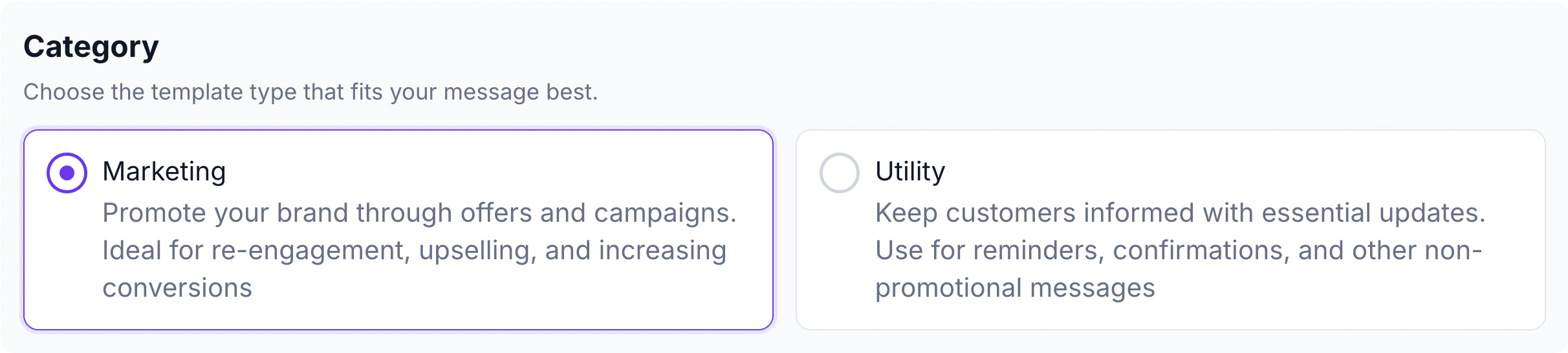
Create template opens a two-step form. The first step is the category, and it offers Marketing and Utility with a one-line description of each.
The second step, Set up template, tells you that Meta must approve new templates, within up to 24 hours, the same ceiling Meta gives. You enter the name, which the form turns to lowercase without spaces, and choose the language and a Default or Carousel type. The language list includes Hindi, Bengali, Tamil, Telugu and the other Indian languages Meta supports.
Then you add an optional header, the message, a footer and up to 10 buttons. A phone preview shows the result as you type.
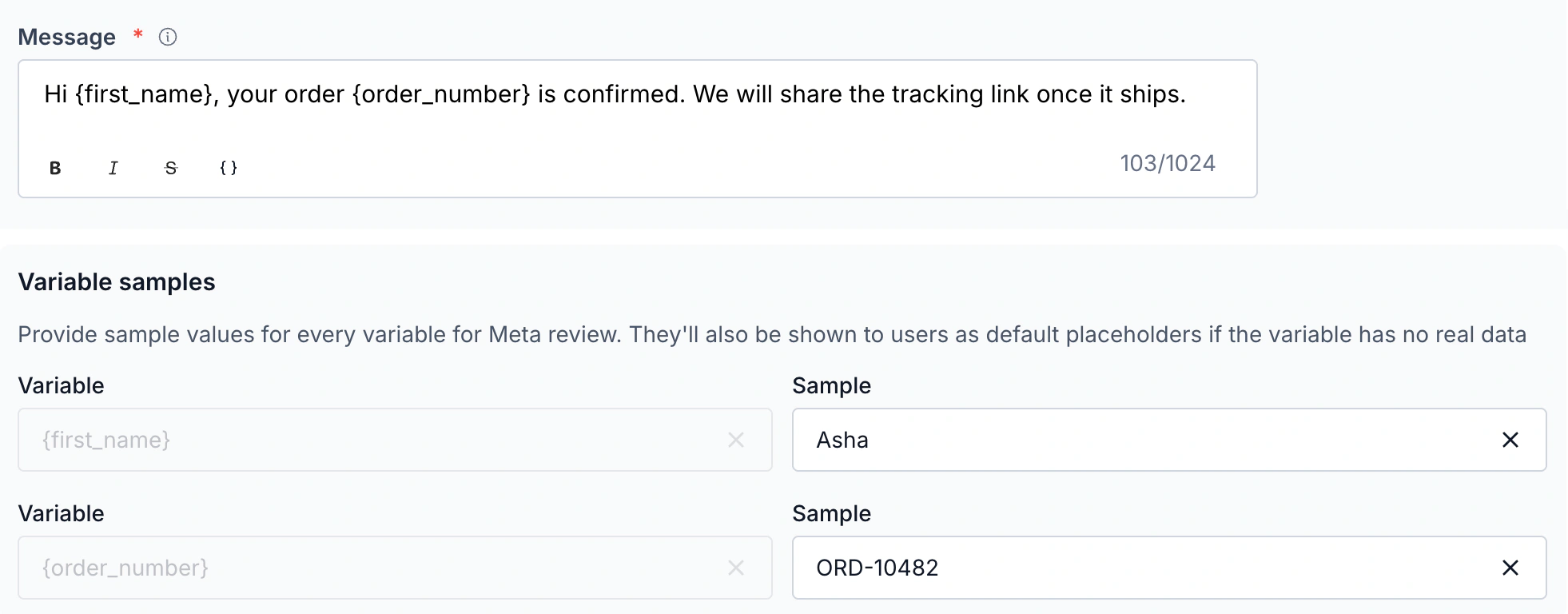
You write a variable in single curly braces, such as {first_name}, and the form sends it to Meta as a named variable. Typing the positional form with double braces returned an error in our run. When the message contains a variable, a Variable samples block appears and asks for a sample value for every variable, for Meta’s review. This is the sample Meta expects with the submission.
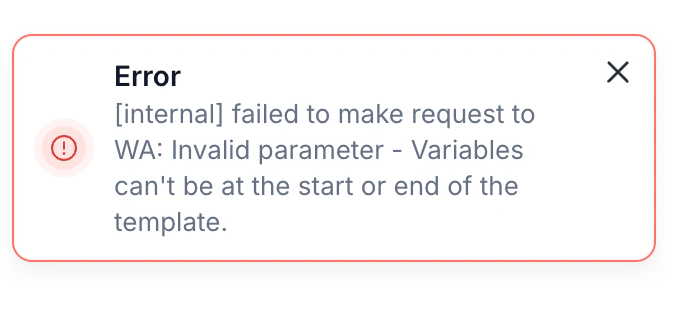
Meta’s format rules are enforced when you press Create. We tried a template that ended with a variable, and WABB showed Meta’s refusal immediately and did not create the template.
After you submit, the template appears in the list with its status. Opening a row shows its content with the name and language locked, and you change the rest and select Save. The row menu offers Delete only. The list does not show Meta’s rejection reason or quality rating, so read the reason in Business Support Home, as described in Why Templates Get Rejected, and check quality in WhatsApp Manager.
Approved templates are the ones you can use in broadcasts. In a flow, the Send Message block has a 24-hour window switch, and Outside offers a template picker. While our only templates were Pending, the picker showed “No values yet”. The product code also flags Pending and Rejected templates there.
WABB plans are on our pricing page.
We ran this on a demo workspace: we created one Utility template, which showed Pending, and deleted it afterwards. We did not see Meta approve or reject one, so we have not seen an Approved, Rejected or Paused row.
Source: Meta — Template review, checked 20 November 2026. The WABB screens come from our demo workspace and from the product code.
FAQ
Common Questions
How long does WhatsApp template approval take?
Meta says a decision can take up to 24 hours, so submit early. The result arrives by email and in WhatsApp Manager. Meta’s page names no step for a template still pending after that, so ask your provider. See How Review Works.
Why was my WhatsApp template rejected?
The usual causes on Meta’s list are badly formatted variables, a category that does not match the content, a duplicate of an existing template, and policy problems such as asking for card numbers. The reason is shown in Business Support Home. See Rejection Reasons.
What is the difference between marketing and utility templates?
A Utility message follows a customer’s own order, account or request and has no promotion. Anything promotional, mixed or unclear is Marketing, which costs more per delivered message. See Choosing the Category.
Can Meta change the category of a template I already use?
Yes. Meta checks approved templates regularly. A Utility template that reads as Marketing is moved to Marketing after one day’s notice, or immediately after a warning, and you can request a review. See Category Changes.
Can I edit an approved template?
Yes, up to 10 times in 30 days and once in 24 hours, and Meta reviews it again each time. The category of an approved template cannot be edited. See Edit and Delete.
What happens when a template is paused?
A template that reaches Low quality is paused for 3 hours, then 6 hours, then disabled. While it is paused, messages that use it are rejected, so halt campaigns that depend on it. See Quality and Pausing.
Which template categories can I create in WABB?
WABB’s Create template form offers Marketing and Utility. It sends the template to Meta for review and shows its status in the list. We did not see an Authentication option there. See In WABB.