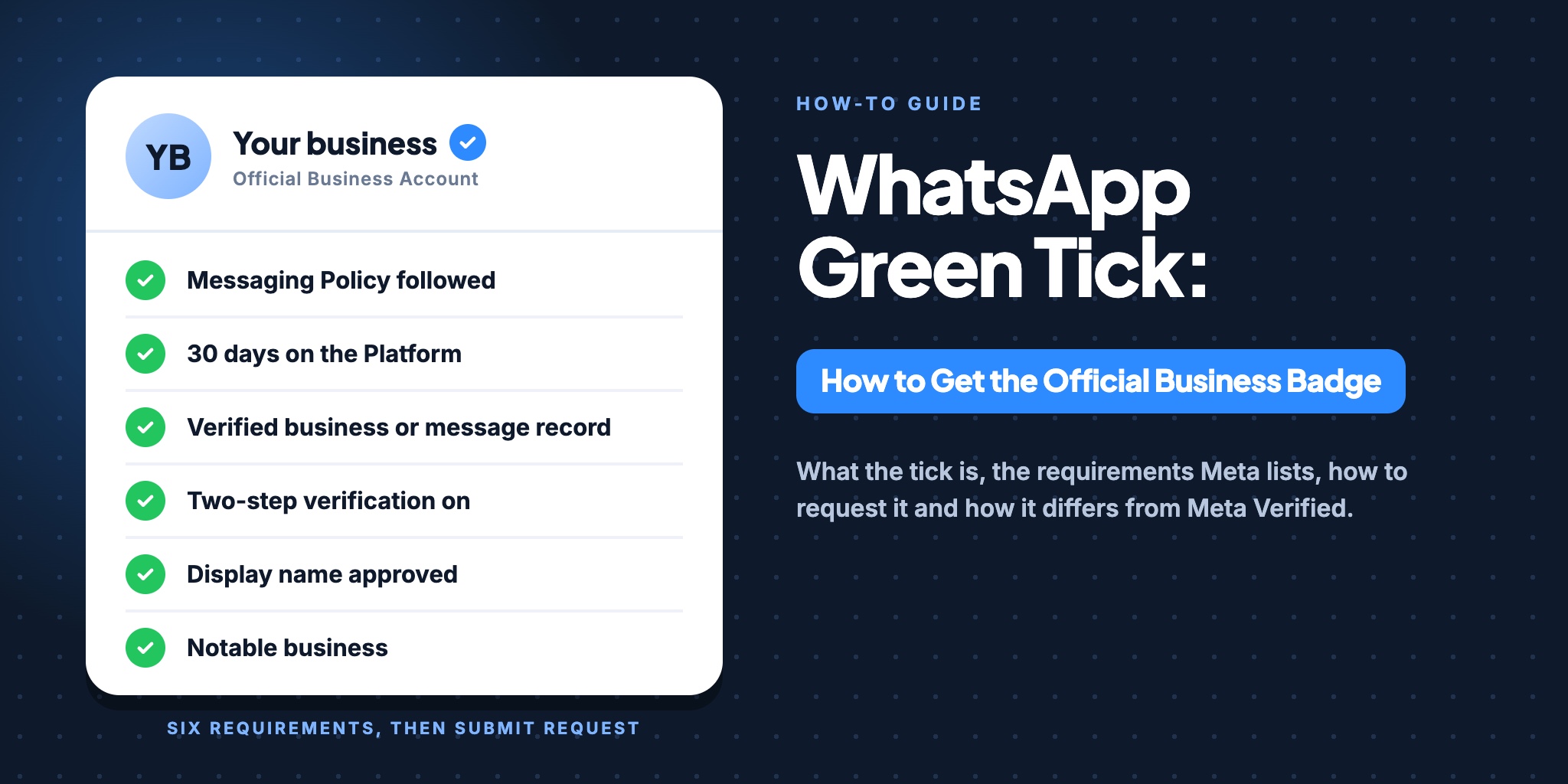
You see a tick beside a brand’s name in WhatsApp and want one for your business. Search calls it the green tick, and Meta now describes it as a blue checkmark. This guide covers what the badge is, who can apply, the requirements Meta lists, how to request it and how it differs from Meta Verified, the paid option for the Business app. For the account side, see our WhatsApp API requirements guide.
WhatsApp Green Tick: Quick Answer
The short version:
The green tick is an Official Business Account, or OBA: a business phone number that Meta has verified as an authentic business. Meta’s documentation describes the badge as a blue checkmark beside the name in the contacts view, so green tick and blue tick mean the same thing.
It is for numbers on the WhatsApp Business Platform, Meta’s official API. Meta does not grant it to numbers that run on the WhatsApp Business app, to test accounts or to employees.
Meet Meta’s requirements, then choose Submit Request in WhatsApp Manager, Meta’s tool for managing WhatsApp accounts. Meta reviews the request and sends a notification. After a rejection, you can submit again after 30 days.
It is not Meta Verified, a paid subscription for the Business app, and it is not the Green quality rating shown for each number. Meta’s Help Center also says the business must be notable, meaning well known and covered in the news.
Green Tick, Blue Tick, Verified: Four Terms
Four terms get mixed up, and only one of them is the green tick.
- Official Business Account (the green or blue tick). A badge on one business phone number. You request it in WhatsApp Manager for a number on the WhatsApp Business Platform.
- Business Verification. Meta checks the company behind the business portfolio, which is where your business assets live on Meta. It is one route toward the tick, and it gives no badge by itself.
- Meta Verified. A paid subscription for the WhatsApp Business app, with a verified badge, support and extra tools.
- Quality rating. A color, Green, Yellow, Red or Unknown, that shows how recipients receive the messages of a number. It adds no badge.
Only the first item is the tick that guides call green, and the other three are conditions or look-alikes.
The word green is the trap. A Green quality rating means recipients receive your messages well, and it has no link to the badge.
What the Badge Changes
Meta’s pages name two effects: a visible checkmark and a place in WhatsApp search. They say nothing about response rates or sales, so we do not promise any.
- A checkmark beside the name. Meta says official business numbers show a blue checkmark beside their name in the contacts view.
- A place in WhatsApp search. Meta’s page says a number without the badge does not appear in search results inside WhatsApp. If a user saves the number, the display name does appear in their search.
- Your profile stays editable. A refused request does not stop you from filling in the profile picture, email, website and description. You can edit those fields at any time.
Visibility in contacts and in search is what Meta documents, and the profile stays editable either way.
Meta recommends applying for the status for improved discoverability. For what else a customer sees on a business profile, read our WhatsApp Business profile guide.
Source: Meta, Official Business Accounts, checked 24 November 2026. The page was updated on 19 September 2026.
Six Requirements, and Where to Check Each
Meta states the requirements on more than one page, and the pages do not match word for word. The developer documentation lists five conditions. The Help Center adds a notability test and offers a second route in place of Business Verification. The table merges them.
| Requirement | What Meta says | How to check it |
|---|---|---|
| Messaging Policy | The business must comply with the WhatsApp Business Messaging Policy. | Read the policy against your messages. Our guide to template approval covers that side. |
| Time on the Platform | The number is registered on the WhatsApp Business Platform for at least 30 days. | Check the date the number was connected. |
| A verified business, or a message record | The developer documentation asks for a verified business portfolio. The Help Center accepts either verification or a record of high-quality messages, with at least 1,000 conversations over 30 consecutive days. | Check Business Verification in Meta Business Suite. For the record, ask your provider for the conversation count. |
| Two-step verification | It is enabled on the number before you submit. | WhatsApp Manager prompts you to turn it on. |
| Display name | The name is approved, and it is the name the number uses now. Review starts once the business is eligible for higher messaging limits. | Fix the name before you apply, because a change after a review needs a new approval. |
| A notable business | The Help Center says the business must be well known, with a substantial presence in news articles from publications with sizable audiences. The developer documentation does not list this. | Judge it honestly against that description. |
Treat the notability test as real, because it comes from Meta’s own Help Center.
Business Verification is the slow step. In Meta Business Suite you open Security Center, choose Start verification and enter the legal business name, address, phone number and website, which must match your legal entity. The website must load over HTTPS, and Meta may ask for documents such as a business license. A decision can take up to 14 business days, and editing the business details later means verifying again.
Three kinds of number cannot get the status: Meta does not grant it to business employees, test accounts and WhatsApp Business app numbers. If you meet the requirements and still see no option to apply in WhatsApp Manager, Meta says to contact your Meta point of contact, your Solution Provider or Meta Support.
A Solution Provider is the company that connects your number to the API. If you are still choosing one, our guide to choosing a WhatsApp API provider lists what to ask.
Source: Meta, Official Business Accounts; Meta Help Center, request an official business account; Meta Help Center, display name; Meta Help Center, verify your business, checked 24 November 2026.
How to Request the Badge
You submit the request for one business phone number at a time, in WhatsApp Manager.
Open WhatsApp Manager
In Meta Business Suite, select your business portfolio, click All tools and then WhatsApp Manager.
Open the number
In the WhatsApp accounts section, click the phone number you want to request the badge for.
Turn on two-step verification
If it is not on yet, click Turn on two-step verification. Meta says you must finish this step before you can submit.
Submit the request
In the Profile section, find Official business account and click Submit request, enter the required information and click Submit. Meta does not list the fields. Provider guides describe a website, countries of operation, a parent brand and up to five links that show public recognition, but we have not seen the form.
Wait for the notification
Meta reviews the request and sends a notification that says whether the number was granted the status. If it was rejected, you can submit a new request after 30 days.
These five steps come from Meta’s Help Center and run in WhatsApp Manager.
The Help Center does not list the required information, and we could not open the form, so we cannot say what it asks. Meta’s developer documentation adds an API route: a request for the official_business_account field on the phone number returns an oba_status, and the example shows NOT_STARTED for a number that has not applied.
Source: Meta Help Center, request an official business account; Meta, Official Business Accounts, checked 24 November 2026. We did not submit a request: our demo workspace is not business verified.
Meta Verified: The Paid Badge for the Business App
If you run the free Business app, the Official Business Account is closed to you. Meta offers Meta Verified instead, a subscription for the app. Meta describes the verification as based on your activity across its technologies, and you can also provide information or documents.
In the app, tap Tools, select Meta Verified and pick a subscription package. Then select the account or accounts to verify and make the first payment. Meta lists five things a Meta Verified account gets:
- Verified badge. It can show in the Calls tab, business profiles, context cards, chats and incoming calls from verified businesses.
- Custom web page. A page on WhatsApp with a custom link to your business.
- Enhanced support. Prioritized in-app support. Coverage varies by tier: Business Plus, Business Premium or Business Max.
- Multi-agent account. Several devices on one account and chats assigned to sales agents.
- Verified channels. A verified badge on up to 10 WhatsApp Channels.
Meta lists these five items for a Meta Verified WhatsApp account.
Meta’s terms set conditions for the account. The profile must be complete, with a business name and an image, and the number must be registered only on the WhatsApp Business app. The account must meet minimum tenure and activity requirements, and the business must be in a country where Meta Verified is offered. The owner must be at least 18 or of the age of majority there, and Meta says the criteria can change.
After the first payment, Meta may ask for business contact details and documents, such as company papers, a government ID or a bank certificate, or verify you from your activity in its products. If the verification is not finished in the time allowed, Meta cancels the subscription and refunds the first payment. The subscription renews automatically until you cancel it.
Meta’s page names no prices and says plans, features and availability vary, so open the screen in the app to see what your account would pay. Meta also offers Meta One, which it says includes everything in Meta Verified plus AI tools and proactive messaging. For the device limits that come with a plan, read our guide to multiple users on one WhatsApp Business number.
So the route follows the number. A number on the Business app can use Meta Verified and is excluded from the Official Business Account. A number on the Business Platform is the one Meta’s request path covers, and the pages we read describe no paid way to that status.
Meta does not say whether one business can hold both badges. It does not settle a number that runs the app and the API together, as in Coexistence, so we promise neither.
Source: WhatsApp for Business, Meta Verified; Meta Verified Terms, checked 24 November 2026. We did not subscribe, so the price and the exact eligibility check are not shown. The terms page opened in Russian for us, and the conditions above are our translation.
Checking Your Readiness in WABB
WABB is a WhatsApp automation platform on Meta’s official API. The badge itself is requested in WhatsApp Manager, and the Account tab in WABB has no field for the badge status. What it does show are signals behind the requirements, in one place.
Open the Account tab
Go to Settings → Connection and stay on Account. The cards at the top describe the connected number.
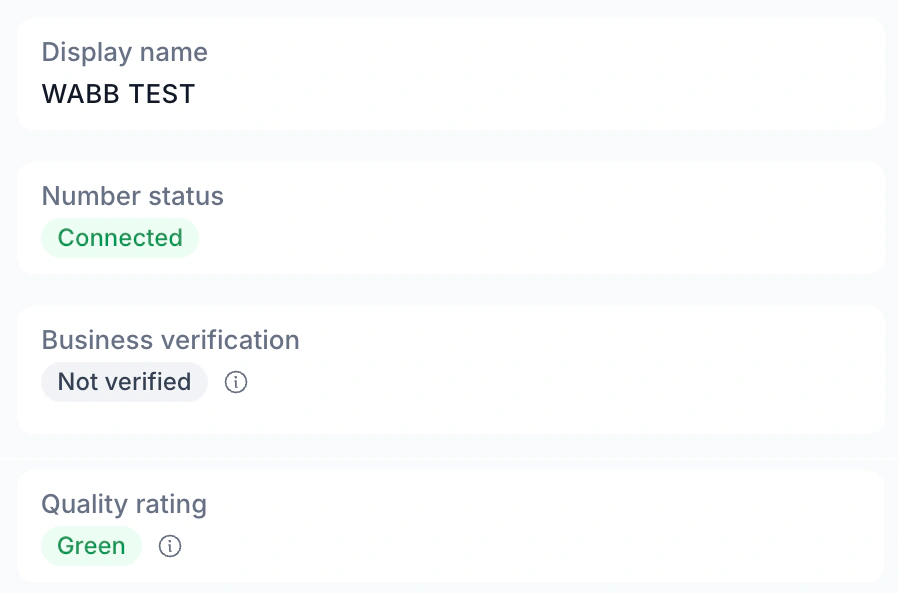
Read three cards
Business verification shows the status of the Business Manager that hosts your WhatsApp Business Account, which, as we read the labels, is the business portfolio that the developer documentation asks to be verified. Display name shows the name in use, so check that it is the name you want to apply under. Number status says whether the number is connected.
Treat the rating as context
Quality rating is on neither of Meta’s lists. A Green rating does not qualify you, and Meta does not say how it judges the record of high-quality messages that the Help Center mentions.
Our demo workspace reads Not verified under Business verification, so it would fix that first. We also checked the profile picture card: hovering it explains that business verification is required to change the picture. The pricing page lists what each WABB plan includes.
Source: WABB pricing, checked 24 November 2026. The WABB screens come from our demo workspace.
Mistakes That Cost Time
These six slips cost time:
- Applying with an app number or a test number. Meta does not grant the status to WhatsApp Business app numbers or test accounts, so move to the Platform first or choose Meta Verified.
- Treating Business Verification as the whole job. Meta’s Help Center also asks for a notable business, so check the news-coverage test before you spend weeks on documents.
- Reading the Green quality rating as the tick. They are separate. The rating is not on either list of requirements and adds no badge.
- Resubmitting too soon. Meta says to wait 30 days after a rejection, and the pages we read give no reason for one. Use the time to check the name, the profile, the messaging policy points and the news-coverage test yourself.
- Planning around a promised timeline. Meta gives no review time and no approval rate for the request, so treat guides that quote days or percentages as unconfirmed. The one Meta figure is up to 14 business days for Business Verification.
- Treating the tick as a service sold by a third party. The request goes through WhatsApp Manager or the API, and the decision is Meta’s.
Each of these slips can be checked before you submit.
FAQ
Common Questions
Is the WhatsApp green tick the same as the blue tick?
Yes. Both names point to the Official Business Account status. Meta’s current documentation describes the badge as a blue checkmark beside the name in the contacts view, while many guides still say green tick. See Four Terms.
How much does the WhatsApp green tick cost?
Meta’s pages for Official Business Accounts list requirements and no fee for the request. A provider may charge for its own help, so ask before you start. Meta Verified is different: it is a paid subscription, and the app shows the price for your account. See Meta Verified.
How long does the green tick take?
Meta publishes no review time for the request. Business Verification, one route to eligibility, can take up to 14 business days. After you submit, Meta sends a notification with its decision, and after a rejection you can submit again after 30 days. See How to Request It.
Can I get the green tick on the WhatsApp Business app?
Not as an Official Business Account, because Meta does not grant that status to WhatsApp Business app numbers. The app has its own paid option, Meta Verified, which gives a verified badge together with support and extra tools. See Meta Verified.
Why can’t I see the Submit Request button?
Check the requirements first: policy compliance, 30 days on the Platform, verification or a message record, two-step verification and an approved display name. If you meet them and the option is still missing, Meta says to contact your Meta point of contact, your Solution Provider or Meta Support. See Requirements.
Does my business need to be a famous brand?
Meta’s Help Center says the business must be notable: well known, with a substantial presence in news articles from publications with sizable audiences. The developer documentation does not list this, so we cannot say how strictly Meta applies it. A rejection means waiting 30 days. See Requirements.
Can a number on Coexistence get the green tick?
Meta excludes WhatsApp Business app numbers and does not mention Coexistence, so we cannot confirm it. Ask your provider. Meta gives the reason for the app exclusion: those users have not been required to go through business verification. See Requirements.