You see two green icons in the app store and wonder which one a business should use. This guide compares them on what decides the choice: features, numbers and devices, what each costs in India, the rules, and how to switch without losing your chats. For the setup itself, see how to create a WhatsApp Business account.
WhatsApp vs WhatsApp Business: Quick Answer
The short version:
WhatsApp Messenger is the app for chatting with friends, family and businesses. WhatsApp Business is a second, free-to-download app for small businesses, with a business profile, quick replies, greeting and away messages and a catalog.
Pick by who writes to you. If customers message you every week, use Business. If you only chat with people you know, stay on Messenger.
Both apps look and feel alike, and you can move from one to the other. Your chats and media move with the number, though WhatsApp contacts do not.
Business is not a flow builder, a team inbox or a CRM. One number lives in one app at a time, and larger teams move to the WhatsApp Business Platform, the API that tools such as WABB build on, as the last sections explain.
The Two Apps Side by Side
One table holds the differences. Two rows may surprise you: broadcast lists and linked devices exist in both apps, so they are not reasons to switch.
| Feature | WhatsApp Messenger | WhatsApp Business |
|---|---|---|
| Made for | Friends, family and everyday chats | Small business owners |
| Profile | Personal profile | Business profile with category, hours, address, website and email |
| Greeting, away message, quick replies | Described as Business app tools | On the Tools tab |
| Catalog | Described as a Business app feature | Products and services on your profile |
| Broadcast lists | Yes: up to 256 contacts per list, and only people who saved your number get it | Yes: only people who saved your number get it; the Help Center page names no list size |
| Linked devices | Up to four, plus the phone | Up to four, plus the phone |
| Two accounts inside one app | Yes, with a second number | Not available: no account switching |
| WhatsApp contacts feature | Supported | Not yet supported |
| Verified badge | Not applicable: badges belong to business accounts | Possible, but Meta decides; a paid Meta Verified plan does not promise it |
| Same number in both apps | Not at the same time | Not at the same time |
The comparison follows WhatsApp’s own Help Center pages, linked below.
Source: About WhatsApp Business; How to switch accounts; About verified business accounts; About linked devices; How to use broadcast lists, checked 28 October 2026.
What the Business App Adds
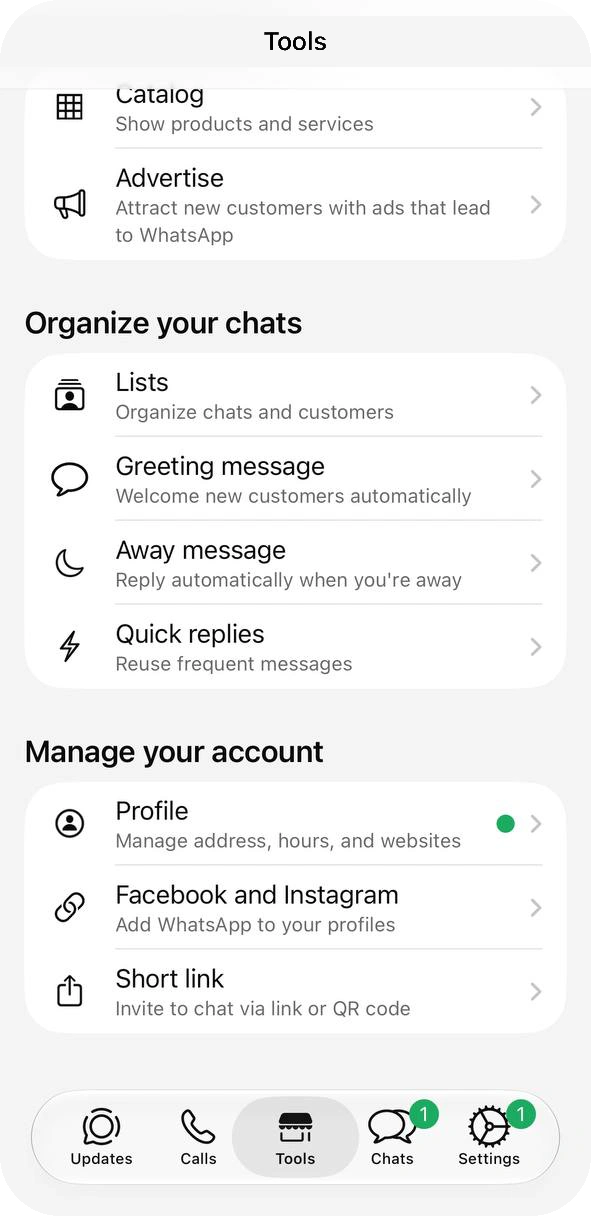
Everything extra sits on one Tools tab and in the profile. These are the tools a customer-facing business reaches for first:
- Business profile: name, category, hours, address, website and email in one public page.
- Quick replies and the greeting and away messages: saved answers and automatic first replies.
- Catalog: products and services with photos and prices, shared in any chat.
- Lists and the short link and QR code: sort customers, and let new ones start a chat in one scan.
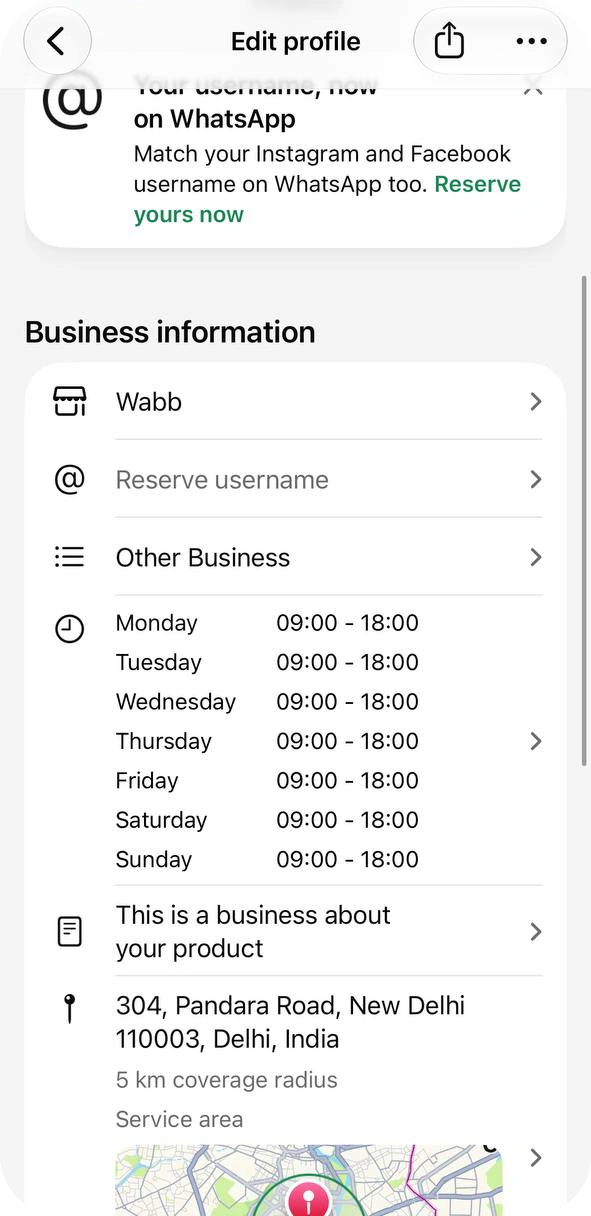
Business also has a public side. The setup screen says so before you continue, which is the main reason to keep personal chats in Messenger. Meta’s guide adds that if you are not a business, you need no second app.
Source: About WhatsApp Business; How to download the WhatsApp Business app, checked 28 October 2026.
What Is the Same in Both
It is easy to assume Messenger has no broadcasts and only one device. WhatsApp’s own pages say otherwise, so check these before you switch apps:
Broadcast lists
Both apps have them. The message reaches only people who saved your number, and replies arrive as normal chats.
Linked devices
Both link up to four devices plus the phone. Linked devices cannot create broadcast lists.
The feel
WhatsApp says the Business app is meant to work just like Messenger, from messaging to sending photos.
Each card matches a Help Center page for both apps.
Source: Broadcast lists on Messenger; Broadcast lists on the Business app; Linked devices on the Business app, checked 28 October 2026.
Case 1: A Mumbai Errand Service — Meet Customers in the App They Already Have
The story page names the WhatsApp Business app. A same-day errand service in Mumbai found that clients did not want to place orders by phone call or text message. Its founder says WhatsApp is already on their phones, and these are customers who dislike downloading new apps.
What it did:
- Requests in the chat: clients send an errand request in WhatsApp instead of calling.
- Updates in the same thread: the team sends real-time task updates and settles last-minute changes with its on-ground staff.
- Saved messages for the first minute: it names the greeting message, the away message and quick replies as the features it values.
The business says it has not missed a lead since it started, and that a large part of its income now comes through the app.
What to try
Ask your customers which app they open every day. If it is WhatsApp, set the greeting and the away message first, so no first message waits for an answer.
Source: WhatsApp — business story from Mumbai, the page gives no date, checked 28 October 2026. The business reports the results itself; we do not quote the figures.
Case 2: A Pune Grain Seller — The Business Profile as a Mini Website
The story page names the WhatsApp Business app. A small team in Pune sells freshly milled flour and millets, and it started using the app when it began online promotion on a small budget. The founder says the business account works like a mini website and shows customers that the business is genuine.
What it did:
- A business account: the founder says it shows customers that the business is genuine.
- Greeting and auto-replies: the founder calls them essential for a small team of four, which cannot answer every message by hand.
- A small-budget start: it began with the free app while promoting online on a small budget.
The business now supplies hundreds of households in the city and has opened its first store.
What to try
If customers hesitate to message a new number, fill in the Business profile first: description, hours and address. It costs nothing and is the first thing a new customer sees.
Source: WhatsApp — business story from Pune, the page gives no date, checked 28 October 2026. The business reports the results itself; we do not quote the figures.
Case 3: A Bengaluru Condiment Brand — Order Updates That Do Not Feel Intrusive
The story page names the WhatsApp Business app. A homemade masala and condiment brand in Bengaluru switched to a business account as soon as the app launched in India. Its founder says the move was a good one, and that conversations felt more professional without feeling like an intrusion for customers.
What it did:
- Order status in the chat: customers hear about their order where they placed it.
- Announcements: the brand shares news about new products with the people who already talk to it.
- Orders for people who avoid websites: it takes orders in the chat from customers who are uneasy ordering online.
The founder says the business has grown since it started using WhatsApp, and credits the simplicity of the app.
What to try
Send order updates in the chat where the order was placed. For one announcement to many people, use a broadcast list, which reaches only the contacts who saved your number.
Source: WhatsApp — business story from Bengaluru, the page gives no date, checked 28 October 2026. The business reports the results itself; we do not quote the figures.
What Each App Costs in India
Both apps are free to download. Messages typed in the Business app are free as well, and stay free after you connect the number to a platform. The WhatsApp Business Platform charges per delivered message, by category and by the recipient’s country. Marketing means promotions; utility means updates such as order or booking confirmations. The Indian rates when we checked:
Marketing message
₹0.8631
Per delivered message to an Indian number.
Other categories
₹0.115
Utility, authentication and service cost the same in India.
Free service tier
1,000
Messages that answer a customer’s question, per business phone number each month; Meta charges from the 1,001st.
Rates come from Meta’s INR rate card, and Meta changes them from time to time.
Take 10,000 messages to Indian numbers: 10,000 × ₹0.8631 is ₹8,631 for marketing, and 10,000 × ₹0.115 is ₹1,150 for utility. Platform fees are separate; see WhatsApp Business API pricing in India.
Source: Meta — Pricing on the WhatsApp Business Platform (updated 30 Sep 2026; India rates from 1 Oct 2026) and its INR rate card; Meta — Onboard WhatsApp Business app users, checked 28 October 2026.
The Rules Each App Plays By
Four rules explain many surprises: which number you can register, who a broadcast reaches, what a ban means and where chats stay private.
Numbers (Business app)
Register a mobile or landline number you own that can receive a call or SMS. VoIP, toll-free, premium, universal access and personal numbers are not supported.
Broadcasts (both apps)
Only people who saved your number receive a broadcast list message. Messenger lists hold up to 256 contacts.
Bans (Business app)
A banned number sees a message and can request a review, and Meta says many reviews finish within 24 hours. A ban also ends a Meta Verified subscription.
Encryption
WhatsApp treats chats with Business-app businesses as end-to-end encrypted by default. Chats that use optional Meta services, or a third-party agent, are not treated that way.
Each card matches a WhatsApp Help Center page linked below.
Source: How to register for the Business app; About account bans; About end-to-end encryption; How to use broadcast lists, checked 28 October 2026.
Which One Fits You
Match the app to who writes to you, not to how big the business feels. Four situations cover the usual cases:
Stay on Messenger if
You chat with people you know. Customers may write to you, but you need no public profile, catalog or automatic replies.
Use Business if
Customers message you every week and you want a profile, saved replies, a greeting and a catalog. You or a few linked devices answer by hand.
Use both if
You want personal chats and customer chats apart. Give each app its own number, because one number cannot run in both.
Look beyond the app if
You need replies you design yourself, many agents, or broadcasts to people who never saved you. You can keep the Business app and connect it.
The cards follow the features and limits listed above.
Two Apps, Two Numbers, One Phone
You can keep both apps on one phone, but each needs its own phone number to verify. The same number cannot run in both apps together.
WhatsApp Messenger
Personal number
Friends, family and everyday chats.
WhatsApp Business
Business number
Customers, a public profile and the business tools.
One phone, two apps, two numbers: each number lives in one app at a time.
Need a second personal account instead? Messenger can hold two on one phone, but Business cannot. New to this? See how to create a WhatsApp Business account.
Source: About moving between Messenger and Business; How to switch accounts, checked 28 October 2026.
Switch Without Losing Your Chats
Moving your own number from Messenger to Business keeps your chat history and media. Follow the order below, because the contacts step comes before the install.
Back up your chats
Create a backup in WhatsApp Messenger first. WhatsApp recommends it before you move.
Save your contacts to the phone
The Business app does not support WhatsApp contacts yet, and moving loses the ones created that way. In Messenger, turn the feature off and save all contacts to the address book first.
Install WhatsApp Business and agree to the terms
Open it and tap Agree and continue.
Choose the number
The app finds the number from Messenger. Tap the button with your number to keep it, or Use a different number to verify another.
Allow access to chat history
Tap Continue → Allow, enter the six-digit code from the SMS and create your business profile.
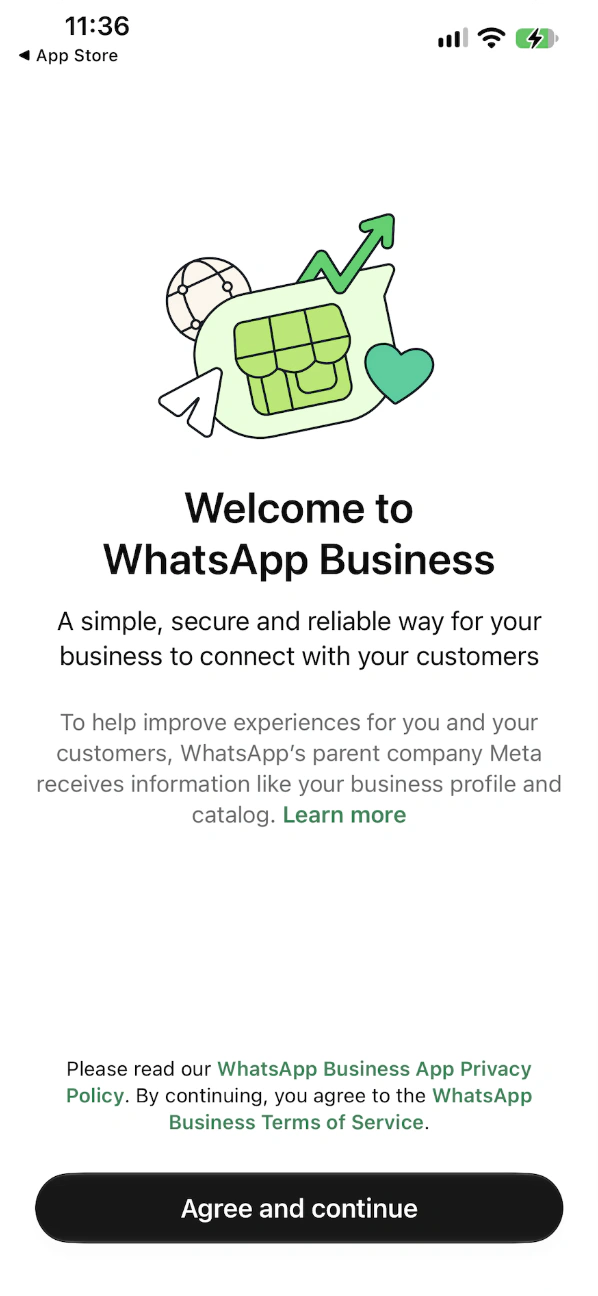
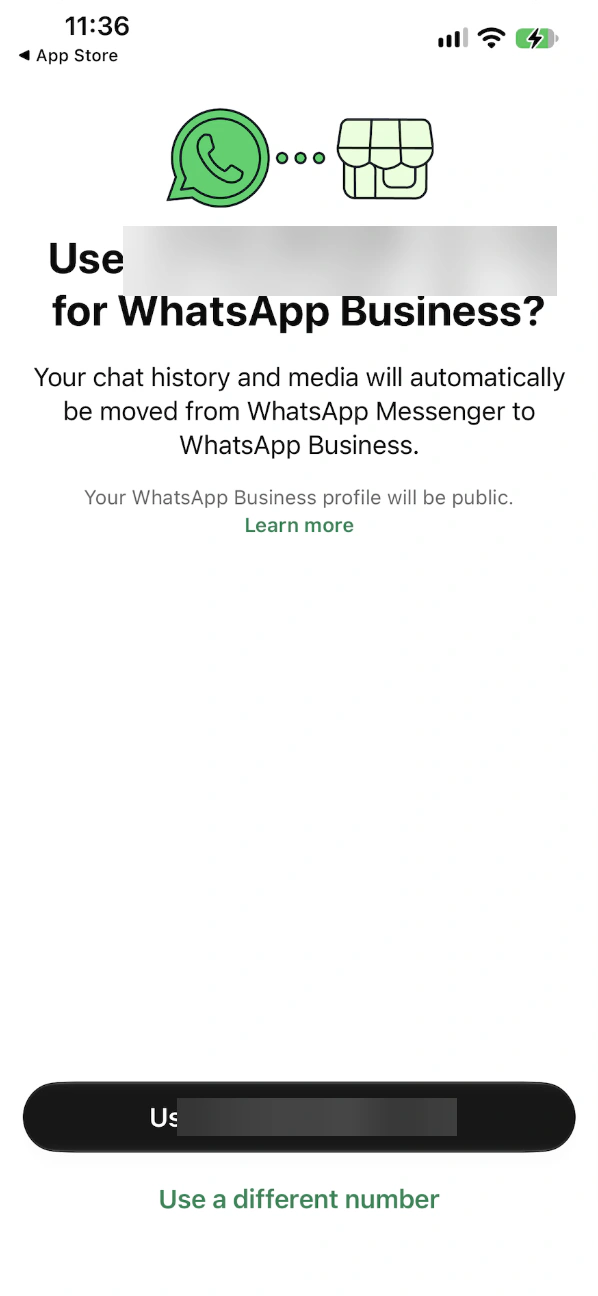
Going back works too. WhatsApp moves your account information from Business to Messenger after a backup, but anything built with Business-only tools, such as the catalog, does not come along. To use Business again afterwards, you would need another number.
Source: Move from Messenger to the Business app; Move from the Business app to Messenger, checked 28 October 2026.
What the Business App Can’t Do
The Business app is built for a small business that answers customers by hand. These limits show up as the business grows:
One main phone. Up to four linked devices work beside it, but a new device still needs the phone to link. Our guide to more people on one number has the details.
Broadcasts reach only saved numbers. A customer who never saved you gets nothing, and linked devices cannot create the list. See WhatsApp bulk messages.
Automation in the app stops at a greeting, an away message, saved replies and Meta’s own assistant, and WhatsApp turns the greeting off while that assistant is connected. Flows that react to your keywords need the Platform.
Linked devices cannot share live location or add and delete status updates, so those jobs stay on the phone.
None of these is a bug. They are the line between the app and the WhatsApp Business Platform, which sends messages through an API. Our API requirements guide lists what that move needs.
Source: Linked devices on the Business app; Broadcast lists on the Business app; How to use greeting messages, checked 28 October 2026.
Next Step: Keep the App, Add WABB
You do not have to give up the Business app to add automation. WABB is our WhatsApp automation platform. Meta calls the setup coexistence: the same number works in the app and through the API together. WABB offers it as Connect WhatsApp Business App, next to Move your number to WABB, which does not sync chat history.
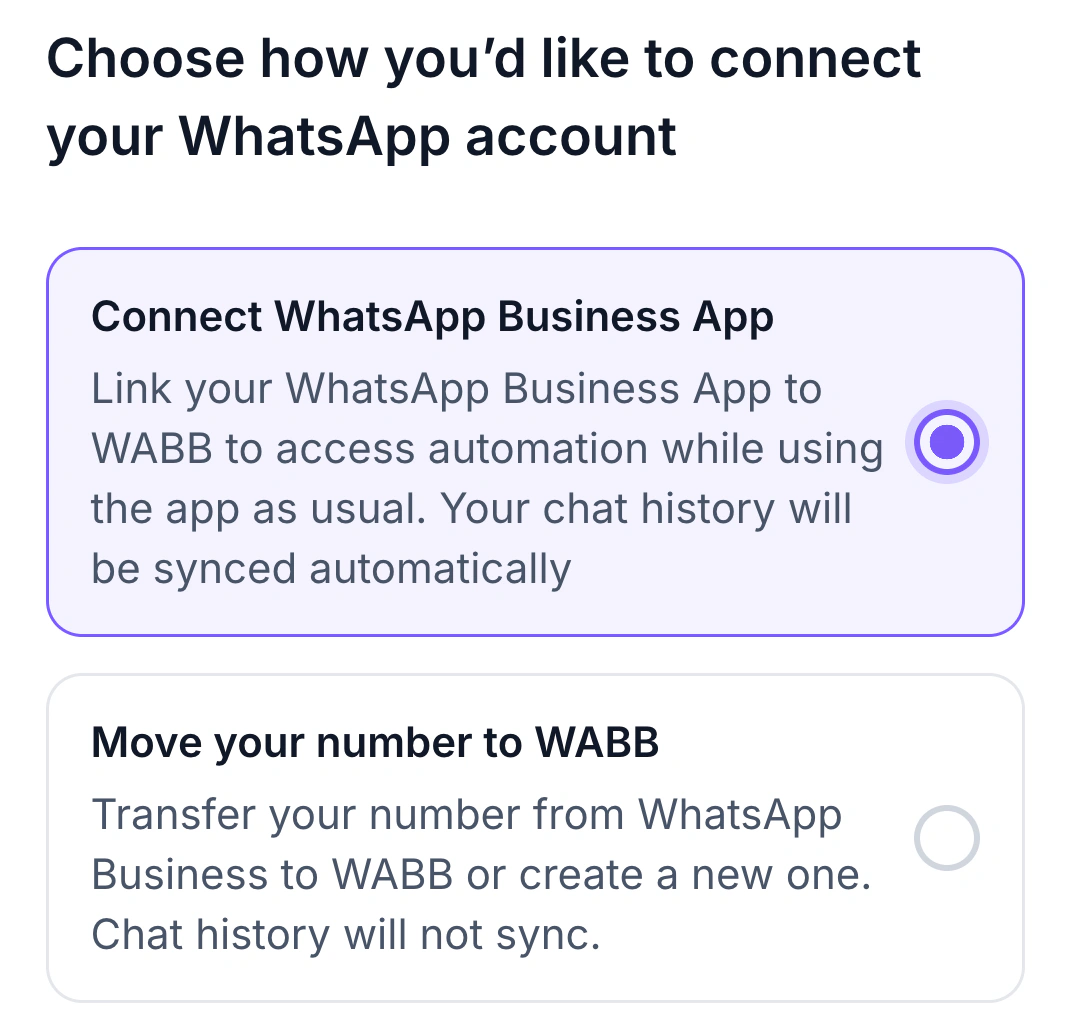
Meta’s coexistence page sets the rules. Check them first, because a few app features change once the number is connected:
Stays free
Messages you send from the Business app stay free, while messages sent through the API follow API pricing.
Syncs
Contacts and the last six months of one-to-one chats are mirrored between the app and the API.
Switches off
Broadcast lists become read-only. Disappearing messages, view once and live location are turned off in one-to-one chats, and groups do not sync.
The cards summarise Meta’s feature comparison for businesses on both the app and the API.
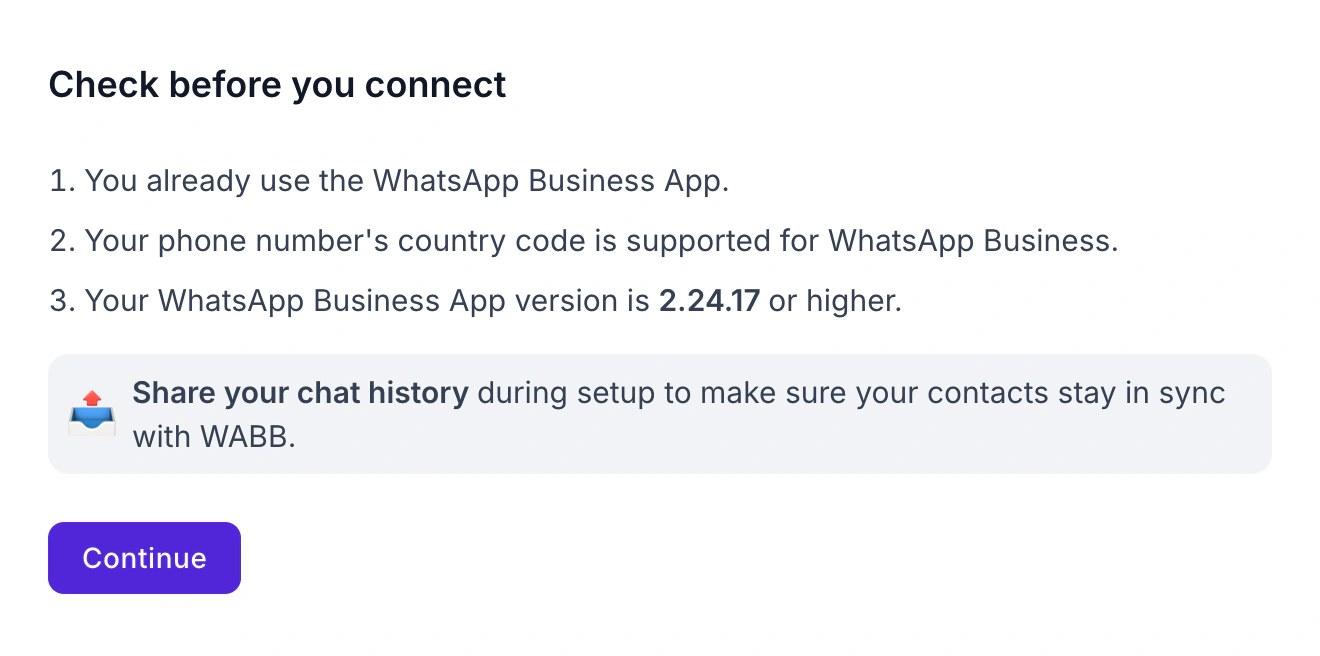
Before it connects the number, WABB asks you to confirm three things: you already use the Business app, your country code is supported, and the app is version 2.24.17 or higher. It also asks you to share your chat history so contacts stay in sync. Linked devices unlink during onboarding, so you link them again afterwards.
Once connected, three of those limits have an answer on the WABB side. API messages are billed by Meta; see WhatsApp Business API pricing in India.
One main phone
A shared inbox lets your team answer from one place.
Broadcast limits
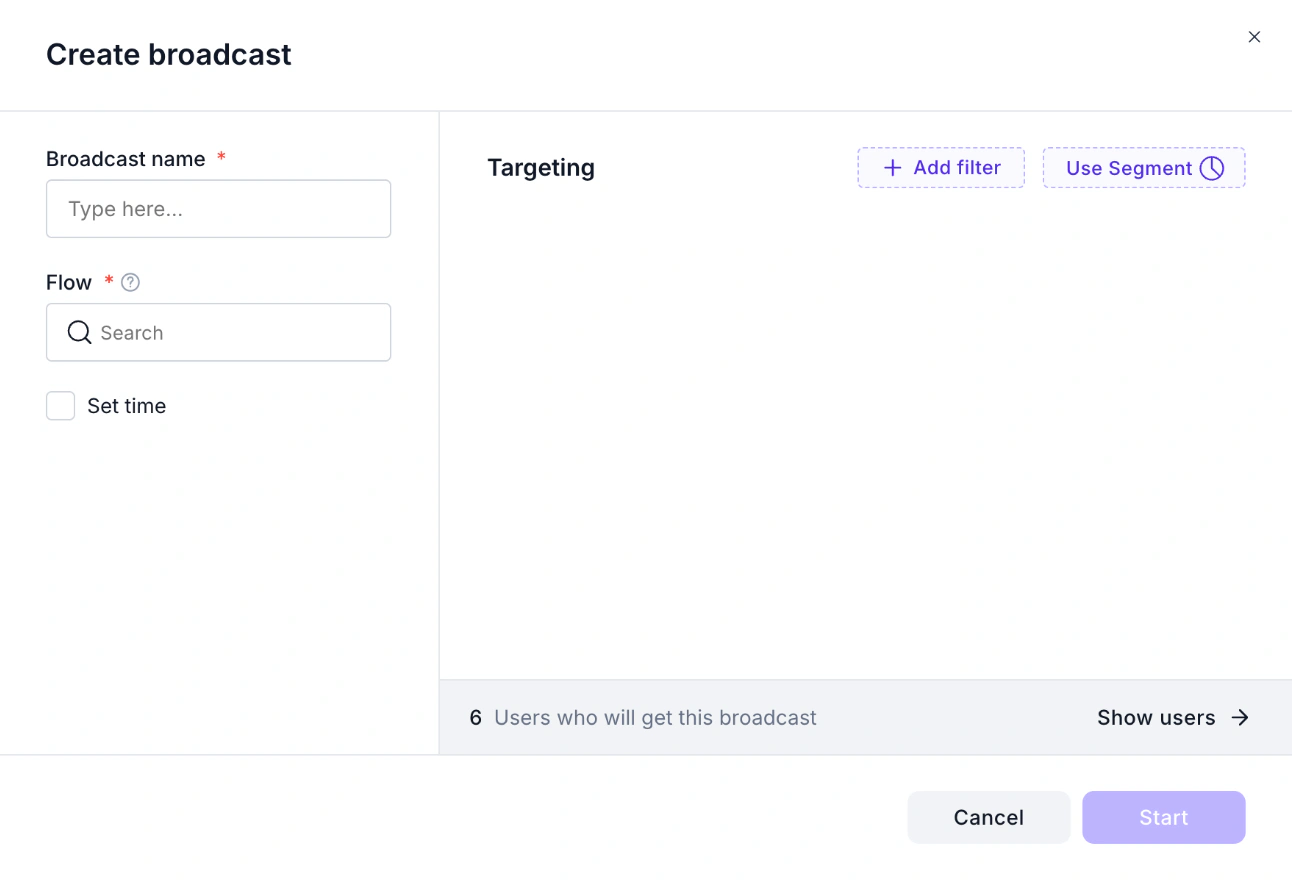
A broadcast starts a flow for the contacts you pick by filter or segment, and Show users lists them before you start.
We checked these screens on a test workspace and did not connect a live number for this guide.
For the team limit, Chats is the shared inbox. Its left filters split conversations into All, Unassigned and Mine, and inside a chat the Actions panel shows who the chat is assigned to, with Change and Unassign me buttons, next to Mark as Closed.
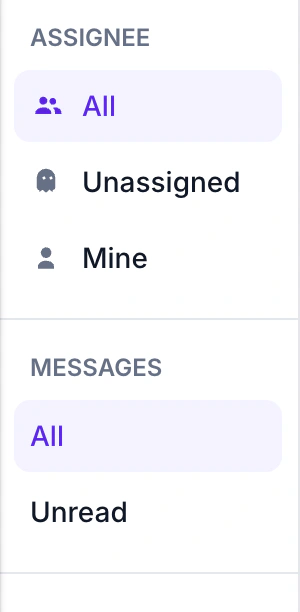
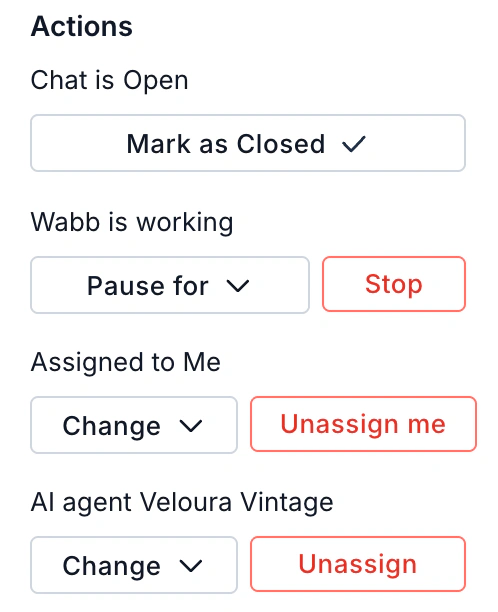
The Chats filters and a chat’s Actions panel on a demo workspace; we only viewed them and changed no assignment.
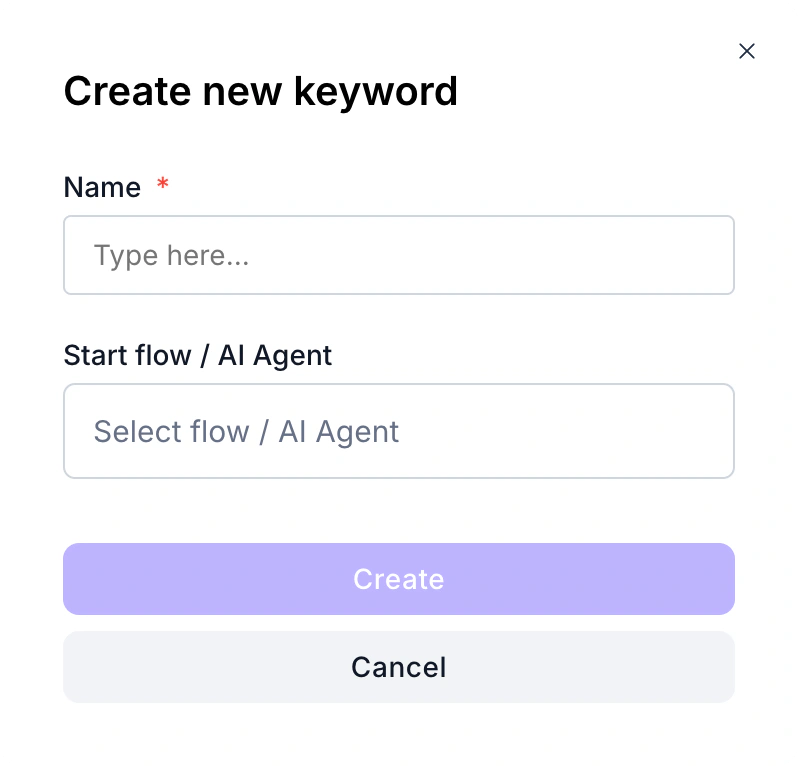
The app’s automation stops at saved replies, a greeting, an away message and Meta’s own assistant. In WABB, Automation → Keywords starts a flow or an AI Agent when a customer’s message matches: the Create new keyword form asks for a name and the flow or AI Agent to start.
The app’s broadcast reaches only people who saved your number. In WABB a broadcast is a flow you launch for the contacts you target: name it, pick the Flow, optionally Set time, narrow the list with Add filter or Use Segment, and check who gets it with Show users before you press Start. Meta’s opt-in and template rules still apply to API broadcasts; see WhatsApp bulk messages.
Source: Meta for Developers — Onboard WhatsApp Business app users (updated 26 Jun 2026), checked 28 October 2026.
FAQ
Common Questions
What is the difference between WhatsApp and WhatsApp Business?
WhatsApp Messenger is for personal chats. WhatsApp Business is a separate app for small businesses, with a business profile, quick replies, greeting and away messages and a catalog. See Side by Side.
Can I use WhatsApp and WhatsApp Business on the same phone?
Yes, if each app has its own phone number. WhatsApp says you can use both side by side, but one number cannot be in both apps at the same time. See Two Apps, Two Numbers.
Will I lose my chats if I switch to WhatsApp Business?
Not your chats. WhatsApp moves your chat history and media to the Business app when you keep the same number, but contacts made with the WhatsApp contacts feature are lost, and going back does not carry the catalog. Back up first. See Switching.
Is WhatsApp Business free?
The app is free to download, and WhatsApp says Messenger stays free too. Messages sent through the WhatsApp Business Platform, which tools like WABB use, are priced by Meta. See Cost in India .
Can I use WhatsApp Business for personal chats?
It works like Messenger, so messaging and photos work. But the setup screen warns that your business profile will be public, and WhatsApp says you need the Business app only if you run a business. See What Business Adds.
Which is better, WhatsApp or WhatsApp Business?
Neither is better for everyone. Messenger suits chats with people you know, and Business suits a business that customers message, with a profile, saved replies and a catalog. See Which Fits You.
Is WhatsApp Business secure?
WhatsApp considers chats with businesses that use the Business app end-to-end encrypted by default, though the business’s own privacy practices apply once a message arrives. Chats managed by third-party agents are not considered end-to-end encrypted. See The Rules .